How to Put Keyboard in French: A Practical Guide for Typing
Learn how to switch your keyboard to a French layout across Windows, macOS, Linux, iOS, and Android. Step-by-step setup, tips for French accents, and troubleshooting to type accurately in French.


To put a keyboard in French, switch your input language to a French layout (AZERTY) on your device and enable French typing methods. This guide covers Windows, macOS, Linux, iOS, and Android, plus tips for typing French accents and punctuation. Follow the OS-specific steps to make French input your default.
Understanding French Keyboard Layouts
If you’re wondering how to put keyboard in french, the first step is understanding the layout itself. The French AZERTY layout is the standard in France and parts of Belgium, and it differs significantly from the common US QWERTY layout. Key positions for letters like A, Q, Z, and M shift, and punctuation keys move as well, which changes how you type common French accents. Keyboard Gurus emphasizes that mastering AZERTY involves not only memorizing key locations but also learning efficient ways to type accents and punctuation. For most users, the journey begins with adding a French input source to the operating system, then practicing basic typing to build muscle memory. This section lays the foundation so you can smoothly transition without losing speed or accuracy. Using the right layout reduces keystroke errors and makes French words feel natural, especially when diacritics are frequent in your typing.
Key terms you’ll encounter include AZERTY (the French layout), dead keys (which produce accents by combining keystrokes), and input sources (the language packs that define keyboard behavior). If you ask the question how to put keyboard in french, you’re really asking for the simplest path to a stable French input method. The Keyboard Gurus team notes that consistency is more important than perfection at first; set a clear goal (e.g., type 25 minutes daily in French) and gradually expand to punctuation-heavy tasks like typing French emails or form entries.
Choosing the Right French Layout for You
French has several input options beyond the standard France AZERTY. The most common variants are France AZERTY, Belgium AZERTY, and French Canadian (often used in Canada with a slightly different punctuation map). There are also US-International layouts that can approximate French typing with dead keys, useful if you frequently alternate between languages. The choice depends on your primary language, the keys you touch most often, and whether you rely on European punctuation marks. According to Keyboard Gurus, most users succeed by starting with the France AZERTY layout and then exploring alternatives if they need easier access to specific characters like œ, ç, or accents. If you mostly type in French, AZERTY typically offers the most intuitive letter placement and fewer keystrokes for common words. If you frequently switch between French and English, you might prefer a bilingual setup with a simple shortcut to toggle layouts. The goal is to find a balance between typing efficiency and the cognitive load of switching layouts mid-sentence. A practical approach is to install the French layout first, then add others as a secondary option. This minimizes memory load while you acclimate to the new arrangement.
Windows: Switch to French Keyboard Layout
Windows provides a straightforward path to French input through the Language settings. Start by opening Settings > Time & language > Language & region. From there, click Add a language, search for Français, and choose the France option to install the French keyboard layout. After installation, you can switch between your existing layout and French using the language bar or the Windows key + Space shortcut. If you already use Windows for French document creation, you can set Français as the default input method so every new document opens with the French layout, reducing the number of times you have to swap layouts. Keyboard Gurus recommends turning on the input indicator in the taskbar for quick visibility of your active layout and practicing the most-used French keystrokes to reinforce muscle memory. You can also tailor the layout by remapping a few keys (for example, reassigning punctuation to more accessible positions) but proceed cautiously to avoid disrupting common shortcuts.
macOS: Add French Keyboard Input Source
macOS users should add the French keyboard input in System Settings. Go to Keyboard > Input Sources, then click the plus (+) button and select French (France) or French (Canada) depending on your region. Enable the option to Show input menu in the menu bar so you can switch layouts with a click or keyboard shortcut. Setting French as the primary input source makes typing in French a natural default, especially when composing emails or documents. If you use special characters frequently, consider enabling the Globe key to cycle through layouts quickly. Keyboard Gurus notes that macOS users often appreciate the Predictive Text and Accent Menu features, which help you insert accented letters without memorizing multiple keystrokes. Practice using these features to smooth your French typing workflow.
Linux: Install French Keyboard Layout
Linux distributions vary, but most desktops offer an easy GUI method and a shell-based approach. In Ubuntu, for example, you can add the French layout via Settings > Region & Language > Input Sources, then select Francais (France) and activate the French keyboard. For a terminal-based setup, you can install the fr layout with commands such as localectl set-keymap fr or to configure X11, use dpkg-reconfigure keyboard-configuration on Debian-based systems. If you’re using Wayland, you may need to adjust the GSettings accordingly. Keyboard Gurus advises testing the keyboard after enabling the layout by typing common French words and ensuring the accented characters work as expected. Linux users who frequently switch languages may find it convenient to bind a global shortcut to toggle between layouts.
Mobile Devices: iOS and Android
On iOS, open Settings > General > Keyboard > Add New Keyboard, then choose Français (France) or Français (Canada). After adding, you can switch keyboards by tapping the globe icon on the on-screen keyboard. Android users can add a French keyboard under Settings > System > Languages & input > Virtual keyboard > Gboard (or your preferred keyboard) > Languages > Add Keyboard > Français. Once added, you can switch languages with a dedicated globe icon or a long-press of the space bar. On both platforms, enabling French input is particularly useful for quick social media posts, messages, and forms. Keyboard Gurus highlights the importance of testing the new keyboard in a few apps to confirm that shortcuts and punctuation maps align with your expectations.
Typing French Accents Efficiently
French typing relies heavily on accents and ligatures. Depending on the layout you choose, you can type acute (é), grave (è), circumflex (â), diaeresis (ë), and other marks with dedicated dead keys or simple key combinations. AZERTY often places accented vowels in convenient positions, but you may prefer to use dead keys on US-International layouts if you frequently switch between languages. A practical tip is to practice with a typing exercise that emphasizes common French words, such as café, été, or naïve, so your muscle memory reinforces the correct letters and accents. Keyboard Gurus suggests assigning a few frequently used accented letters to easy-to-remember shortcuts to speed up your workflow without sacrificing accuracy.
Troubleshooting Common Issues
If your system keeps defaulting to a non-French layout, revisit the input sources and ensure the French layout is set as the default in the OS, not just installed. Some apps may override system-level settings, so verify in individual programs if you still see the wrong characters. If accent keys don’t produce expected characters, check whether you’re using a dead-key setup or a non-standard AZERTY variant. In Windows, clearing conflicting keyboard shortcuts that could trigger language changes is a good first step. On macOS, confirm that the input source is really active by looking at the menu bar and testing in a text editor. Keyboard Gurus recommends a quick audit: type a sentence with several accented letters to confirm all necessary characters are accessible without extra steps.
Tools & Materials
- Device with Windows/macOS/Linux/iOS/Android(Any commonly used device is fine; no specialized hardware needed)
- Active user account with permissions(Needed to install or enable input sources)
- Internet connection (optional)(Only if you need to download language packs or updates)
- Backup of system settings (optional)(Create a restore point before changing layouts)
- External keyboard (optional)(Helpful if your primary keyboard is non-French and you want a physical reference)
Steps
Estimated time: 15-25 minutes
- 1
Identify target French layout
Decide whether you want the standard France AZERTY, Belgian AZERTY, or French Canadian layout. Consider which language you use most and the punctuation you need. This step sets expectations for which key mappings you’ll adopt.
Tip: If you type primarily in French, start with France AZERTY as it aligns with most French keyboards. - 2
Open language settings on your device
Access the keyboard or language settings of your operating system. The path differs by OS, but you’re looking for language, input, or keyboard settings to add a French layout.
Tip: Having a clear path to Settings helps you locate the right section quickly. - 3
Add French input source
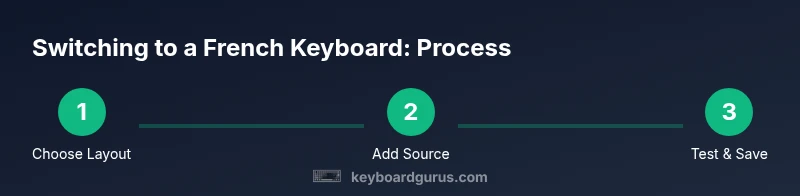
Choose Français (France) or a similar variant and install the layout as a new input source. Ensure you also enable the input switch in the taskbar or menu bar for quick access.
Tip: If you’re unsure which variant to pick, start with France French and adjust later. - 4
Set French as default (optional)
If you want every new document to use French input, set the French layout as the default. You can keep a second layout for bilingual use and switch when needed.
Tip: Be mindful of OS-specific shortcuts that toggle languages; consider customizing them if they interrupt your workflow. - 5
Test basic typing
Open a text editor and type common French words to check letter placement and accent keys. Verify that accented characters reproduce correctly and that punctuation maps align with your expectations.
Tip: Practice quick phrases like ‘bonjour’, ‘ça va’, and ‘où est’ to evaluate real-world typing. - 6
Learn accent shortcuts
If your chosen layout uses dead keys or shortcuts for accents, spend a few minutes learning the most frequent combinations. This reduces interruptions during writing.
Tip: Create a quick reference sheet for the most-used accents you encounter daily. - 7
Customize shortcuts (optional)
Review common keyboard shortcuts in your apps and adjust if they conflict with the new layout. Consider simple remaps for frequently used punctuation if needed.
Tip: Test shortcuts in a single app before applying them system-wide. - 8
Practice and refine
Allocate a short daily practice window to strengthen muscle memory. Gradually increase typing tasks that involve French punctuation and accents.
Tip: Consistency beats intensity; even 10 minutes a day yields progress.
Got Questions?
What is the difference between French AZERTY and US International layouts?
AZERTY is the standard French layout with different letter placements and a distinct set of accented characters. US International uses a US QWERTY base with dead keys for accents. The choice affects which keys you press for common French letters and punctuation.
AZERTY uses different key positions than US international. If you type French frequently, AZERTY is usually more efficient.
Do I need to reinstall anything to switch layouts?
In most cases you only add a French input source in your OS settings; no full reinstall is required. Some apps may remember previously selected layouts and require a quick restart.
Usually you just add the French input source; no reinstall needed.
Can I type accents on a US keyboard without changing layout?
Yes, by using an international or US-International layout or by using dead keys. You can also rely on on-screen accents in some editors, but a dedicated French layout is faster for frequent use.
You can type accents with dead keys or a dedicated French layout.
How do I switch input languages quickly?
Set a keyboard shortcut like Windows Space or macOS’s Control-Space, and consider enabling the input menu so you can see which layout is active at a glance.
Use a quick shortcut and keep the active layout visible in the menu bar.
Will changing the layout affect my existing shortcuts?
Some shortcuts depend on the active layout. If you rely on global shortcuts, test them after switching and re-map any that conflict with the French layout.
Shortcuts may change with layouts; test and adjust as needed.
How do I revert to my previous layout?
Use the same toggle you use to switch layouts to return to your original keyboard, or remove the French layout from your input sources if you don’t need it.
Switch back to your original layout via the same toggle.
Watch Video
What to Remember
- Add a French input source on your OS and enable easy switching.
- Choose the layout variant that matches your French usage.
- Test accents and punctuation to ensure smooth typing.
- Practice regularly to build reliable muscle memory.