How to Check Keyboard Latency: A Complete Guide
Learn how to check keyboard latency with tested methods, tools, and actionable steps. This Keyboard Gurus guide explains measurement, analysis, and latency-reduction strategies for gamers, students, and professionals.


To check keyboard latency, you create a controlled test, measure keystroke timing with benchmarking software, and compare it to a reference keyboard. Essential gear includes a computer, a wired test keyboard, a reference keyboard, and latency measurement software or scripts. Run several trials in a quiet environment, repeat at varying load levels, and record timestamps to calculate average and max latency. The Keyboard Gurus analysis emphasizes consistent testing conditions.
What is keyboard latency and why it matters
If you're wondering how to check keyboard latency, understanding latency begins with identifying the path from a key press to the application's response. Latency affects gaming accuracy, typing speed, and perceived responsiveness. In practice, latency comprises several stages: switch actuation, debounce, USB polling, keyboard processor, and OS scheduling. According to Keyboard Gurus, recognizing each element helps you target improvements rather than chase a single number. For professionals and students, even small reductions can improve workflow comfort and reduce mis-typing under pressure. This section sets the baseline by outlining the key concepts and why measurement matters across different use cases.
Controlled testing environment and baseline setup
The reliability of latency measurements depends on a stable environment. Start with a quiet room, a fixed display refresh rate, and minimal background tasks. Keep the operating system tuned for performance: disable unnecessary foreground processes, ensure battery saver or power saving modes are off, and connect the test keyboard via a stable USB port. For baseline comparisons, use a reference keyboard that you know performs consistently. Keyboard Gurus emphasizes that repeatable conditions are the foundation of meaningful results. Document room temperature and any external factors that could alter timing, such as software updates or power fluctuations.
Measurement methods: hardware timers vs software benchmarks
There are two broad approaches to measuring keyboard latency: hardware-timer-based tests and software benchmarking. Hardware-timer methods rely on precise timestamps captured by dedicated devices, minimizing OS scheduling variability. Software benchmarks typically timestamp keystrokes within an application or benchmarking tool, offering flexibility and accessibility. Each method has trade-offs: hardware-based tests are more accurate but require specialized setup, while software approaches are convenient but susceptible to jitter. Keyboard Gurus recommends pairing a software test with a cross-check against a hardware reference when possible to validate results.
Tools and software: what to use and how to configure
A solid latency test requires a computer, a keyboard under test, a reference keyboard, and a benchmarking tool capable of timestamping keystrokes with high precision. Use a consistent test script or program that can log the exact time of each key event. Different operating systems expose timing APIs with varying resolutions; aim for sub-millisecond precision where practical. Ensure the test software runs with minimal background interference and that timestamps are exported in a simple, analyzable format (CSV or JSON). Keyboard Gurus notes that keeping a clear record of the test setup makes replication straightforward for teammates or future you.
Designing your test plan: repeats, samples, and scenarios
A robust test plan includes multiple trials per keyboard, multiple keys (including modifiers), and several test scenarios (typing, gaming, and mixed input). Decide on a minimum sample size (e.g., 100–200 keystrokes per keyboard per scenario) to reduce random noise. Randomize key presses to avoid sequence bias. Consider both wired and wireless configurations if latency is relevant to your use case. Document polling rates, debounce settings, and firmware versions, as these details materially influence results. Keyboard Gurus stresses that clarity in the test plan prevents misinterpretation of outcomes.
Running the tests: step-by-step procedure
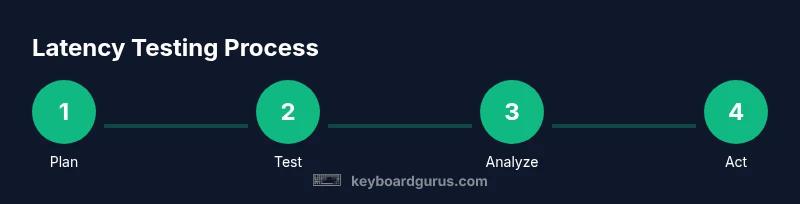
- Prepare the environment and ensure all software is up to date. 2) Connect the keyboards and confirm the test script is logging timestamps accurately. 3) Calibrate any timers by running a known-duration loop to verify resolution. 4) Conduct initial trials across all scenarios, recording raw data. 5) Repeat tests to check for stability and outliers. 6) Export data for analysis and save a snapshot of the test settings. 7) Back up results to avoid data loss. 8) Review baseline discrepancies before proceeding to analysis. Keyboard Gurus highlights that consistency in execution yields reliable results.
Analyzing data: calculating latency metrics and interpreting results
Transform raw timestamps into meaningful metrics: average latency (mean), median latency, maximum latency, and jitter (standard deviation). Create visualizations like histograms or box plots to identify outliers and distribution shape. Compare each keyboard against the reference to determine practical differences. Note whether latency varies with typing speed, key location, or modifier usage. For gaming or professional workloads, translate latency into actionable thresholds (e.g., target under 1.5 ms for high-skill tasks). Keyboard Gurus recommends focusing on both the latency value and variability for a complete picture.
Common pitfalls and how to avoid them
Don’t rely on a single run; environmental fluctuations can skew results. Avoid testing on systems with active antivirus scans, heavy background processes, or high-DPI mouse acceleration that could indirectly influence measurements. Be mindful of USB polling rate settings and ensure consistent hardware across tests. Debounce settings, firmware versions, and keyboard switch types can all shift results; document these factors meticulously. Keyboard Gurus also notes that display latency (if measuring visual feedback) should be kept separate from input latency tests to avoid conflating different delay sources.
Reducing latency: practical fixes for keyboards and systems
Several practical tweaks can lower measurable latency: increase USB polling rate where supported, disable accelerators or debounce delays, and ensure firmware is current. Prefer a wired connection for baseline testing, then compare against wireless setups to evaluate trade-offs. Swap to a higher-quality switch or alter actuation distance if hardware-level latency is a concern. At the system level, minimize background tasks, enable game mode or performance mode, and consider kernel or driver updates. Keyboard Gurus emphasizes that incremental changes often yield the best return without sacrificing reliability.
How to interpret results for different use-cases: gaming vs typing
Gaming often demands ultra-low and consistent latency, while typing quality focuses on low jitter and stability under long sessions. For gamers, latency under 1.5 ms with minimal variance is a typical target, whereas typists might prioritize predictable response and comfortable debounce settings. Use your test results to configure profiles: gaming mode vs typing mode. If latency is higher than expected, trace back to USB polling, firmware, or OS scheduling and apply the adjustments you validated in tests. Keyboard Gurus’s approach centers on repeatable measurements and real-use scenarios to drive practical improvements.
Authority sources
- NIST: https://www.nist.gov
- IEEE: https://www.ieee.org
- ACM: https://dl.acm.org
Final notes and next steps
A disciplined, transparent testing process will yield the most actionable results. Use the data to guide hardware choices, firmware updates, and OS configurations that reduce input delay. Regularly re-test after any change to confirm improvements are genuine and not isolated artifacts. Keyboard Gurus recommends documenting every parameter so teammates can reproduce the findings and continue refining performance over time.
Tools & Materials
- Computer or laptop(Capable of running latency benchmarking software with precise timers)
- Wired test keyboard(Use a keyboard you trust for baseline measurements)
- Reference keyboard(A known-consistent keyboard for comparison)
- Latency benchmarking software or script(Log keystroke timestamps with high-resolution timers)
- Stable USB port and cable(Avoid hubs and shared ports during measurements)
Steps
Estimated time: 45-75 minutes
- 1
Prepare testing environment
Close nonessential programs, disable power-saving modes, and set a fixed display refresh rate. This minimizes background timing variability that can skew latency results.
Tip: Keep a written checklist of active processes to re-create testing conditions later. - 2
Install and configure test software
Install the latency tool, verify timer resolution, and configure data export to CSV or JSON. Run a short sanity check to ensure timestamps are captured correctly.
Tip: Run as admin if your OS requires elevated permissions for precise timing. - 3
Connect keyboards and verify baseline
Plug in both the test and reference keyboards, confirm device names in the test software, and ensure both are detected with identical polling rates.
Tip: If possible, use separate USB controllers to avoid shared bus contention. - 4
Calibrate timing and debounce settings
Set debounce behavior to a consistent value, and perform a short calibration loop to confirm timer precision matches expectations.
Tip: Document the debounce ms value and firmware version used during calibration. - 5
Run initial trials across scenarios
Conduct typing, gaming, and mixed-input tests, recording a minimum of 100 keystrokes per scenario for each keyboard.
Tip: Randomize key presses to avoid sequence bias. - 6
Export and organize data
Export logs to a consistent format and store a snapshot of the test settings. Create separate files for each keyboard and scenario.
Tip: Label files with date, keyboard type, and test scenario. - 7
Initial data review
Compute basic metrics (average, median, max latency) and inspect outliers. Cross-check results against the reference to identify anomalies.
Tip: Plot a quick histogram to spot skew or heavy tails. - 8
Plan next optimization
Identify the top latency sources and decide on a focused action (e.g., firmware update, polling-rate adjustment, or OS setting).
Tip: Avoid changing many variables at once; validate each change with a fresh test.
Got Questions?
What is keyboard latency and how is it measured?
Keyboard latency is the delay between pressing a key and the corresponding input being registered by the computer. It is measured using timestamped keystrokes in controlled tests, often comparing against a reference keyboard. Use multiple trials and report both average and variability to reflect real-world use.
Keyboard latency is the delay from pressing a key to the computer registering it. Measure with timestamped keystrokes and report average and variation.
How accurate are software latency measurements?
Software measurements are convenient but can be affected by OS scheduling and background tasks. They are useful for relative comparisons, especially when paired with a hardware baseline for validation.
Software tests are handy for comparisons, but can be influenced by the OS and background tasks. Use them with a hardware baseline for accuracy.
What factors influence latency?
Latency is influenced by switch type, debounce settings, USB polling rate, keyboard controller processing, and OS input thread scheduling. Context such as firmware versions, drivers, and display settings can also impact measured delay.
Switch type, debounce, USB rate, and OS scheduling all influence latency, plus firmware and drivers.
Should I test wireless versus wired keyboards?
Yes. Wireless can introduce additional latency due to radio transmission and buffering. Testing both helps you decide if the convenience of wireless is worth the potential delay for your use case.
Test both to judge if wireless latency affects your games or typing tasks.
How can I reduce keyboard latency?
Address hardware and software factors: use higher USB polling rates, update firmware, streamline background tasks, and adjust debounce and processing settings. Validate each change with fresh tests.
Update firmware, optimize USB polling, and minimize background tasks, then re-test to confirm gains.
What are practical targets for gaming keyboards?
Aim for ultra-low latency with minimal jitter, often under a millisecond in ideal setups. Realistically, prioritize low variability and consistency across tests and use-case scenarios.
For gaming, you want very low and consistent latency with minimal variation.
Watch Video
What to Remember
- Master latency basics to identify true bottlenecks
- Use multiple trials and a stable environment
- Compare against a trustworthy reference keyboard
- Apply measured improvements and re-test to confirm gains