How to Fix Keyboard Delay: A Step-by-Step Guide
Learn practical, step-by-step methods to diagnose and fix keyboard delay on Windows and macOS. From drivers to hardware tests, get fast, safe results.


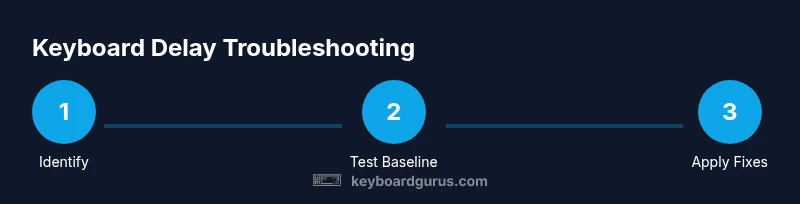
Goal: eliminate keyboard delay by diagnosing common causes and applying quick, safe fixes. Start with a reboot, test with a wired keyboard, and update drivers and firmware. Check OS power and USB settings, then adjust polling rate or Bluetooth configurations. Most latency comes from software, drivers, or interference and clears after these steps.
Understanding Keyboard Delay: Causes and Symptoms
Keyboard delay, or input latency, is the lag between pressing a key and the character appearing on screen. This slow feedback can ruin gaming and typing accuracy. According to Keyboard Gurus, most latency stems from software interactions rather than a faulty keyboard itself. Keyboard Gurus analysis shows common culprits include outdated drivers, USB polling rate mismatches, wireless interference, background processes, and even power management settings. You might notice intermittent skips, a minor but persistent lag, or key ghosting when multiple keys are pressed. Symptoms vary by device and use case: fast-paced gaming demands near-instant response, while document editing tolerates slightly more delay. Diagnosing the exact cause requires a pattern approach: does latency occur only on wireless keyboards? Does it vanish after reboot or after updating drivers? Keep a log of when it happens and what actions reproduce it. With a methodical approach, you can usually reduce or eliminate delay without replacing hardware. The Keyboard Gurus team emphasizes starting with simple, reversible steps to avoid unintended data loss.
Quick Checks You Can Do Right Now
Start with quick, non-destructive checks to triage the issue. Reboot your computer and unplug/replug the keyboard. Test with a wired keyboard to compare latency; if delay disappears, the issue is likely wireless hardware or interference. Try the keyboard on a second device to isolate whether the problem is device-specific. Disable unnecessary background apps and power-saving features that might throttle USB ports. If you’re on Windows, turn off USB selective suspend; on macOS, review Energy Saver settings. Document the exact symptoms and when they occur so you can spot patterns over time. These fast checks often reveal whether you’re dealing with a settings issue, a driver problem, or faulty hardware.
Software Fixes: Drivers, Firmware, and Settings
Software fixes address the majority of keyboard delay cases. Begin by updating or reinstalling keyboard drivers and firmware from the manufacturer’s website, then install any pending OS updates. If you use a gaming or macro software suite, check for conflicts that could introduce input lag and temporarily disable overlays or capture software. Ensure the operating system recognises the keyboard correctly and that no accessibility features introduce delays. In Windows, adjust power management to “High performance” and disable USB selective suspend; in macOS, ensure the system isn’t throttling USB devices under Battery or Energy Saver settings. After applying updates, reboot and retest. In many cases, a clean driver install resolves lingering latency and prevents comeback issues. Keyboard Gurus notes that consistent driver hygiene pays off across firmware cycles.
Hardware Solutions: Cables, Ports, and Interference
Hardware problems are sneaky but fixable. Inspect the USB cable for wear or damage and replace it if bent or frayed; a high-quality, certified cable reduces noise on the line. Try different USB ports, preferably not sharing hubs or busy controllers. If you use a wireless keyboard, re-sync the device and replace the batteries; consider a USB dongle with a shorter path to minimize interference. Move other wireless devices away from the keyboard receiver to reduce channel contention on 2.4 GHz. Check for USB 3.0 interference near high-speed devices and consider connecting to a different root hub. Keep the keyboard and receiver within a clear line of sight. These tangible changes often yield immediate reductions in delay.
Advanced Troubleshooting: When to Replace or RMA
If the delay persists after software and hardware fixes, evaluate whether the keyboard itself is aging or defective. Compare latency with a known-good unit to confirm device-specific delay. Older keyboards with worn switches or degraded keycaps can feel laggy due to inconsistent actuation. If you recently upgraded your PC or switched to a new OS version, ensure the keyboard is fully compatible with your setup and that firmware supports it. If the device shows ongoing latency issues despite fixes, contact the manufacturer for a warranty claim or RMA. In some cases, a modern keyboard with robust firmware offers better latency characteristics and future-proofing.
How to Test Your Fix: Verification Techniques
Verification is the final step that confirms success. Use a consistent test matrix: time a single-key press until you see the character, test multiple keys, and compare results across wired and wireless modes. Record latency measurements over several minutes and look for stability rather than occasional spikes. Use built-in OS latency tests or simple timing drills in your favorite game or typing app to quantify improvements. If latency remains, repeat previous steps or escalate to vendor support. The Keyboard Gurus team recommends documenting outcomes and, if delays persist, pursuing further assistance through official support channels.
Tools & Materials
- Computer with Windows or macOS(Needed to install drivers, run tests, and adjust settings)
- Primary keyboard(The keyboard you’re troubleshooting)
- Wired USB keyboard (spare)(Baseline to compare latency)
- Latest keyboard drivers/firmware(From the manufacturer’s site)
- Latest OS updates(Windows Update or macOS Software Update)
- Quality USB cable(For testing with wired setups)
- Latency testing tool(Optional timer or built-in OS tests)
Steps
Estimated time: 20-40 minutes
- 1
Identify the problem
Observe symptoms like delayed characters, ghosting, or erratic behavior. Note whether delays occur across apps, only with wireless, or after a reboot. This helps distinguish software vs hardware causes.
Tip: Record a 30-second test across 3 applications to spot patterns. - 2
Test with a wired keyboard
Connect a wired keyboard and repeat the actions. If delay disappears, the issue is likely wireless or interference. If it persists, focus on drivers or system settings.
Tip: Ensure the wired keyboard uses a different USB port to rule out port problems. - 3
Update drivers and firmware
Visit the manufacturer’s site to download the latest drivers and firmware. Install, reboot, and re-test to see if latency improves.
Tip: Do not install multiple keyboard software suites at once to avoid conflicts. - 4
Check OS settings and polling rate
On Windows, disable USB selective suspend and set power plan to High Performance. On macOS, review Energy Saver settings and USB bandwidth usage. If you can, reset the keyboard polling rate to default.
Tip: A high polling rate can help gaming but may increase CPU load on some systems. - 5
Reset and re-pair (if wireless)
Remove the keyboard from Bluetooth or the wireless adapter, then re-pair it. Replace batteries if needed and test again.
Tip: Keep the pairing process simple and avoid other new devices during testing. - 6
Retest and document results
Run the same test matrix as Step 1 and compare results to establish consistency. If latency remains, revisit earlier steps or seek vendor support.
Tip: Document results with timestamps to track progress over time.
Got Questions?
Why does my keyboard delay occur only in gaming?
Gaming latency is often due to high polling rates, overlays, and background processes. Reducing polling rate conflicts and disabling overlays can help. Test with a baseline wired keyboard to confirm.
Gaming delays are usually due to polling rates and overlays. Try disabling overlays and test with a wired keyboard.
Can Bluetooth keyboards cause persistent latency on all devices?
Bluetooth can introduce latency due to pairing, interference, or power management. Use a wired baseline to confirm, then adjust Bluetooth settings or switch to a dongle.
Bluetooth latency often comes from interference or pairing; try a wired baseline and adjust settings.
Should I update BIOS or firmware to fix latency?
BIOS updates are unlikely to fix keyboard lag unless they address USB or PCIe controller behavior. Start with keyboard firmware and OS drivers first.
BIOS updates are rarely needed for keyboard lag; focus on drivers and firmware first.
Is latency different between Windows and macOS?
Latency can vary due to different USB handling, power settings, and device drivers. Use consistent testing across both OSes to compare fairly.
OS differences can affect latency; test on both to compare.
Could a faulty USB hub cause delays?
Yes, hubs can introduce latency due to shared bandwidth. Connect directly to the computer or use a high-quality powered hub.
Hubs can cause delays; try direct connection or a good powered hub.
When should I consider RMA or replacement?
If testing shows device-specific latency after all fixes, and it’s under warranty, consider RMA or replacement.
If latency persists after all fixes and it's under warranty, consider RMA.
Watch Video
What to Remember
- Identify hardware vs software causes before fixes.
- Update drivers/firmware first and test with wired baseline.
- Check OS power settings and USB configurations.
- Test, document, and escalate if latency persists.