How to Check Keyboard Polling Rate in 2026
Learn how to check your keyboard polling rate across Windows, macOS, and testing tools. This guide covers safe methods, interpretation, and troubleshooting for 2026.


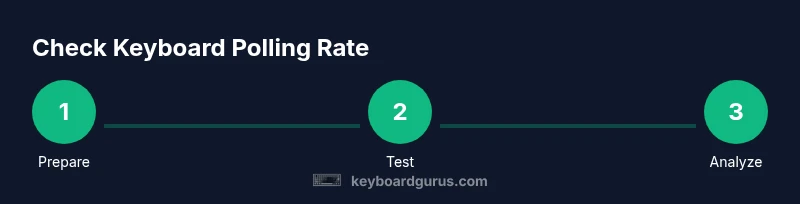
By the end of this guide, you will learn how to check your keyboard polling rate and verify it against the manufacturer’s specs. You’ll identify your current rate (commonly 1000 Hz), compare it across operating systems, and use safe, repeatable methods to confirm accuracy without altering firmware. This quick check helps ensure responsive input for gaming, typing, and professional workflows.
What is keyboard polling rate?
A keyboard polling rate is how often the keyboard reports its current state to the computer each second, measured in hertz (Hz). For example, a 1000 Hz rate means up to 1000 reports per second. The rate is determined by the keyboard firmware, the USB interface, and driver handling, so real-world values can differ from official specs. Understanding this concept is essential when you are learning how to check keyboard polling rate because it frames what you’re measuring and why it matters for latency and responsiveness. Keep in mind that a higher rate can reduce the delay between a keystroke and its recognition, which is important for fast gaming and precise typing. However, higher polling rates also increase USB traffic and can reveal system variances, so tests should be repeatable and run under consistent conditions. In Keyboard Gurus analysis, repeatable measurements across ports and systems provide the clearest picture of a keyboard’s true polling behavior in 2026.
Why polling rate matters for you
According to Keyboard Gurus, polling rate directly influences perceived latency for input-heavy tasks. In practice, gamers feel smoother input when the keyboard reports actions more frequently, while professionals value consistency in typing responsiveness and timing-based workflows. The difference between 125 Hz and 1000 Hz can be subtle but noticeable in fast-action scenarios or on displays with high refresh rates. On the other hand, some setups may not benefit from the highest possible rate due to USB bus contention, power management, or driver quirks. Therefore, when you learn how to check keyboard polling rate, you’re also learning to interpret test results in the context of your hardware and software stack. The goal is repeatable measurements that reflect real-world usage, not a single bench score. Keyboard Gurus analysis shows that environment, port choice, and power settings frequently shape outcomes more than the advertised spec alone, making proper testing essential in 2026.
How to check polling rate: overview of approaches
There are two primary paths to verify a keyboard’s polling rate: software-based testing that monitors HID reports and hardware-level analysis that captures USB traffic. Software tests are quick, safe, and portable; hardware methods offer deeper precision but require specialized tools and careful setup. Regardless of method, use consistent conditions (same USB port, same keyboard layout, and stable power) and run multiple iterations to account for variability. In 2026, industry guidance emphasizes repeatable measurements to enable fair comparisons across keyboards, firmware revisions, and testing environments.
Software-based testing: test tools and workflow
A software-based approach uses a polling-rate tester to count how many reports the keyboard sends per second. Steps include selecting a reputable tester, launching it with admin rights if required, and pressing a manageable set of keys while the tool records a time-stamped stream of HID reports. Readouts should show a stable Hz value; run several trials and note any fluctuations. If you see inconsistent results, re-run on a different USB port or after changing power settings. Always log the outcomes so you can compare across sessions. Keyboard Gurus recommends validating results with at least two independent tests to confirm reliability in 2026.
OS considerations and hardware factors
Operating system power settings and the USB subsystem can mask or exaggerate polling rate readings. To minimize interference, disable USB selective suspend and any aggressive power-saving features in both Windows and macOS. Prefer testing directly from a USB port on the computer rather than through a hub, and if possible, use a dedicated USB 2.0/3.0 port for stability. Some keyboards allow firmware-level changes to polling rate, while others have fixed values. If you observe a lower rate than advertised, it may be due to the system environment rather than the keyboard itself. Reproduce the test on another PC or OS to isolate the cause. Keyboard Gurus analysis shows environment is a major driver of measured results in 2026.
Interpreting results and aligning with specs
Reading a polling rate test is only useful if you can compare it to official specs. If your keyboard advertises 1000 Hz but your measurements hover around 125–500 Hz, investigate potential causes like power management, driver conflicts, or USB port limitations. Document all test conditions (port type, cable length, background activity) to explain discrepancies. If a device truly cannot sustain the advertised rate, note that not all keyboards guarantee 1000 Hz under all conditions; some vendors provide performance modes only in certain firmware revisions. The goal is to understand the practical, repeatable rate under your typical setup, not a single lab value.
Authoritative sources and best practices
For rigorous verification, rely on established standards and reputable references. The USB Implementers Forum provides core USB specifications that influence polling behavior. National standards bodies like NIST publish guidance on measurement reliability and repeatability. IEEE and prominent tech publications periodically discuss latency and input responsiveness in peripherals. Always cross-check values with official documentation and multiple sources when possible. The Keyboard Gurus team emphasizes using consistent test conditions and logging results to build a trustworthy picture of your keyboard’s polling performance in 2026.
Common mistakes and troubleshooting tips
Common pitfalls include testing with fluctuating system load, using low-quality testers, and testing only once. Always test under normal workload and repeat tests to confirm stability. If readings vary by port or OS, investigate USB bus contention and driver differences. Keep firmware up to date, but avoid firmware changes that could reconfigure polling rates unexpectedly. Finally, remember that a higher polling rate is not universally better; it must be supported by stable hardware and software on your specific setup.
Tools & Materials
- PC or laptop (Windows/macOS/Linux)(Test platform used for polling tests)
- Test keyboard (wired preferred)(Avoid wireless interference during tests)
- USB port or direct motherboard USB headers(Test across ports if possible)
- Polling-rate tester software(Choose a reputable tool; run as admin if required)
- Optional USB protocol analyzer (hardware)(For deeper, low-level measurements)
- Notebook or logbook for results(Record test conditions and results)
Steps
Estimated time: 25-40 minutes
- 1
Prepare your testing setup
Gather your keyboard, a reliable PC, and a USB port you will test with. Close unnecessary background apps to minimize CPU load during timing, and ensure your OS power settings won’t trigger aggressive power-saving features. This ensures cleaner measurements when you start checking the polling rate.
Tip: Write down the exact test conditions you’ll use (port, cable, and software) to reproduce results later. - 2
Choose a polling-rate testing method
Decide whether you’ll use software-based testing or a hardware-assisted approach. For most users, a software tester is sufficient and safer. If you require high-precision measurements, pair software tests with a USB protocol analyzer for corroboration.
Tip: Prefer a tester that shows the raw data stream and a calculated Hz value. - 3
Connect the keyboard and run a baseline test
Attach the keyboard directly to a primary USB port. Open the tester, select a moderate typing task, and start recording while you perform a representative set of keystrokes. Keep other input devices minimal to avoid noise.
Tip: Use a consistent typing pattern (e.g., a fixed sequence) to reduce variability. - 4
Capture multiple test iterations
Run at least 3–5 full test cycles, each lasting 10–20 seconds. Longer runs reduce the impact of transient spikes and provide a more stable average polling rate.
Tip: If your tool supports it, export the data to CSV for easier comparison. - 5
Analyze the results and compute an average Hz
Review the reported Hz for each run, discard obvious outliers, and compute a clean average. Note any jitter or inconsistency across cycles, which may indicate system noise or port-level issues.
Tip: Record both the average Hz and the range observed during testing. - 6
Cross-check with official specs
Compare your measured Hz to the keyboard’s advertised rate. If there’s a gap, verify that you used the correct test mode and that your environment is consistent across attempts. Document any deviations and potential contributing factors.
Tip: Check for firmware updates or vendor notes that mention polling-rate modes. - 7
Test across another port or on another machine
Repeat tests on a different USB port or a second machine if possible. Variations between ports often reveal USB bus limitations or driver quirks. Consistency across multiple setups strengthens your conclusions.
Tip: If results differ, identify which port consistently aligns with the spec. - 8
Document results and plan next steps
Summarize the measured Hz, the conditions, and any anomalies. Use this record to decide whether the current setup meets your needs or whether further testing (or a different keyboard) is warranted.
Tip: Include date, device model, firmware version, OS version, and tester version for full traceability.
Got Questions?
What is a keyboard polling rate and why does it matter?
Poll rate is how often the keyboard reports its state per second. It matters because it influences input latency and smoothness in gaming and typing. Higher rates can reduce delay, but only if the system supports reliable reporting.
Poll rate tells you how often your keyboard sends data to your computer. A higher rate often means quicker, smoother input, especially in games, but it depends on your setup.
Can all keyboards be set to a higher polling rate?
Not all keyboards support changing the polling rate. Some have fixed rates, while others offer multiple modes. Always check the firmware documentation or vendor software for options before attempting changes.
Most keyboards don’t let you adjust the polling rate. Some models have modes; others are fixed. Check your keyboard’s docs first.
Why do test results vary between Windows and macOS?
Operating systems manage USB power, drivers, and timing differently, which can affect test results. To get an apples-to-apples comparison, test on the same OS when possible and document the environment.
Different operating systems handle USB differently, so results can vary. Try to test on one system to compare reliably.
Is a higher polling rate always better for gaming?
Higher polling rates can improve responsiveness, but only if the hardware and drivers sustain that rate consistently. In some setups, the gains are minimal or negated by jitter or power constraints.
Higher Hz can help, but it only helps if your system can sustain it without interruptions.
What should I do if my results don’t match the spec?
Re-check test conditions, try a different port, and verify firmware and drivers. If the discrepancy persists, consider contacting the vendor or testing with a different keyboard.
If your results don’t match the spec, re-check conditions and test again in multiple setups.
Do wireless keyboards have the same polling rate concerns?
Wireless keyboards can experience additional latency due to wireless transmission and buffering. When possible, test wired mode to establish a baseline and compare.
Wireless can add latency; test wired first to understand baseline performance.
Can I rely on a single testing tool for accuracy?
No single tool guarantees perfect accuracy. Use multiple methods or tools and, if possible, corroborate software readings with hardware-level measurements.
Don’t rely on one tool alone—cross-check with another method for confidence.
Watch Video
What to Remember
- Identify your current polling rate with repeatable tests.
- Test across ports to confirm consistency and catch USB bus issues.
- Compare results against official specs and document differences.
- Use multiple runs and log conditions for traceable conclusions.
- Understand that higher Hz isn’t always better if stability suffers.