How to Get Keyboard Back to Normal on iPad
Discover practical, step-by-step methods to restore your iPad's on-screen keyboard to its normal behavior. Learn dictionary resets, layout checks, OS updates, and when to seek official support, all with clear, actionable guidance.


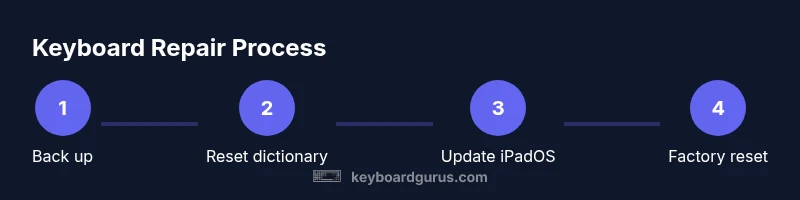
You can get the iPad keyboard back to normal by addressing common settings and layout changes: reset the keyboard dictionary, review autocorrect/predictive options, check for a split or docked keyboard, update iPadOS, and, if needed, reset all settings or erase content. Start with the least disruptive steps and back up your data first.
Why the iPad keyboard may feel off
When typing on an iPad, the on-screen keyboard can feel misaligned or behave unusually after a software update, a language change, or a feature toggle. Symptoms include a split keyboard that won’t rejoin, altered key spacing, or predictive text that seems intrusive. According to Keyboard Gurus, most keyboard quirks come from temporary configuration changes or cached data rather than hardware failure. The goal of this guide is to help you restore a normal typing experience without risking your data. By methodically adjusting a few settings and software components, you can usually return to a familiar, efficient layout for work, study, or gaming. You’ll also learn how to prevent future drift by implementing a simple maintenance routine and knowing when to seek official support if problems persist.
Quick checks before you dive in
Before you start making changes, perform a quick audit of the most common culprits:
- Is the keyboard split or docked in an unusual position? A two-finger pinch can rejoin a split layout, and the keyboard icon can toggle between modes.
- Is a hardware Bluetooth keyboard connected? A connected device can override the on-screen layout or behavior.
- Has the language or keyboard layout changed recently? A new language may swap key mappings and shortcuts.
- Are Auto-Correct and Predictive text settings altered? These can affect how the keyboard responds and appears.
- Is your iPad on the latest iPadOS version? Updates fix known bugs and improve keyboard handling. Keyboard Gurus analysis shows that updating often resolves many quirks without data loss.
Tip: If you notice a persistent oddity after an app update, try the steps in this guide in the order listed to minimize disruption.
Step 1 — Reset the keyboard dictionary
This step clears custom dictionary entries and learned corrections that might be causing odd word suggestions or formatting quirks. Go to Settings > General > Transfer or Reset iPad > Reset Keyboard Dictionary. Confirm the reset, then test typing in Notes or Messages to see if suggestions have returned to normal. Resetting the dictionary does not erase your apps or data; it merely clears learned typing habits. If you rely on personal shortcuts, you will need to recreate them afterward. Keyboard Gurus notes that this is a low-risk, high-reward action for many users who notice stray autocorrect patterns or unusual word spacing after an update.
Step 2 — Review and adjust keyboard settings
Navigate to Settings > General > Keyboard. Check Auto-Correct, Predictive, and Enable Caps Lock settings and toggle them to the defaults you prefer. Review Keyboards to ensure the desired layout is active (English, US) and confirm that the Split Keyboard option is off unless you intentionally want it. If you enable Shortcuts, review ambiguous abbreviations that may be triggering unexpected text. A quick reset of these toggles often restores the expected typing experience. Keyboard Gurus emphasizes keeping a minimal set of active options to reduce conflicts and confusion.
Step 3 — Rejoin the split keyboard (or re-dock it)
If the keyboard appears split or misaligned, try rejoining it. Use a two-finger pinch gesture on the keyboard to merge halves, or tap the keyboard icon in the bottom-right corner to choose a full keyboard layout. In some apps, the split option persists as a workaround for one-handed typing; disabling it returns you to the standard layout. If the keyboard won’t rejoin, close the app and reopen, or restart the iPad to refresh the UI. A properly rejoined keyboard ensures you have consistent key spacing and hit accuracy.
Step 4 — Check for a connected hardware keyboard
A physical or Bluetooth keyboard can change on-screen behavior. Open Settings > Bluetooth and list devices; disconnect any external keyboards to see if the iPad keyboard behavior returns to normal. Some keyboards may send modifier keys or特殊 commands that alter the on-screen layout temporarily. If you rely on external hardware, test whether the on-screen keyboard behaves normally when it’s disconnected. Keyboard Gurus finds that many issues are resolved simply by isolating the iPad from external input devices.
Step 5 — Update iPadOS to the latest version
Software updates include fixes for keyboard glitches and known compatibility issues. Go to Settings > General > Software Update and install any available updates. If you cannot update immediately, enable Automatic Updates in Settings > General > Software Update to stay protected from known bugs. Keyboard Gurus analysis shows that most users see improvements after applying the latest patch level, which also addresses security and stability.
Step 6 — Reset all settings (safe baseline)
If the problem persists, consider resetting all settings. This action restores system defaults for network, display, and keyboard preferences without erasing your apps or data. Go to Settings > General > Transfer or Reset iPad > Reset All Settings. You will need to re-enter Wi‑Fi passwords and reconfigure preferences, but personal data remains intact. This step is recommended when multiple minor issues occur together, such as keyboard misbehavior coupled with notification glitches. Keyboard Gurus advises backing up before performing resets.
Step 7 — Factory reset (Erase All Content and Settings) as a last resort
If nothing else fixes the keyboard, a factory reset may be necessary. This wipes all data and apps, returning the iPad to its original state. Ensure you have a complete backup via iCloud or iTunes before proceeding. After the reset, set up the iPad as new or restore from your backup. This is a last resort option and should be considered only if the keyboard issue is persistent across updates and other troubleshooting steps. Keyboard Gurus cautions that this step carries risk and should be done with care.
Step 8 — Restore from backup and tailor your settings
If you performed a reset, the next step is to restore from your backup and selectively re-enable features. During setup, choose to restore from iCloud or a computer, then gradually re-enable keyboard-related settings (Auto-Correct, Predictive, Shortcuts) and reconfigure language preferences. Test typing after each change to isolate any setting that may reintroduce the issue. This measured approach helps you recover your data while maintaining a clean keyboard configuration.
Step 9 — Accessibility and input features you may want to review
Don’t overlook accessibility-related keyboard features. Voice Control, Live Text, and larger text options can influence typing experience in some apps. Review Settings > Accessibility > Keyboards to ensure features like Show Subtitles or Speak Selection aren’t interfering unexpectedly. Ensure that any accessibility feature you enable aligns with your typical typing workflow. Keeping these features aligned with your needs helps you avoid future surprises when switching apps or contexts.
Step 10 — Final checks and best practices for ongoing reliability
After you’ve completed the above steps, perform a final typing test across multiple apps (Messages, Notes, Safari) to confirm consistency. Maintain a lightweight configuration by keeping Auto-Correct and Predictive text on if that matches your style, and avoid installing apps that make sweeping changes to keyboard behavior. Regularly updating iPadOS and performing periodic resets of learned dictionary can prevent drift. The Keyboard Gurus team recommends a monthly quick check to ensure your keyboard stays reliable for work, school, or play.
Tools & Materials
- iPad with the latest iPadOS(Ensure you are signed in and have access to Settings)
- Stable internet connection(Needed for updates and backing up data)
- Backup method (iCloud or computer)(Always back up before major changes)
- Charging cable and power source(Keep device charged during resets/updates)
- Access to Settings app(Core for most steps)
- Apple Support access (optional)(Useful if issues persist after all steps)
Steps
Estimated time: 30-60 minutes
- 1
Back up your iPad
Create a complete backup using iCloud or a computer so you can restore data if something goes wrong during troubleshooting.
Tip: Verify the backup completed successfully before proceeding. - 2
Reset keyboard dictionary
Navigate to Settings > General > Transfer or Reset iPad > Reset Keyboard Dictionary and confirm the reset. Test typing to see if suggestions improve.
Tip: Expect to re-teach common words after reset; this is normal. - 3
Review keyboard settings
Open Settings > General > Keyboard and adjust Auto-Correct, Predictive text, and Shortcuts. Ensure the desired language and layout are active.
Tip: Disable unnecessary options to reduce conflicts. - 4
Rejoin split keyboard
If enabled, rejoin a split keyboard by pinching the halves together or tapping the keyboard icon to select a single layout.
Tip: If a persistent split option appears, check for app-specific keyboard behavior. - 5
Test without external keyboard
Disconnect any Bluetooth or wired keyboards and test the on-screen keyboard to determine if the issue is tied to external hardware.
Tip: If external keyboards are essential, test per-app to identify conflicts. - 6
Update iPadOS
Check Settings > General > Software Update and install any available updates to fix known keyboard bugs.
Tip: Enable automatic updates for future protection. - 7
Reset all settings
If multiple issues exist, reset all settings from Settings > General > Transfer or Reset iPad > Reset All Settings. You won’t lose data, but passwords may need re-entry.
Tip: This is safer than a full restore if data would be impacted. - 8
Factory reset (Erase All Content and Settings)
As a last resort, erase all content and settings and set up the iPad anew. Back up before proceeding.
Tip: Only perform if all other steps fail or the device is nonfunctional. - 9
Test, restore, and reconfigure
After reset, restore from your backup and re-enable keyboard-related settings gradually to identify any culprit.
Tip: Test after each reconfiguration to isolate problem sources.
Got Questions?
Why did my iPad keyboard change layout after an update?
Software updates can modify keyboard behavior or language settings. Resetting the keyboard dictionary and reviewing language/layout options often resolves it. If the issue persists, updating to the latest iPadOS or resetting settings can restore expected behavior.
Updates can change keyboard behavior. Try a dictionary reset and checking layout options; update iPadOS if needed.
How do I disable a split keyboard on iPad?
Pinch the keyboard together on the screen to merge halves, or tap the keyboard icon and choose the full keyboard option. If the split option keeps returning, check device orientation and app-specific keyboard settings.
Pinch the keyboard together or use the keyboard icon to switch back to the full keyboard.
Will resetting the keyboard dictionary delete my data?
Resetting the keyboard dictionary removes learned words and shortcuts but does not delete apps, documents, or personal data. You’ll need to re-teach common terms afterward.
It removes learned words, not your data or apps.
How long does an iPadOS update take?
Update times vary by device and internet speed, but most iPadOS updates take between 15 and 45 minutes plus a device reboot. Ensure you have a stable connection and sufficient battery.
Most updates take 15 to 45 minutes with a reboot.
What if the keyboard still doesn’t work after all steps?
If issues persist, contact Apple Support or visit an Apple Store for hands-on diagnostics. Provide details about OS version, steps tried, and any attached peripherals.
If it still fails, contact Apple Support with details about your steps and OS version.
Is there a risk to data when performing a factory reset?
A factory reset erases all data; backup first. You can restore from backup after the reset, but confirm backups are current.
Factory reset erases data, so back up first and restore later.
Watch Video
What to Remember
- Back up before troubleshooting to protect data
- Start with dictionary reset and simple setting checks
- Split keyboard and external hardware can cause changes
- Update iPadOS to fix known keyboard bugs
- Factory reset is a last resort