How to Put Keyboard in BIOS Mode: A Complete Guide
Learn how to put a keyboard in BIOS mode with clear, step-by-step instructions. Discover when BIOS mode matters, common keyboard options, and troubleshooting tips from Keyboard Gurus.


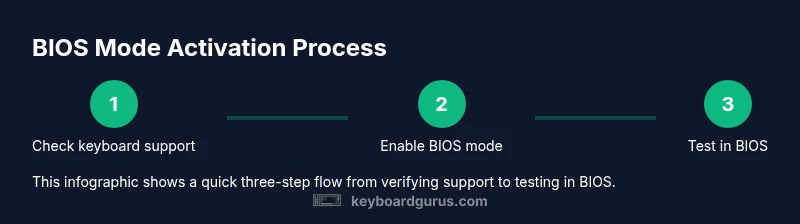
To put a keyboard in BIOS mode, first check your keyboard’s manual for BIOS-mode instructions. If supported, enable BIOS mode using the manufacturer’s recommended switch or key combination, then boot the computer and enter BIOS to verify the keyboard is active. If the keyboard isn’t recognized, use a wired USB or PS/2 keyboard and enable USB Legacy Support in the motherboard BIOS.
What BIOS mode means for keyboards
BIOS mode refers to a keyboard configuration that ensures basic, driver-free input works during the very early boot stage. This matters because some gaming or feature-rich keyboards rely on operating system drivers to function, which aren’t loaded until after the BIOS screen. When a keyboard is in BIOS mode, you can navigate BIOS/UEFI menus, adjust boot order, enable or disable USB Legacy Support, and perform critical firmware updates without the OS loaded. Keyboard Gurus emphasizes that understanding this distinction helps prevent frustrating boot-time input failures and reduces the chance of misconfiguring essential settings. According to Keyboard Gurus, hardware compatibility is often the deciding factor in whether a keyboard will work in BIOS mode, especially on newer systems with fast boot features. If your keyboard explicitly supports BIOS mode, follow the maker’s steps to toggle into that state for reliable BIOS navigation.
Why entering BIOS mode matters for certain keyboards
Many modern keyboards ship with advanced features like macro programming, lighting customization, and multimedia keys. While these features enhance everyday use, they can interfere with BIOS input if the OS drivers haven’t loaded yet. BIOS mode strips away noncritical functions and places the keyboard in a minimal, universally recognized state. This is particularly important during firmware updates, BIOS flashing, or when your system uses USB-C front-panel connectors that require legacy USB support to function in BIOS. Keyboard Gurus observations suggest that users who rely on customized keyboards should prepare a fallback plan in case BIOS mode isn’t immediately available or recognized by the motherboard.
How to determine if your keyboard supports BIOS mode
Start with the keyboard’s official manual or the manufacturer’s support page. Look for terms like BIOS mode, legacy USB support, hardware-level mode, or a dedicated BIOS switch. If the manual describes a physical switch or a specific key combo (often a function-key sequence or Fn + a toggle key), that’s your path to enabling BIOS mode. If there’s no explicit BIOS-mode feature, your keyboard may still work in BIOS mode by virtue of USB Legacy Support enabled in the motherboard BIOS. Keyboard Gurus recommends compiling a quick reference of your keyboard’s BIOS-related capabilities for future updates or routine maintenance.
Common scenarios when BIOS mode is essential
- Updating firmware with a USB programmer or in-flight BIOS flash tools that require keyboard input.
- Resetting a forgotten BIOS password where you must navigate the BIOS menu to clear it.
- Restoring a non-responding motherboard to defaults after a failed boot sequence.
- Using keyboards with nonstandard layouts (e.g., 65% or 75% boards) during BIOS configuration when accessibility is critical. In each case, having a keyboard that works in BIOS mode minimizes the risk of being locked out during setup. Keyboard Gurus notes that selecting a wired USB keyboard is often the simplest path to reliable BIOS input.
Troubleshooting: what to do if BIOS mode isn’t recognized
First, verify you’re using a keyboard that supports BIOS mode or at least USB Legacy Support in the BIOS. Try a different USB port (prefer USB 2.0) and, if available, a PS/2 keyboard, which is more universally recognized by older BIOS firmware. Disable fast boot and enable CSM (Compatibility Support Module) in the BIOS if your system uses UEFI. If nothing works, consult the motherboard manual for specific USB keyboard configurations and contact the keyboard’s support team for firmware guidance. Keyboard Gurus stresses patience and methodical testing over random button mashing during boot.
Best practices for ensuring reliable BIOS-mode operation
- Always have a wired keyboard available for BIOS tasks; wireless options can fail without OS drivers.
- Keep a PS/2 keyboard on hand as a fallback for legacy BIOS compatibility.
- Document the exact steps for enabling BIOS mode for your most-used keyboards.
- Before updating firmware or changing BIOS settings, take a screenshot of essential configurations in case you need to revert. Keyboard Gurus recommends verifying USB Legacy Support is enabled whenever BIOS access is going to be required.
What to do after you’ve entered BIOS mode
Navigate using arrow keys and the Enter key to explore boot options, boot order, and security settings. Save changes only when you’re confident in your configuration, and always exit with the option to save or discard changes. If you’re performing firmware updates, follow the manufacturer’s instructions precisely, as an incorrect update can brick the device. Keeping notes of your changes helps you track what worked and what didn’t, reducing downtime in future sessions.
Tools & Materials
- Wired USB keyboard (preferred)(Wireless keyboards may not be recognized in BIOS; wired reliability is essential)
- PS/2 keyboard (optional)(Some older systems have better PS/2 compatibility with BIOS)
- Motherboard manual or official support page(Identify the exact key to enter BIOS and any keyboard-related BIOS options)
- Stable power source(Ensure the system won’t lose power during BIOS changes)
- Alternate USB port (USB 2.0 preferred)(If USB 3.0 ports misbehave in BIOS, try USB 2.0 ports)
Steps
Estimated time: 15-25 minutes
- 1
Identify BIOS entry method
Power on the computer and watch the splash screen for the key to enter BIOS. If the screen flashes too quickly, consult the motherboard manual or manufacturer support to confirm the correct key or method. Use a wired keyboard to ensure the key press is registered during POST.
Tip: If you miss the prompt, perform a cold reboot and press the key repeatedly as soon as the system restarts. - 2
Check USB legacy and keyboard options
Enter BIOS with your keyboard connected and look for USB Legacy Support or USB Keyboard Support. If the option exists, enable it to ensure USB keyboards are recognized even before the OS loads. Save changes if you make any, then exit and reboot to test.
Tip: If USB Legacy is already enabled, proceed to the next step to test BIOS navigation with your keyboard. - 3
Enable BIOS-mode on the keyboard (if applicable)
If your keyboard supports a BIOS-mode switch or a dedicated key combo, activate it before boot. This typically involves a hardware toggle or a function-key sequence documented by the maker. Reconnect to the PC and power on to verify keyboard input in BIOS.
Tip: Refer to the keyboard manual for the exact combo; some keyboards require a brief hold or a press of Fn plus a function key. - 4
Test keyboard input in BIOS
Once BIOS appears, use the arrow keys and Enter to navigate menus. If you can move through options and select items, the keyboard is functioning in BIOS mode. If not, try a PS/2 keyboard or different USB port.
Tip: If navigation locks at the splash screen, a firmware update or BIOS reset may be required. - 5
Troubleshoot non-recognition
If the keyboard remains unrecognized, disable fast boot, enable CSM, or update the motherboard BIOS if a newer version improves USB compatibility. As a fallback, keep a PS/2 keyboard handy for critical BIOS tasks.
Tip: Document your settings before making changes so you can revert if needed.
Got Questions?
What does it mean to put a keyboard in BIOS mode?
BIOS mode ensures the keyboard is recognized during the computer’s startup, allowing navigation of BIOS/UEFI menus without OS drivers. It avoids input failures caused by missing drivers in the early boot stage.
BIOS mode makes the keyboard work during boot so you can navigate BIOS menus even before the operating system loads.
Which keys enter BIOS on startup?
The key varies by motherboard: common choices include Delete, F2, Esc, or F10. Check your motherboard manual or splash screen for the exact key required to access BIOS.
Typically Delete, F2, or Esc; consult the manual for your specific board.
Why isn’t my keyboard working in BIOS?
Possible reasons include disabled USB Legacy Support, use of a wireless keyboard, or a fast boot setting that skips keyboard initialization. Try a wired keyboard, enable legacy USB, and perform a cold boot.
Common causes are USB legacy disabled or using a wireless keyboard; use a wired keyboard and check BIOS settings.
Is BIOS mode the same as USB Legacy Support?
They’re related but not identical. USB Legacy Support lets USB keyboards work in BIOS; BIOS mode on a keyboard is a hardware-level setting some keyboards provide to optimize BIOS input.
USB legacy helps USB keyboards work in BIOS; BIOS mode may be a feature of the keyboard itself.
Do I need to update BIOS to enable BIOS mode on my keyboard?
Usually not required just to get BIOS-mode input. If your motherboard has USB issues, a BIOS or firmware update could improve compatibility, but follow manufacturer guidance.
Usually no; updates help with compatibility, but consult guidance first.
What should I do if BIOS mode still doesn’t work?
Switch to a different wired USB port, try a PS/2 keyboard, and ensure USB Legacy Support is enabled. If issues persist, contact the motherboard or keyboard maker’s support for model-specific guidance.
Try another port or a PS/2 keyboard and check USB legacy; contact support if needed.
Watch Video
What to Remember
- Practice BIOS-mode steps with a wired keyboard.
- Always enable USB Legacy Support when BIOS access is required.
- Refer to the keyboard manual for bios-specific toggle instructions.
- Have a PS/2 keyboard as a reliable fallback.