Troubleshooting Keyboard and Mouse Not Working in BIOS
A comprehensive, urgent guide to diagnosing and fixing keyboard and mouse issues in BIOS, with USB legacy, port tests, CMOS reset, and safe BIOS updates.


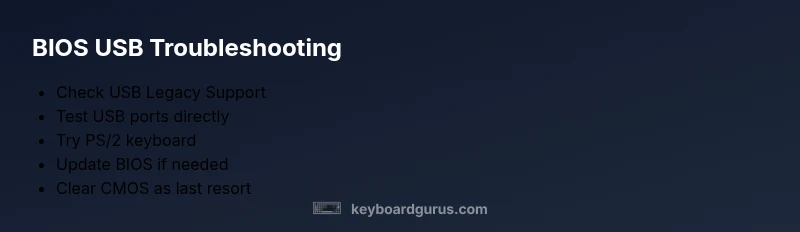
According to Keyboard Gurus, the keyboard and mouse failing in BIOS is most often caused by USB legacy support being disabled or ports not powered early. Quick fix: enable USB Legacy Support in the BIOS, try a PS/2 keyboard if available, and re-seat or switch USB ports. If that fails, reset CMOS and retry.
Why BIOS input issues happen
The BIOS environment is a separate startup stage from the operating system. At this early point, the keyboard and mouse must be detected before any firmware-driven UI appears. When USB legacy support is disabled or the USB ports are not powered during POST, input devices may be unresponsive, leaving you staring at a blank screen or a stuck POST sequence. Keyboard and mouse not working in bios is a distressing but common problem, especially on older motherboards or after a BIOS update. The Keyboard Gurus team emphasizes that many of these issues stem from settings that govern how USB devices wake and are recognized before the OS loads. By understanding the escape hatch between hardware power, firmware, and USB signaling, you can regain control without risking other components.
In practice, start with simple checks before delving into firmware changes. A functional baseline is tested by using a directly connected wired keyboard and a basic USB port. If you see no response in BIOS, it is almost never an indicator that your keyboard is defective; instead, it indicates a configuration or power delivery issue during POST. The goal is to restore the BIOS input chain and ensure the firmware can recognize devices before the operating system boots.
BIOS settings that affect USB input
Modern BIOS/UEFI provides numerous toggles that influence how input devices are handled at power-on. The two most critical options are USB Legacy Support and USB Keyboard Support. If USB Legacy is off, USB keyboards may not register in the BIOS interface. Other relevant controls include USB 2.0/3.0 port handling, Fast Boot, and the Compatibility Support Module (CSM). Some boards require enabling CSM to present legacy USB devices, while others operate fine in pure UEFI mode with modern keyboards. Keyboard Gurus analysis shows that many input issues disappear after enabling legacy mode, even on newer hardware. If you cannot locate these options, consult your motherboard manual or vendor knowledge base for exact slot wording and location.
Additionally, check if a front panel USB hub is connected. Hubs can sometimes fail to supply sufficient power during POST, causing the port to appear unresponsive. Always connect directly to motherboard USB headers when troubleshooting.
Simple checks you can perform before BIOS entry
Before changing BIOS settings, perform quick, low-risk checks that often fix the issue. First, power down, unplug, and disconnect any nonessential devices to reduce power draw. Then, connect a wired keyboard directly to a rear I/O USB port or, if available, a PS/2 keyboard. PS/2 devices tend to be recognized earlier in the boot process and can help verify whether the issue is USB-specific. Also reseat the keyboard and mouse cables, try different USB ports, and avoid using USB hubs during the test. If you still cannot access BIOS, proceed to resetting CMOS as a more thorough reset that returns firmware settings to default.
Diagnostic factors: ports, controllers, and firmware
BIOS input behavior varies by motherboard and chipset. Some USB controllers supply power differently to USB 2.0 vs USB 3.0 ports, which can affect BIOS recognition. If USB 3.0 ports are wired through an internal hub or a front panel, they may fail to power up early in POST. In this case, switching to USB 2.0 ports on the rear I/O panel or a PS/2 keyboard (if available) often resolves the problem. If a firmware issue exists, a BIOS update from the vendor can address the bug by reinitializing the USB controller and improving enumeration during boot. Remember that BIOS updates carry risk; ensure you use the correct version for your motherboard and follow the official guide. Keyboard Gurus recommends verifying USB controller status in documented boot logs when available.
Step by step: common fixes and why they work
When you encounter keyboard and mouse not working in bios, follow a deliberate sequence to isolate the cause. Start with the easiest fixes that impose the least risk to your system. If a fix does not resolve the issue, proceed to the next step. This approach minimizes downtime and reduces the chance of unintended changes. Each step is designed to be reversible, except for CMOS clearing. By documenting changes, you can backtrack if a particular setting causes other issues. Keyboard Gurus stresses the importance of performing changes with the system powered down and the correct precautions in place to avoid static discharge or electrical shorts.
Prevention and best practices for BIOS input stability
To prevent future occurrences, keep your motherboard firmware up to date and store a spare PS/2 keyboard for BIOS use. Maintain a habit of checking USB Legacy Support after any BIOS upgrade, especially on older hardware. If you rely on USB keyboards, consider testing critical changes on a non-production system or after hours to minimize disruption. Regularly review USB port health and cable integrity, as loose connections are a frequent cause of intermittent BIOS input. Finally, document your BIOS settings so you can rapidly reproduce a stable baseline after resets or updates.
Steps
Estimated time: 15-30 minutes
- 1
Power down and prepare
Shut down the PC, unplug the power cable, and disconnect nonessential devices to reduce electrical noise. Ground yourself to avoid static discharge. Have a spare keyboard available, ideally wired, and a clean workspace.
Tip: Work on a static-free surface and avoid touching the motherboard components unnecessarily. - 2
Test keyboard ports directly
Connect the keyboard to a rear USB port directly on the motherboard. If you have a PS/2 keyboard, connect it to the PS/2 port to test a non-USB input path. This helps determine if the issue is USB controller related.
Tip: Prefer USB 2.0 rear ports for testing during BIOS boot. - 3
Enter BIOS setup
Power on and repeatedly press the BIOS access key (common ones are Delete or F2) to reach the setup. If you gain control, you can verify whether the keyboard is detected at an early stage.
Tip: If the screen remains blank, try clearing CMOS to reset firmware defaults. - 4
Enable USB Legacy/CSM options
Within BIOS, navigate to memory or peripherals and enable USB Legacy Support and, if available, CSM. These options ensure USB devices are recognized during POST.
Tip: Save changes before exiting and confirm reboot occurs without errors. - 5
Save, reboot, and reassess
Exit BIOS and allow the system to reboot. Check if the keyboard responds through POST or BIOS UI. If it still fails, attempt a different keyboard or port and retry.
Tip: Document the exact settings changed for future reference. - 6
Update BIOS if needed
If issues persist, download the latest BIOS firmware from the motherboard vendor and perform a clean update. Follow vendor instructions precisely to reduce risk.
Tip: Back up important data and ensure power stability during the update. - 7
Reset CMOS as a last resort
If nothing works, reset the CMOS using the motherboard jumper or by removing and reinserting the battery after a few minutes. This restores defaults and often resolves stubborn USB enumeration problems.
Tip: Only perform CMOS reset if you are comfortable with reconfiguring BIOS afterward.
Diagnosis: Keyboard and mouse do not respond during BIOS screens or POST
Possible Causes
- highUSB Legacy Support is disabled in BIOS
- mediumUSB ports are not powered early in POST or are blocked by a front panel hub
- lowBIOS firmware is outdated or corrupted
- lowCSM/legacy mode not enabled for keyboard input
Fixes
- easyEnable USB Legacy Support in BIOS and ensure keyboard/mouse are connected directly to motherboard ports
- easyTest with a PS/2 keyboard if available or switch to a different USB port (prefer rear ports)
- hardUpdate BIOS to the latest version from the motherboard vendor and reflash if needed
- easyClear CMOS to reset BIOS to defaults and re-test
- mediumIf issues persist after all steps, seek professional help to diagnose hardware faults
Got Questions?
Why does my keyboard work in Windows but not in BIOS?
BIOS operates before the operating system and uses a different input path. USB legacy settings and early USB controller power are critical. If the BIOS cannot enumerate the device, you won’t see keyboard input until the OS loads.
BIOS runs before Windows, so if legacy USB isn’t enabled you may not get keyboard input at boot.
Can USB 3.0 ports cause BIOS input problems?
Yes, USB 3.0 ports can sometimes have enumeration issues in BIOS. Try USB 2.0 ports on the rear panel, or use a PS/2 keyboard if available.
USB 3.0 can cause BIOS input problems; test with USB 2.0 or PS/2.
What if PS/2 keyboard also doesn’t work in BIOS?
If PS/2 fails, it may indicate a motherboard hardware fault or firmware corruption. Try CMOS reset and a BIOS update if permitted by vendor guidance.
If both USB and PS/2 fail, you likely have a hardware or firmware issue.
Is updating the BIOS safe for this problem?
BIOS updates carry risk but can fix USB enumeration problems. Only update from the official vendor source and follow their instructions carefully.
Updating BIOS can fix USB issues, but follow the official steps to stay safe.
When should I seek professional help for BIOS input issues?
If you have tried the above steps without success, the motherboard may have a hardware fault. A professional can diagnose hardware failure or perform advanced recovery.
If basic fixes fail, contact a pro to assess hardware or firmware deeper problems.
Watch Video
What to Remember
- Enable USB Legacy Support in BIOS.
- Test with a PS/2 keyboard if possible.
- Update BIOS to fix enumeration issues.
- Clear CMOS as a last resort before replacing hardware.