When Keyboard and Mouse Are Not Working: Troubleshooting Guide
Urgent guide to diagnose and fix a non-responsive keyboard and mouse with a clear diagnostic flow, practical steps, and prevention tips for students, gamers, and professionals.


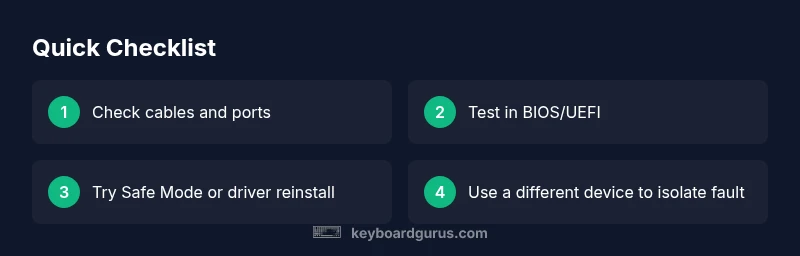
Quick fix: start with simple, proven checks. Ensure all cables are firmly connected, try a different USB port, and reboot the computer. If the issue persists, test the devices on another computer to rule out hardware faults, then enter BIOS/UEFI to verify USB recognition. This fast, step-by-step approach helps you diagnose when keyboard and mouse are not working, without guesswork.
Why this happens and what to check first
When keyboard and mouse is not working, the first step is to stay calm and work through a simple checklist. In most cases, the root cause is a connection issue, a misconfigured BIOS setting, or a software conflict rather than a dead device. According to Keyboard Gurus, many unresponsive input devices come from loose cables, a faulty USB port, or a keyboard/mouse driver conflict after an update. Start with the basics: reseat the devices, verify power to the computer, and check that USB devices are detected during boot. If USB devices aren’t recognized in BIOS, the problem is more likely hardware- or motherboard-related. Do not rush to replace parts; instead, test one variable at a time. A deliberate, methodical approach saves time and keeps you productive, which is especially important for students and gamers who depend on reliable input for deadlines or wins.
A systematic mindset matters. Document what you tested, note any BIOS messages, and keep a log of port activity. This helps you avoid circular fixes and makes it easier to escalate if you must contact support later. If you’re working on a shared workstation or a school lab, repeatable steps are essential so others can reproduce the result. The goal is to restore input quickly while preserving the rest of your setup. Remember that most failures are not catastrophic; they’re signs of something you can verify with a checklist and a little patience.
Quick checks you can perform in seconds
Begin with the fastest remedies that often restore input devices without opening the computer. Check that all cables are firmly connected and that the keyboard and mouse are plugged into the correct USB ports. If you have a USB hub, remove it and connect directly to the PC. Try a different USB port on the motherboard or a different keyboard/mouse to rule out a faulty peripheral. Reboot the system after reseating connections. If the devices work on another computer but not on yours, the issue is almost certainly with the host machine. In many cases, a simple port swap fixes the problem, especially on front-panel USB ports that may be controlled by a separate controller. If wireless devices are involved, confirm the receiver is properly plugged in and the batteries are fresh. Quick wins like these buy you time to diagnose the deeper issue without losing work.
Common culprits and how to confirm them
Not every unresponsive keyboard and mouse has the same root cause. The usual suspects include power issues (loose cables or a failing USB port), BIOS/UEFI settings that disable USB devices, and driver conflicts after a system update. Keyboard Gurus analysis shows that software or driver problems are often resolvable by Safe Mode or a clean reinstall of input drivers. To test, try the following checks: use a known-good keyboard or mouse, see if the BIOS detects the devices before Windows loads, and consider testing the hardware on another computer. If USB devices are detected at the hardware level but fail under Windows, focus on the OS and drivers rather than replacing hardware. Other frequent culprits include USB console conflicts from multiple devices trying to initialize simultaneously and power supply fluctuations affecting USB controllers. A calm, methodical approach lets you separate device faults from system issues and speeds up recovery.
Diagnostic flow overview
Start with a symptom description: keyboard and mouse are unresponsive. Then check power and cables, verify USB detection in BIOS, roll back or update drivers, test with alternate devices, and consider hardware faults. A logical flow helps you avoid unnecessary steps and wasted time; document each change and test after every fix. If you detect that USB devices are intermittently recognized only after reseating, focus on ports or the motherboard controller. When the BIOS cannot see any connected input devices, the fault is more likely hardware-related and may require professional assessment.
Step-by-step fixes for the most common causes
- Step 1: Check physical connections. Power off, unplug, reseat both keyboard and mouse, and inspect cables for visible damage. Reconnect firmly to known-good USB ports. Tip: Perform this with the PC powered down to prevent short circuits.
- Step 2: Test different USB ports and devices. Move the devices to different USB ports, preferably on different controllers. If available, swap the keyboard and mouse with known-good units. Tip: Use a direct port on the motherboard rather than a front panel hub.
- Step 3: Reset BIOS/UEFI and enable USB legacy support. Enter BIOS, load defaults, then ensure USB initialization and legacy support are enabled. Save changes and reboot. Tip: Don’t disable all security features while debugging.
- Step 4: Boot into Safe Mode or clean boot. This isolates driver issues from the OS. In Safe Mode, test input devices. Tip: If Safe Mode works, you can proceed with driver cleanup.
- Step 5: Reinstall or update drivers. In Windows, uninstall keyboard/mouse drivers, reboot, and let Windows reinstall them. If needed, download drivers from the manufacturer’s site. Tip: Create a system restore point before major driver changes.
- Step 6: Hardware checks and professional help. If devices still fail on multiple machines or BIOS still hides USB devices, there may be a faulty USB controller or motherboard issue. Consider professional service. Tip: Document all tests and outcomes for the technician.
Steps
Estimated time: 45-60 minutes
- 1
Check physical connections
Power off the PC, unplug, and reseat both keyboard and mouse. Inspect cables for damage and try different ports. Ensure connections are secure before powering back on.
Tip: Do this first—loose cables are the most common cause. - 2
Test alternate ports and devices
Move devices to other USB ports and test with known-good peripherals if available. This helps determine whether a port/controller issue or the devices themselves are faulty.
Tip: Prefer ports on the motherboard’s rear panel to rule out front-panel hub issues. - 3
Reset BIOS/UEFI and enable USB legacy
Enter BIOS/UEFI on startup, load default settings, and re-enable USB initialization and legacy support if needed. Save and reboot.
Tip: Changing BIOS settings can fix hidden USB restrictions. - 4
Boot into Safe Mode or clean boot
Restart into Safe Mode to isolate driver problems. If input works there, focus on Windows drivers and startup software.
Tip: Safe Mode can reveal driver conflicts that normal boot hides. - 5
Reinstall or update drivers
Uninstall keyboard and mouse drivers, reboot, and allow Windows to reinstall them. If available, install the latest official drivers from the manufacturer.
Tip: Always create a restore point before major driver changes. - 6
Assess hardware or seek professional help
If devices fail on multiple machines or USB remains hidden in BIOS, a hardware fault is likely. Consult a technician.
Tip: Keep a detailed log of tests for the technician.
Diagnosis: Keyboard and mouse stop working suddenly.
Possible Causes
- highPower issue or loose cables
- highFaulty USB port or hub
- mediumBIOS/UEFI disables USB devices or USB legacy support off
- mediumOutdated or conflicting drivers
- lowHardware fault in USB controller or motherboard
Fixes
- easyCheck power and reseat connections; try different USB ports
- easyTest keyboard/mouse on another computer to rule out device fault
- mediumEnter BIOS/UEFI and enable USB legacy support or reset to defaults
- mediumUpdate or reinstall drivers, possibly in Safe Mode
- hardIf hardware fault is suspected, consult a technician or consider replacement
Got Questions?
What should I check first when my keyboard and mouse stop working?
Start with the basics: reseat cables, try different USB ports, and reboot. If the problem persists, test the devices on another computer to rule out hardware faults.
Start with reseating cables, switching USB ports, and rebooting, then test on another computer to rule out hardware faults.
Why would a keyboard work in BIOS but not in Windows?
If the BIOS detects the keyboard but Windows does not, the issue is usually driver or OS configuration related. Try Safe Mode or a driver reinstall.
If BIOS sees it but Windows doesn’t, it’s usually a driver or OS issue. Try Safe Mode or reinstall drivers.
How do I enable USB legacy support in BIOS?
Enter BIOS/UEFI on startup, locate USB or peripherals settings, enable USB legacy support or USB initialization, save changes, and reboot.
Go into BIOS and enable USB legacy support, then save and reboot.
When should I replace peripherals or motherboard?
If devices work on other machines but not on your PC, or BIOS cannot detect USB ports consistently, consider hardware replacement or professional assessment.
If it doesn’t work across multiple machines, it might be time to replace hardware or seek a technician.
Is it safe to troubleshoot keyboard and mouse problems myself?
Yes for basic checks and driver updates. Avoid internal components; unplug power before touching hardware and seek help if you feel unsure.
Yes, you can fix basics yourself, but stop if you’re unsure or feel unsafe.
Watch Video
What to Remember
- Start with simple, verifiable checks before deeper fixes
- Test on another device to rule out the peripheral
- Use BIOS/UEFI and Safe Mode to isolate causes
- Document tests and preserve system state with restore points