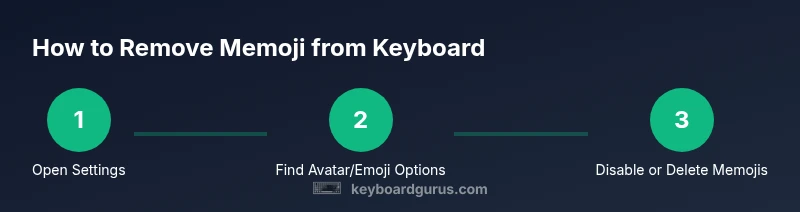
How to Remove Memoji from Keyboard
Learn practical steps to remove Memoji from your keyboard across iPhone, iPad, and Android devices. Get clear, actionable guidance and privacy tips from Keyboard Gurus.


Removing Memoji from the keyboard can reduce visual clutter and speed up typing on small screens. This guide covers iOS and Android pathways, explains why Memojis appear on keyboards, and provides privacy-focused tips to prevent reappearance. Follow the steps to tailor your keyboard to your needs.
What Memoji is and where it lives on keyboards
Memoji is a customizable avatar used by Apple across iOS apps, including the emoji panel accessed from the on-screen keyboard. When you open the emoji keyboard, you may see a dedicated Memoji row or a Memoji section alongside standard emoji. For many users, this can clutter the keyboard experience, especially on smaller devices or when speed is a priority. Understanding where Memoji sits in the keyboard helps you decide whether to remove it entirely or simply hide it from view. Keyboard Gurus emphasizes that Memojis are a cosmetic feature tied to user profiles and personalization rather than essential typing tools. By treating Memojis as an opt-in element, you can reclaim screen real estate and minimize accidental touches or distractions during rapid typing.
- Memoji is often associated with an Apple ID and personalized avatars.
- It appears within the emoji keyboard, not as a separate app.
- Removing or hiding Memojis is usually a device- and app-specific process.
Tip: If you mostly type in apps that support rich text, consider temporarily disabling Memojis during high-intensity tasks and re-enabling later for personalization.
Platform realities: iOS vs Android and keyboards
Across devices, the exact path to removing Memojis from the keyboard varies. On Apple devices (iOS/iPadOS), Memojis live in the built-in emoji picker and in the profile/Avatar settings. On Android, some devices use a Gboard-like keyboard that may show memoji-style avatars or stickers, but the path to disable or hide them can differ by OEM (Samsung, Google, OnePlus, etc.). Keyboard Gurus recommends treating removal as a combination of: (1) adjusting keyboard settings, (2) editing your Memoji/avatar profile in the associated app, and (3) testing across apps to confirm the change sticks. If you share a device, ensure changes apply to your user profile rather than the entire device.
- iOS: Memojis tend to be part of the emoji picker and Memoji editor.
- Android/Gboard: Memojis may appear as stickers or avatar options within the emoji panel.
- Some apps cache keyboard state; you might need to restart the app or device after changes.
Quick test: Open a chat and type, then switch keyboards to confirm Memojis no longer appear where you expect them to.
iPhone/iPad: removing Memoji from the keyboard (step-by-step overview)
On Apple devices, you typically manage Memojis via the Memoji editor or the profile/avatar settings rather than a universal toggle for the keyboard. Start by ensuring your profile is not using a Memoji avatar if you want to remove it from appearing across apps. Then, check the emoji keyboard settings to see if a Memoji tab can be hidden or minimized. If you rely on Messages for personalization, you may need to delete the specific Memoji avatar in the Memoji editor. This approach helps prevent new Memojis from appearing automatically when you switch to the emoji keyboard.
What to expect:
- The Memoji editor stores your avatars locally on the device.
- Some iOS versions might still surface basic Memoji options in the keyboard even after changes.
- Changes can require a brief app or device restart to take full effect.
Android and Gboard considerations: hiding or removing Memoji-like avatars
Android devices vary widely by manufacturer and keyboard app. If you use Gboard or a Gboard-based keyboard, look for the avatar or Memoji-like section within the emoji panel or settings. Some OEM keyboards ship with Avatar features that mimic Memojis; disabling these features often lives under keyboard settings or Privacy/Personalization menus. The key strategy is to locate avatar-related options and switch them off or delete saved avatars. Remember that some apps keep their own UI skins or caches, so you may need to clear app data or reselect the keyboard after changes.
- Check: Keyboard settings > Avatar/Emoji/Memoji options.
- Look for a toggle to disable Memoji or personalized avatars.
- Restart affected apps to ensure changes apply.
Note: Android users may not have a universal “memoji removal” switch; instead, disable in each app or keyboard, then test.
Privacy, data handling, and best practices
Removing Memojis can simplify your typing experience and reduce the amount of personalized data displayed on the keyboard. Even if you delete a Memoji avatar, the concept of a profile image may persist in some apps (Messages, contacts, etc.). Keyboard Gurus recommends:
- Regularly review profile pictures in Messages or Contacts that might reintroduce personalized avatars.
- Back up settings before making changes, so you can revert if needed.
- If privacy is a priority, consider using a neutral or generic avatar instead of a custom Memoji to minimize personal data exposure.
By treating Memojis as a personal choice rather than a required feature, you can control when and where they appear without sacrificing device usability.
Troubleshooting: what to do if Memoji reappears after updates or app changes
If Memojis reappear after an OS or app update, recheck the relevant settings (profile/avatar, emoji keyboard, and per-app keyboard clues). Some apps may override keyboard state after an update or reinstall. A practical approach is to perform a quick reset of keyboard settings (where available) and then re-test across multiple apps. If persistence continues, consider temporarily disabling the emoji keyboard entirely and re-enabling it after testing to ensure the change sticks. Finally, consult the device’s support resources if a known bug exists for your model and OS version.
A quick recap: what you’ve achieved and what remains
You’ve learned that Memojis can be managed at the keyboard level or via profile/avatar settings, with platform-specific paths. By removing or hiding Memojis, you improve typing flow and screen space. If you still see Memojis after following the steps, revisit per-app settings and verify there are no cached keyboard states left. Regular checks can prevent future reappearance and help you maintain a clean, focused keyboard experience.
Tools & Materials
- Smartphone or tablet with current OS(Ensure you have the latest OS updates for accurate settings locations.)
- Settings app access(You’ll need to modify keyboard and Memoji-related options.)
- Messages app (iOS) and/or keyboard-enabled apps(Helpful for testing changes in real-world usage.)
- Time and patience(Some steps may require retries across apps for full effect.)
Steps
Estimated time: 20-40 minutes
- 1
Open device Settings
Access the system settings to locate keyboard and avatar options. This step ensures you’re working with the most recent configuration rather than a cached state.
Tip: If Settings isn’t readily visible, use the search bar at the top of Settings to find “Keyboard” quickly. - 2
Navigate to Avatar/Memoji options
On iOS, look for Memoji or Avatar-related settings. On Android, locate avatar or emoji customization within the keyboard app. The goal is to isolate the Memoji element from general emoji behavior.
Tip: If you don’t see a Memoji section, proceed to the emoji keyboard settings; some devices place avatars there by default. - 3
Edit or delete your Memoji/avatar
In the Memoji editor (iOS), delete the avatars you don’t want. If you’re on Android, remove saved avatars from the keyboard’s avatar manager or switch off the avatar feature entirely.
Tip: Back up any avatar you might want later before performing deletions. - 4
Disable Memoji in the emoji keyboard
If the keyboard exposes a dedicated Memoji tab, disable it or hide the Memoji row to prevent accidental tapping during typing.
Tip: Some devices require a restart of any affected apps after toggling visibility. - 5
Test keyboard behavior
Open a chat or document and switch between keyboards to confirm Memojis no longer appear in the quick-access area.
Tip: If Memojis still show, repeat steps 2–4 for other apps that may cache keyboard layouts. - 6
Update your profile picture (optional)
If you use your memoji as a profile image in messages or contacts, replace it with a neutral avatar to avoid automatic resurfacing.
Tip: Profile changes may sync across devices; verify on each connected device. - 7
Document your changes
Note where you made changes and why. This helps future updates or bug reports and makes it easier to revert if needed.
Tip: Keep a simple checklist to avoid missing a platform-specific toggle.
Got Questions?
Can I permanently remove memoji from the keyboard?
You can reduce or hide Memojis by editing your Memoji avatars and adjusting keyboard settings. Some systems may re-enable them after updates, so periodic checks are advised.
You can reduce or hide Memojis by editing your avatars and keyboard settings. Check after updates to ensure they stay hidden.
Will removing memoji affect other apps that use memoji?
Most apps use the keyboard state, not every app stores Memojis locally. If an app caches keyboard layouts, you may need to restart that app after changes.
Most apps use the keyboard state. If something reappears, try restarting the app or device.
How do I delete my Memoji avatar on iPhone?
Open the Memoji editor from Messages or Settings, select the avatar, and choose delete. This removes that specific avatar from your device.
Open the Memoji editor, pick the avatar, and delete it to remove it from your device.
Can memoji be removed on Android with Gboard?
Android removal depends on the keyboard app. Look for Avatar/Memoji options in the keyboard settings and disable or delete saved avatars.
On Android, go to your keyboard settings and disable or delete saved avatars.
What should I do if memoji reappears after an OS update?
Revisit avatar and emoji settings after updates, and restart affected apps to ensure changes stick.
If it reappears after an update, recheck the settings and restart the relevant apps.
Does removing memoji affect privacy across apps?
Removing Memojis can reduce personal data exposure in keyboards, but some apps may still store avatars elsewhere.
Yes, it can reduce exposure, but some apps might store avatars in other places.
Watch Video
What to Remember
- Identify where Memojis live in your keyboard settings
- Hide or delete Memojis to reclaim screen space
- Test across apps to confirm changes take effect
- Consider privacy impacts when personal avatars persist
- Restart apps or device if changes don’t stick