How to Remove Stickers from Emoji Keyboard iPhone
Learn how to remove sticker packs from the iPhone emoji keyboard, tidy Messages, and keep your app drawer clean. Keyboard Gurus provides a practical, step-by-step guide to remove stickers without affecting your emoji access.


How to remove stickers from emoji keyboard iphone: identify sticker packs in Messages, open the App Drawer, and delete or hide packs. According to Keyboard Gurus, the steps are straightforward across recent iOS versions. This quick guide covers removal, optional hiding of emoji suggestions, and troubleshooting reappearance. You’ll learn where to look, what to tap, and how to confirm removal, with safety tips to avoid deleting anything you still want.
Understanding the landscape: emoji keyboard, stickers, and iOS design
According to Keyboard Gurus, the iPhone emoji keyboard and sticker packs live in separate layers within iMessage. Emoji are the built-in characters you type to communicate, while stickers come from dedicated packs that you install from the App Store or within the Messages app. Distinguishing these two is essential because removing sticker packs does not affect your basic emoji access, and removing the wrong item could make your Messages feel empty or less expressive. This section clarifies how iOS organizes keyboards and sticker apps, so you know where to look when you want a cleaner Messages interface. Across recent iOS updates, Apple has kept the separation between emoji and sticker packs fairly consistent, which makes the removal process predictable. Keyboard Gurus analysis shows most users can complete this task quickly when they follow a clear sequence of steps and verify the results in a test chat.
If you’re new to iPhone customization, start with the least invasive option—hiding the App Drawer temporarily—and progress to permanent removal only if you’re sure you won’t miss a sticker pack later. By understanding where stickers live and how the App Drawer works, you’ll approach sticker management with confidence and minimize the risk of accidentally deleting something you still want. This approach aligns with best practices for maintaining a tidy digital workspace.
Finally, be mindful that iOS updates may slightly shift where options appear. The guidance here focuses on widely supported paths that have remained stable across multiple iOS releases, but always check for minor UI changes after major system updates.
Locating sticker packs in the Messages App Drawer
Sticker packs and emoji share the same conversation window but come from different sources. The App Drawer in Messages houses all installed sticker packs and other iMessage apps. To locate and manage these packs, you’ll need to access the App Drawer from within a chat. Start by opening Messages and selecting any conversation. Look at the bottom row for the familiar App Store-like icon (usually labeled with a grid or
Tools & Materials
- iPhone with latest iOS installed(Ensure your device is updated to the current iOS version for consistent steps.)
- Internet connection(Needed to access the App Store and sticker packs.)
- Messages app access(Open a conversation to reveal the App Drawer.)
- Backup option (optional)(Consider backing up stickers you want to keep before removal.)
Steps
Estimated time: 15-25 minutes
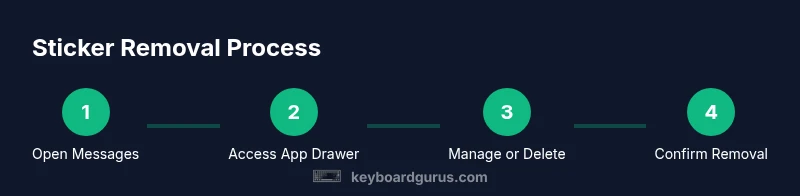
- 1
Open Messages
Launch the Messages app from your Home screen. This is the first step to reach the App Drawer where sticker packs are managed.
Tip: Make sure you’re in a chat, not the Home screen. - 2
Open a conversation
Tap any existing thread to reveal the text input field and the App Drawer beneath. You’ll see icons for stickers and other iMessage apps.
Tip: If you don’t see the App Drawer, swipe up on the keyboard area to reveal it. - 3
Access the App Drawer
Tap the App Store-like icon to the left of the text field to expand the App Drawer and display installed sticker packs.
Tip: This panel shows both emoji and sticker apps; don’t confuse the two. - 4
Open Manage or Store
In the App Drawer, tap Manage (or Store) to view your installed sticker packs and options to delete.
Tip: Not all iOS versions label this the same; look for Manage, Edit, or a trash option. - 5
Delete the sticker pack
Tap the trash/delete icon next to a sticker pack or swipe left on the pack and choose Delete. Confirm the removal when prompted.
Tip: Only remove packs you don’t want; emoji will remain unaffected. - 6
Verify removal
Return to the App Drawer and confirm that the sticker pack no longer appears in the list. Try sending a quick sticker in a new chat to confirm.
Tip: If a pack reappears after deletion, re-check app store settings for auto-downloads.
Got Questions?
Do sticker packs delete my messages when removed?
No. Removing sticker packs only deletes the sticker packs themselves from the App Drawer; your existing messages remain intact. Emoji characters and chat history are unaffected.
No—removing sticker packs does not delete your messages or emojis.
Can I reinstall a sticker pack after removing it?
Yes. You can reinstall a sticker pack later from the App Store or the Manage screen in Messages if you change your mind.
Yes, you can reinstall sticker packs anytime from the App Store or Messages.
Will this affect iOS performance or battery life?
Generally no. Removing sticker packs does not impact device performance or battery life beyond normal app operations.
It won’t noticeably affect performance or battery life.
Is there a global disable for all stickers in iMessages?
You can hide the App Drawer to reduce visibility, or disable iMessage apps for a more aggressive cleanup, depending on your iOS version.
You can hide the App Drawer or disable iMessage apps to reduce stickers.
What if stickers reappear after a software update?
Check for auto-download settings in the App Store and re-enter Manage in Messages to repeat the removal steps if necessary.
If they pop back after an update, repeat the removal steps in Messages.
Watch Video
What to Remember
- Identify sticker packs before deleting
- Delete packs, not the emoji set
- Use Manage in Messages to remove packs
- Optional: hide App Drawer to reduce clutter
- Verify changes in a new chat