How to Stop a Keyboard from Typing: Step-by-Step Guide
Learn practical steps to stop a keyboard from typing unintentionally. This step-by-step guide covers software fixes, hardware checks, and preventive care with expert guidance from Keyboard Gurus.


You can stop a keyboard from typing by isolating the cause and applying safe fixes. Start with software-based steps (disable input temporarily, update drivers, adjust accessibility settings) before touching hardware. This guide from Keyboard Gurus walks you through practical, low-risk methods to regain control without damaging your setup. Follow the steps in order and test after each to confirm stability.
Causes and quick diagnostics
According to Keyboard Gurus, unintentional typing often arises from hardware faults, software glitches, or peripheral conflicts. When you ask how to stop a keyboard from typing, the fastest route is to diagnose symptoms first and then apply targeted fixes. In this section we outline common signs and a simple triage you can perform without specialized tools. Look for patterns: do keys type without being pressed, or only after you launch a specific app? Is the behavior consistent across reboot, or does it come and go? Hardware faults tend to be more persistent; software glitches often show up after updates or new programs. Peripheral conflicts can involve USB hubs, wireless receivers, or Bluetooth pairing. As you go through these checks, document your observations and back up any critical data. A methodical approach reduces risk and helps you choose the right fix. Keyboard Gurus researchers emphasize starting with software-based checks before disassembling hardware, which minimizes the chance of accidental damage and saves time in the long run.
If you notice keystrokes occurring without any key press, that is a strong indicator of a hardware fault or a ghosting issue tied to the keyboard matrix. If keystrokes appear only when a particular program is active, the problem is more likely software-related or an app-specific shortcut. Keep a simple log of symptoms: time of day, affected keys, and whether the issue follows a reboot or a device reconnect. This data will guide the next steps and help you decide whether to repair, replace, or reconfigure settings. By the end of this diagnostic, you should have a clear hypothesis you can test with targeted fixes.
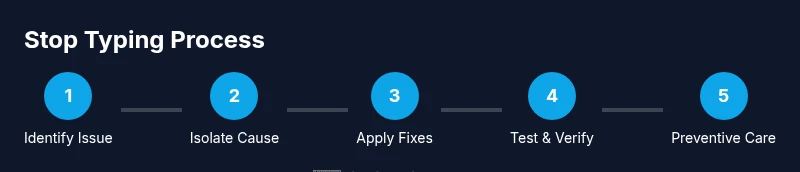
Ultimately, the question of how to stop a keyboard from typing is resolved by a structured approach: separate software problems from hardware faults, test with alternatives, and recheck after each change. Keyboard Gurus’s evidence-based guidance favors a methodical, low-risk workflow over guesswork.
Tools & Materials
- Precision screwdriver set(For laptop keyboards or screws hidden under keycaps)
- Microfiber cloth(Lint-free wipe to avoid scratching surfaces)
- Isopropyl alcohol (70%+), or sanitizing wipes(For safe cleaning of key surfaces and housings)
- Compressed air can(Blows dust and debris from under keys)
- Replacement keycaps or switches(Only if you plan component-level replacement)
- Anti-static wrist strap(Optional to minimize static damage)
- USB cable (backup keyboard)(Test with a known-good keyboard)
- Small tray or organizer(Keep screws and parts organized)
Steps
Estimated time: 60-90 minutes
- 1
Identify the symptom
Observe when typing occurs, which keys are involved, and whether the issue happens after boot, after switching apps, or only in certain programs. Document times, affected keys, and whether the issue persists with another keyboard. This helps distinguish hardware faults from software problems.
Tip: Keep a simple log; pattern recognition makes subsequent steps faster. - 2
Isolate the keyboard (power off)
Power down the computer and unplug the keyboard from any USB or Bluetooth source to prevent accidental input during inspection. If you’re using a laptop, shut it down completely rather than just putting it to sleep before opening the chassis if you plan any internal checks.
Tip: Unplugging helps ensure you don’t inadvertently trigger keystrokes while you investigate. - 3
Test with a known-good keyboard
Connect a spare keyboard or use a Bluetooth one to see if the issue reproduces. If the spare works normally, the fault likely lies with the original keyboard’s hardware or its firmware/drivers rather than the OS.
Tip: Hardware replacement is often cheaper and quicker than deep repairs. - 4
Disable input temporarily (OS-level)
Use accessibility settings to filter or block keyboard input temporarily and verify whether symptoms persist without the suspect device. On Windows enable Filter Keys; on macOS adjust Accessibility Keyboard settings.
Tip: Temporary input blocking helps confirm whether the issue is device- or system-related. - 5
Clean the keyboard hardware
With power off, use compressed air to clear dust, then wipe the surface with a microfiber cloth lightly dampened with isopropyl alcohol. For stubborn keys, gently lift and clean beneath with care, ensuring no liquid enters the switch housing.
Tip: Avoid dripping liquids and never spray directly into switches. - 6
Update drivers and firmware
Visit the manufacturer’s site or use your OS update tool to install the latest keyboard drivers and firmware. For wireless keyboards, a firmware update can fix ghosting, stuck keys, and recognition issues.
Tip: Outdated firmware can cause unpredictable input even when hardware is fine. - 7
Check malware and macro software
Run a full system malware scan and inspect for macro software or keyboard remapping utilities that could generate unexpected keystrokes. Remove suspicious tools or disable them to test results.
Tip: Keyloggers or macros masquerade as normal apps but alter input behavior. - 8
Decide on repair vs replacement
If multiple keys remain faulty after software fixes, assess repair viability or replacement, considering warranty and cost. For laptops, professional service may be the safest option.
Tip: Compare repair costs with replacement price and future reliability. - 9
Test again and re-enable typing
Reconnect the keyboard, boot the system, and test all keys in multiple apps. Confirm stability before returning to regular work, and monitor for recurrence.
Tip: If the issue returns, record the conditions to guide the next steps.
Got Questions?
Why is my keyboard typing by itself even when I’m not pressing any keys?
Common causes include stuck keys, dust causing hardware faults, malware or macro software, and driver or firmware glitches. Start with a hardware check and malware scan, then review drivers and accessibility settings.
This usually happens due to dust, a stuck key, or software interference; begin with a hardware check and a malware scan.
Should I disable keyboard input permanently to fix the problem?
No. Use temporary OS-based input blocking only as a diagnostic step to confirm the issue source. Permanent disabling would prevent essential work until you re-enable input.
Don’t disable input permanently—use it only to diagnose where the problem is.
Can a laptop keyboard be repaired, or is replacement usually required?
It depends on the fault. A single broken key or switch can often be repaired or swapped; broader keyboard matrix or motherboard issues typically require service or replacement.
Often a small repair will fix it, but some issues need professional replacement.
Is it safe to clean a keyboard with alcohol?
Yes, as long as you power down and unplug first. Use a small amount on a cloth and avoid liquids seeping into switches.
Yes, but avoid pouring liquid directly on the keyboard and let it dry before reconnecting.
How long does a typical fix take?
Most fixes take 30–60 minutes depending on complexity, with hardware checks often taking longer than software tweaks.
Most fixes are under an hour, but hardware work can take longer.
What should I do if the issue keeps returning after fixes?
Revisit the diagnostic steps, test with a different keyboard, and consider warranty or professional repair if hardware faults persist.
If it keeps returning, reassess hardware vs software and consider replacement.
Watch Video
What to Remember
- Identify whether issue is hardware or software
- Test with a spare keyboard to isolate the cause
- Use safe, non-destructive steps first
- Update drivers and firmware to fix ghost input
- Decide between repair and replacement based on warranty and cost