Why Is My Keyboard Typing Itself? A Troubleshooting Guide
Urgent, practical steps to stop ghost typing. Learn how to diagnose hardware vs software issues, fix debris, adjust settings, and prevent future keyboard input problems with Keyboard Gurus.


If you’ve ever asked, why is my keyboard typing instead of staying quiet, you’re not alone. The quick fix usually starts with checking for stuck keys, debris, and rogue accessibility shortcuts. According to Keyboard Gurus, most cases are caused by simple misconfigurations or hardware issues that you can resolve in minutes. Try cleaning, testing with another keyboard, and disabling nonessential accessibility features.
Why is my keyboard typing instead of staying quiet?
If you’ve ever asked, why is my keyboard typing instead of staying quiet, you’re not alone. Ghost typing is a common issue that ranges from hardware quirks to software misconfigurations. In most cases, the root cause is something you can spot and fix quickly, especially if you act fast before debris works deeper into the switches. According to Keyboard Gurus, the majority of cases come down to three broad categories: physical interference, language/input settings, or software shortcuts that trigger unexpectedly. Start by observing the symptoms carefully: Are single keys repeating, are several keys stuck, or is text appearing without you touching anything? Note whether this happens only on a particular app, at startup, or across the entire system. By logging when the problem occurs, you’ll narrow down whether it’s hardware, software, or a global accessibility feature at fault. Keeping a calm, methodical approach helps you avoid unnecessary replacements and preserves your setup.
Common Causes
Ghost typing can spring from several frequent culprits. Debris, dust, and moisture can cause keys to register without input. Misconfigured language or keyboard layout can route keystrokes to the wrong symbols. Accessibility features like Sticky Keys, Filter Keys, or Toggle Keys may also generate unexpected input if enabled. Outdated or corrupted keyboard drivers can create ghost input on boot or during use. Finally, software conflicts, malware, or stray Bluetooth interference can cause ghost typing on laptops and desktops alike. Understanding these causes helps you design a focused test plan rather than replacing hardware preemptively. In Keyboard Gurus analysis, most fixes revolve around easily reversible settings rather than expensive hardware replacements.
Diagnostic Approach: Quick Checks You Can Do
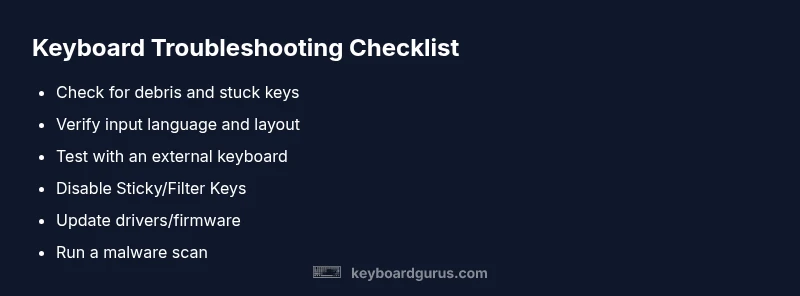
To determine whether the issue is hardware or software, perform a short, structured test sequence. First, plug in a known-good external keyboard or a different USB port to see if the problem travels with the keyboard. If the external keyboard behaves normally, the fault is likely with the original keyboard; if the problem persists, focus on software. Check the system language and input method settings; ensure the correct keyboard layout is active. Disable Sticky Keys, Filter Keys, and Toggle Keys temporarily and test again. Boot into Safe Mode (Windows) or Recovery/Safe Mode (macOS) to see if the issue persists without third-party software. Finally, run a malware scan and review startup items for software that could be injecting keystrokes. This process helps you identify whether the root cause is hardware, driver, or software.
Step-by-Step Fixes You Can Try This Moment
- Power cycle and test with an external keyboard. Shut down, unplug, and restart with a different keyboard connected to your device. If the issue disappears, the original keyboard likely needs repair or replacement. 2) Clean the keyboard and inspect keys. Use compressed air to blow out debris, then wipe each key with a microfiber cloth. Look for keys that stick or travel unevenly when pressed. 3) Confirm language/input settings. On Windows, go to Time & Language > Language; on macOS, open System Preferences > Keyboard > Input Sources. Remove unfamiliar layouts and set your main layout as default. 4) Turn off accessibility helpers. Disable Sticky Keys, Filter Keys, and Toggle Keys; test again. 5) Update drivers and firmware. Run your OS updater and check the keyboard driver in Device Manager or System Information for updates. 6) Check for software conflicts and malware. Run a full antivirus scan, review recently installed apps, and consider a Safe Mode test to rule out third-party software. If none of these steps solve the problem, a professional inspection may be required.
Safety Tips & Precautions
- Do not spray liquids directly onto the keyboard; use minimal damp cloths if cleaning. - Unplug devices before removing keys or opening the chassis to prevent electrical shock. - Create a system restore point before updating drivers or firmware in case you need to roll back. - Never ignore liquid spills; address immediately to minimize corrosion and short circuits.
Prevention & Maintenance
- Clean your keyboard regularly with compressed air to remove dust and debris. - Use caution near liquids and place drinks away from your workspace. - Keep drivers and firmware up to date, but always back up important data first. - Periodically review accessibility settings to ensure no features are accidentally enabled. - Consider a secondary keyboard for testing and troubleshooting to isolate hardware faults quickly.
Steps
Estimated time: 30-60 minutes
- 1
Power cycle and test with external keyboard
Shut down, unplug, and restart with a different keyboard connected. If the issue stops, the problem is likely with the original keyboard or its connection.
Tip: Keep note of whether the issue follows the keyboard or the computer. - 2
Clean and inspect keys
Blow out dust with compressed air, then wipe each key with a microfiber cloth. Press every key to identify sticks or dead spots.
Tip: Unplug and use gentle pressure to avoid damaging switches. - 3
Verify language and input settings
Open your OS settings and ensure the correct input source is selected. Remove unfamiliar layouts and set your primary layout as default.
Tip: Add a test language and switch between layouts to confirm behavior. - 4
Disable accessibility features
Turn off Sticky Keys, Filter Keys, and Toggle Keys; test typing again. If the issue vanishes, re-enable features one by one to identify the trigger.
Tip: Consider a temporary user profile to isolate account-specific settings. - 5
Update drivers and firmware
Run your OS updater and update the keyboard driver via Device Manager or System Preferences. Check for firmware updates from the keyboard manufacturer if available.
Tip: Create a system restore point before applying updates. - 6
Check for software conflicts and malware
Run a full antivirus scan and review recently installed apps or extensions that could affect input. Boot into Safe Mode to test if the problem persists without third-party software.
Tip: Document the steps you took to fix the issue to assist future troubleshooting.
Diagnosis: Keyboard typing unexpectedly or ghost typing
Possible Causes
- highDebris, dust, or stuck keys
- mediumIncorrect input language or keyboard layout
- mediumAccessibility features enabled (Sticky Keys, Filter Keys, Toggle Keys)
- lowOutdated or corrupted keyboard drivers
- lowMalware or software conflicts
Fixes
- easyClean the keyboard and test with an external keyboard
- easyCheck and correct language/input settings
- easyDisable accessibility helpers (Sticky Keys, Filter Keys, Toggle Keys)
- easyUpdate keyboard drivers/firmware and run system updates
- easyRun a malware scan and review startup applications
- mediumIf unresolved, consult a professional for hardware inspection
Got Questions?
Why is my keyboard typing on its own?
Ghost typing is typically caused by debris or stuck keys, plus software features like Sticky Keys or input misconfigurations. Test with an external keyboard and disable accessibility shortcuts to confirm. If the issue persists, update drivers and scan for malware.
Ghost typing is usually debris or software features; test with another keyboard and update drivers to confirm.
How can I tell if it’s hardware or software?
If an external keyboard works normally, the problem is most likely hardware or the original keyboard’s connection. If the issue remains with an external keyboard, focus on software settings, drivers, or malware.
Test with an external keyboard to separate hardware from software causes.
Can Bluetooth interference cause ghost typing?
Yes, wireless interference can cause unexpected input on Bluetooth keyboards. Try re-pairing, changing channels, or using a wired keyboard to confirm.
Bluetooth interference can trigger ghost typing; re-pairing or using wired input helps confirm.
Should I replace the keyboard or just clean it?
Start with cleaning and verifying software. If keys remain stuck or the issue repeats after testing with another keyboard, hardware replacement may be necessary.
Clean first; if issues persist after testing with another keyboard, replacement might be needed.
What should I do after updating drivers?
Restart the device and test keyboard input. If problems return, review startup items, run a malware scan, and consider Safe Mode testing to isolate conflicts.
Restart and test after updates; if issues continue, check for software conflicts and malware.
Watch Video
What to Remember
- Identify hardware vs software quickly.
- Clean debris and check language settings first.
- Update drivers and test with a separate keyboard.
- Escalate to a professional if unresolved.