Why Is My Computer Keyboard Not Typing? Troubleshooting Guide
Discover fast, practical steps to diagnose and fix a keyboard that won’t type, with a clear troubleshooting flow and expert tips from Keyboard Gurus to get you back typing quickly.


Likeliest cause: a hardware connection, driver, or settings issue. Start with simple checks: reconnect the keyboard, try a different USB port, and reboot. If wireless, replace batteries or re-pair. Update keyboard drivers and verify input language and accessibility settings. In most cases, a restart or driver update resolves the problem quickly.
Understanding the symptom: why is my computer keyboard not typing
If you’re asking 'why is my computer keyboard not typing', start by checking whether any keys respond in BIOS or a boot menu. According to Keyboard Gurus, most typing failures fall into hardware faults, driver/software conflicts, or misconfigured settings. Begin by confirming the keyboard is physically connected, powered (for wireless models), and detected by the system. If the device shows up in Device Manager (Windows) or System Information (macOS), you’re more likely facing a software/driver issue; if not, a hardware fault is likelier. Distinguishing hardware from software quickly saves time, especially for gamers and professionals who rely on precise input. Consider whether you’re using a built-in laptop keyboard, a wired USB model, or a modern wireless keyboard, as each scenario points to different fixes. As you diagnose, start with the least invasive tests and document each step so you can backtrack if needed.
Hardware checks you can perform today
Many typing problems come from simple physical issues. Start with these quick checks:
- Inspect the cable or dongle: unplug and replug firmly, try a different USB port, or switch from USB-C to USB-A depending on your setup.
- Test on another device: connect the keyboard to a different computer to see if it works there; if it fails, the keyboard is likely defective.
- Look for damage or debris: dust under keys, spills, or sticky keys can prevent accurate input. Gently clean with compressed air and avoid liquid cleaners.
- Check power for wireless keyboards: replace or recharge batteries and re-pair the device if needed.
- Confirm there’s no physical switch or function key lock disabling typing (some keyboards have hardware toggles).
If these quick checks don’t help, you’re likely dealing with a software or hardware fault that requires deeper fixes.
Software and driver considerations
Software conflicts and out-of-date drivers are common culprits. Do these checks:
- Update or reinstall keyboard drivers: on Windows, open Device Manager, expand Keyboards, right-click your keyboard, and choose Update driver. On macOS, ensure you’re on the latest system version.
- Check language and input settings: ensure the correct keyboard layout is selected and that the input language matches your region. Discourage conflicting layouts or multiple input methods.
- Inspect accessibility features: on Windows, turn off Filter Keys and Sticky Keys if they’re enabled; on macOS, review Keyboard settings and Shortcuts.
- Try Safe Mode or a clean user profile: boot into Safe Mode to see if a background program is interfering; create a new user to rule out profile corruption.
- Consider firmware updates: some wireless keyboards have firmware updates via the manufacturer’s app; follow the official instructions for safe updating.
If the issue persists after driver updates and clean profiles, the problem might be hardware-level or deeper OS corruption.
Wireless keyboards and power management
Wireless typing issues often trace to power, pairing, or interference. Steps to try:
- Replace or recharge batteries and re-pair the device with your computer.
- Confirm Bluetooth is enabled and the keyboard is in pairing mode; remove and re-add the device if necessary.
- Check for interference: other wireless devices or USB 3.0 hubs can cause noise; move the keyboard receiver closer and away from potential sources.
- Update the keyboard’s firmware if a companion app is available; ensure you’re using a supported OS version.
- Use a wired fallback: connect a USB keyboard for continuity while you troubleshoot the wireless model.
If the keyboard still won’t type, consider testing with a different wireless keyboard to see if the issue is system-wide or device-specific.
When to seek professional help and prevention tips
If you’ve exhausted the above steps and the keyboard still won’t type, a hardware fault is likely. Contact the manufacturer for warranty repair or visit a local repair service. To prevent future issues:
- Keep drivers updated and create a restore point before major OS changes.
- Use a USB hub with reliable power if you have many peripherals.
- Clean keyboards regularly and avoid eating over the keyboard to reduce debris and spills.
- Have a spare keyboard on hand for critical work sessions.
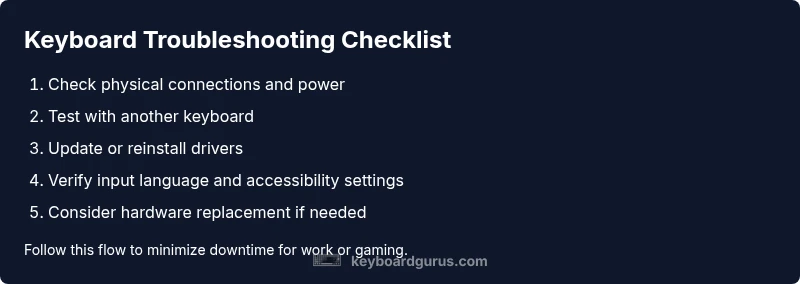
By following a systematic diagnostic flow, you’ll reduce downtime and preserve typing reliability for work, gaming, or study.
Steps
Estimated time: 60-90 minutes
- 1
Check physical connection
Unplug and replug the keyboard, test different ports, and ensure power for wireless devices. Look for visible damage.
Tip: Label test results to avoid skipping steps - 2
Test with another keyboard
Connect a different keyboard to see if the issue reproduces. If the new keyboard types, the original is faulty.
Tip: Use the same port to compare results - 3
Inspect OS settings
Verify language layout, input method, and disable Sticky/Filter Keys; check accessibility panels.
Tip: Take screenshots before changing settings - 4
Update drivers
Open Device Manager (Windows) or System Information (macOS) and update keyboard drivers; reboot afterwards.
Tip: Do a full reboot after install - 5
Try Safe Mode / clean profile
Boot into Safe Mode to test with minimal software, or create a new user profile to rule out conflicts.
Tip: If typing works in Safe Mode, a background app is culprit - 6
Hardware decisions
If all else fails, consider replacing the keyboard or seeking professional repair.
Tip: Keep warranty info handy
Diagnosis: Keyboard not typing on a Windows/macOS system
Possible Causes
- highPower or connection issue (loose cable, bad USB port, wireless pairing fail)
- mediumDriver or firmware conflict / outdated software
- lowAccessibility features like Filter Keys or Sticky Keys enabled
- lowHardware failure of the keyboard
Fixes
- easyCheck and reseat the keyboard connection; try a different USB port or switch from USB hub to direct port
- easyTest with another keyboard to confirm whether the issue is device-specific
- mediumUpdate or reinstall keyboard drivers / firmware; reboot after installation
- easyReview and disable problematic accessibility features (Filter Keys, Sticky Keys) and confirm correct input language
- hardIf hardware failure is suspected, seek replacement or professional repair
Got Questions?
Why did my keyboard stop typing after a Windows update?
Windows updates can reset settings or drivers that affect keyboard input. Check accessibility features like Filter Keys and Sticky Keys, verify the correct input language, and update or reinstall keyboard drivers. If problems persist, consider rolling back the update or inspecting recent software changes.
Windows updates can reset keyboard settings or drivers. Check accessibility options and update drivers; if needed, roll back the update.
Why does my keyboard work in BIOS but not in Windows?
If the keyboard types in BIOS but not in Windows, the problem is usually software or driver-related. Update or reinstall drivers, disable conflicting background software, and test in Safe Mode to isolate the cause.
If it works in BIOS but not Windows, the issue is software or drivers.
My keyboard works on another computer but not mine—what should I do?
This points to a problem with your PC’s USB controllers, drivers, or OS settings. Reinstall drivers, test with a new user profile, and check for hardware conflicts.
If it works on another PC but not yours, focus on your PC’s drivers or settings.
Could a USB hub cause typing issues?
Yes. USB hubs can cause power or signaling problems. Connect the keyboard directly to the computer, disable selective suspend, and test again.
A USB hub can cause power issues—connect directly to the PC and retry.
What should I do if none of the fixes work?
Hardware or deep OS corruption is likely. Contact the manufacturer for warranty repair or consider replacement if outside warranty; meanwhile, use a spare keyboard.
If nothing works, hardware may have failed—consider repair or replacement.
Watch Video
What to Remember
- Begin with simple checks and go deeper if needed
- Test with another keyboard to isolate the issue
- Update drivers and verify input settings
- Check accessibility features like Filter Keys
- Seek professional help if hardware failure suspected