How to Stop Keyboard Pop-Ups on Samsung
Learn proven, safe steps to stop the Samsung on-screen keyboard from popping up unexpectedly. Update apps, adjust settings, clear cache, and explore alternatives with Keyboard Gurus guidance.


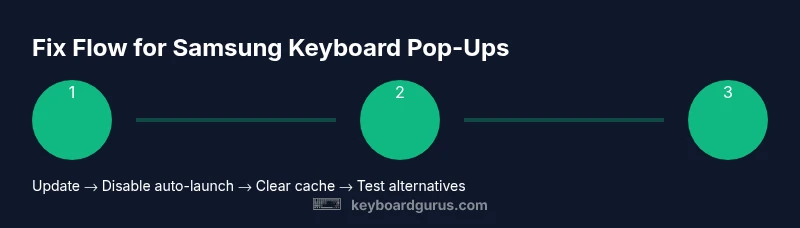
To stop the keyboard from popping up on Samsung devices, start with a quick, practical fix: update the keyboard app, reset its launch behavior, clear its cache, and restart the device. If the issue persists, try a different keyboard app and re-test. This approach covers the majority of common triggers and minimizes disruption.
Why your Samsung keyboard keeps popping up
If you're asking how to stop keyboard from popping up samsung, you're not alone. This behavior can interrupt work, gaming, or study sessions on Samsung devices. According to Keyboard Gurus, most pop-ups are triggered by app focus, accessibility shortcuts, or keyboard settings that auto-launch when a text field gains focus. In this section, we explain the common triggers and how the Android OS and Samsung's One UI manage the on-screen keyboard. We'll cover both Samsung Keyboard and third-party options. Understanding the root cause helps you apply the right fix quickly, with minimal risk to data. We'll also share quick checks to try before diving into settings, and how to distinguish between a minor annoyance and a symptom of a deeper issue. By the end, you should have a clear plan to regain control over your device's typing experience.
Common causes of automatic keyboard pop-ups on Samsung devices
Samsung devices can trigger unexpected keyboard pop-ups for several reasons. App focus can force the keyboard to appear as soon as a text field is touched, even briefly. Accessibility shortcuts or gesture features (such as One Hand Operation or magnification) may overlap with keyboard behavior, causing the keyboard to launch at inopportune moments. Keyboard settings themselves also matter; some options auto-launch the keyboard when the screen detects a text field. Additionally, third-party keyboards and their permissions can conflict with system-level input. Understanding these causes helps you target fixes without guessing or risking data loss. Keyboard Gurus analysis shows that most problems stem from two or three settings colliding under Android and Samsung's One UI.
Quick checks you can do before changing settings
Before diving into deeper fixes, perform a few quick checks. Restart the phone to clear temporary glitches that can trigger the keyboard. Check for App updates, especially messaging apps and any third-party keyboards. Review any recent app installations that could alter keyboard behavior. If you use accessibility features or gesture shortcuts, temporarily disable them to see if the keyboard stops popping up. Finally, set a default keyboard in system settings and test whether other apps still invoke the keyboard unexpectedly. These quick checks save time and help you identify whether the problem is app-specific or device-wide.
Step 1: Update the keyboard app and the system
Start by updating the Samsung Keyboard and any third-party keyboard apps you use. System updates can also influence input behavior, so install the latest Android/One UI update if available. After updating, reboot the device to ensure changes take effect. This step fixes known bugs and compatibility issues that commonly cause premature keyboard launches. Keyboard Gurus recommends prioritizing official app updates over random fixes from unverified sources.
Step 2: Reset or adjust keyboard launch settings
Many devices have a setting that controls whether the keyboard appears automatically when a text field is focused. Navigate to the on-screen keyboard settings (Samsung Keyboard or your third-party option) and look for any toggle related to auto-launch, hint or auto-open. If you find one, disable it and perform a quick test by opening a text field in a few apps. If the option isn’t available, look for per-app permissions that allow keyboard pop-ups and revoke them temporarily to test behavior.
Step 3: Clear cache and data for the keyboard app
Clearing the cache often resolves glitches without removing saved words. If the issue persists, consider clearing data to reset the keyboard to its default state, noting that this will delete saved phrases and learned words. After clearing, reopen the keyboard to reconfigure basic preferences. This step addresses corrupted cache data that can trigger unexpected launch events. If you rely on cloud-synced phrases, back them up first.
Step 4: Try an alternative keyboard
If Samsung Keyboard continues to pop up unpredictably, test a different keyboard app such as Gboard. Install the alternative, set it as default, and perform the same text-entry tests across multiple apps. If the problem disappears, the issue likely lies with the original keyboard's settings or compatibility. If it persists across keyboards, the root cause is broader (system or app-specific).
Step 5: When to consider a factory reset or professional help
As a last resort, factory resets can resolve deep-seated software issues but will erase personal data. Back up important information before proceeding. If the keyboard still pops up after a reset, the problem may stem from hardware or carrier-specific software, and you should contact Samsung Support or your service provider for diagnostics. Keyboard Gurus recommends documenting steps taken to help support staff reproduce the issue.
Tools & Materials
- Smartphone with Samsung device(Ensure device is charged and backed up before major changes)
- Updated Samsung Keyboard app(Check for updates in Galaxy Store or Google Play)
- Alternative keyboard app (e.g., Gboard)(Test as a fallback option if issues persist)
- Access to device settings(You will navigate through Settings > General management / Language and input)
- Backup method (cloud or USB)**(Critical before data-clearing or reset steps)
Steps
Estimated time: 45-75 minutes
- 1
Check for updates and restart
Open Settings, go to Software update and install any available updates. Then check the keyboard app for updates in the app store. Restart the phone to apply changes and clear transient errors that trigger pop-ups.
Tip: Updating first often fixes known bugs without further configuration. - 2
Disable auto-launch in keyboard settings
Enter Settings > Apps > Samsung Keyboard (or your keyboard) > Notifications or Advanced settings to find an auto-launch or auto-open toggle. Disable it, then test by opening a text field in multiple apps.
Tip: If you don’t see the toggle, check per-app permissions for the keyboard. - 3
Clear cache and data for the keyboard
Go to Settings > Apps > Samsung Keyboard > Storage and tap Clear cache. If the problem persists, also tap Clear data to reset learned words. Reopen the keyboard and set basic preferences again.
Tip: Clearing data loses saved phrases; back up if needed. - 4
Test with an alternative keyboard
Install a different keyboard (e.g., Gboard), set it as default, and perform repeated tests across several apps. Compare behavior to determine if the issue is app- or system-wide.
Tip: If the problem stops with a new keyboard, the issue is likely with the original keyboard. - 5
Inspect per-app settings and permissions
Some apps override keyboard behavior. Review per-app permissions for accessibility or input methods and disable conflicting options. Re-run tests after changes.
Tip: Small per-app settings can cause large, unexpected changes in behavior.
Got Questions?
Why does my Samsung keyboard pop up when I’m not typing?
This usually happens due to app focus behavior, accessibility shortcuts, or a keyboard setting that auto-launches when a text field is detected. Per-app overrides can also trigger the keyboard unexpectedly.
This usually happens because some apps try to help by auto-launching the keyboard when they detect a text field.
Will clearing the keyboard data delete my saved phrases?
Yes, clearing data resets the keyboard to its default state and can delete learned words and saved phrases. Back up any custom words if they’re important to you.
Clearing data resets the keyboard, so save anything you don’t want to lose.
Is it safe to reset keyboard settings individually?
Yes, resetting keyboard settings is generally safe and can resolve misconfigurations. It won’t affect other apps, but you may need to reconfigure preferences.
Resetting the keyboard is usually safe and can fix misconfigurations.
Can a different keyboard app solve the problem permanently?
Often yes. If a new keyboard eliminates the issue, the problem lies with the original keyboard’s compatibility or settings.
Trying another keyboard can help identify if the issue is with the first keyboard.
Why does this happen only with some apps?
Some apps have specific input behaviors or accessibility options that interact with keyboards differently, causing pop-ups in those apps but not others.
Some apps handle input differently, which can cause keyboards to pop up there but not elsewhere.
Will a factory reset fix the problem?
A factory reset can fix deeper software issues, but it’s a drastic step and should be used only after other fixes fail. Back up data first.
A factory reset may fix it, but it’s a last resort and you should back up first.
Watch Video
What to Remember
- Update everything first and restart
- Disable auto-launch and per-app triggers
- Clear cache and data only after backing up
- Try an alternate keyboard to identify the root cause
- Factory reset as a last resort, with a full backup