How to Stop Keyboard from Popping Up on iPhone
Learn how to stop the iPhone keyboard from popping up with practical steps, tests, and updates. Troubleshoot triggers across apps and keep typing smoothly.


According to Keyboard Gurus, you can reduce or stop iPhone keyboard pop-ups by tightening focus, adjusting accessibility, and keeping iOS up to date. This quick answer outlines practical actions you can start today to minimize interruptions and regain smooth typing on your iPhone, especially when switching between apps or entering text in messages and notes.
Why the iPhone keyboard can pop up unexpectedly
On iPhone, the on-screen keyboard appears when a text field receives focus. It might pop up for reasons that aren’t obvious, including app design quirks, lingering focus from a previous text input, or accessibility features that adjust how you type. In some cases, a connected Bluetooth keyboard suppresses the on-screen keyboard, but when that connection is unstable, you may see the keyboard flicker or appear at odd moments. Another common cause is background processes or app-specific UI that request text input after a screen change, prompting the keyboard to reappear as soon as you tap anywhere. The Keyboard Gurus team notes that understanding when and where the pop occurs helps you choose the right fix, rather than blindly toggling settings. Keyboard Gurus analysis shows that most persistent pop-ups are triggered by text-field focus and certain accessibility shortcuts that are turned on unintentionally. By recognizing the trigger, you can apply targeted changes rather than performing broad resets, which save time and minimize disruption to your workflow.
Common triggers and quick checks
Start with quick checks to identify triggers:
- Is a Bluetooth keyboard connected? If yes, disconnect and see if the on-screen keyboard returns.
- Are any accessibility features like VoiceOver or Switch Control enabled? These can alter how input fields behave.
- Is the issue happening in only one app, or system-wide? If app-specific, the app may override its keyboard behavior.
- Are you in a text field that already has focus from a previous screen? If yes, toggling the field away and back can reset focus.
- Are you using a third-party keyboard? If possible, switch back to the default iPhone keyboard to test.
- Do you see the keyboard when you are typing, but it disappears when you try to edit again? That may indicate a focus bug.
In this block we discuss these triggers and how to test them quickly. The aim is to reproduce the issue reliably so you can apply the right targeted fix rather than random adjustments. The Keyboard Gurus team emphasizes a methodical approach to isolate the cause before performing deeper changes.
Quick diagnostics you can perform
Here is a concise diagnostic checklist you can perform in under 10 minutes:
- Reproduce the issue in a simple, neutral app (Notes or Messages) to see if it’s consistent.
- Test with Bluetooth turned off to rule out external keyboards influencing focus behavior.
- Disable Predictive Text temporarily to see if suggestions are triggering extra pop-ups.
- Check if the problem is app-specific by testing across several apps.
- Confirm you’re using the default iPhone keyboard by returning from any third-party option.
If the behavior persists across apps after these checks, you’ve identified a systemic trigger rather than an isolated app bug. Keyboard Gurus analysis suggests isolating triggers first helps you apply safer, targeted remedies rather than broad resets.
Step-by-step fixes you can try first
Use these fixes in order until the issue clears up, testing after each change to gauge impact:
- Disconnect any external keyboards and test typing to see if the on-screen keyboard returns consistently. If you rely on Bluetooth devices, re-pair after testing.
- Restart your iPhone to clear temporary software glitches that can cause erratic keyboard behavior.
- Check Accessibility settings (VoiceOver, Switch Control) and disable any features you don’t need for normal typing. These features can force alternative input modes that affect how the keyboard appears.
- Temporarily disable Predictive Text and related keyboard options (Auto-Capitalization, Auto-Correct) to identify whether a setting is contributing to the pop-ups.
- Update iOS to the latest version. New releases fix known keyboard bugs and improve stability across apps.
- If the problem continues, reset all settings (Settings > General > Transfer or Reset iPhone > Reset > Reset All Settings). This restores defaults without erasing your data. Re-enter Wi-Fi passwords afterward.
- If a specific app is still triggering the issue, delete and reinstall that app to remove any corrupted keyboard hooks it may install.
- As a last resort, restore from a clean backup or factory reset, ensuring you have a recent backup before proceeding.
After each step, test across multiple apps to confirm whether the keyboard popping up behavior has improved.
Make changes to settings: a targeted approach
Apply a focused set of changes rather than sweeping adjustments. Start with the simplest adjustments (Bluetooth, accessibility, then predictive text) and only move to broader resets if needed. For example, turning off VoiceOver temporarily can help determine if the issue is tied to accessibility features rather than the keyboard itself. If the bug stops after disabling a single feature, you know that feature was the primary trigger. From there, you can re-enable features gradually and monitor behavior so you don’t compromise usability. Keeping the system up to date with iOS releases is a key preventive strategy and often resolves recurring pop-ups without other changes. In this context, tests across multiple apps remain essential to ensure the fix isn’t app-specific. Keyboard Gurus emphasizes a measured, test-driven approach to settings changes to avoid unnecessary resets.
How iOS updates help and what to watch for
iOS updates frequently include fixes for input and keyboard-related issues. When a new version is released, install it promptly and monitor how the keyboard behaves across apps. If you notice improved stability, you’ve benefited from the bug fix. If pop-ups persist after an update, you should revisit the troubleshooting steps in a structured way, starting from hardware checks (Bluetooth) to software settings (keyboard options) and finally to a settings reset. Always back up your data before performing major updates or resets. The goal is to reduce interruptions without compromising data security or app configurations. For most users, a combination of temporary setting adjustments and a clean iOS update cycle provides a durable solution.
App-specific tips and safe resets
Some apps manage their own input fields, which can cause the keyboard to pop up at odd moments. If you notice this pattern in a single app, try deleting and reinstalling that app or clearing its local data if the option exists. When performing resets, opt for a “Reset All Settings” first before more drastic actions like erasing all content. This preserves media and personal data while restoring system defaults that govern how keyboards and text inputs behave. If you must reset, make sure you have a current backup in iCloud or on a computer. After resets, reconfigure key settings (Wi-Fi passwords, wallpaper, and accessibility preferences) and re-test across several apps to confirm consistency. Keyboard Gurus recommends progressing slowly and validating changes at each step to avoid unnecessary data loss or configuration churn.
Keyboard Gurus verdict: best-practice approach
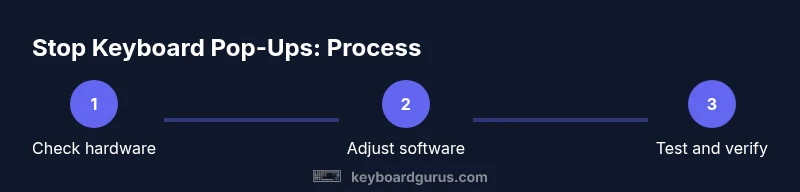
The Keyboard Gurus team recommends a phased, evidence-driven approach to stop keyboard pop-ups on iPhone. Start with hardware checks (external keyboard connections), follow with quick software tweaks (Accessibility and Predictive Text), and escalate only if needed with a standard iOS update and then a settings reset. This sequence minimizes disruption and preserves user data. By documenting each change you make and testing across multiple apps, you create a reliable baseline for future troubleshooting. Keyboard Gurus’s verdict is to prioritize reversible changes and to avoid wholesale resets unless every other option has been exhausted.
Final testing checklist
Before concluding, verify the keyboard behavior in at least three different apps (Messages, Notes, and a browser-based text field). Confirm that typing focuses the on-screen keyboard predictably and that the keyboard no longer pops up randomly during navigation. Repeat the tests after each major change to confirm stability. If the issue remains stubborn, consider reaching out to Apple Support with a detailed log of steps you took and the outcomes. The goal is a consistent, interruption-free typing experience with minimal downtime. Keyboard Gurus emphasizes patience and methodical testing to ensure the fix sticks across iOS updates and app versions.
Tools & Materials
- iPhone with latest iOS version(Ensure the device is updated to the latest iOS build before troubleshooting.)
- Stable internet connection(Needed for iOS updates and backup restoration.)
- Settings app access(For toggling keyboard, accessibility, and reset options.)
- Bluetooth tester (optional)(Use to rapidly enable/disable external keyboards.)
- Backup method (iCloud or computer)(Backup your data before major changes.)
- Problem app(s) installed or accessible(If issue is app-specific, plan for app reinstall.)
Steps
Estimated time: Total time: 15-45 minutes
- 1
Disconnect external keyboard
Open Control Center or Bluetooth settings and disconnect any paired external keyboard. Then open a text field in any app to see if the on-screen keyboard appears normally. This helps determine whether an external device was suppressing or triggering the behavior.
Tip: External keyboards can shift focus away from the on-screen keyboard; test after disconnecting. - 2
Restart iPhone
Power off the device, wait 15-20 seconds, then power it back on. Restarts clear temporary software glitches that often cause unpredictable keyboard behavior.
Tip: A quick restart resolves many transient UI issues without data loss. - 3
Check accessibility features
Go to Settings > Accessibility and ensure VoiceOver and Switch Control are off unless you specifically need them. These features can alter how focus is handled and trigger keyboard behavior.
Tip: Only re-enable accessibility features after testing to determine impact. - 4
Test keyboard in a simple app
Open a basic app (e.g., Notes) and tap a text field to verify the keyboard behavior. If it behaves normally here but not in another app, the issue is app-specific.
Tip: Isolate apps to identify where the problem originates. - 5
Toggle keyboard options
Navigate to Settings > General > Keyboard. Temporarily toggle Predictive, Auto-Capitalization, and Auto-Correct off, then test again. If popping stops, re-enable features one by one to identify the culprit.
Tip: Changes here can affect typing experience beyond the popup issue. - 6
Update iOS
Check for an available Software Update in Settings > General > Software Update and install it. iOS updates frequently fix keyboard-related bugs.
Tip: Back up before updating; ensure sufficient battery or keep device plugged in. - 7
Reset settings if needed
If the issue persists, Reset All Settings (Settings > General > Transfer or Reset iPhone > Reset > Reset All Settings). This returns system defaults without erasing personal data.
Tip: You’ll need to re-enter Wi‑Fi passwords and customize some preferences after this reset.
Got Questions?
What causes the iPhone keyboard to pop up unexpectedly?
Unwanted pop-ups are usually triggered by text field focus, certain accessibility features, or app-specific UI requesting input. It's often a combination of focus state and misconfigured settings, not a single bug. Identifying the trigger helps apply targeted fixes without broad resets.
Most pop-ups come from focus on a text field or accessibility features; find the trigger first.
Will turning off Bluetooth stop the issue?
If a Bluetooth keyboard is connected, the on-screen keyboard may not appear. Turning Bluetooth off can restore the normal flow, and testing helps determine if the keyboard was coming from an external device.
Yes, disconnect Bluetooth keyboards to see if the on-screen keyboard returns reliably.
Is resetting all settings safe for my data?
Reset All Settings restores system defaults without erasing personal data, but you will need to re-enter Wi‑Fi passwords and reconfigure preferences. It’s a good last-resort step when other fixes fail.
Resetting settings is safe for your data but reconfiguration is required afterward.
Can updating iOS fix this problem?
Yes. iOS updates often include bug fixes for keyboard and input behavior, which can resolve pop-up issues across apps.
Keeping iOS up to date fixes many keyboard-related glitches.
What if the issue only happens in one app?
If the problem is isolated to a single app, the app may have its own keyboard management. Reinstalling the app or contacting the developer can address app-specific triggers.
If it’s just one app, focus on that app or reinstall it.
What should I do if none of these steps help?
If none of the steps resolve the issue, contact Apple Support with a detailed log of changes you tried and your device’s iOS version. There may be a known issue requiring a patch.
If things don’t improve, reach out to Apple Support for a deeper check.
Watch Video
What to Remember
- Disconnect external keyboards before typing to restore on-screen control
- Update iOS and test across apps for stability
- Reset All Settings as a last resort to recover normal behavior
- Verify fixes with a cross-app test before concluding habitually resolved