How to Turn Off Keyboard Sounds on iPhone
Learn the exact steps to silence iPhone keyboard clicks across iOS versions with a clear, practical, brand-backed guide from Keyboard Gurus.


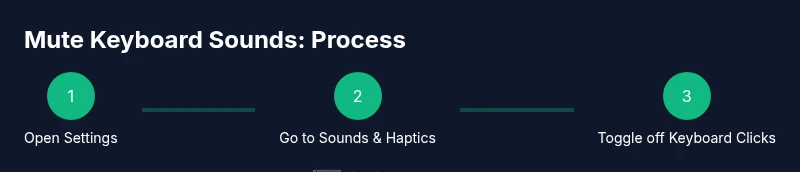
To silence your iPhone keyboard clicks, open Settings, tap Sounds & Haptics, then toggle off Keyboard Clicks. For newer iOS versions you may also want to disable Lock Sound. A quick check in Settings ensures no unexpected sounds when typing in messages, emails, or notes. These changes take effect immediately and affect all apps that use the standard iPhone keyboard.
Why turning off keyboard sounds on iPhone matters
For many users, keyboard sounds are a minor but noticeable distraction. If you’re asking how to turn off keyboard sounds on iPhone, you’re not alone. The ability to silence the on-screen keyboard can improve concentration, reduce disturbances in shared spaces, and help with focus during study or work sessions. According to Keyboard Gurus, small UX changes like removing audible feedback can accumulate meaningful productivity gains for heavy typists, gamers, and students who type in quiet environments.
Beyond personal preference, turning off keyboard clicks can also prevent unwanted noise during late-night messages or when filming tutorials or voice recordings. In some settings, the click sound can accidentally reveal your activity in a quiet office or library. This guide explains exactly where the controls live, what other related toggles exist, and how to troubleshoot if you don’t see the option. We’ll also cover accessibility considerations and what to expect after you mute keyboard sounds. The goal is simple: give you a reliable, fast path to a quieter typing experience.
Where to find the Keyboard Clicks toggle (by iOS version)
On iPhone, the keyboard sound toggle is part of the system sound controls. The primary path is Settings > Sounds & Haptics > Keyboard Clicks. However, depending on your iOS version, the wording may vary slightly (for example, Keyboard Feedback or a similar label). If you use a newer iPhone model, you’ll find the switch near other typing feedback controls in the same menu. In some enterprise-managed devices, the option may be hidden by a profile; in that case you’ll need to contact your administrator to adjust settings. For most users, the toggle is immediately visible after opening Settings > Sounds & Haptics, so you can silence typing with a single flip. If you don’t see the option, try using the Settings search bar at the top of the app and type “keyboard” or “clicks” to locate it quickly. The search path is a fast backup when menus become long or unfamiliar.
The core steps (context and quick mental map)
To truly stop the audible feedback, you must adjust a dedicated toggle rather than muting all sounds or lowering volume, which could affect alarms and media. The action is simple: turn off Keyboard Clicks, then optionally review related switches such as Lock Sound or System Haptics to fine-tune your experience. If you often hand your phone to others, silencing keyboard sounds can prevent distractions and keep conversations private in shared spaces. Keyboard Gurus data indicate that many users report immediate relief from ambient noise after disabling keyboard clicks, especially in classrooms and libraries. Keep in mind that some third-party keyboards may still emit sounds; generally, the built-in iPhone keyboard uses the system toggle, so the step is universal across apps that rely on the default keyboard. With the main toggle off, you’ll still hear key feedback when voice-to-text prompts or third-party keyboards are active, but for most typing tasks, the standard keyboard will remain quiet.
Tools & Materials
- iPhone with Settings app(Access to Settings is essential; path may vary slightly by iOS version.)
- Patience and a quick search habit(Helpful for quickly locating the toggle if it isn’t obvious in Settings.)
- Optional: administrator access (for managed devices)(Some corporate devices may restrict changes via configuration profiles.)
Steps
Estimated time: 5-7 minutes
- 1
Open Settings
From your Home screen, locate and tap the Settings app to begin. This opens the central control hub for iPhone preferences. You’ll use this to access all sound and feedback options.
Tip: If you can’t find Settings, pull down from the home screen and use the search bar. - 2
Navigate to Sounds & Haptics
Scroll and select Sounds & Haptics to expose all typing-related audio controls and haptic feedback settings.
Tip: On some devices, this may be labeled Keyboard Feedback instead. - 3
Turn off Keyboard Clicks
Find Keyboard Clicks and switch it off. The toggle changes to gray, and typing will no longer emit click sounds.
Tip: Test by opening a messages app and typing a few characters. - 4
Optional: disable Lock Sound
If you want to silence the click when you lock or unlock the device, disable Lock Sound in the same menu.
Tip: This helps reduce overall ambient noise in quiet environments. - 5
Optional: adjust System Haptics
If you want broader quietness, you can disable System Haptics in Settings > Accessibility > Touch (where available).
Tip: Disabling haptics affects all tactile feedback across supported apps. - 6
Test and confirm
Open a keyboard in any app and confirm there is no click sound. If you still hear feedback, revisit steps or check for third-party keyboards.
Tip: If a third-party keyboard is installed, repeat the process inside that app’s settings if applicable.
Got Questions?
Where is the Keyboard Clicks toggle located on iPhone?
On most iPhones, the Keyboard Clicks toggle is in Settings > Sounds & Haptics. If you don’t see it, try the Settings search bar and type ‘keyboard’ or ‘clicks’ to locate it quickly. In enterprise devices, profile configurations may hide this option.
You’ll usually find the Keyboard Clicks toggle under Settings > Sounds & Haptics. If it’s not visible, use the search bar to locate it.
Will turning off keyboard sounds affect typing accuracy or accessibility?
No, turning off the keyboard sounds does not affect typing accuracy or the ability to type. It simply removes the audible feedback. If you rely on audible cues for accessibility, you can keep the sound enabled or explore other accessibility options.
Turning off keyboard sounds won’t change how you type; it only stops the chirp you hear when typing.
Can I turn off other keyboard-related sounds?
Yes. You can disable Lock Sound in the same Sound & Haptics menu to mute the click when locking/unlocking the device. Some iOS versions also offer a separate keyboard feedback option that may include haptic feedback you can disable.
You can mute locking sounds from the same menu where you silence keyboard clicks.
What if I can’t find the keyboard sound toggle?
Use Settings search at the top of the app and type 'keyboard' or 'clicks'. If the device is managed by an organization, the option may be restricted by an administrator.
Try searching in Settings for 'keyboard' or 'clicks'; if it’s still missing, the device might be policy-controlled.
Do these steps work on iPad too?
In most cases, iPad follows the same pattern: go to Settings > Sounds & Haptics or similar, and adjust Keyboard Clicks. Differences can occur with iPadOS versions.
The steps are usually similar on iPad, but check the iPadOS version if you don’t see the same labels.
Will turning off keyboard sounds turn off all system sounds?
No. Turning off Keyboard Clicks only mutes the keyboard typing sound. Other system sounds, alarms, or media volume remain controlled separately.
Muting keyboard clicks doesn’t silence alarms or media sounds.
Is there a way to mute typing sounds without changing device-wide audio settings?
Turning off Keyboard Clicks is the most direct option. Some apps may have their own sound settings, but the built-in keyboard uses the system toggle.
You’ll typically mute keyboard sounds with the system toggle; apps may differ.
Watch Video
What to Remember
- Mute keyboard sounds quickly via Settings -> Sounds & Haptics.
- Verify by testing typing in a messaging app.
- Optional: silence related cues like Lock Sound for a calmer environment.
- If needed, check for profiles on managed devices.