Why is My Keyboard So Loud iPhone? Troubleshooting Guide
Urgent troubleshooting for a loud iPhone keyboard. Diagnose keyboard clicks, volume, third-party keyboards, and iOS updates to quiet typing without sacrificing usability.


Most often, a loud iPhone keyboard comes from the system-wide keyboard clicks and high volume. Start by muting the keyboard sounds and lowering the ringer/volume, then test typing. If the problem remains, disable any third‑party keyboards, reset keyboard settings, and consider updating iOS. For persistent issues, consider professional support.
Why the iPhone keyboard can sound louder than expected
When you sit down to type, the iPhone’s keyboard can feel unbearably loud for several reasons. The most common culprits are system keyboard clicks, the overall device volume, and the way different apps handle sound feedback. According to Keyboard Gurus, many users misinterpret the volume from their keyboard when the overall device volume is high or when the keyboard sounds are enabled at maximum level. If you’re asking, “why is my keyboard so loud iphone,” you’re not alone. In most cases, the fix is quick and safe, often involving a couple of taps in Settings rather than a trip to a repair shop. The goal is to confirm whether the loudness is global (affecting all apps) or isolated to one app or keyboard.
Key takeaways: Start with the simplest checks to rule out volume and keyboard clicks before diving into deeper settings. This approach aligns with how the Keyboard Gurus team tackles common loudness issues and helps you avoid unnecessary steps.
The phrase to watch for is the classic cause‑and‑effect pattern: if you change the system volume and disable keyboard clicks, do you still hear the same loud typing? If yes, the issue might lie with a third‑party keyboard or an iOS setting that governs sound feedback across apps. If no, you’ve likely corrected the root cause with a single toggle.
For users trying to understand the phenomenon, the most frequent scenario is that keyboard clicks are in use and the main volume is high. The Keyboard Gurus analysis shows that many devices ship with keyboard clicks enabled by default, and people forget this multiplies the perceived loudness when typing rapidly.
In plain terms, the loudness is not a hardware defect in the screen or keys; it’s an audio feedback setting playing at full volume. By walking through a simple diagnostic flow—checking keyboard settings, volume, and app keyboards—you can regain comfortable typing without muting essential alerts.
Steps
Estimated time: 25-40 minutes
- 1
Check the Keyboard Clicks and Volume
Open Settings > Sounds & Haptics and ensure Keyboard Clicks is off if you want a silent keyboard. Then use the volume buttons to verify the overall device volume isn’t overly loud. Test typing in Messages or Notes to compare with previous behavior.
Tip: If you’re unsure, mute the device temporarily and re‑enable clicks to hear the difference. - 2
Lower System Volume and Test
In Control Center, drag the volume slider down a notch or two. Type in several apps to see if the perceived loudness changes. A lower baseline volume often reduces perceived keyboard click loudness dramatically.
Tip: Keep the side switch in silent mode if you need absolute quiet for critical tasks. - 3
Disable Third-Party Keyboards
Go to Settings > General > Keyboard > Keyboards and remove any third‑party keyboards. Reboot the iPhone and re-test the built‑in keyboard in multiple apps to confirm the behavior has changed.
Tip: If you rely on third‑party keyboards, re-add them one at a time to identify if a specific keyboard causes excess sound. - 4
Check for Accessibility and System Haptics
Navigate Settings > Accessibility and inspect any options that could influence feedback. Also review Settings > Sounds & Haptics > System Haptics; disabling it can reduce audible cues across the UI, not just the keyboard.
Tip: Test with System Haptics toggled off and on to observe the difference. - 5
Update iOS and Applications
Install any available iOS updates, as they may include fixes for sound-related issues. Update the problematic apps as well if they implement their own keyboard or text input components.
Tip: Back up your device before major updates to avoid data loss. - 6
Reset Keyboard Settings
If the issue remains, reset related keyboard settings by going to Settings > General > Reset (or Reset All Settings to reset network, accessibility, and display settings without erasing data).
Tip: Resetting all settings won’t delete your apps or data; it may restore default sound behavior. - 7
Test Across Apps
Open multiple apps (Messages, Notes, Mail, a browser) and type at different speeds to see if the loudness is universal or app-specific. This helps identify if a particular app triggers excessive sound feedback.
Tip: If a single app remains loud, check that app’s own settings or contact its support. - 8
Consider a Hardware or Case Interaction
If you hear a physical clang with typing (unusual for software sounds), inspect for a loose case or accessory that could amplify noise. Remove any external keyboard accessories if present.
Tip: Ensure your case isn’t rubbing against the screen when typing. - 9
Consult Support if Issues Persist
If the loud keyboard continues after all steps, contact Apple Support or visit an Apple Store for a diagnostic. Explain the exact steps you’ve tried to help the agent reproduce the issue.
Tip: Prepare your device logs and a short video of the typing sound to speed up diagnostics.
Diagnosis: Loud iPhone keyboard sounds across multiple apps and contexts
Possible Causes
- highKeyboard Clicks enabled with high device volume
- highHigh ringer/media volume on the device
- mediumThird-party keyboard app overriding sound settings
- lowSystem accessibility features increasing audio feedback
Fixes
- easyTurn off Keyboard Clicks in Settings > Sounds & Haptics, then lower the volume with the side volume buttons or Control Center.
- easyDisable third-party keyboards: Settings > General > Keyboard > Keyboards, remove non‑default keyboards, and test again.
- mediumUpdate iOS to the latest version to fix any sound-related bugs or regressions that affect typing sound.
- easyReset All Settings if the issue persists after safe checks (no data loss beyond personalized preferences).
Got Questions?
How do I stop my iPhone keyboard from being loud?
The quickest fix is to turn off Keyboard Clicks in Settings > Sounds & Haptics, and lower the device volume. If that doesn’t help, check for third‑party keyboards and update iOS. Re-testing across apps confirms whether the fix holds.
Turn off keyboard clicks in Settings and test across apps. If needed, update iOS and check for third-party keyboards.
Will turning off keyboard clicks affect accessibility?
Turning off keyboard clicks reduces audible feedback, which may affect users who rely on sound cues. Consider enabling System Haptics or keeping Clicks on while lowering volume for a balance between awareness and quiet.
Disabling keyboard clicks may reduce accessible cues; adjust other feedback settings for balance.
Can third‑party keyboards cause louder sounds?
Yes, some third‑party keyboards may implement their own sound feedback. Remove or disable those keyboards to see if the typing sound normalizes, then reintroduce them one by one if you need them.
Third‑party keyboards can add extra sounds. Remove them to test.
Why did this start after an iOS update?
iOS updates can reset or alter sound feedback behavior. If the problem begins after updating, check for additional tweaks in Settings and consider rolling back to a previous version if possible or wait for a hotfix.
Updates can reset sound settings; review preferences or wait for fixes.
Is it safe to reset keyboard dictionaries or all settings?
Resetting the keyboard dictionary is safe and may remove learned words that affect typing. Resetting all settings is broader but preserves data; it risks losing personalized settings, so back up and proceed cautiously.
Reset only if necessary; back up first and proceed carefully.
Watch Video
What to Remember
- Identify whether the issue is system-wide or app-specific.
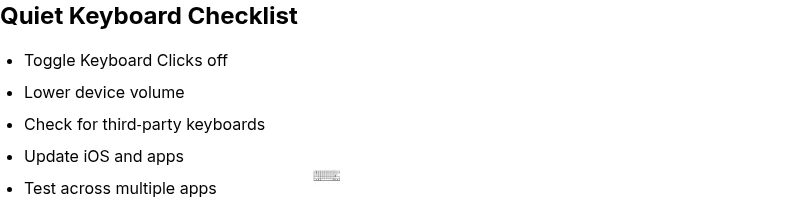
- Toggle Keyboard Clicks off to test quiet typing quickly.
- Lower overall volume and test across apps to confirm effects.
- Disable third-party keyboards if present and update iOS.
- Seek professional help if the issue persists after safe checks.