How to Get Rid of iPhone Keyboard Sounds: A Practical Guide
Learn to silence iPhone keyboard sounds and lock clicks with system and app level tweaks. This guide covers Settings, third-party keyboards, accessibility considerations, and troubleshooting from Keyboard Gurus.


To stop the chimey keyboard on your iPhone, disable the keyboard clicks in Settings > Sounds & Haptics and turn off Lock Sound. If you use a third party keyboard, check its settings for keypress sounds as well. This quick approach solves most typing distractions on iPhone. It’s the fastest way to silence taps during study, video editing, or gaming.
Why quiet keys on iPhone matter
Typing on iPhone with audible taps can be distracting in quiet environments like libraries, classrooms, or shared spaces. Reducing or silencing these sounds can boost focus and reduce interruptions for yourself and others. According to Keyboard Gurus, quiet keyboard feedback enhances concentration during study sessions, video calls, and deep work. If you're wondering how to get rid of keyboard sound on iphone, this guide will show you practical, device-agnostic steps you can apply quickly. The goal is to provide a clear path that works across devices and iOS versions while keeping accessibility considerations in mind. Whether you are a student, gamer, or professional, a silent keyboard can help you stay in flow without drawing attention. Beyond convenience, silence supports inclusivity for shared spaces and quiet environments. Keep in mind that changes you make here may affect audible feedback in certain apps, so always test after adjusting. Keyboard Gurus emphasizes a practical approach over a one-size-fits-all solution, because every setup is different, from a standard iPhone to a device managed by a school or business. Take a moment to map your needs: are you manually typing in a library, joining a video call, or coding late at night? Your context will determine which toggles matter most and what trade-offs you can tolerate.
Understanding iPhone keyboard sound behavior
iPhone keyboard sounds are controlled by a combination of system level toggles and per app keyboard settings. The primary switch is Keyboard Clicks, found in the Sounds and Haptics section of Settings. A separate Lock Sound toggle controls the sound when locking or unlocking the device. Some users also adjust System Haptics to modify tactile feedback. When you install third party keyboards like Gboard or SwiftKey, those apps often provide their own sound options that can override or supplement system settings. This means that even after you disable system clicks, you may still hear keypress sounds if a keyboard app has its own option enabled. In practice, most users find the system toggle sufficient, but for complete silence you should verify both layers. Keyboard Gurus notes that thorough silence often involves a quick sweep through system settings and app specific controls. If you find inconsistent results, consider updating iOS or checking with the keyboard maker for any recent changes. The key takeaway is that you have multiple levers to pull to achieve silence.
Quick system settings fix: mute keyboard clicks
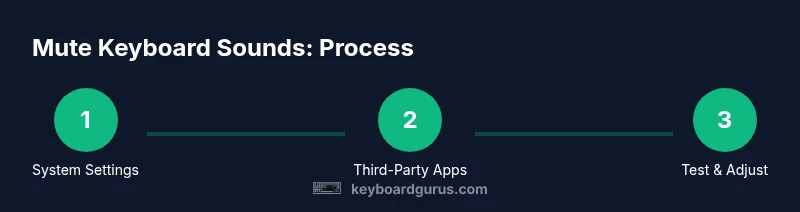
The fastest way to silence most keyboard sounds on iPhone is a simple toggle in Settings. Begin by opening Settings, then tap Sounds & Haptics. Locate the Keyboard Clicks option and switch it Off. If you want even quieter typing, turn off Lock Sound in the same menu. After these changes, test by opening a messaging app and typing a short sentence. If you still hear sounds, proceed to check third party keyboard settings for any additional options. Keyboard Gurus highlights that the system level change affects most apps, but some keyboards carry their own keypress sounds. In some iOS versions, you may need to restart the device for the changes to fully take effect. If you use Do Not Disturb or Focus modes, ensure you are not overriding sound settings there. In practice, this approach is fast, universal, and safe for most users.
Managing third party keyboards (Gboard, etc.)
If you opt for a third party keyboard, you should inspect that keyboard app for its own sound controls. For Gboard on iPhone, open the Gboard app and access Preferences, then disable Keypress sound. For other keyboards like SwiftKey, locate its Typing or Sound settings and switch off keypress sounds. Remember that some keyboards might still emit sounds if their own settings are not updated after an iOS change. This is especially common after major iOS updates, where the system might reset or reconfigure app permissions. As Keyboard Gurus notes, always verify both the system toggles and the keyboard specific options. If the keyboard refuses to silence, try reinstalling the keyboard or checking for an app update.
Accessibility considerations and edge cases
Muting keyboard sounds can be beneficial for many users but may affect accessibility for some. If you rely on auditory feedback to confirm inputs, the default silent mode may reduce your ability to type confidently. In such cases, you can selectively mute only certain contexts or keep the sounds for critical apps. For users with hearing impairments, consider enabling haptic feedback or vibration cues instead of sound cues. You can adjust haptic settings in Settings > Sounds & Haptics, toggling on or off System Haptics depending on your preference. Keyboard Gurus also recommends testing in real-world scenarios like taking notes in lectures or during fast paced gaming. If you are managing a device in a school or enterprise environment, discuss policy implications with your IT department before making changes that affect multiple users.
Troubleshooting common issues and final checks
If sounds persist after following the above steps, there are a few checks to perform. First, ensure that the iPhone is on the latest iOS version and that the affected keyboards are up to date. Sometimes a bug or regression is introduced with an update, and a quick install of the latest build resolves it. Next, test with a fresh typing session in a new app to rule out application specific behavior. If you still hear sounds, restart the device and reapply the system toggles. For per app keyboards, revisit their settings after the restart. If none of these steps work, consider restoring the device settings to default or consulting with the keyboard maker for any platform specific notes. Keyboard Gurus would conclude that persistence often yields results and that a methodical approach helps avoid unnecessary changes.
Tools & Materials
- iPhone with current iOS version(Ensure you can access the Settings app)
- Third-party keyboard app (optional)(Gboard or SwiftKey from App Store)
- Test device or app to verify sound(Messages, Notes, or a typing test app)
- Backup method (optional)(Create a quick backup before changes)
Steps
Estimated time: 10-15 minutes
- 1
Open Settings and locate keyboard sounds
Open the Settings app, then go to Sounds & Haptics. This is the central place to control most typing sounds on iPhone.
Tip: If you cant find it, use the Settings search to type keyboard. - 2
Turn off keyboard clicks
Find Keyboard Clicks and switch Off. This stops the audible taps that accompany typing in most apps.
Tip: Test in Messages after toggling to confirm silence. - 3
Disable lock sound
In the same menu, toggle Lock Sound Off to prevent the click when locking the screen.
Tip: This helps in quiet environments where any sound is disruptive. - 4
Optional: adjust system haptics
If you want a tactile alternative, you can reduce or disable System Haptics from the same menu or Accessibility settings.
Tip: Haptics provide touch feedback without sound. - 5
Check third party keyboards
Open the keyboard app and look for Keypress sound options. Disable if present.
Tip: Some keyboards require a restart after changing settings. - 6
Test and finalize
Open a typing app again and verify the silence. If you still hear sounds, recheck every layer.
Tip: Consider a quick device restart to ensure changes take effect.
Got Questions?
How do I mute keyboard sounds on iPhone?
Go to Settings, then Sounds & Haptics, and switch off Keyboard Clicks. For some devices, also disable Lock Sound. This covers most apps.
Open Settings, turn off keyboard clicks and lock sounds to mute typing beeps.
Can I mute keyboard sounds for only one app?
System level changes apply across apps, but some third party keyboards have their own sound settings. If a particular app still makes noise, check the keyboard app too.
Some apps override system settings, so check the keyboard app too.
What if muting does not stop the sounds?
Ensure you updated iOS and the third party keyboard. Test with a new app and restart device if needed. If still noisy, contact keyboard app support.
Update and restart, then recheck both system and app settings.
Will muting keyboard sounds affect accessibility?
Muting sounds may affect users who rely on auditory confirmation. Consider keeping essential sounds or enabling haptics for confirmation.
Mute wisely, and use haptics if you need confirmation without sound.
Do I need to mute the lock sound too?
Muting lock sound reduces overall audible cues, especially in quiet environments. It is optional but helpful for a truly silent experience.
Turning off lock sound helps keep your device quiet when locking.
Watch Video
What to Remember
- Mute keyboard clicks with quick system toggles
- Check third party keyboards for their own sound options
- Test in multiple apps to verify silence
- Be mindful of accessibility needs when muting sounds