How to Stop Keyboard from Vibrating: Practical Fixes
Learn expert, step-by-step methods from Keyboard Gurus to stop keyboard vibrating on phones, laptops, and external keyboards. Disable haptics, dampen case resonance, and protect your setup with safe, proven tweaks.


Learn how to stop keyboard from vibrating on phones, laptops, and external keyboards. This guide helps you identify whether the vibration comes from system haptics or hardware resonance, then shows safe, step-by-step fixes you can apply yourself. By the end, you’ll reduce or eliminate unwanted vibration without sacrificing typing comfort. According to Keyboard Gurus, a systematic approach yields reliable results with minimal effort.
What causes keyboard vibration?
Keyboard vibrations can originate from three broad sources: hardware resonance within the keyboard case or mounted components, software-driven haptic feedback on mobile devices or certain laptops, and mechanical looseness or poorly stabilized switches. The Keyboard Gurus team notes that even small resonances can become noticeable when you combine metal or hard plastic cases with certain key layouts. Understanding the source is the first and most important step, because it points you toward dampening options for case vibration, recalibrating or disabling haptics, or tightening loose parts. In many setups, the vibration is not a single fault but a combination, so a systematic approach often yields the best result. This section lays the groundwork for accurate diagnosis and effective fixes, helping you avoid unnecessary disassembly or expensive replacements.
Quick checks you can perform before making changes
Before diving into fixes, run a quick audit to narrow down the cause. Listen closely while typing in a controlled environment and note when the vibration is loudest (certain keys, long typing sessions, or after long use). Try typing with a different keyboard or on a different device to see if the vibration follows the input or stays with the hardware. If you hear a soft or rhythmic buzz, it’s usually mechanical resonance; if it disappears when you disable haptics, the issue is haptic feedback. Keep a simple log: device model, OS version, and any settings you changed. This data helps you reproduce the problem later or share precise details with support if needed. Keyboard Gurus emphasizes documenting symptoms to avoid guesswork and wasted time.
Disable or adjust haptic feedback on mobile keyboards
Mobile keyboards often rely on haptic feedback to mimic keypresses, but this feature can become intrusive. To stop vibration on most phones, start by turning off system haptics. On iOS, go to Settings > Sounds & Haptics and disable System Haptics; on Android, open Settings > Apps > your keyboard > Preferences or Advanced, then toggle Vibrate on keypress off. If your keyboard app has its own vibration setting, disable it there as well. After changing these options, test typing a few lines to confirm the vibration is gone. If you still feel a subtle buzz, the issue may be mechanical rather than software-driven, and you should proceed to dampening or repair steps.
Dampening and tension: how to reduce case resonance on external keyboards
External mechanical keyboards can vibrate due to case resonance, loose screws, or unstable mounting plates. Start by tightening visible screws, then inspect for any loose stabilizers or loose mounting hardware. To dampen resonance, consider adding silicone dampening strips or foam inside the case around the PCB and between the plate and case. These materials absorb vibrations and reduce the “ping” that travels through the chassis. If you have access to a removable bottom plate, you can temporarily test dampening by placing a small, soft pad of foam between the plate and case. This is a practical, low-risk step that often yields noticeable improvements.
How to dampen a case with foam and silicone: practical steps
For many users, dampening the keyboard case is the most effective fix. Begin with a small amount of foam or silicone pads placed strategically near vibration hotspots like the spacebar and the corners of the case. Cut foams to fit around the PCB and top plate without blocking any screws or interfering with key travel. After installation, reassemble the keyboard and test by typing a fast, repetitive sequence. If you still hear a resonant tone, you can add more dampening material in other zones, but avoid overstuffing, which can obstruct components or alter key feel. Keyboard Gurus recommends gradually increasing dampening and retesting to find the optimal balance between feel and quietness.
Stabilizers, switches, and tune-ups: reducing rattle and vibration
Rattling stabilizers and rough switch action can amplify vibrations. Lubricating stabilizers (where indicated for your switch type) can smooth bottom-out and reduce noise, and replacing worn stabilizers with higher quality versions may also help. When you lubricate, apply sparingly to the stems and the stabilizer housings; avoid getting lube on switches that could cause misfires. If you’re using resin or metal stabilizers, ensure they are seated properly and not contacting the plate. A well-tuned stabilizer system minimizes metal-to-metal contact, which is a major source of vibration and echo in the key travel.
Testing and iterative tuning: the final calibration
After each modification, test the keyboard with a variety of typing styles—random, long presses, and rapid-fire key sequences. Listen for any persistent buzz, ping, or hollow tone, and note its location and intensity. If the vibration remains, consider additional tweaks in a staged manner: add dampening to the opposite side of the case, adjust screw tightness by a small amount, and recheck stabilizers. It’s normal for multiple iterations to be needed; patience pays off when you reach a comfortable balance of quiet and still responsive key action. Keyboard Gurus notes that systematic testing is essential for achieving durable improvements.
When to consider professional help and warranties
If vibration persists after all common fixes, the issue may be structural or involve components that require specialized tools. In this case, consult the keyboard’s warranty terms and consider professional repair or a replacement board. Do not force components apart or apply tools in ways that could void warranties or damage the PCB. A professional technician can diagnose hidden problems such as a warped plate, internal misalignment, or a defective stabilizer assembly. Remember that some warranties require authorized service for any disassembly beyond basic steps.
Maintenance and preventive habits for the future
To prevent recurring vibrations, schedule periodic checks of screws and dampening materials, especially after transport or drops. Keep the keyboard clean; dust buildup can alter resonance characteristics over time. If you upgrade switches or modify stabilizers, revisit dampening to ensure compatibility with your new configuration. Maintaining consistent mounting pressure and using proper dampening materials helps preserve a quiet, consistent typing experience for the long term. Keyboard Gurus recommends building a small reference log of changes you’ve made and the effects on noise and feel.
A quick-start checklist you can use today
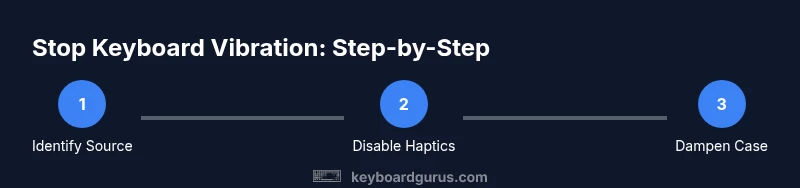
- Identify vibration source (haptics vs. hardware).
- Disable mobile keyboard haptics if present.
- Tighten screws and inspect stabilizers.
- Add dampening foam or silicone in the case.
- Lubricate stabilizers and test.
- Reassemble and test with varied typing styles.
- If unresolved, seek professional assessment.
Follow these steps in order, and keep notes on results to guide future tweaks.
Tools & Materials
- Precision screwdriver set (Phillips #0 and #1)(Used for removing screws on many mechanical keyboards)
- Keycap puller(Plastic or metal puller to avoid scuffing keycaps)
- Soft brush and compressed air(Clean dust and debris that may contribute to reverberations)
- Foam dampening sheets or silicone dampening strips(Optional for case damping)
- Silicone lubricant for stabilizers(For stabilizer rattle and smooth feel)
- O-rings or gasket mounts(To reduce metal-to-metal vibrations)
Steps
Estimated time: 75-120 minutes
- 1
Identify vibration source
Power the device and type a fast, repeated sequence. Listen closely from different angles and assess whether the buzz travels through the case or originates from the key mechanisms. Compare with another keyboard if possible to confirm whether the issue is device-specific or inherent to the board. This step isolates the root cause before you begin disassembly.
Tip: Label symptoms (buzz location, timing) to guide fixes later. - 2
Disable device haptics for keyboard
Turn off haptic feedback in your device settings. On iOS, disable System Haptics; on Android, switch off Vibrate on keypress in the keyboard or system settings. Re-test to confirm vibration disappears at its source. If the buzz persists, proceed to the next steps focused on hardware.
Tip: Always back up settings before making changes so you can revert easily. - 3
Check for loose screws in the keyboard case
Carefully inspect the chassis; tighten any loose screws around the mounting plate and outer case. Loose hardware can create micro-movements that amplify vibration. After tightening, re-test typing to see if the resonant tone reduces.
Tip: Use the correct screwdriver size to avoid stripping heads. - 4
Add dampening inside the case
Install foam or silicone dampening material in areas where the case and PCB contact each other. This absorbs energy and reduces sound transfer without affecting key travel. Cut the dampening material to fit snugly around edges and corners without obstructing components.
Tip: Test with small patches first; you can add more if needed. - 5
Lubricate stabilizers for smoother action
Apply a light lubricant to stabilizers if you notice rattling or rough bottom-out. This reduces friction and the accompanying vibration. Be conservative—over-lubing can attract dust or gunk, which worsens performance.
Tip: Only lubricate the stabilizer housing and stems, not the switch contacts. - 6
Test with dampening under the plate
Place a thin pad of foam between the plate and the bottom of the case and reassemble. This approach can dramatically reduce resonant tones by breaking up the vibration pathway. If you don’t hear improvement, adjust pad thickness and retry.
Tip: Keep the pad flat to avoid warping pressure on the PCB. - 7
Install O-rings or gasket mounts where appropriate
If your keyboard supports it, add O-rings or gasket mounts to further isolate the plate from the case. This minimizes metal-to-metal contact that often amplifies vibration under heavy typing. Re-test after installation.
Tip: Check compatibility with your switch type and mounting system. - 8
Tighten mounting and reassemble
Recheck screw torque and ensure everything sits flush. Over-tightening can warp the plate, while under-tightening allows movement that causes vibration. After reassembly, run a typing test and listen for changes in tone.
Tip: Document screw patterns to avoid reintroducing looseness later. - 9
Evaluate the result and iterate if needed
Compare the typing feel and sound before and after each modification. If the vibration remains, document any new observations and apply one additional tweak at a time. This incremental approach prevents overcorrection and keeps you in control.
Tip: Avoid making multiple changes at once; one change at a time yields clearer results. - 10
Seek professional help if unresolved
If all reasonable fixes fail, a professional technician can diagnose structural issues, misalignment, or defective stabilizers requiring specialized tools. Warranty terms may guide whether authorized service is preferred. Don’t risk damaging the PCB with improper disassembly.
Tip: Check warranty coverage before opening, and keep a record of tests performed.
Got Questions?
What causes keyboard vibration?
Vibration can come from hardware resonance in the case, software-driven haptics, or mechanical looseness. Identifying the source helps you apply the right fix, whether dampening the case, disabling haptics, or tightening screws.
Vibration can come from the case, haptics, or loose parts. Start by locating the source to choose the right fix.
Can disabling haptics affect other features?
Disabling haptics will reduce or remove feedback sounds or vibrations from the keyboard. Some apps or devices depend on haptics for accessibility, so review related settings before turning them off entirely.
Turning off haptics can affect accessibility features, so check related settings before disabling.
Is dampening foam safe for my keyboard?
Dampening foam and silicone pads are generally safe if used properly and do not interfere with keys or PCB clearance. Always follow manufacturer guidance and avoid obstructing traces or contact points.
Dampening foam is usually safe if you don’t block keys or traces; follow the instructions.
Will dampening affect the typing feel or backlighting?
Yes, dampening can alter the key feel and possibly lighting diffusion slightly. Choose materials that balance quieter operation with the desired feel, and avoid overfilling the case.
Damping can change feel and light diffusion, so pick materials that balance quietness with your preferred feel.
How long does a typical fix take?
Most fixes take 60 to 120 minutes, depending on the keyboard and your familiarity with disassembly. Plan for a calm, methodical session and test frequently.
Most fixes take about one to two hours, with careful testing along the way.
Watch Video
What to Remember
- Identify the vibration source before fixing.
- Disable haptic feedback on devices first to confirm hardware cause.
- Use dampening materials to reduce case resonance without affecting key travel.
- Tune stabilizers and mounting for a quieter, smoother feel.
- Follow a cautious, stepwise approach and document changes.