How to Tell Magic Keyboard Battery Level
Learn how to check your Magic Keyboard battery level on Mac and iPadOS with clear steps, indicators, and troubleshooting tips to keep your keyboard powered.


By the end of this guide, you’ll know exactly how to tell Magic Keyboard battery level using your Mac or iPad. You’ll learn the official indicators, where to find battery readings, and what readings mean for daily use. This approach works for all supported Magic Keyboard models and avoids guesswork.
What Affects Magic Keyboard Battery Life
The Magic Keyboard uses a built-in rechargeable battery, so its life isn’t measured in disposable batteries but in how often you need to recharge. Several factors influence how long a charge lasts, including how often you type, how long you keep the keyboard connected via Bluetooth, and how aggressively you use features that drain power (for example, any active features that rely on wireless communication). Over time, battery capacity naturally degrades with repeated charge cycles, so readings may shift slightly as the device ages. In practice, the battery life you experience is highly individualized, and understanding the readouts helps you plan charging before critical work sessions. For most users, a routine check every few days can prevent unexpected shutdowns during important tasks.
Throughout this article we’ll focus on two common ecosystems: macOS on a Mac and iPadOS on an iPad. The methods are designed to be simple, rely on built-in system indicators, and require no third‑party apps. By learning where to look and how to interpret the numbers, you’ll avoid guessing and keep your workflow smooth.
Quick Methods to Check Battery Level on macOS
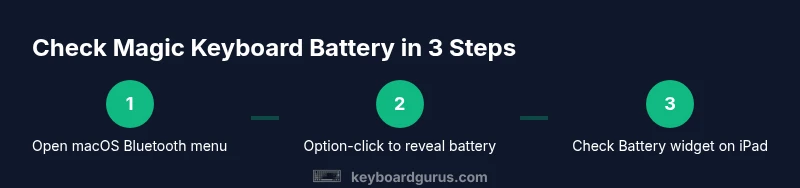
macOS provides a couple of straightforward ways to check the Magic Keyboard battery level when it’s connected to a Mac. The most precise approach uses the Bluetooth icon in the menu bar. If you hold the Option key and click the Bluetooth icon, macOS displays a battery percentage for each connected Bluetooth accessory, including the Magic Keyboard. This readout reflects the current charge and refreshes as you type or move the keyboard. A second, less precise method is to open System Settings (or System Preferences on older macOS versions) > Bluetooth, then select the keyboard in the device list and view the estimated battery level there.
If you don’t see battery information, ensure the keyboard is connected, the computer is updated, and Bluetooth is enabled. In some cases, temporarily removing the device from the Bluetooth list and pairing it again can trigger a fresh battery readout. These steps work across most recent Magic Keyboard models and are the quickest way to confirm current charge levels without interrupting your work.
Checking Battery Level on iPadOS with Magic Keyboard
On iPadOS, you can rely on a built-in Battery widget to view connected device energy, including the Magic Keyboard. Swipe right on the Home screen to access widgets, and add the Battery widget if it’s not already present. When the Magic Keyboard is connected, its battery level should appear alongside other device batteries. If you prefer, go to Settings > Bluetooth and select the keyboard; some iPadOS versions expose a simple battery readout there as well. In either case, the readout updates as you use the keyboard, giving you a practical sense of remaining power between charges.
For iPad users, you’ll typically get the most consistent readings from the Battery widget, especially when the iPad’s system resources are not overloaded by foreground tasks. If you don’t see the keyboard listed, ensure the accessory is paired properly and has not been disconnected recently. Keeping your iPadOS up to date helps ensure battery data is reliably reported.
How to Interpret Battery Readouts and What They Mean
Battery indicators are designed to give you a quick snapshot of remaining power, but the exact interpretation can vary by OS version and device model. A reading in the mid-to-high range generally means you have ample time before needing to recharge. As the battery nears lower levels, you’ll want to prepare a charging plan to avoid interruptions. Readouts that show a small percentage fluctuation are normal, especially if you’ve just picked up the keyboard after a short pause or if the device was briefly idle. Large drops between checks usually indicate usage spikes or a recent wake from sleep.
Remember that readings can be affected by device temperature, firmware updates, and even how recently you last powered the keyboard. If you’re about to start a critical task and you notice a low reading, charge the keyboard before you begin. For routine work, pairing the keyboard with a charging cable during long sessions can offer peace of mind, especially during gaming or post‑production work where interruptions are costly.
Troubleshooting Inaccurate Readouts
If your battery readout seems inconsistent or delayed, start with the simplest actions: restart the connected device and re-pair the keyboard if needed. A fresh pairing often resolves stale or stale-looking battery data. Check for OS updates, as system software enhancements can improve device battery reporting. If the keyboard still shows odd readings, try a different USB charging cable or power source to rule out a faulty charger. Finally, consider testing the keyboard on another device to determine whether the issue is OS‑ or device‑specific.
In most cases, these steps will restore reliable readings without affecting your keyboard’s longevity. Remember, battery metrics are estimates; use them as a guide rather than a guarantee of exact remaining minutes.
Best Practices to Preserve Battery Health
To maximize the usefulness of the Magic Keyboard battery data and extend overall health, adopt a few practical habits. Charge the keyboard before you notice a steep drop in power, rather than waiting until it’s nearly dead. Store and use the keyboard in moderate temperatures; extreme heat or cold can temporarily affect readings and performance. Keep your devices updated; software improvements help ensure battery information is accurate and timely. If you regularly use the keyboard for long sessions, consider scheduling a regular charging window to keep the device within a comfortable operating range. Finally, treat the keyboard with care: avoid pressing keys with excessive force, which can wear internal components faster and indirectly influence perceived battery performance.
These practices help ensure you always have a reliable sense of your keyboard’s power and reduce the risk of unexpected shutdowns during important work.
Charging Behavior: What to Expect and How to Plan
Charging the Magic Keyboard is straightforward: connect the keyboard to a power source using the appropriate cable for your model and let it reach a comfortable full state before your next heavy-use period. You’ll generally notice a gradual increase in available power once charging begins, and many users observe a steady, predictable recharge over time. If you rely on the keyboard for critical tasks, place it on a charging setup during longer breaks or when you’re away from your desk. This simple habit reduces the chance of mid‑task interruptions.
Keep in mind that battery health is also influenced by how often you charge. Frequent full charges with a healthy discharge cycle can sustain battery capacity longer. If you see rapid declines over a short span, it may indicate age-related degradation; in that case, plan a replacement schedule or consult support if you suspect a hardware fault.
Quick Test and Maintenance Checklist
To close the loop, perform a quick test of the battery health at the start or end of your workday. Confirm that the battery readout matches the visual charging status when plugged in, verify you can still type smoothly after reconnecting to a device, and ensure readings update after a short typing session. Keep a small log of battery levels over time to notice trends and plan charging windows accordingly. Regularly cleaning the keyboard’s exterior and ensuring cables are in good condition will minimize potential interference with charging and readings. By following these steps, you’ll keep your Magic Keyboard reliably powered and ready for your next session.
A Final Note on Model Variations and Compatibility
There are several Magic Keyboard variants across macOS and iPadOS ecosystems. While the core principle of checking power is the same, some models may expose different indicators or require different steps to access battery data. Always reference the user guide for your specific model when in doubt, and use the OS‑provided indicators first, as they are built to reflect your device’s current state. If you use multiple devices, be mindful that each device maintains its own battery state, so readings on one device may not mirror those on another immediately.
What Keyboard Gurus Recommends
Keyboard Gurus recommends becoming proficient with two primary battery-check methods: macOS’s Option-click Bluetooth readout and the iPad Battery widget. These approaches provide fast, accurate information without third-party tools. Regular checks and mindful charging habits can increase reliability and reduce the chance of an unexpected shutdown. Keep in mind that battery data is an estimate, not a precise forecast, so use it as a guide for charging decisions and daily planning.
Tools & Materials
- Apple Magic Keyboard (wireless model)(Any recent model with built-in battery)
- Mac computer or iPad with Bluetooth(Used to view battery readings)
- Charging cable compatible with your keyboard model(Lightning or USB-C depending on model)
- Power adapter or powered hub(Helpful for charging while using other devices)
- Notepad or digital note app(Keep a brief log of readings for tracking)
Steps
Estimated time: 15-25 minutes
- 1
Prepare devices and confirm connectivity
Power on your Mac or iPad and ensure Bluetooth is enabled. Bring the keyboard within Bluetooth range and confirm it’s paired. This ensures readings will update accurately when you check them.
Tip: If connections are flaky, toggle Bluetooth off and on again before re-pairing. - 2
Check battery on macOS using the Bluetooth menu
On your Mac, hold the Option key and click the Bluetooth icon in the menu bar. Look for the Magic Keyboard in the list and note the battery percentage it displays. If you don’t see a percentage, re-pair the device or update macOS.
Tip: Keep the keyboard connected while you check for the most current reading. - 3
Check battery on iPadOS using the Battery widget
On iPadOS, swipe right to access widgets or edit your Today View to add the Battery widget. The Magic Keyboard’s battery level appears when connected. If not visible, verify pairing in Settings > Bluetooth.
Tip: Add the Battery widget to a prominent screen for quick checks. - 4
Interpret the readings and plan charging
Compare the reading with your typical usage: a high value means you’re good to go; a low value suggests charging soon. If you’re about to start a long session, consider charging first to prevent interruptions.
Tip: Note that readings can fluctuate slightly during heavy typing or after waking from sleep. - 5
Test after charging and reconnecting
Charge the keyboard for a short period, then reconnect to your device and verify that the battery indicator updates. This confirms the charger and cable are functioning and that the device reports current status.
Tip: Use a different charger or cable if readings remain static. - 6
Maintain accurate readings with regular checks
Set a routine to check battery level at least once a day or during long work sessions. Regular checks help you anticipate recharge needs before they become critical.
Tip: Keep a small log of readings to observe long-term trends.
Got Questions?
Can I see Magic Keyboard battery level on macOS without third-party apps?
Yes. Use the Bluetooth icon in the menu bar with Option-click to view battery percentages for connected devices, including the Magic Keyboard.
You can see it right from the Bluetooth menu with a simple option-click.
Why does the battery reading drop quickly during heavy use?
Heavy typing and data transmission can draw more power, causing the reading to drop faster. Readings are estimates and respond to actual usage.
Intense use can drain power faster, and readings reflect active use.
Does disconnecting and reconnecting affect battery level data?
Occasionally, re-pairing can refresh battery data if readings seem stale. Ensure you’re on a supported OS version for consistent reporting.
Sometimes re-pairing helps refresh the readout.
How often should I charge the Magic Keyboard?
Charge when readings show a low level or before long sessions to avoid interruptions. Regular charging keeps you ready for work.
Charge when power is low or before long sessions.
What should I do if the battery readout seems wrong?
Restart the connected device, re-pair the keyboard, and check for OS updates. If inconsistencies persist, try a different charging cable or power source.
Restart, re-pair, and check for updates; try another charger if needed.
Is there any model-specific difference in battery indicators?
Some variants expose battery data differently across macOS and iPadOS. Always follow the model-specific user guide for the most accurate steps.
Indicator methods can vary by model; check your guide.
Watch Video
What to Remember
- Check battery on macOS via Bluetooth menu (Option-click) for precise readings
- On iPadOS, rely on the Battery widget for quick visibility
- Readings vary with usage and over time; plan charging before long sessions
- Re-pair or update OS to fix inconsistent battery data
- Maintain routine checks to avoid unexpected power loss