Is It Okay to Clean Your Keyboard with Alcohol? A Practical Guide
Learn if it's safe to clean a keyboard with alcohol, proper concentrations, and safer alternatives. A practical, expert guide from Keyboard Gurus.


Yes, you can clean a keyboard with alcohol in many cases, but you must use the right type and apply it carefully to avoid moisture damage. This guide explains safe concentrations, practical application steps, and safer alternatives so you can sanitize without harming switches, keycaps, or electronics. Follow the step-by-step instructions and safety tips to minimize risk.
is it ok to clean keyboard with alcohol
According to Keyboard Gurus, it is generally acceptable to use alcohol-based cleaners on keyboards if you follow strict safety practices. The Keyboard Gurus Team emphasizes that the amount of liquid must be controlled, no direct sprays onto the device should be used, and you should prioritize fast-evaporating, non-residue solvents. In practice, the goal is to disinfect and remove grime without allowing moisture to migrate into switches, circuits, or backlighting. Always consider the keyboard’s age, construction, and warranty status before cleaning, and test a small, inconspicuous area first. This measured approach aligns with expert guidance and reduces the risk of damage during routine maintenance.
The risks you’re trying to avoid when using alcohol
Moisture is the principal threat to keyboards. Liquid that seeps under keys or into the keyboard chassis can cause short circuits, corrosion, and stuck keys. Some coatings on keycaps or label legends can be sensitive to certain solvents and may wear away with repeated exposure. Additionally, backlit keyboards may have protective layers that react to alcohol or moisture. Understanding these risks helps you tailor your cleaning method and select appropriate solvents, tools, and techniques. If your keyboard is under warranty, consult the manufacturer’s cleaning recommendations to avoid voiding coverage.
Alcohol types and how they interact with keyboard materials
Not all alcohols are created equal when cleaning electronics. Isopropyl alcohol (IPA) is widely accepted for electronics cleaning due to its rapid evaporation and relatively low residue, but purity and concentration matter. Denatured alcohol and ethyl alcohol may contain additives that leave residues or react with plasticizers in keycaps and housings. Some coatings on certain keyboards can be sensitive to solvents, so avoiding aggressive formulations is prudent. In general, choose a pure, non-scented IPA product and use it sparingly on a lint-free cloth to minimize exposure. This careful choice helps preserve plastics and switches while achieving cleaning goals.
Safe concentrations and application guidelines (without direct spraying)
Concrete guidelines avoid directly spraying onto the keyboard. Apply a small amount of solvent to a lint-free cloth or cotton swab, then wipe surfaces in a gentle, controlled motion. The cloth should be damp, not dripping, to prevent liquid from entering seams, switches, or under the keycaps. Let the surface air-dry completely before use. For high-touch areas such as palm rests or programmable keys, repeat with a fresh wipe if needed, taking care to avoid pooling liquid in crevices. This approach minimizes residue and moisture-related risk while delivering effective cleaning.
Alternatives worth considering for sensitive setups
If your device is old, high-value, or under warranty, alternatives can be safer. Lightly damp microfiber cloths with mild soap and water can remove grime without harsh solvents, though water requires thorough drying. Alcohol-free disinfectants with low moisture content can be an option, but always verify compatibility with your keyboard materials. For keyboards with delicate keycap legends, consider using a soft brush to remove debris before any liquid application. Choosing safer options often reduces risk while maintaining good hygiene.
Step-by-step workflow overview and planning
Before you begin, plan your workflow to minimize risk. Ensure your working area is dry, well-lit, and free from liquids. Have a lint-free cloth, cotton swabs, a small amount of IPA on a cloth, and a timer. This overview primes you for a careful, repeatable process that protects the keyboard’s electronics and coatings while delivering a clean surface.
Maintenance mindset and long-term care
Regular light cleaning is preferable to deep cleanings that require aggressive liquids. Establish a routine that includes dusting, wiping with a dry microfiber cloth, and spot-cleaning with minimal moisture. Keeping liquids away from the keyboard and avoiding direct spray helps preserve the device’s longevity. Consider using a keyboard cover or protective mat to limit grime buildup between cleanings, reducing the need for frequent solvent use and extending device life. These practices align with Keyboard Gurus’ emphasis on careful maintenance and longevity.
Common mistakes to avoid and how to recover if you over-wet
Common mistakes include spraying directly, using excessive liquid, and neglecting to dry thoroughly. If moisture appears in seams or around switches, power down and unplug immediately, then allow ample time for drying. If you notice sticky keys after cleaning, avoid further solvent exposure and consider a professional check. By recognizing these missteps, you can refine your technique and minimize risk during future cleanings. This cautious approach reflects best practices recommended by Keyboard Gurus.
Tools & Materials
- Isopropyl alcohol (70-90%)(Use a pure IPA product; avoid denatured variants with additives.)
- Lint-free microfiber cloth(Dampened lightly, not dripping; needs to be clean and dry on reuse.)
- Cotton swabs(For crevices, between keys, and under the keycaps where accessible.)
- Spray bottle or dampened cloth method(Do not spray directly onto the keyboard; apply to cloth or swab.)
- Mild soap (optional) + water(Only if you’re using an alcohol-free alternative; ensure complete dryness afterward.)
Steps
Estimated time: 30-45 minutes
- 1
Power down and unplug
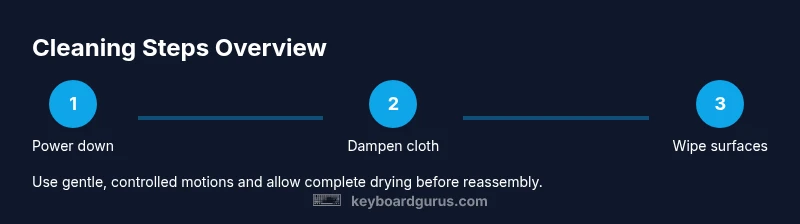
Shut down the computer and unplug the keyboard (or remove the USB cable). If you’re on a laptop, disconnect power and, if possible, remove the battery. This minimizes the risk of short circuits during cleaning.
Tip: Double-check that all power sources are disconnected before touching the keyboard. - 2
Prepare cleaning solution and workspace
Place IPA in a small dish or use a spray bottle to dampen a cloth lightly. Gather a lint-free cloth, cotton swabs, and a soft brush. Clear the area and ensure good ventilation to help quick evaporation.
Tip: Keep liquids away from the edges of the desk to prevent accidental spills. - 3
Wipe surfaces with a damp cloth
Wipe the top, sides, and the keycaps with the dampened cloth, using gentle, even strokes. Avoid letting liquid pool around the switches or seep into key gaps. Replace the cloth when it becomes visibly dirty.
Tip: Work in small sections to maintain control over moisture and prevent drip spread. - 4
Clean between the keys with swabs
Dampen a cotton swab slightly and run it along the gaps between keys and around the stabilizers. Do not saturate the swab; moisture in crevices can migrate into the PCB or switch housings.
Tip: Rotate swabs regularly to avoid re-depositing grime on the keyboard. - 5
Dry and air out
Allow surfaces to air-dry completely. If you used IPA, the solvent should evaporate quickly. Do not reassemble or reconnect until you’re sure every area is completely dry.
Tip: A quick fan or a few minutes in a warm, dry area can speed drying. - 6
Reconnect and test
Plug the keyboard back in and power up. Test every key to ensure there’s no sticking or unresponsive keys. If you notice issues, re-check for moisture and allow more drying time before using the keyboard again.
Tip: Keep a log of what you cleaned and when for maintenance records.
Got Questions?
Is isopropyl alcohol safe for keyboards and switches?
Isopropyl alcohol is commonly used on keyboards, but you should avoid aggressive concentrations and never spray directly onto the device. Test first and ensure complete drying to protect switches and backlighting.
Isopropyl alcohol is commonly used, but avoid direct spraying and test a small area first to protect the keyboard.
Can I dilute alcohol with water for cleaning?
Water increases the risk of moisture seeping into the keyboard. If you must use water, use it sparingly on a cloth and ensure the surface is damp, not wet, and allow thorough drying before use.
Water should be used cautiously; keep the cloth damp, not wet, and dry completely before using the keyboard again.
Will cleaning with alcohol void my keyboard’s warranty?
Carefully cleaning with alcohol may affect warranty coverage if the manufacturer specifies moisture exposure or specific cleaning agents. Check your device’s manual before proceeding and follow official guidelines to minimize risk.
Check your manual; warranties vary and some require following manufacturer cleaning guidelines.
Is alcohol safe for mechanical keyboards with backlighting?
Alcohol can be used on many mechanical keyboards, but avoid the backlighting components and reflective coatings. Gently clean around LEDs with a swab and never spray directly onto the lighting area.
Be careful around the lighting; clean around LEDs with a swab and avoid spraying directly.
What about disinfecting—is alcohol enough?
Alcohol is effective for surface disinfection when used properly, but it may not reach all crevices. Pair cleaning with mechanical brushing for thorough debris removal and consider alternative disinfectants if sensitivity is a concern.
Alcohol helps clean surfaces, but use supplementary methods for hard-to-reach areas.
What should I do if moisture gets inside the keyboard?
Power off immediately and unplug. Allow the device to dry completely in a warm, dry place before attempting to reconnect. If the issue persists, consult a professional.
If moisture enters the device, unplug and let it dry completely before testing again.
Watch Video
What to Remember
- Test a small area before full cleaning
- Choose pure IPA and apply to cloth, not directly to the keyboard
- Avoid direct sprays and excess moisture
- Ensure complete drying before re-use
- Consider safer alternatives in sensitive setups