Fixing a Keyboard Key That Won't Work: A Troubleshooting Guide
Learn fast, practical steps to diagnose and fix a keyboard key that does not work. This guide covers debris removal, driver checks, firmware considerations, and when to replace hardware.


Most likely, the keyboard key does not work due to debris, a stuck switch, or a worn membrane. Start with a quick inspection, lifting the keycap and cleaning around the switch. Reseat the key and test on another device. If it still fails, check drivers, reboot, and test in BIOS. If unresolved, replacement may be required.
Common Causes of a Keyboard Key Not Working
When the keyboard key does not work, the most common culprits are physical issues, not mysterious software bugs. Debris, dust, crumbs, or a spilled liquid can lodge beneath the key and prevent contact. On mechanical keyboards, a worn or stuck switch may no longer register presses, especially after heavy gaming or typing. Laptop keyboards often use scissor-switch mechanisms that can lose tactile feedback if a membrane wears out. Software problems also play a role: if a key is remapped, or if accessibility features like Sticky Keys or Filter Keys are enabled, you may see unexpected behavior. Finally, a loose USB cable, a failing USB hub, or power fluctuations can briefly interrupt keyboard input. In many cases, simply ruling out software with a quick reboot and a test on another device helps determine if the issue is hardware or software related. According to Keyboard Gurus, most hardware faults reveal themselves during a simple cross-check with another device. This first step is essential to prevent unnecessary repairs and to identify whether you’re dealing with a single key or a broader keyboard failure.
Quick Fixes You Can Try Right Now
If your goal is to regain typing speed without delay, start with low-effort, high-yield steps. First, perform a complete power cycle: shut down the computer, unplug the keyboard (and any USB hub), wait a few seconds, then reconnect and boot again. Next, try an external keyboard on the same system or plug the keyboard into a different device to rule out the machine’s configuration. If the issue persists, reassign or reset any recent keyboard remappings in your system settings and disable accessibility features like Sticky Keys or Filter Keys temporarily. Finally, inspect for obvious physical problems: look for bent key stems, misaligned keycaps, or a visibly dirty switch area. If these quick fixes do not restore performance, you’re ready to move on to cleaning, inspection, and software checks. Keyboard Gurus analysis confirms that starting with software and connection checks often saves time and money.
Cleaning and Physical Inspection
A clean, careful approach can restore many keys to full function. Start by powering off and unplugging the device. If you have a keycap puller, use it to gently lift the affected keycap; if not, use a safe plastic tool to pry the cap upward at a slight angle, avoiding the surrounding switches. Inspect the exposed switch for dust, hair, or liquid residue. Use a can of compressed air to dislodge particles; a soft brush or cotton swab lightly moistened with isopropyl alcohol (at most 70%) can remove stubborn debris. Do not apply liquid directly to the switch; allow it to dry completely before reseating the keycap. After cleaning, reseat the keycap firmly and test. If the key still fails, consider trying a different keycap from the same keyboard to rule out a cap-specific fault. These steps are safe for most keyboards when done gently and with anti-static precautions. Keyboard Gurus notes that effective cleaning is often the most overlooked step that solves many “not working” cases.
Software and Driver Checks
Sometimes a key stops working because of software or driver conflicts rather than a hardware fault. Start by updating the keyboard driver through the device manager (Windows) or System Information (macOS), and reinstall the driver if necessary. Check for firmware updates from the keyboard manufacturer if you own a programmable or RGB keyboard. Disable any recently installed remapping or macro software that could intercept the key in question. Test the key after each change to identify the exact cause. If the key works in a different operating system user profile, you know the issue is tied to your user settings rather than hardware. Keyboard Gurus emphasizes that driver and software checks are a fast, non-destructive path to resolution and should be the default step before risky hardware work.
Hardware Tests and Testing Methods
When software is ruled out, perform targeted hardware tests to confirm the failure mode. Connect the keyboard to another computer or laptop and verify whether the key behaves the same way; if it does, you have a high likelihood of a hardware fault. Try a different USB port or USB cable to rule out connectivity problems. If you own a mechanical keyboard, test a known-good switch on the same PCB to determine if a single switch is defective. If the key still does not respond on multiple systems, the fault is most likely at the keyboard level, not the computer. In some cases, a short under the key or a misaligned stabilizer can cause repeat failures. A professional evaluation may be warranted, especially if your keyboard is under warranty. Keyboard Gurus support strict diagnostic criteria to avoid misdiagnosis and unnecessary repairs.
When to Replace or Seek Professional Help
If repeated tests across devices and methods fail to restore the key’s function, it may be time to consider repair or replacement. Consider the keyboard type, age, and warranty status. For high-value or specialized keyboards, a professional repair can restore functionality at a fraction of replacement cost, particularly for hot-swappable switches or PCB-level issues. If you’re comfortable with DIY repairs and the device is out of warranty, you can replace a faulty switch or stabilize a loose component with proper tools. Always back up any programmable profiles first. The Keyboard Gurus team recommends weighing the repair cost against replacement value, and prioritizing safety and device integrity above all. If unsure, seek an authorized service center for a precise assessment.
Steps
Estimated time: 60-90 minutes
- 1
Identify the symptom
Observe exactly when the key fails: during startup, in isolation, or only in certain apps. Note whether other keys are affected and if there are any error messages. This helps distinguish hardware fault from software conflicts and sets the direction for testing.
Tip: Keep a short log of when failures occur to correlate with software activity. - 2
Isolate hardware vs software
Test the keyboard on a different device or use an external keyboard with the same computer. If the key behaves the same on another device, hardware is likely at fault. If it works on another device, suspect software or profile settings on the original machine.
Tip: Try a different user profile or safe mode to rule out software interference. - 3
Power down and inspect
Shut down, unplug, and inspect the key area for visible debris or damage. If you can safely access the key, remove the cap and clean the surrounding area with compressed air and a dry brush. Re-seat the key and reconnect the keyboard.
Tip: Avoid applying liquids directly to the switch area. - 4
Clean and reseat
Clean the exposed switch with a cotton swab lightly moistened with isopropyl alcohol (at most 70%). Let dry fully before reassembling. Re-seat the keycap firmly and test after reassembly.
Tip: Do not force the key in place; align it with the stabilizers to avoid future misalignment. - 5
Update drivers and test
Update or reinstall keyboard drivers. Confirm no remapping software is intercepting the key. Restart and re-test across applications to confirm stability.
Tip: If the issue remains only in one app, focus on that application's keybindings and plugins. - 6
Decide on replacement or repair
If multiple tests fail, evaluate replacement vs repair. For warranty devices, contact the manufacturer or an authorized service center. For out-of-warranty keyboards, compare repair costs to replacement.
Tip: Document all steps taken and keep receipts for warranty claims.
Diagnosis: Keyboard key won't register or behaves inconsistently
Possible Causes
- highDust, debris, or liquid residue under the keycap
- highStuck or worn mechanical switch or stabilizer
- mediumSoftware/driver conflict or misconfigured accessibility feature
- lowUSB/Power issue or a loose connection
Fixes
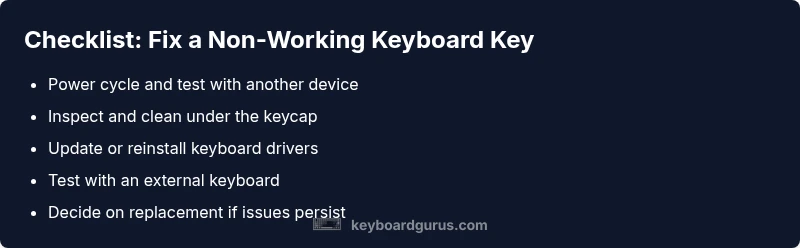
- easyPower cycle the system and test with another device to isolate software vs hardware
- easyClean under the keycap and reseat or replace it, then test
- mediumUpdate/reinstall keyboard drivers and check for firmware updates
- hardIf hardware fault persists, consult repair services or replacement
Got Questions?
Why is my keyboard key not working on startup?
Startup issues can be caused by BIOS/UEFI settings, removable peripherals, or a hardware fault. Try a clean boot, test with an external keyboard, and check for firmware updates from the manufacturer.
Startup key issues can come from BIOS settings or hardware faults. Try a clean boot and test with another keyboard.
Can cleaning fix a non-working key?
Yes, debris or residue under the key is a common culprit. Carefully remove the keycap, clean under it, and reseat the cap.
Cleaning under the keycap often fixes the problem. Remove, clean, and reseat.
What if the key works on another computer?
If it works on another computer, the issue is likely driver, profile, or OS settings on the original machine. Focus on software fixes there.
If it works elsewhere, investigate software settings on the original device.
Should I replace the keyboard or a single switch?
For a single faulty switch in a hot-swappable keyboard, replacing the switch can be cost-effective. For older or non-hot-swappable boards, replacement might be simpler.
If it’s a single faulty switch, replace the switch if possible; otherwise consider a full keyboard replacement.
Does warranty cover stuck keys?
Warranty coverage depends on the manufacturer and cause. If the issue is due to manufacturing fault, it’s commonly covered; accidental damage may not be.
Warranties vary; check terms and file a claim if it’s likely a manufacturing fault.
When should I seek professional repair?
Seek professional repair when multiple tests fail, the keyboard is high-value, or under warranty. Professionals can diagnose PCB or switch faults without voiding coverage.
If basic tests fail and the keyboard is valuable or under warranty, a professional repair is recommended.
Watch Video
What to Remember
- Inspect debris before anything else.
- Differentiate hardware vs software quickly.
- Clean carefully and reseat keycap for best odds.
- Test with an external keyboard for isolation.
- Know when replacement is the best option