Fix Keyboard Not Working on Microsoft Surface: A Troubleshooting Guide
Urgent, step-by-step guide to fix a keyboard not working on Microsoft Surface, covering built-in Type Cover, driver and firmware checks, Bluetooth pairing, hardware issues, and prevention.


Most Microsoft Surface keyboard issues come from a loose connection, driver hiccup, or a Bluetooth pairing glitch. Start with simple checks: reconnect the Type Cover, ensure the device is on desktop mode, and run Windows Update to install the latest keyboard drivers. If the problem persists, proceed through the step-by-step troubleshooting below.
Symptoms and common scenarios
When a keyboard stops working on a Microsoft Surface, the symptoms can vary. The built-in Type Cover may fail to register any keys, a handful of keys may be unresponsive, or the keyboard may respond intermittently. External keyboards—whether USB or Bluetooth—might work, confirming the issue is isolated to the Surface-integrated keyboard stack. In some cases the on-screen keyboard is still usable, which helps you keep working while you troubleshoot. Recognizing the exact symptom is essential because it guides which fixes to try first and which diagnostics to run. Keyboard not working microsoft surface pain points tend to cluster around attachments, drivers, or firmware rather than pure hardware failure, though the latter is possible in older devices.
This article from Keyboard Gurus emphasizes a methodical approach. According to Keyboard Gurus, most Surface keyboard problems begin with a simple misconnection or outdated drivers, not a deep hardware fault. The goal is to rule out software issues before considering expensive repairs, which saves time and preserves data integrity.
partitionKey_1_placeholder_1_0_0_0_0_0_0_0_0_0_0_0_0_0_0_0_0_0_0_0_0_0_0_0_0_0_0_0_0_0_0_0_0_0_0_0_0_0_0_0
Steps
Estimated time: 30-60 minutes
- 1
Prepare and back up
Before you start, save any open work and plug in or charge the Surface. Note the model of your device and whether you are troubleshooting the built-in Type Cover or an external keyboard. This helps you reproduce steps if you need to seek help and preserves data in case a reset becomes necessary.
Tip: Charge to at least 50% and back up critical files to a secure location. - 2
Re-seat the Type Cover or external keyboard
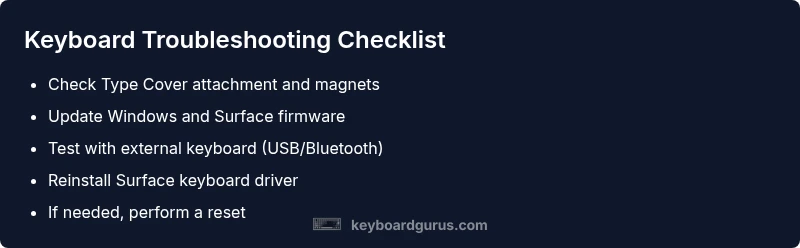
Detach and reattach the Type Cover firmly, ensuring the magnetic connector engages. If you’re using a USB keyboard, unplug and plug it back in, trying a different USB port if available. A loose connection is the simplest and most common fix.
Tip: Listen for a gentle click when re-engaging the Type Cover to confirm a proper connection. - 3
Check for software updates
Open Windows Update and install any pending updates, including Surface and keyboard firmware. After updating, reboot the Surface and test the keyboard again. Software fixes address many driver and compatibility issues.
Tip: Set updates to automatic to reduce future recurrence. - 4
Reinstall the keyboard driver
Open Device Manager, expand Keyboards, right-click the Surface keyboard, and choose Uninstall device. Reboot the Surface or reconnect the Type Cover so Windows reinstalls the driver automatically.
Tip: Do not disable the device in Device Manager during troubleshooting. - 5
Test with an external keyboard
Connect a USB or Bluetooth keyboard to verify whether keys respond. If the external keyboard works, the issue is likely with the Surface keyboard stack or attachment rather than Windows itself.
Tip: If Bluetooth, re-pair the device and ensure it has enough battery. - 6
Try Safe Mode and built-in troubleshooters
Boot into Safe Mode to determine if third-party software is causing the issue. Run the Windows Keyboard Troubleshooter (if available) or use the built-in troubleshooters to identify problems.
Tip: Safe Mode helps isolate software conflicts without replacing hardware. - 7
Consider a reset or recovery option
If all else fails, use Windows reset options with “Keep my files” for a software-based refresh. This can resolve stubborn driver conflicts but should be a last resort after data backup.
Tip: Back up again before a reset; hardware faults require professional evaluation.
Diagnosis: Keyboard on Microsoft Surface stops responding or misses keys
Possible Causes
- highLoose or damaged Type Cover connection
- highOutdated or corrupted keyboard driver/firmware
- mediumBluetooth pairing issues for wireless keyboards
- lowHardware fault in keyboard or Surface connector
Fixes
- easyReconnect and firmly re-seat the Type Cover or keyboard, ensuring the magnets engage
- easyUpdate Windows, run Surface firmware updates, and reinstall the keyboard driver
- easyUninstall the keyboard driver via Device Manager, then restart to reinstall automatically
- hardIf hardware fault is suspected, contact Microsoft Support or authorized service
Got Questions?
Why is my Surface keyboard not responding after a Windows update?
Windows updates can reset or conflict with keyboard drivers and firmware. Check for further updates, reinstall the keyboard driver, and run the Surface Firmware update. If the problem started after a specific update, consider rolling back via system restore.
Windows updates can clash with drivers. Reinstall the keyboard driver and run Surface Firmware updates to restore functionality.
How can I tell if the problem is hardware or software?
If an external keyboard works while the built-in Type Cover does not, the issue is likely hardware or a connector. If no keyboard works, it’s more likely software or driver-related. Use Safe Mode and diagnostic tools to confirm.
If an external keyboard works but the built-in one doesn’t, it’s probably hardware or a connector issue; otherwise it’s software.
Is it safe to reset my Surface to fix keyboard issues?
A reset can fix driver and software issues but should be a last resort. Back up data, choose the keep my files option if possible, and be aware that a reset will reinstall Windows components.
Resetting can help with software problems, but back up first and use keep my files if you can.
Can I use a Bluetooth keyboard with my Surface?
Yes. If the built-in keyboard fails, a Bluetooth keyboard can keep you productive. Re-pair it, check battery levels, and ensure Bluetooth is enabled in Settings.
You can use a Bluetooth keyboard—re-pair it and make sure Bluetooth is on.
When should I contact support for hardware faults?
If you’ve exhausted software fixes and tested other keyboards, or the device shows physical damage, contact Microsoft Support or an authorized service provider for hardware assessment.
If hardware damage is suspected after all fixes, contact support for assessment.
Will a system restore help with keyboard problems?
System Restore can revert driver changes, but it affects system state beyond the keyboard. Use it if recent software changes likely caused the issue. Back up if possible.
System Restore can undo recent software changes that caused the issue.
Watch Video
What to Remember
- Troubleshoot in stages, starting with connections
- Update drivers and firmware before hardware replacement
- Test with external keyboards to isolate the issue
- Back up data before resets or recoveries
- Seek professional help if hardware faults are suspected