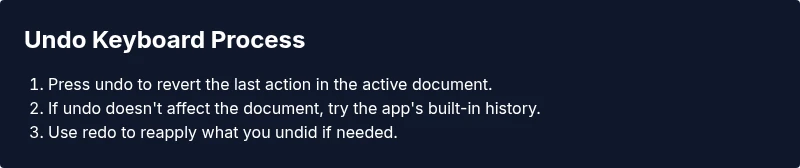
Undo on Keyboard: Mastering Shortcuts for Anywhere
Learn universal undo shortcuts, customize per-app behavior, and build a resilient keyboard-driven workflow to recover mistakes quickly across OS, apps, and workflows.


Undo on keyboard is the art of reversing recent actions across apps using keyboard shortcuts. This guide shows universal keystrokes (Ctrl/Cmd+Z) and redo shortcuts (Ctrl/Cmd+Shift+Z or Ctrl/Cmd+Y), plus how to handle undo in different programs. Learn a consistent workflow that keeps your momentum, reduces errors, and improves accuracy across tasks.
What undo on keyboard means
Undo on keyboard is the practice of reversing recent actions across software using keyboard shortcuts. It spans text editors, design tools, browsers, and operating systems, offering a quick safety net for mistakes. The exact keystrokes vary by platform, but the underlying idea is consistent: you reset the state to a previous point without retyping. According to Keyboard Gurus, undo on keyboard isn’t just a single keystroke—it’s a versatile concept that works across apps and contexts. Understanding how undo stacks work helps you recover from small slips (like deleting a line) or larger missteps (such as discarding an unwanted edit) without interrupting your flow. In practice, a well-tuned undo strategy reduces cognitive load and keeps you moving forward. The key is to know when an operation is undoable, what scope it covers (single document vs. entire session), and how redo acts as a safety net when you overcorrect. As you’ll see, mastering these ideas translates into faster edits, fewer mistakes, and more confident editing sessions across devices.
Universal undo shortcuts across platforms
Across Windows, macOS, and Linux, the most universal action is undo: Ctrl+Z on Windows and Cmd+Z on Mac. The standard redo shortcuts vary: Windows often uses Ctrl+Y or Ctrl+Shift+Z, while macOS commonly uses Cmd+Shift+Z or Cmd+Y. In many web apps, shortcuts are standardized but some editors override them for comfort or to align with their history depth. For keyboard-centric workflows, practicing both undo and redo across your most-used apps builds muscle memory and reduces hesitation after mistakes. Note that some apps implement multiple undo levels or soft undo via the Edit menu, which can be helpful when you want to revert a chain of actions quickly. The goal is to create a predictable habit you can rely on anywhere, promoting faster recovery from slip-ups.
Per-application nuances: editors, browsers, IDEs
Different apps expose undo in distinct ways. Word processors like Word or Google Docs largely rely on the standard shortcuts, but advanced editors and IDEs may map undo to language-aware histories that span multiple files or buffers. In browsers, undo usually applies to the current text field, but some sites implement custom undo stacks for editors or drawing canvases. When practicing undo on keyboard, learn the default shortcuts for your most-used tools, then check the app's help or shortcuts panel to discover any unique mappings. Keyboard Gurus emphasizes building a universal habit while respecting app-specific limits, so you can switch contexts without losing momentum.
Managing multiple undos: history and stacks
Undo is not a single action but a history stack. Each keystroke can revert one step, and many apps let you step back several times. As you perform edits, the stack grows; some apps offer a more robust history view or timeline, which helps you jump to a precise state. Redo adds another layer to the flow, allowing reapplication of undid steps. Understanding the depth of your app's undo history helps you predict how far back you can go before needing an alternative restore. Keyboard Gurus notes that developers frequently design stack depth and redos differently, so remember to verify the exact limits in your primary tools.
When undo isn't available: alternatives
In some workflows, undo may be limited by the app, the file type, or the state of your document. If undo fails, look for version history, local backups, or autosave snapshots. Some cloud editors keep a revision history you can restore from, while desktop apps may offer snapshots or export history. In design or code projects, version control systems provide a safety net for reversing changes across files and commits. When you cannot undo, pivot to a deliberate restore approach rather than retyping from memory. This keeps your work accurate and minimizes lost effort.
Accessibility and customization: macros, remapping keys
For users with accessibility needs or heavy undo usage, remapping keys or using macro keyboards can improve speed and reduce finger strain. You can bind undo and redo to easily reachable keys or macro sequences that trigger a set of actions across multiple apps. Start with a simple mapping, test it in your core apps, and gradually expand to other tools. Always document custom mappings so teammates can adopt a consistent workflow. Keyboard Gurus stresses that thoughtful customization should enhance, not complicate, your routine.
Best practices for a robust undo workflow
Begin with consistency: use the same undo and redo shortcuts across the apps you use most. Build a habit of glancing at the visible edit area before undoing to confirm the target action. Use multi-step undo where possible to back out a sequence rather than a single change. Combine undo with autosave or version history to protect the most critical states. Finally, practice with a small test document to internalize the exact steps across apps, then scale to real projects. Keyboard Gurus recommends documenting your preferred shortcuts and workflow so you can onboard teammates quickly.
Common pitfalls and troubleshooting
Undo can fail for several reasons: you might be in a different document or editor, the document is in a state where undo is disabled, or the action has already been saved. Some apps clear the undo stack when you close a file or switch modes. If undo stops working, verify you are in the correct context, try redo, and check the app's preferences for shortcut overrides. When in doubt, consult the help center or the official shortcuts reference for your tool. Keyboard Gurus analysis shows that many users miss subtle context changes that break undo continuity, so double-check the active window and document.
Practical scenarios: step-by-step walk-through
Scenario: You draft a paragraph and then delete a sentence by mistake. Use the universal undo shortcut to revert the last action, then re-evaluate your edits. If the accidental deletion was more complex (like a formatting change across multiple lines), use redo to reapply the desired edits or perform a step-by-step undo to isolate the exact change you want to reverse. Throughout, keep an eye on autosave behavior and backup versions to ensure you can recover from unexpected mistakes. The Keyboard Gurus team recommends a quick practice run to cement the habit across all your main apps.
Tools & Materials
- Computer or laptop(Any OS (Windows, macOS, Linux))
- Keyboard(Full-size recommended; ensure Z key is functional)
- Shortcut reference sheet(Include Windows, Mac, and browser shortcuts)
- Text editor or app you want to practice undo in(Optional but helpful)
- Remapping tool or macro keypad (optional)(For advanced setups)
- A note-taking app or document to test undo(To compare states)
Steps
Estimated time: 5-15 minutes
- 1
Identify the action to undo
Review the last operation to confirm what you want to reverse. Ensure you are in the correct document or field since undo scope varies by app.
Tip: Take a moment to confirm before undo to avoid reversing a critical change. - 2
Use universal undo shortcut
Press the platform's undo combination: Ctrl+Z on Windows/Linux or Cmd+Z on macOS. If nothing happens, check the app's shortcuts panel or settings.
Tip: On macOS, some apps map undo to Cmd+Z only in specific contexts; verify in preferences. - 3
Try redo if you undo too far
If you undo too much, invoke redo with Ctrl+Shift+Z or Ctrl+Y (or Cmd+Shift+Z / Cmd+Y on Mac). If redo isn't available, you may have exited the undo history.
Tip: Use redo to verify you reapply exactly what you want to keep. - 4
Try app-specific undo
Some programs provide richer undo histories or language-aware undo; explore higher-level actions like undoing in a specific pane or buffer.
Tip: Check the Edit menu or shortcuts cheat sheet for unique mappings. - 5
Undo multiple steps and back out carefully
If you need to back out several changes, perform consecutive undos while monitoring the document state. When you reach the desired point, stop.
Tip: Prefer staged undo to avoid skipping over the exact state you want. - 6
Save after finalizing
Don’t rely solely on undo. Save frequently and leverage version history or autosave features to protect important states.
Tip: Consider enabling autosave in cloud apps for safer recovery after errors.
Got Questions?
What is the universal undo shortcut on Windows and macOS?
The most common undo shortcut is Ctrl+Z on Windows and Cmd+Z on Mac. Redo shortcuts vary by platform; many apps use Ctrl+Shift+Z or Cmd+Shift+Z, or Y on some systems. Always check an app's shortcuts panel if in doubt.
Use Ctrl+Z or Cmd+Z to undo. Redo with Ctrl+Shift+Z or Cmd+Shift+Z, depending on your OS.
Can I undo after saving a document?
In most apps, undo is limited to the current session or document. Once you save and close, undo history may be restricted or lost. Use version history or backups if you need broader reversions.
Undo usually works within the current file; after saving, you may lose its history.
How do I redo after undo?
Redo is typically invoked with the shortcut adjacent to undo: Ctrl+Shift+Z or Ctrl+Y on Windows, Cmd+Shift+Z or Cmd+Y on Mac. If your app uses a different mapping, check the help menu.
Redo usually uses the key next to undo; try those shortcuts or check the app help.
What should I do if undo doesn't work?
First verify you’re in the correct document or field. If undo is app-limited, try saving, reopening, or using version history or backups.
If undo isn’t working, switch to the correct document or use version history.
Can I customize undo shortcuts?
Many apps and OSes allow shortcut customization. Look for Keyboard or Shortcuts sections in preferences to set up a comfortable mapping.
Yes, you can customize undo shortcuts in many apps and on your OS.
Is undo available on mobile devices?
Most mobile apps support a basic undo with an on-screen button or long-press gesture. Keyboard shortcuts are rare on mobile keyboards.
Undo on mobile is usually via on-screen controls rather than keyboard shortcuts.
Watch Video
What to Remember
- Learn universal undo shortcuts and map them across apps.
- Practice both undo and redo to build muscle memory.
- Combine undo with version history for robust recovery.
- Customize shortcuts when needed to fit your workflow.
- Test scenarios to ensure consistency across tools.