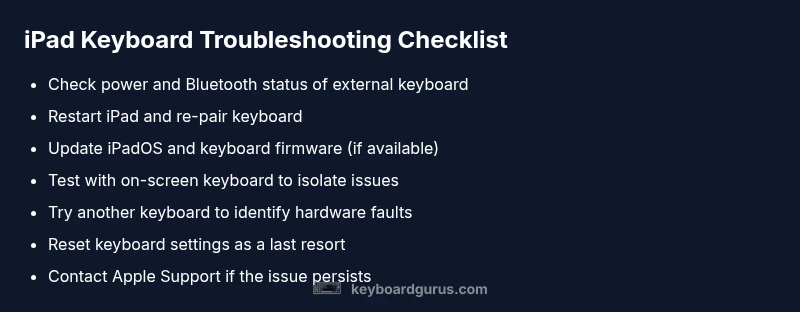
What is Wrong with My Keyboard on My iPad? Troubleshooting Guide
Urgent, step-by-step guide to diagnose and fix iPad keyboard issues—from Bluetooth pairing to on-screen glitches and external keyboards.


Most iPad keyboard problems stem from Bluetooth glitches or a software hiccup. Start with the simplest fixes: toggle Bluetooth off and back on, restart the iPad, and re-pair any external keyboard. If the problem persists, check for iPadOS updates, then reset keyboard settings last.
The Scope: What 'keyboard' means on iPad
On an iPad, the term keyboard covers both the on-screen keyboard you summon with a tap and any external hardware keyboard you connect via Bluetooth or the Smart Connector. When you ask "what is wrong with my keyboard on my iPad", you might be encountering issues with the software keyboard, the connected hardware keyboard, or both. This guide from Keyboard Gurus helps you diagnose which layer is failing and fix it quickly. We'll walk through symptoms, steps you can take right away, and deeper diagnostics if needed. By the end, you should know whether the problem is a simple toggle, a software update, or a hardware fault that requires professional help.
Common Symptoms You Might See
Common symptoms help you narrow down the cause. You might see that the on-screen keyboard never appears, or external keyboard fails to connect. Keys may type wrong characters, repeat, or produce no input at all. The cursor might not respond to arrow keys, or modifier keys (Shift, Command) behave erratically. If you’re asking what is wrong with my keyboard on my ipad, start by identifying whether the symptom is universal (affects all keyboards) or isolated to one device. This distinction guides you to software vs hardware fixes and whether you should seek professional help. Keyboard Gurus analysis shows that most issues originate from Bluetooth state, software glitches, or configuration mistakes. Treat this as a phased investigation: confirm the symptom, rule out simple causes, then move to targeted fixes.
Quick Checks You Can Do Right Now
Before you dive into deeper steps, perform fast checks. Verify Bluetooth is enabled on the iPad and that the keyboard is on and charged. Try using the on-screen keyboard in a different app to see if input is blocked system-wide. Check for a software update in Settings > General > Software Update, and restart the iPad. If you’re using an external keyboard, make sure it’s properly paired in Bluetooth settings and not connected to a different device. These quick checks often resolve most common problems and save time.
Diagnosing Root Causes
In this section, we differentiate software, Bluetooth, and hardware. Software glitches from iPadOS updates are common culprits; a restart or update can clear them. Bluetooth mispairing, stale connections, or interference from nearby devices can also cause intermittent input. A worn-out cable, low battery, or a damaged connector can mimic software faults. Keyboard layouts and language settings can lead to unexpected characters. Keyboard Gurus analysis suggests starting with the simplest cause and moving to more complex checks if the issue persists.
Fixes for External Bluetooth Keyboards
Bearing in mind the symptoms, here are practical fixes for external Bluetooth keyboards. First, toggle Bluetooth off and on, then re-pair the keyboard in Settings > Bluetooth. If the keyboard still won’t connect, forget the device in Bluetooth settings and pair again. Restart the iPad and test in a fresh app to isolate app-level conflicts. Ensure the external keyboard is charged or fresh batteries, and check for any firmware updates from the keyboard vendor. If needed, test the keyboard with another iPad to confirm whether the issue is device-specific.
Fixes for On-Screen Keyboard Problems
On-screen keyboard issues usually point to software or accessibility settings. Ensure the keyboard is enabled in Settings > General > Keyboard, and that the Split or hardware keyboard features are not interfering. Try bringing up the keyboard in a different app; if it appears inconsistently, reset the keyboard dictionary and then re-enable predictive text. If the keyboard still doesn’t appear, perform a soft reset (restart) and check for iPadOS updates.
Prevention and When to Seek Help
To minimize future issues, keep iPadOS updated, maintain charged accessories, and avoid overcrowding Bluetooth with many devices. Regularly restart after major updates and test critical peripherals after a new app install. If problems persist after all software fixes, it may be a hardware fault (connector or keyboard itself); contact Apple Support or a certified technician for diagnosis.
Advanced Troubleshooting: Logs and Network Resets
Advanced users can review diagnostics by checking iPad logs through Apple Diagnostics or connecting the iPad to a computer and using console outputs. If clean resets don’t help, you may consider performing a network Settings reset; this sometimes clears Bluetooth caching issues but also resets saved Wi‑Fi passwords, so have them handy. As a final step, if the external keyboard still fails, you likely have a hardware fault and should pursue a replacement or professional repair.
Steps
Estimated time: 20-60 minutes
- 1
Restart the iPad
Perform a full restart to clear temporary glitches. Hold the top button and volume button until the slider appears, then slide to power off. Wait 15 seconds and turn it back on, then test the keyboard input across a couple of apps.
Tip: A restart often resolves glitches without losing data. - 2
Toggle Bluetooth and re-pair
Go to Settings > Bluetooth, toggle off, wait 5 seconds, and toggle on. If using an external keyboard, select the device and choose Forget This Device, then re-pair it again from Bluetooth settings.
Tip: If pairing fails, try pairing from a fresh app (e.g., Notes) to avoid app interference. - 3
Test with the on-screen keyboard
Open a text field in multiple apps to determine if the issue is universal. If the on-screen keyboard works, the problem is likely hardware or Bluetooth-related rather than iPadOS-wide.
Tip: This helps you quickly localize the fault to hardware vs software. - 4
Check for updates
Navigate to Settings > General > Software Update and install any available iPadOS updates. Also check for firmware updates from the keyboard vendor if applicable.
Tip: Keeping firmware current reduces compatibility issues. - 5
Reset keyboard settings
If external keyboards show strange behavior, reset keyboard settings or dictionary in Settings > General > Transfer or Reset iPad > Reset Keyboard Dictionary (note this resets personalized keyboard data).
Tip: Back up any custom keyboard settings you want to keep before resetting. - 6
Test with another keyboard
Connect a different keyboard or borrow a colleague’s device to determine if the fault is with the original keyboard or the iPad.
Tip: A quick swap can prevent unnecessary replacements. - 7
Inspect hardware and connectors
If you have a Smart Connector or physical keyboard, inspect for visible damage or debris. Clean contacts gently and reseat connections.
Tip: Power off before inspecting connectors to avoid short circuits. - 8
Contact support
If none of the above resolves the issue, seek professional help from Apple Support or an authorized technician. Hardware faults often require diagnostic tools.
Tip: Document the steps you’ve tried to expedite support.
Diagnosis: iPad keyboard not responding or behaving inconsistently
Possible Causes
- highBluetooth mispairing or turned off
- highSoftware glitch after an iPadOS update
- mediumOutdated or problematic iPadOS version
- lowHardware issue with external keyboard or Smart Connector
Fixes
- easyToggle Bluetooth off and back on, then re-pair the keyboard in Bluetooth settings
- easyRestart the iPad and test with a clean app session to rule out app conflicts
- easyUpdate iPadOS to the latest version and install any firmware updates for external keyboards
- mediumUnpair and re-pair the external keyboard, or test with another keyboard to isolate hardware issues
Got Questions?
Why won’t my iPad connect to a Bluetooth keyboard?
First, ensure Bluetooth is enabled and the keyboard is powered. If it still won’t pair, forget the device and re-pair it. Check for iPadOS updates, as some versions fix Bluetooth stability. If problems persist, test with another keyboard to isolate hardware faults.
Make sure Bluetooth is on, forget and re-pair the keyboard, and check for updates. If it still fails, try a different keyboard to see if the issue is hardware-related.
Why is the on-screen keyboard not appearing?
Check that the on-screen keyboard is not dismissed by an accessibility setting or app. Force close apps, then reopen a text field. If it still doesn’t show, restart the iPad and verify there aren’t stuck firmware glitches.
If the on-screen keyboard won’t appear, check accessibility settings, force close apps, restart, and verify no firmware glitches.
Why do keys type wrong characters on iPad?
This is usually a keyboard layout or language setting issue. Go to Settings > General > Keyboard to verify the correct layout. Resetting the keyboard dictionary can help fix predictive typing or repeated character quirks.
Wrong characters are often layout or language related; check keyboard settings and consider resetting the dictionary if needed.
Why does my keyboard keep disconnecting?
Intermittent disconnects typically point to Bluetooth interference, low battery, or a faulty keyboard. Ensure battery life is good, minimize nearby Bluetooth devices, re-pair, and test with another device if possible.
Intermittent disconnects usually come from Bluetooth interference or a dying keyboard battery. Try re-pairing and testing with another device.
How do I reset keyboard settings on iPad?
You can reset the keyboard dictionary or reset all settings as a last resort. Remember this may remove saved Wi‑Fi networks and display preferences. Back up important data before doing a full reset.
Resetting keyboard settings can clear glitches, but be aware it might affect other saved settings.
When should I replace a faulty keyboard?
If multiple fixes fail across different devices and the hardware shows signs of damage, replacement is likely the best option. Warranty coverage or AppleCare can reduce cost and downtime.
If hardware checks fail on multiple devices, replacement is often the practical path.
Watch Video
What to Remember
- Identify whether the problem is Bluetooth, software, or hardware.
- Try the simplest fixes first: restart, toggle Bluetooth, re-pair.
- Update iPadOS and test with multiple keyboards to isolate causes.
- Seek professional help for hardware faults or persistent issues.