What’s Wrong with iOS Keyboard? A Troubleshooting Guide
Diagnose and fix common iOS keyboard issues—from lag to autocorrect surprises. The Keyboard Gurus Team provides practical steps, safety tips, and prevention strategies for smoother typing on iPhone and iPad.


The most likely causes are software glitches or an outdated iOS build, plus conflicts from third-party keyboards. Start with a quick restart, update iOS, and reset the keyboard dictionary. If the problem persists, disable third‑party keyboards and test the built‑in Apple keyboard to confirm the issue is software-related, not hardware.
Why iOS Keyboard Problems Happen
According to Keyboard Gurus, iOS keyboard problems often arise from software glitches, outdated iOS builds, or conflicting input methods. When your iPhone or iPad lags, the keys respond slowly, or autocorrect behaves erratically, it’s typically not a hardware failure. Start with simple explanations: a bad cache, a stuck setting, or a recently installed keyboard app that conflicts with system priority. In practice, most symptoms share root causes: software drift after updates, language or keyboard layout changes, and third‑party keyboards that clash with the built‑in one. Recognizing these factors helps you troubleshoot with a focused plan rather than guesswork. This guide prioritizes safety and minimal data loss while restoring normal typing.
Common Symptoms and What They Mean
Laggy, delayed input or mispredictions often point to memory pressure, an outdated OS, or a keyboard dictionary conflict. If the keyboard vanishes mid‑use or unresponsive keys appear, suspect a system hiccup or an app conflict. Frequent autocorrect mistakes, odd punctuation, or language switching usually occur when the current keyboard layout or language pack mismatches your setup. By mapping symptoms to likely causes, you can target root problems quickly and avoid replacing hardware.
Quick Checks You Can Do Right Now
Work through these checks in order, stopping when the problem clears:
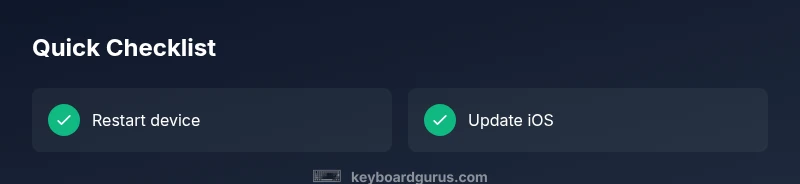
- Restart your device: a simple reboot can flush transient bugs.
- Update iOS: install the latest software to fix known keyboard bugs.
- Check third‑party keyboards: go to Settings > General > Keyboard > Keyboards and temporarily disable or remove unfamiliar keyboards.
- Clear dictionary and app data: reset the keyboard dictionary via Settings > General > Transfer or Reset iPhone > Reset; note this may erase learned words.
- Space storage: ensure you have enough free storage; low space can degrade keyboard performance.
- Language and region: verify your input language matches the expected keyboard layout. If nothing helps, proceed to deeper fixes in the next sections.
Diagnostic Scenarios: Isolating the Root Cause
- Outdated iOS version: When the OS is aging, there can be unresolved keyboard bugs that newer builds fix. Update to the latest iOS release.
- Third‑party keyboards causing conflicts: Some third‑party keyboards behave poorly on certain apps or iOS versions. Temporarily remove them and test the system keyboard.
- Low storage or memory pressure: Low disk space can slow down processes including keyboard rendering and input handling.
- Language pack or keyboard layout mismatch: A recent change to language or region settings can produce odd autocorrect and layout behavior.
- App conflicts: Certain apps override keyboard behavior or interfere with input events. Test across multiple apps to confirm.
Step-by-Step Preview of the Fixes
This section previews the most effective fixes so you can plan a hands‑on session. You’ll progress from simple, low‑risk steps to more involved actions if needed.
- Step 1: Restart the device to clear transient faults. This is quick and has a high likelihood of immediate relief. Tip: Do a hard reboot if a soft restart doesn’t help.
- Step 2: Install any available iOS updates. Patches often address keyboard glitches introduced by prior versions. Tip: Back up your data before updating.
- Step 3: Disable or remove problematic third‑party keyboards. If the issue disappears, the culprit is likely the third‑party input. Tip: Re‑enable keyboards one by one to identify the offender.
- Step 4: Reset the keyboard dictionary. This removes learned words that could be triggering odd autocorrect. Tip: You can re‑train frequently used words afterward.
- Step 5: Free up storage space and close background apps. Memory pressure can degrade keyboard responsiveness. Tip: Use the Battery and Storage settings to see what’s consuming space.
- Step 6: If needed, reset all settings (not data). This restores system defaults without erasing your apps. Tip: This is a last‑resort option.
- Step 7: If the problem persists after all steps, contact Apple Support for a hardware or iOS‑level review. Tip: Note when the issue started and any recent changes.
Safety, Precautions, and Common Mistakes
- Do not uninstall essential iOS components thinking it will speed up performance; this can cause more problems.
- Always back up before major resets or updates to avoid data loss.
- Avoid installing multiple keyboards at once; conflicts often arise from overlapping features.
- If you rely on encryption or corporate settings, consult your IT policy before altering device defaults.
- Seek professional help when issues persist beyond basic troubleshooting; there could be a deeper system or hardware problem.
Prevention Tips to Keep Your iOS Keyboard Healthy
- Keep iOS up to date and review updates for keyboard-related fixes.
- Limit third‑party keyboards to those with good reviews and strong update cadence.
- Regularly clear the keyboard dictionary and clear cache for affected apps.
- Manage storage proactively to avoid memory pressure that slows input rendering.
- Use a consistent language and keyboard layout across apps to reduce mismatches.
Quick Takeaways for Power Users
- Update iOS first; many keyboard bugs are fixed in patches.
- Disable conflicting keyboards to isolate the issue.
- Reset the keyboard dictionary before attempting more drastic resets.
- If you must reset settings, back up first and plan for reconfiguration afterward.
Final Checks Before You Finish
Test typing across multiple apps (Messages, Notes, and Safari) after each fix. If problems reappear in only one app, the issue may be app‑specific. When in doubt, reach out to Apple Support with a detailed symptom log.
Steps
Estimated time: 20-60 minutes
- 1
Restart your device
Force a restart if needed to clear transient bugs. After reboot, test the keyboard in multiple apps to verify baseline responsiveness.
Tip: A soft restart is quick; a hard restart can resolve deeper cache issues. - 2
Update iOS to the latest version
Open Settings > General > Software Update and install any available updates. Verify keyboard behavior after the update to see if issues persist.
Tip: Back up your data before applying major system updates. - 3
Disable third‑party keyboards
Go to Settings > General > Keyboard > Keyboards, remove unfamiliar keyboards, and test with the default Apple keyboard.
Tip: Add keyboards back one at a time to identify the offender. - 4
Reset the keyboard dictionary
Settings > General > Transfer or Reset iPhone > Reset > Reset Keyboard Dictionary. Re‑enter your common phrases afterward.
Tip: If you rely on custom terms, consider exporting a list beforehand. - 5
Free up storage and refresh apps
Check Storage in Settings, remove unused apps, and close background processes to free memory. Then retest keyboard performance.
Tip: Excessive background tasks can steal CPU time from the keyboard renderer. - 6
Reset all settings (optional)
If problems persist, reset all settings to revert to factory defaults without erasing data. You’ll need to reconfigure preferences after this step.
Tip: This is a last‑resort step; note it won’t erase apps or data.
Diagnosis: iOS keyboard lag, autocorrect issues, or keyboard not appearing
Possible Causes
- highOutdated iOS version
- highThird-party keyboard interference
- mediumLow storage or memory pressure
- lowKeyboard dictionary corruption
- lowApp conflicts
Fixes
- easyUpdate iOS to the latest version
- easyDisable or remove third‑party keyboards
- easyFree up storage and close background apps
- easyReset keyboard dictionary
- mediumReset all settings (data preserved)
- hardContact Apple Support for hardware/system review
Got Questions?
Why is my iOS keyboard lagging after updating iOS?
Lag after an update is commonly caused by temporary cache or incompatible keyboard components. Start with a restart, then update again if available, and test with the default keyboard before considering a reset. If the issue persists, it may require deeper diagnostics.
Lag after an update usually comes from cache or keyboard components. Try a restart, update, and test with the built‑in keyboard first.
How do I reset the iOS keyboard dictionary?
Go to Settings > General > Transfer or Reset iPhone > Reset > Reset Keyboard Dictionary. This clears learned words and autocorrect data. Re‑enter your common terms after the reset.
Reset the keyboard dictionary by going to Settings and choosing Reset Keyboard Dictionary, then re‑enter your common terms.
Will resetting all settings erase my data?
Resetting all settings restores default system preferences but does not erase your apps or data. It’s a safe, last‑resort option if other fixes fail.
Resetting all settings won’t erase your data, but you’ll need to reconfigure preferences after the reset.
Do third‑party keyboards pose security risks?
Some third‑party keyboards collect data as you type. Use trusted apps and review their permissions. If in doubt, switch back to the default keyboard while troubleshooting.
Some third‑party keyboards can collect data. Use trusted options and switch back to the default keyboard while testing.
Why doesn’t my keyboard appear on the screen sometimes?
This can be caused by a temporary UI glitch, a stuck app, or a focus issue. Restarting the app or device usually resolves it; ensure no accessibility features are hijacking input.
Keyboard not appearing is often a quick UI glitch—restart the app or device to fix it.
Is there a way to recover predictive text suggestions?
Resetting the dictionary or updating iOS typically restores proper suggestions. Ensure language and keyboard layout match your preferences and avoid conflicting keyboard apps.
Predictive text usually returns after dictionary reset or updates; check language settings if it’s still off.
Watch Video
What to Remember
- Update iOS first to fix keyboard bugs
- Disable conflicting keyboards to isolate issues
- Reset keyboard dictionary before drastic resets
- Free up storage to improve performance
- If unresolved, contact Apple Support for a system review