What is Wrong with My Keyboard on My iPhone? A Troubleshooting Guide
Urgent, step-by-step troubleshooting for iPhone keyboard issues. Learn common causes, quick fixes, and prevention tips to restore typing speed and accuracy.


The most likely issue is a software glitch or keyboard setting causing unresponsiveness or odd autocorrect behavior on your iPhone. Start with quick, reversible fixes: restart the device, ensure iOS is up to date, and reset the keyboard dictionary or keyboard settings. If the issue persists, follow the diagnostic flow.
Why the iPhone keyboard can act up
If you’re wondering 'what is wrong with my keyboard on my iphone', you’re not alone. Most keyboard problems boil down to software quirks, misconfigured settings, or conflicts with third-party keyboards rather than a failed hardware row of keys. In practice, you’ll notice symptoms like keys lagging, occasional stuck characters, autocorrect behaving oddly, or random punctuation disappearing. The good news: in many cases the fix is reversible and does not require a trip to the Apple Store.
According to Keyboard Gurus, the majority of complaints originate from software-level glitches—temporary cache issues, background updates, or new features that change how the keyboard operates. For example, a recent iOS update can enable new autocorrect rules that surprise long-time users; a third-party keyboard can steal dictionary data or conflict with system shortcuts. Before replacing hardware, you should rule out settings and apps. A quick audit of language, input sources, and predictive features often resolves the issue without data loss. This article walks you through a practical troubleshooting flow tailored to the common signs you described when asking 'what is wrong with my keyboard on my iphone'.
Quick checks you can do right now
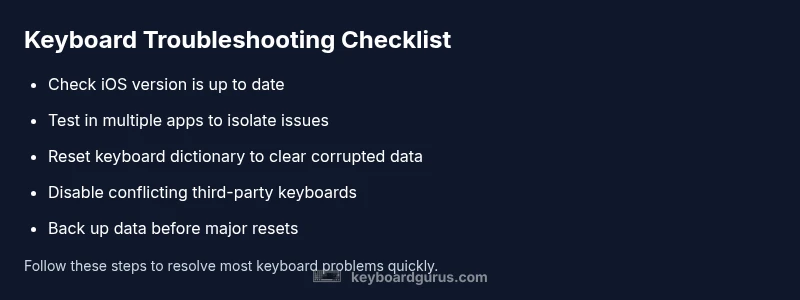
Start with the simplest fixes first. They are fast, reversible, and often solve the problem without changing your data. First, confirm you’re using the default iPhone keyboard or a single third-party keyboard you trust. In many cases, disabling other keyboards short-circuits conflicts. Next, make sure your iPhone is on the latest iOS release; system bugs are routinely patched in updates, and those patches can improve keyboard responsiveness. If you recently updated, a quick reboot can clear stale memory that makes the keyboard feel slow or unresponsive.
Then, inspect storage space. A nearly full device can slow down apps, including the keyboard. Go to Settings > General > iPhone Storage and free up space if needed. Also check Predictive and Auto-Correct settings under Settings > General > Keyboard; toggling these off and back on can reset behavior. If problems persist across apps (Messages, Notes, browser), try resetting only the keyboard dictionary from Settings > General > Transfer or Reset iPhone > Reset Keyboard Dictionary. Keep in mind this will erase learned words, so you may need to re-teach common terms. The fastest path to clarity is to test typing in a new text field after each change to see if behavior improves. This approach helps you answer: what is wrong with my keyboard on my iphone, without losing data.
Diagnosing through settings and apps
Deep-dive diagnosis requires you to isolate the keyboard from other factors. Start by testing in multiple apps—Messages, Notes, Safari, and a third-party keyboard app if you use one. If the issue happens only in one app, the problem is app-specific rather than the keyboard itself. If it occurs across apps, focus on system-level controls. In iOS, go to Settings > General > Keyboard. Review keys like Auto-Capitalization, Check Spelling, and Predictive. Turn off Auto-Correct temporarily and type a few sentences to gauge how the keyboard responds. Then turn Predictive back on and test again. If the keyboard’s layout feels wrong (missing keys, keycaps fading, or shrunken layout), you may have a display scaling issue or accessibility feature interfering with input. Look for VoiceOver, Zoom, or larger text in Settings > Accessibility. If a third-party keyboard was installed, disable or remove it to see if the behavior returns to normal. Finally, consider whether hardware-related factors—like a swollen battery or a loose screen assembly—could indirectly affect the touch sensitivity that the keyboard relies on. While rare, such factors require professional assessment.
Step-by-step fixes for the most common causes
This section gives a practical, reversible sequence to address the most frequent triggers. Step 1: restart your iPhone. A soft restart clears memory leaks that can cause stuck keys or lag. Step 2: ensure iOS is up to date. Go to Settings > General > Software Update and install any available updates. Step 3: reset the keyboard dictionary. This clears learned substitutions that might be corrupted. Step 4: reset all settings. Unless you back up, this resets preferences but not your data. Step 5: remove and re-add third-party keyboards. Delete the offending keyboard in Settings > General > Keyboard > Keyboards, then reinstall and re-enable. Step 6: test in safe conditions. Disable accessibility features like VoiceOver temporarily to ensure they aren’t affecting input. Tip: after each step, try typing in a new note or message to confirm improvement before moving on. If you still face issues, you may be dealing with a hardware or storage problem and should escalate to official support.
Prevention and best practices to keep your keyboard healthy
Prevention is better than cure, especially for mobile devices with limited RAM. Keep iOS updated, and install only trusted keyboards from reputable sources. Regularly review app permissions and monitor third-party keyboard behavior, especially after system updates. Clear cache or temporary data for the keyboard app if it provides such options, and periodically reset learned suggestions so they don’t drift. Maintain ample free storage to ensure smooth app performance; a cluttered device can hamper keyboard responsiveness. If you rely on long text inputs, consider enabling Predictive and Quick Type features, then train them gradually by correcting mistakes so the model learns your language over time. Debounce autocompletion by avoiding typing at lightning speed on crowded touchscreens; this reduces accidental keystrokes and improves accuracy. Finally, create a quick backup plan: know how to restore a clean keyboard configuration from iCloud or iTunes in case problems recur. By adopting these practices, you decrease the chances that you’ll ask yourself again, what is wrong with my keyboard on my iphone, and you keep your typing experience consistent.
When to seek professional help
If the problem persists after the basic fixes, it’s time to seek professional help. Persistent unresponsiveness, phantom touches, or keys that stop registering across all apps can indicate a deeper software fault or—even more rarely—some hardware issue with the display or battery. Start with Apple Support or visit an Apple Store or an authorized service provider. Before you go, back up your iPhone to iCloud or a computer to protect your data. Note the steps you’ve already taken, including iOS version, installed keyboards, and whether the issue occurs with the system keyboard only or with third-party keyboards. This information helps the technician diagnose faster. Keyboard Gurus suggests documenting the bug with short video clips or screen recordings if possible; visual evidence speeds up the diagnosis. If a hardware fault is suspected, Apple technicians can run diagnostics to verify touch sensitivity and display integrity. In most cases, a repair or replacement under warranty or out-of-warranty service is straightforward once the cause is confirmed.
Advanced troubleshooting for persistent issues
For stubborn problems or unusual behavior, consider a two-pronged approach: software hygiene and hardware sanity checks. First, perform a complete software refresh: back up, then erase all content and settings, reinstall iOS, and restore from a clean backup that you trust. If the issue recurs after a clean restore, you likely have a hardware issue or a low-level software bug that requires escalation. Second, test an alternate keyboard environment: install a fresh third-party keyboard in a controlled way, then monitor performance for a few days to determine if the bug is tied to a specific keyboard or the system. As a rule of thumb, avoid rushing into full device resets; try smaller, reversible steps first. Remember safety and data integrity: never bypass official Apple channels. The Keyboard Gurus Team recommends engaging official support when you cannot isolate the problem, since professional diagnostics can reveal subtle touch sensor faults or firmware anomalies that lay readers may miss.
Steps
Estimated time: 60-90 minutes
- 1
Restart iPhone
Perform a soft restart by holding the side button and either volume button until the power off slider appears, then slide to power off. After it boots, test typing in a text field to see if the issue remains.
Tip: Soft resets clear temporary cache without deleting data. - 2
Check for iOS updates
Go to Settings > General > Software Update and install any available updates. After updating, restart again and retest the keyboard.
Tip: Updates often fix known keyboard bugs. - 3
Reset keyboard dictionary
Navigate to Settings > General > Transfer or Reset iPhone > Reset Keyboard Dictionary and confirm. This clears learned substitutions that may be corrupted.
Tip: You may need to re-teach common terms after this. - 4
Reset all settings
If problems persist, reset all settings (Settings > General > Transfer or Reset iPhone > Reset All Settings). This preserves data but resets preferences like Wi‑Fi and display settings.
Tip: Back up first to be safe. - 5
Reinstall third-party keyboards
Remove problematic keyboards in Settings > General > Keyboard > Keyboards, then reinstall from the App Store and enable only one at a time to test.
Tip: Test on a fresh note after each new keyboard. - 6
Hardware and accessibility checks
Disable VoiceOver or Zoom temporarily and test typing. If symptoms persist, check for display issues or contact support for hardware diagnostics.
Tip: If you suspect hardware, professional inspection is advised.
Diagnosis: Keyboard unresponsive or misbehaving on iPhone
Possible Causes
- highSoftware glitch or cached data
- mediumThird-party keyboard conflict
- highiOS bug after update
- lowHardware touch sensor issue or screen misalignment
Fixes
- easyRestart the iPhone and test keyboard
- easyUpdate iOS to latest version
- easyReset keyboard dictionary
- mediumReset all settings (non-destructive)
- easyRemove conflicting third-party keyboards
- easyContact Apple Support if issue persists
Got Questions?
Why is my iPhone keyboard lagging all of a sudden?
Lag is typically caused by software glitches, storage pressure, or conflicts with third-party keyboards. Start with a restart, update iOS, free up space, and disable extra keyboards to test. If the problem remains, proceed through the diagnostic flow.
Lag on the iPhone keyboard is usually software-related; try a restart and update, then isolate apps and keyboards.
How do I reset the iPhone keyboard dictionary?
Go to Settings > General > Transfer or Reset iPhone > Reset Keyboard Dictionary and confirm. This clears learned substitutions but preserves your data.
In Settings, reset the keyboard dictionary to clear corrupted suggestions.
Will resetting all settings erase my data?
Resetting all settings resets preferences but does not erase your photos or apps. It’s safer to back up before performing this step.
Resetting will not erase data, but back up first just in case.
Can third‑party keyboards cause problems with the system keyboard?
Yes. They can conflict with system shortcuts and dictionaries. Disable or remove them to test if the issue resolves.
Third-party keyboards can cause conflicts; remove to test.
When should I seek Apple Support for keyboard issues?
If issues persist after all fixes, you may have a deeper software fault or hardware issue. Contact Apple Support or visit an Apple Store for professional diagnostics.
If it still misbehaves after fixes, contact Apple Support.
Watch Video
What to Remember
- Start with soft resets and updates.
- Isolate software vs. app-specific issues.
- Reset keyboard data only when needed.
- Consult Apple Support if the issue persists.