What to do when your keyboard is typing wrong letters
Urgent guide to diagnose and fix a keyboard that types wrong letters. Safe, practical steps, from layout checks to driver updates, with clear, actionable fixes.


If your keyboard is typing wrong letters, start with quick, safe checks: verify you’re using the correct keyboard layout and language input, then inspect the keys for dirt or sticky residue. Even a simple restart can help. Try an external keyboard to isolate hardware issues, and reset the keyboard settings if the problem persists before you suspect a hardware fault.
Why wrong letters happen on keyboards
According to Keyboard Gurus, keyboards type wrong letters most often when the input language or layout mismatches your physical keyboard, or when dust and debris interfere with key switches. Other common culprits include outdated drivers, misconfigured accessibility settings, or occasional hardware faults. Recognizing the pattern helps you choose fixes that are safe and effective. This isn’t an exotic problem; it’s usually a settings or cleanliness issue rather than a doomed keyboard. By following a calm, methodical approach, you can identify the root cause quickly and avoid unnecessary replacements. Keyboard Gurus emphasizes practical testing and safe fixes first, especially when you’re under time pressure or using a device for work or study.
Most common causes and how to spot them
- Keyboard layout or language mismatch: The input method may be set to a different language or layout than your physical keyboard. This is the leading cause and is easy to fix. You may see unusual symbols or letters that don’t match your keystrokes.
- Dirty or sticky keys: Debris or sticky residues can cause incorrect scancodes; a quick cleaning often resolves it. If only a few keys misbehave, this is a likely culprit.
- Outdated or corrupted drivers: Old drivers can misinterpret keystrokes; updating usually helps. If the problem occurs after a recent system update, this is worth checking.
- Hardware faults: A worn key, loose cable, or spill damage can produce random letters; testing with another keyboard helps confirm. If the external keyboard works fine, the built-in keyboard may need service.
- Modifier keys or accessibility features: Sticky keys can alter output unexpectedly. Make sure Modifier keys aren’t stuck and accessibility options aren’t interfering with normal input.
Recognize the signs: mismatched symbols, inconsistent letters, or only some keys affected point to a layout or debris issue rather than a full hardware failure. If the problem is isolated to one key, focus on cleaning or keycap seating; if many keys are affected, start with layout checks and driver updates.
Quick checks you can perform before heavy fixes
Run through these checks in order to isolate the cause quickly. Make sure you are safe by unplugging power when cleaning. Check the language and layout: on Windows, press Win+Space to cycle layouts; on macOS, go to System Settings > Keyboard > Input Sources. If the issue persists, try typing in Safe Mode or boot with a different user profile to rule out software conflicts. Finally, connect an external USB keyboard to see if the problem remains; if the external keyboard works fine, the laptop keyboard may be damaged or require servicing. These steps cover most urgent cases without needing tools or specialized help.
As you perform checks, keep notes about which fixes restore correct letters and which do not; this helps you determine if you should escalate to professional support.
Diagnostic flow in practice
Symptom: The keyboard types wrong letters consistently or intermittently. Diagnosis starts with the simplest explanations: layout or debris; if those fail, move to drivers and software. If the problem persists across multiple keyboards, it is likely hardware-related. Solutions progress from quick wins (change layout, clean keys) to intermediate fixes (update drivers, test with another keyboard) and finally hardware replacement if necessary. Always test after each fix to confirm improvement. Keyboard Gurus advises documenting each step to avoid repeating steps and to provide a clear path for any technician you consult.
Fixes for the top common causes: layout and language
For Windows: open Settings > Time & Language > Language & region > Preferred languages, click on your language, then Options, and ensure the correct Keyboard is enabled (e.g., US QWERTY). Remove unfamiliar layouts. For macOS: System Settings > Keyboard > Input Sources, add the correct layout (e.g., ABC, U.S.). Remove extraneous sources. After changing layouts, restart applications and test typing. If you use multiple languages, consider creating a quick hotkey to switch layouts. These steps resolve the majority of mis-typing caused by layout and language settings and can be completed in under ten minutes.
Cleaning, key behavior, and hardware checks
Power down before cleaning. Use compressed air to dislodge dust, then gently wipe surfaces with a microfiber cloth. For sticky keys, remove keycaps if possible and clean the switch area with a soft brush and isopropyl-alcohol wipe (avoid dripping liquid inside). Re-seat keycaps firmly and test each key. Inspect the cable if you’re on a wired keyboard and try a different USB port. If keys remain erratic, test with a known-good keyboard to isolate whether the issue is the keyboard itself or the computer.
When to seek professional help and prevention tips
If you’ve exhausted layout, cleaning, and driver fixes and the problem persists, professional service is warranted. Persistent mis-typing can indicate a failed switch, a damaged ribbon cable, or a motherboard fault, which typically requires a technician. Prevention is practical: keep keyboards clean, use protective covers for dust and spills, avoid eating over the keyboard, and schedule routine driver checks. Regularly update firmware if your device supports it, and consider a reliability-tested external keyboard for critical work.
Validate fixes and confirm results
After applying fixes, re-test across several applications (notepad, browser, word processor) to ensure consistent results. If the problem recurs only in certain apps, investigate software-specific keyboard shortcuts or input method errors. Create a short test document and type a familiar sentence repeatedly to verify consistency. If all tests pass, you have likely resolved the issue; if not, revisit the diagnostic flow, starting with layout and debris and moving toward hardware testing. Document the successful fixes for future reference.
Steps
Estimated time: 30-60 minutes
- 1
Check keyboard layout and language
Open your system settings and verify you are using the intended layout (e.g., US QWERTY). Switch layouts if necessary and retest typing to confirm alignment between keys and output.
Tip: Document your current layout so you can revert if needed. - 2
Clean and reseat keys
Power down and unplug. Use compressed air to dislodge dust, then gently wipe surfaces. If possible, remove affected keycaps and clean the switch wells before reassembling.
Tip: Avoid using liquids directly on switches; use a damp cloth only. - 3
Test with an external keyboard
Connect a known-good USB keyboard and test typing across apps. If the external keyboard works perfectly, the issue is likely with the original keyboard hardware.
Tip: Try different USB ports to rule out port-specific issues. - 4
Update or reinstall drivers
Go to Device Manager (Windows) or System Report (macOS) and update drivers. If needed, uninstall the keyboard driver and reinstall it on reboot.
Tip: Download drivers only from the official vendor site. - 5
Reset relevant settings
Reset language preferences and accessibility features to defaults. Disable any sticky keys or input shortcuts that might affect output.
Tip: Test after each reset to identify the specific setting causing trouble. - 6
Decide on hardware replacement or service
If tests indicate a hardware fault, evaluate repair versus replacement based on cost and age of the keyboard.
Tip: Back up important data; hardware work can occasionally cause incidental issues.
Diagnosis: Keyboard typing wrong letters
Possible Causes
- highKeyboard layout/language mismatch
- mediumDirt, dust, or sticky keys
- mediumWrong or outdated keyboard drivers
- lowHardware fault (damaged cable, worn switches)
- lowNum Lock / modifier keys alter output
Fixes
- easySet the correct layout and input language
- easyClean keyboard and reseat affected keys
- mediumUpdate or reinstall keyboard drivers
- easyTest with an external keyboard to isolate hardware
- hardReplace keyboard if hardware fault is confirmed
Got Questions?
Why is my keyboard typing wrong letters after cleaning?
Cleaning can dislodge keycaps or push dust into switches, affecting output. If results persist, re-seat keys and re-test; if not, consider layout or driver issues.
Cleaning can cause misalignment or debris inside switches. If it continues, check layout and drivers.
How do I change the keyboard layout in Windows 11?
Open Settings, go to Time & Language, then Language & region. Add or select the correct keyboard layout and remove others you don’t use.
Settings > Time & Language > Language & region, then add the right keyboard.
Can malware cause a keyboard to type wrong letters?
Malware can disrupt inputs indirectly by altering system processes. Run a full malware scan and ensure security software is up to date.
Malware could cause odd input behavior indirectly; scan your system.
Should I use an external keyboard to test?
Yes. If the external keyboard works normally, the issue is likely with the laptop keyboard or its controller. If it doesn’t, the problem may be software or system settings.
Yes—external keyboards help isolate hardware from software issues.
What about laptop keyboards vs external keyboards?
External keyboards can rule out laptop-specific faults. Laptop keyboards may require service or replacement if the issue is hardware-related.
External keyboards help test hardware; laptop keyboards may need service.
When should I replace a keyboard?
If testing shows a defective key or failing switches and repair is uneconomical, replacement is usually the best option.
If parts fail and repair isn’t worth it, replacing the keyboard makes sense.
Watch Video
What to Remember
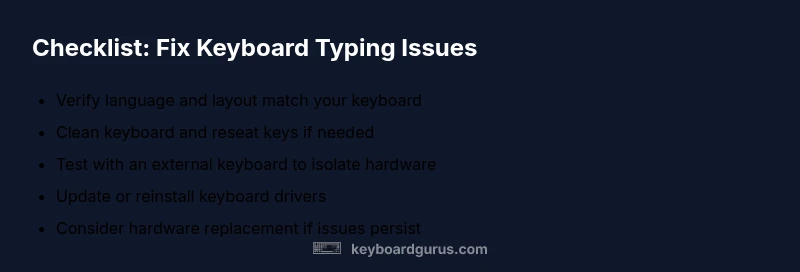
- Check layout first, then debris as primary fixes.
- Test with external keyboard to isolate hardware.
- Update drivers before considering replacement.
- Document steps to avoid repeating fixes.