Why is my keyboard typing over letters? A Troubleshooting Guide
Urgent, step-by-step guide to fix a keyboard that types extra letters or wrong characters. Quick checks, diagnostics, and safe methods to restore accurate typing and prevent future issues.


According to Keyboard Gurus, the most likely cause is a misconfigured input language or a stuck key. Quick fix: unplug or shut down, test with an external keyboard, and verify language and keyboard layout settings. Update drivers, disable sticky keys, and run a clean-in-place. If it persists, test on another device to isolate the issue.
Understanding the symptom
If you notice that your keyboard seems to type extra letters or the wrong characters, you're likely dealing with a handful of common culprits. The phrase 'why is my keyboard typing over letters' captures this mis-typing problem succinctly. According to Keyboard Gurus, the leading causes are a misconfigured input language or keyboard layout, as well as a physically sticky or worn key. The remedy is usually quick and safe: start with software checks, then move to hardware tests if needed. Begin by confirming your computer's language and input method, then try an external keyboard to see if the issue persists. While you work through these checks, also review accessibility features like Sticky Keys and Filter Keys that can alter typing behavior. If the issue continues after basic checks, you’ll follow a structured diagnostic path to separate software, firmware, and hardware factors.
How the keyboard fights back: real-world scenarios
In many cases, the problem emerges when a language pack or layout switches without your notice. For laptops, spilled liquids can creep under keycaps and create a short or sticky mechanism. On desktops, a loose USB connection or worn-out PS/2 adapter can manifest as ghost characters. Occasionally, software glitches—especially after an OS update—can hijack the keyboard driver or introduce a conflicting input method editor (IME). By understanding these scenarios, you can tailor your next steps and avoid unnecessary replacements. The Keyboard Gurus team emphasizes that most incidents are software-related and reversible with careful checking of settings and drivers.
The impact on productivity and why speed matters
Typing errors caused by a faulty keyboard disrupt learning, gaming, coding, and professional tasks. In education and work scenarios, a misbehaving keyboard leads to frustration, slowed progress, and a backlog of work. Recognizing the symptom early allows you to stop and test before assumptions steer you toward hardware purchases. The faster you identify non-hardware causes, the quicker you regain confidence in your setup. Remember that small misconfigurations accumulate into big delays if left unchecked, so a methodical approach is essential.
Quick checks from the top
Before diving into deeper diagnostics, perform simple, reversible checks that often resolve the issue. Verify language and layout settings, swap to an external keyboard, and inspect for obvious physical damage. These checks are low risk and often reveal the culprit without tools. If you’re on a laptop, also try toggling the function keys (Fn) associated with keyboard behavior, as some laptops remap keys under certain modes. Document any changes so you can reproduce outcomes and avoid guessing later.
How to separate software from hardware issues
A structured approach helps you isolate the source of the typing problem. If an external keyboard works fine on the same computer, the issue likely lies with the original keyboard hardware. If the problem persists with any keyboard on that computer, then a software or OS setting is the likely culprit. Always test across devices when possible to validate your findings. This separation reduces unnecessary repairs and helps you make a smarter purchase decision if replacement becomes necessary.
Cleaning and safe maintenance practices
Dust and crumbs can interfere with key switches or scissor mechanisms, causing keys to register spuriously. Use compressed air to blow out debris from under the keycaps, and lightly brush around the keys using a soft brush. Avoid liquids near electronics. If you suspect a spill, power down immediately and remove the keyboard to dry it completely before reassembly. Gentle cleaning often resolves intermittent typing anomalies without harming components.
When to replace vs repair
If physical damage is visible—cracked keycaps, bent stems, or a swollen casing—or if the issue persists after software fixes and cleaning, replacement is the pragmatic option. Replacing a discrete keyboard or upgrading to a newer model can deliver a better long-term return on investment than ongoing repairs. The decision should consider usage patterns: high-frequency typing, gaming, or specialized work often justifies a targeted upgrade.
Putting it all together: a practical plan
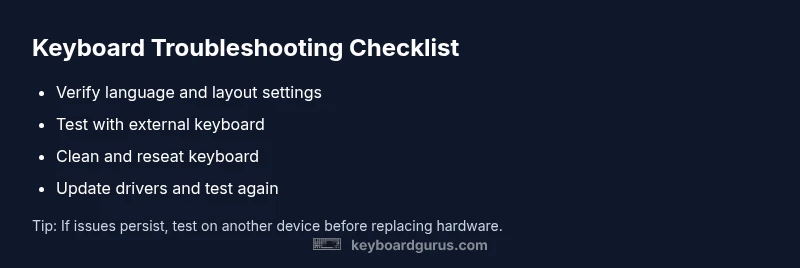
Create a simple checklist: verify language/layout, test with external keyboard, update drivers, disable sticky keys, clean hardware, test on another device, and assess if replacement is needed. Following a consistent routine saves time and reduces stress during busy work peaks. The guidance from Keyboard Gurus emphasizes documenting findings at each step so you can replicate success or escalate efficiently if needed.
Steps
Estimated time: 20-30 minutes
- 1
Power down and unplug
Shut off the computer and disconnect any USB keyboard. If you’re on a laptop, power off completely to avoid any short on the motherboard. This step reduces risk while you inspect connections and key mechanisms.
Tip: Always unplug before handling internal components or applying cleaning steps. - 2
Test with an external keyboard
Connect a known-good external keyboard to see if the issue reproduces. If the external keyboard types correctly, focus on the original device. If it fails, the problem is likely software or OS-related.
Tip: If using a laptop, try a USB-C or USB-A dongle to rule out port issues. - 3
Check language and layout settings
Open the operating system’s language and input method settings and confirm the active layout matches your region (e.g., English - US). Switch to another layout briefly and back to observe changes.
Tip: Document the current layout before making changes so you can revert quickly. - 4
Disable Sticky/Filter Keys
In accessibility settings, turn off Sticky Keys and Filter Keys. Reboot and test typing. If the issue is resolved, reintroduce features one by one to identify the offender.
Tip: Only disable these features temporarily during testing. - 5
Update or reinstall drivers
Go to the device manager (Windows) or System Preferences (macOS) and update the keyboard driver, or reinstall it. After installation, reboot and test again.
Tip: Use official sources for drivers to avoid malware. - 6
If necessary, perform hardware checks
Inspect keycaps for misalignment, reseat a stuck key, and test with a different cable or USB port. If the issue persists, consider hardware replacement.
Tip: Static discharge can harm electronics—ground yourself before handling internal parts.
Diagnosis: Keyboard typing extra letters or wrong characters
Possible Causes
- highMisconfigured input language or keyboard layout
- mediumSticky or unresponsive keys due to debris or wear
- mediumSoftware driver or OS accessibility setting (e.g., filter keys)
- lowHardware fault in keyboard matrix or USB controller
Fixes
- easyCheck language and layout in OS settings and switch to the correct input method
- easyClean the keyboard and reseat mechanical switch or remove debris; test with a different keyboard
- easyUpdate keyboard drivers and run built-in troubleshooter, reset accessibility options
- mediumIf none of the above works, test on another device or contact support for possible hardware replacement
Got Questions?
What does it mean when my keyboard types extra letters?
Typing extra letters typically indicates a mismatch between the active input language and the physical keyboard layout, or a sticky key. It can also be caused by hardware faults or a software setting. Start with language settings and basic cleaning to rule out simple causes.
Extra letters usually point to language settings or a sticky key. Check your input method and try cleaning the keyboard.
How can I tell if the problem is hardware or software?
Test with an external keyboard and on a different device. If the issue follows the keyboard, hardware is the likely cause. If it follows the device, software or OS settings are to blame.
If the problem goes away with an external keyboard, hardware is the culprit; if not, software is at fault.
Should I reset language settings to default?
Resetting language and layout to defaults can resolve misconfiguration. After resetting, re-select your preferred layout and test typing to confirm the fix.
Reset to default language, then reselect your keyboard layout and test.
Can malware cause this issue?
Malware can sometimes intercept keystrokes, but it's uncommon for typing off letters to be malware-only. Run a security scan if you notice other suspicious behavior.
Malware is unlikely the sole cause, but run a security check if you see odd activity.
When should I replace my keyboard?
If physical damage is visible or repeated software fixes fail, replacement is often the most practical option, especially for high-usage setups.
If you see physical damage or persistent issues after fixes, consider replacing the keyboard.
Is there a quick test to confirm language issues?
Yes. Temporarily switch to a different language input, type a few letters, then switch back. If the behavior changes, the issue is language-related.
Switch to another input language and back to see if the typing changes.
Watch Video
What to Remember
- Identify whether the issue is software or hardware
- Test with an external keyboard to isolate the problem
- Keep accessibility features off during diagnosis
- Replace hardware if cleaning and software fixes fail