Keyboard Is Typing Symbols Instead of Numbers? Urgent Troubleshooting Guide
Urgent guide to fix the common issue where a keyboard types symbols instead of numbers. Learn to diagnose Num Lock, layout, drivers, and hardware problems with a clear flow and practical steps.


If your keyboard is typing symbols instead of numbers, the most likely causes are Num Lock being off or a changed keyboard layout. Start by toggling Num Lock, then check the active input language and region; verify the mapping in your OS and test in a calculator or note app. If the issue persists, rule out drivers and hardware by testing with another keyboard and a different USB port.
Why this happens
According to Keyboard Gurus, the problem where the keyboard is typing symbols instead of numbers is most often caused by Num Lock state or a changed keyboard layout. On many systems the numeric keypad shares keys with cursor and symbol outputs when Num Lock is disabled or when a secondary layer is active. Another common trigger is a switched keyboard layout or regional settings that remap number keys to different symbols. Understanding these software factors is essential because, in most cases, this issue is not a hardware failure and can be resolved quickly. The phrase keyboard is typing symbols instead of numbers is a symptom of a mismatch between input mode and the expected numeric output. If you see this consistently across programs, start with software settings before assuming the keyboard itself is faulty.
Quick checks you can perform
Begin with the simplest checks. First, press the Num Lock key to see if a numeric keypad starts producing numbers again. If you’re using a laptop without a dedicated keypad, enable the on screen keyboard to test numeric entry. Verify the active keyboard layout in the operating system settings; a regional layout like US vs UK can swap the position of some digits and symbols, causing digits to map to punctuation. Try typing in a text editor and in a calculator to confirm consistency across apps. If you still see symbols instead of numbers, move to more rigorous checks. These steps help you confirm whether the issue is driver-related or a hardware quirk rather than a basic input setting.
Diagnostic flow overview
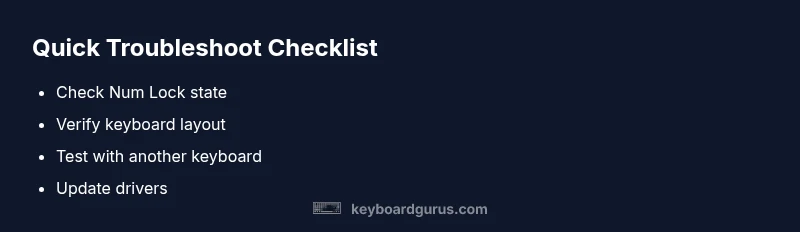
A structured diagnostic flow helps you isolate the cause quickly. Start by ruling out Num Lock, then confirm the layout and language settings, update or reinstall keyboard drivers, and finally test with another keyboard. Each step should be performed in sequence and tested with a known-good app. This flow prevents you from chasing phantom issues and ensures you address the most common culprits first. Keyboard Gurus analysis shows that a methodical approach reduces repair time and gets you back to typing numbers accurately.
Step-by-step fixes for common causes
Fixes are arranged in practical order from simplest to more involved. Begin with Num Lock and layout checks, then update drivers, and finally assess hardware connections. After each fix, test the numeric keys in multiple applications to confirm progress. If a fix does not resolve the issue, proceed to the next step. This method minimizes downtime and avoids unnecessary changes to settings that do not relate to numeric input. Remember to back up any personalized keyboard shortcuts before making broader changes.
Special cases and caveats
Some laptops have function key combinations that temporarily switch keyboard modes. For example, certain manufacturers require you to press Fn plus a function key to toggle numeric input or to activate a secondary numeric keypad on the touch area. If you recently updated your OS or installed a third-party keyboard utility, it may override default mappings. In these scenarios, the symptom keyboard is typing symbols instead of numbers could surface only in particular apps or windows. Always test across multiple programs and ensure there is no conflicting software toggling input modes.
Regional layouts, languages, and digits
Regional keyboard layouts map digits and symbols differently, which can cause numbers to output as symbols or letters in some contexts. Check both the language setting and the input method editor (IME) for your OS. Switching to a standard US English layout often resolves digit mapping issues. If you frequently switch between layouts, consider creating a quick-access profile or hotkey to toggle between layouts without hunting through settings menus. Clear labeling and documentation of your chosen layout will help you avoid future confusion.
Hardware checks: external keyboard and ports
External keyboards provide a controlled test bed to determine if the issue is machine-wide or isolated to a single keyboard. Connect a known-good USB keyboard to a different port and observe whether the numbers input correctly. If external keyboards work but the built-in keyboard does not, the problem is likely hardware-related or firmware-specific. Conversely, if all keyboards show the same symbol output, focus on software settings, drivers, and firmware updates for the laptop. In some cases, a faulty USB hub or front-panel port can introduce intermittent mapping errors that resemble Num Lock issues.
Prevention and maintenance
To minimize recurrence, keep firmware and drivers up to date, especially after major OS updates. Regularly review language and input settings, and create a quick-access map for Num Lock and layout toggling if your workflow requires frequent switching. Establish a routine test when you install new software or connect a new peripheral. Document any changes you make so you can reverse them quickly if the issue reappears. Consistent checks reduce downtime and keep numeric input reliable.
Steps
Estimated time: 30-45 minutes
- 1
Check Num Lock status
Press Num Lock and observe the keypad LED if present. Open a calculator and a text editor to compare results. If digits appear as symbols in both, move to layout checks.
Tip: A working external keyboard helps confirm whether this is device-specific. - 2
Verify keyboard layout and language
Navigate to the OS settings and ensure the active input method matches your region. Switch among layouts (US, UK, etc.) and test digit keys across programs.
Tip: Create a simple test document with numbers to quantify the change before and after switching layouts. - 3
Update or reinstall drivers
Open Device Manager (Windows) or System Preferences (macOS) and locate the keyboard. Update drivers or remove and reinstall to force fresh configuration.
Tip: Restart after installation to ensure changes take effect. - 4
Test with an external keyboard
Connect a known-good USB keyboard and verify if the numbers input correctly. If they do, the issue is likely with the original keyboard hardware.
Tip: Try different USB ports to rule out port-specific faults. - 5
Check accessibility and shortcut conflicts
Review any accessibility options or third-party utilities that remap keys. Disable or remove conflicting software to restore normal mapping.
Tip: Only disable one feature at a time to identify the exact conflict. - 6
Reset to default keyboard settings
As a last software step, reset keyboard settings to factory defaults or reinstall the OS regional defaults if necessary.
Tip: Back up custom shortcuts before resetting.
Diagnosis: Keyboard is typing symbols instead of numbers
Possible Causes
- highNum Lock is off or keypad mapping active
- highIncorrect keyboard layout or language settings
- mediumOutdated or corrupted keyboard drivers
- lowHardware issue with USB port or keyboard itself
Fixes
- easyToggle Num Lock and test numeric keypad
- easyCheck and switch to the correct keyboard layout/language settings
- mediumUpdate or reinstall keyboard drivers; restart the computer
- easyTest with an external keyboard and different USB port
Got Questions?
Why is my keyboard typing symbols instead of numbers on Windows?
The most common cause is Num Lock or an incorrect keyboard layout. Start by toggling Num Lock and verifying the active layout. If the problem persists, update drivers and test with another keyboard to isolate hardware versus software causes.
Num Lock or layout mismatch is usually to blame. Try toggling Num Lock, confirm the layout, and test with another keyboard.
How do I tell if Num Lock is off?
Look for a dedicated Num Lock LED on the keypad or check the on-screen keyboard indicator. If numbers print in calculator but not in other apps, the issue may be layout related rather than Num Lock.
Check the Num Lock indicator and test in different apps to confirm the issue.
Can software updates fix this issue?
Yes, drivers and OS updates can restore proper key mappings. Ensure you install the latest keyboard drivers and system updates, then reboot and test again.
Updating drivers and OS can resolve mapping problems; reboot after updates.
What if the external keyboard works but the laptop keyboard does not?
That indicates a hardware or firmware issue with the laptop keyboard itself. Focus on hardware diagnostics or a keyboard replacement if necessary.
If external works but laptop keyboard does not, the problem is likely hardware related.
Is it safe to fix this myself on a laptop?
Yes for software settings and driver updates. Avoid opening the chassis unless you have proper warranty coverage and guidance from support.
Software fixes are safe; avoid hardware disassembly unless you’re trained.
Why do some digits output symbols on the numeric keypad?
This usually means a remapped or conflicting keyboard profile. Check both Num Lock and the keypad's regional mapping, especially after OS changes.
Digits turning into symbols typically come from a remapped layout or Num Lock state.
Should I reset BIOS/UEFI for this issue?
BIOS/UEFI resets are rarely needed for mapping issues and carry risk. Try software fixes first; seek professional help before BIOS changes.
BIOS reset is usually unnecessary and risky; prefer software fixes first.
Watch Video
What to Remember
- Verify Num Lock status before diving deeper
- Check layout/language settings for digit remapping
- Test with another keyboard to isolate hardware
- Update drivers and reset if necessary
- Document changes to prevent reoccurrence