When Your Keyboard Writes the Wrong Symbols: A Troubleshooting Guide
urgent, step-by-step guide to fix when your keyboard types wrong symbols. Learn common causes, diagnostic flow, and proven fixes to restore correct input fast.


Most often, wrong symbols appear due to an incorrect keyboard layout or language setting. Start with the simplest fixes: switch to the correct layout, disable alternate input methods, and test with an external keyboard. If needed, update drivers or reset mappings. According to Keyboard Gurus, these steps resolve the majority of cases within minutes.
Why wrong symbols happen
When a keyboard types wrong symbols, it’s usually not a hardware failure but a mapping or configuration issue. The three most common causes are: (1) an incorrect keyboard layout or input language selected by the operating system, (2) regional or language packs that override the standard mapping, and (3) software or driver conflicts that remap keys without your knowledge. In many cases, the problem affects multiple applications, not just one program, which points to a system-wide setting rather than a single app glitch. If you’ve recently installed a new language pack or updated your OS, review these changes first. You’ll often find the culprit in the keyboard settings panel or language options. The goal is to align the physical key positions with the characters the system expects to produce. A quick audit of your current layout can save hours of trial-and-error.
Understanding keyboard layouts and symbol mapping
Keyboards are not universal; layouts vary by region and language. For example, a US layout differs from UK, German, or French layouts in where letters, punctuation, and symbols appear. Some keyboards expose dead keys or compose characters when pressed in sequence, which can look like wrong symbols if you’re not aware of the mapping. Modern operating systems support multiple layouts that can be switched quickly, but if the system defaults to a layout you don’t use, every press feels wrong. It’s essential to identify the exact layout in use (e.g., US-ANSI, UK, or German) and understand how it maps to the physical keys on your device. A clear map helps you decide whether to re-map keys or adopt a different layout entirely.
Quick hardware and software checks you can perform
Start with the basics: confirm you are not accidentally typing with Num Lock, Scroll Lock, or a similar toggle that affects input behavior. Then check language and input settings in your OS: switch to a known-good layout, disable any emergency input methods, and restart the application you’re testing. If the problem persists, test with an external keyboard to determine whether the issue is localized to the built-in keyboard. Update or reinstall keyboard drivers, and check for firmware updates if you’re using a mechanical keyboard with onboard memory. Disabling third-party remapping software temporarily can reveal if it’s the source of the issue.
Diagnostic flow overview (for quick reference)
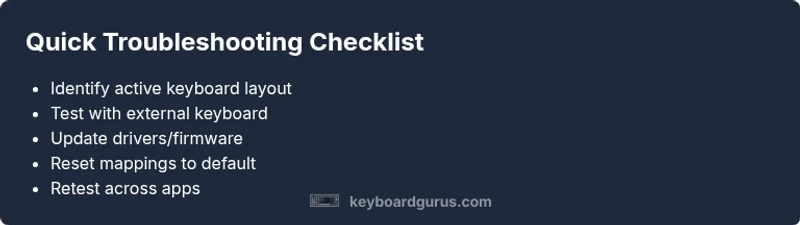
To separate layout issues from hardware faults, move through a simple checklist: confirm layout, test with and without external keyboards, inspect language packs, verify driver status, and rule out firmware problems. If you notice the problem only in one application, it’s likely an app-specific key mapping. If it’s system-wide, focus on OS settings and drivers. Document any recent changes so you can retrace steps if needed. The goal is to isolate whether the root cause is software, driver, or hardware so you can apply the appropriate fix.
Step-by-step fixes for common cause (layout/mapping)
- Identify current layout: Open System Settings > Time & Language > Language > Preferred languages and note the active keyboard. 2) Switch to a known-good layout: Add a familiar layout (e.g., US) and switch to it, then test. 3) Disable conflicting input methods: Turn off any alternative keyboards or language packs you don’t use. 4) Test with external keyboard: If the external keyboard works normally, the problem may be the built-in keyboard’s firmware or a hardware fault. 5) Update drivers: Go to the manufacturer site or OS update utility and install the latest keyboard driver. 6) Re-map if needed: Use the OS remapping tools to reassign keys to match your physical keyboard. 7) Reset to defaults: If nothing else works, reset the keyboard settings to defaults or reinstall drivers. 8) Re-test: Reboot and verify that typing now yields expected characters.
Prevention tips and safety notes
Keep OS and drivers up to date to minimize incompatibilities. Avoid installing suspicious third-party tools that modify keyboard behavior, and back up any custom mappings before updating. If you rely on specialized layouts for work, document your setup and create a baseline profile you can restore quickly after a system update. When performing firmware updates on mechanical keyboards, follow the manufacturer’s instructions precisely to avoid bricking the device.
Steps
Estimated time: 30-45 minutes
- 1
Verify the symptom and prepare
Start by reproducing the issue in two applications (text editor and browser). Note the characters produced by common keys (e.g., letters, punctuation) to confirm a system-wide mapping problem rather than a single app bug.
Tip: Document your observations before making changes so you can revert if needed. - 2
Check current layout and language
Open your OS language settings and confirm the active keyboard layout. If it’s not the layout you expect (e.g., US rather than UK), add the correct one and switch to it.
Tip: If unsure, add multiple layouts and toggle between them with a keyboard shortcut you’ll remember. - 3
Test with an external keyboard
Connect a known-good external keyboard and test typing. If symbols are correct on the external keyboard, the issue is likely with the built-in keyboard’s hardware or firmware.
Tip: Try a different USB port if the external keyboard isn’t recognized properly. - 4
Update drivers and firmware
Check for the latest keyboard drivers from the manufacturer or via OS updates. If you’re using a mechanical keyboard, install any firmware updates available.
Tip: Perform updates with a stable internet connection and save work beforehand. - 5
Re-map or reset to defaults
If a mapping tool is installed, remove or reset it to default. Use OS built-in remapping tools to reassign affected keys to their intended symbols.
Tip: Keep a note of current mappings in case you want to revert. - 6
Final test and review
Restart the system, open multiple programs, and type a sample sentence to verify consistency across apps. If issues persist, consider hardware inspection or professional support.
Tip: If hardware is suspected, avoid attempting internal repairs yourself.
Diagnosis: Keyboard types wrong symbols across multiple apps
Possible Causes
- highWrong keyboard layout or input language is active
- mediumRegion/language packs override mapping
- lowDriver or firmware conflicts remapping keys
Fixes
- easySwitch to the correct keyboard layout in OS settings
- easyReview and disable unused input methods or language packs
- mediumUpdate or reinstall keyboard drivers/firmware
Got Questions?
Why does my keyboard type wrong symbols after a software update?
Software updates can reset or change language packs and layouts, unintentionally prompting a symbol mismatch. Check the keyboard language settings and revert to your preferred layout if needed.
Updates can reset your keyboard layout. Check language settings and switch back to your preferred layout.
Is this problem likely hardware-related or software-related?
Typically, software and layout settings cause most cases. If an external keyboard works fine, the fault often lies with the built-in keyboard or its firmware.
If an external keyboard works, the issue is usually software or the built-in keyboard firmware.
Can malware cause wrong symbol inputs?
Malware can interfere with mappings or launch remapping utilities. Run a trusted antivirus scan and ensure your system is clean before making changes.
Malware can tamper with keyboard mappings. Run a trusted scan first.
What should I do if I use a custom layout for work?
Document your custom mappings, add them as a profile, and keep a quick-switch method so you can revert after updates or troubleshooting.
Keep a profile for your custom mappings and a quick way to switch back.
When should I seek professional help?
If the issue persists after driver updates, hardware test with another keyboard, and OS resets, consult a tech professional to avoid further damage.
If problems persist after checks, it’s time to get professional help.
Watch Video
What to Remember
- Verify the active keyboard layout first
- Test with an external keyboard to isolate hardware
- Update drivers or firmware before deep remapping
- Back up current mappings before changing settings
- Re-test across multiple apps to confirm full remediation