Why My Keyboard Cannot Type Symbol: Quick Troubleshooting
Urgent, step-by-step fixes to restore symbol typing on keyboards. Learn layout checks, driver updates, and practical actions to fix symbol input fast.


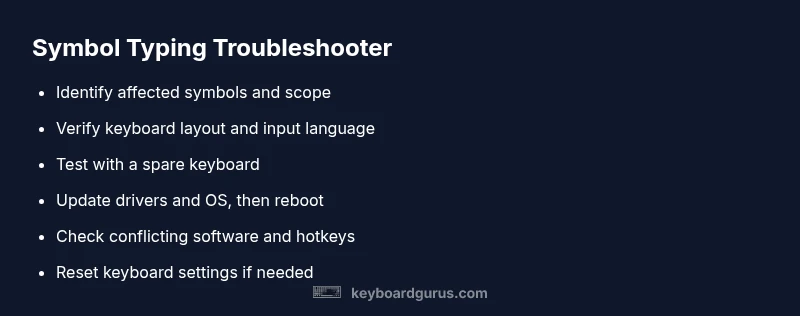
Most symbol typing failures come from a layout or input-method issue, or a stuck modifier key. Quick fixes: switch to the correct keyboard layout, restart the device, and test with an external keyboard. If needed, test and disable modifiers like Num Lock or Fn combos, and review accessibility settings. This approach resolves most symbol-typing problems within minutes.
Why symbol input fails on keyboards
According to Keyboard Gurus, when you cannot type symbols, the issue is rarely with a single key. Most of the time, it’s a mapping, layout, or input-method problem that affects multiple keys. If you can type letters but not symbols like @ or €, you’re probably encountering a keyboard layout mismatch or an active modifier state that changes how keys produce characters. In Windows, macOS, and Linux, the system can swap layouts or enable alternate input methods with a hotkey. In some cases, a software program or browser extension hijacks keystrokes, causing symbols to output letters or nothing at all. First, identify exactly which symbols are affected and whether the problem occurs in all apps or just a specific program. This initial diagnosis will guide the rest of your troubleshooting and help you avoid unnecessary hardware replacements.
Common culprits: layout, language, and modifiers
Most symbol-typing problems fall into a few buckets. A mismatched keyboard layout is the most frequent cause: you might be using a layout designed for another language, so characters like @, €, or ß print differently or not at all. Language settings in your operating system can also override your physical keys, especially if you recently installed a new language pack. Modifier keys are another frequent culprit: a stuck Shift, AltGr, or Ctrl key can flip symbols to letters or disable them entirely. Finally, accessibility features such as Sticky Keys, Filter Keys, or keyboard shortcuts added by third-party software can intercept normal keystrokes and produce unexpected results. Together, these factors explain why symbol input suddenly stops, and they’re addressable without hardware changes.
How to test and reproduce: quick checks
Begin with a controlled test: close all apps, open a plain text editor, and try typing common symbols (one by one) to see exactly which keys fail. Switch to a known-good layout (for example, US English) and retest. If symbols return, a layout setting was the culprit. If symbols still fail, try an external keyboard to determine if the issue is hardware-related. If the external keyboard works, you can safely rule out the OS, and focus on the original keyboard. If it fails on both keyboards, the issue is likely software-driven or a system-wide setting. Finally, check if any new apps or extensions were installed recently that could override keyboard input.
Step-by-step fixes you can try now
This section provides actionable fixes you can apply in order. Start with the easiest and escalate only if needed. If a fix requires a restart, do so to ensure changes take effect. Remember Keyboard Gurus guidelines emphasize testing after each step to confirm progress.
Preventive measures and best practices
To avoid symbol-typing issues in the future, adopt a baseline of good practices: keep keyboard drivers up to date, maintain OS language settings aligned with your physical keyboard, and minimize third-party shortcuts that intercept keystrokes. Regularly review accessibility settings and disable features like Sticky Keys when not needed. If you often switch languages, create a dedicated layout switcher on your taskbar. Finally, keep a spare keyboard on hand for quick hardware checks.
Steps
Estimated time: 15-30 minutes
- 1
Confirm the symptom and environment
Note which symbols fail and in which apps. Record OS version and whether an external keyboard was tested. This helps distinguish a system issue from hardware problems.
Tip: Take a quick screenshot of any error messages or layouts you see. - 2
Check keyboard layout and input language
Open your OS's language or input settings and verify the active layout matches your physical keyboard. Add or remove layouts to isolate the correct one.
Tip: Use the on-screen language bar to switch layouts quickly. - 3
Test with an external keyboard
Connect a known-good external keyboard and test the same symbols. If the external keyboard works, the issue is likely with the original keyboard or its drivers.
Tip: Try both USB and Bluetooth if available. - 4
Inspect modifier keys and accessibility features
Ensure no modifier key is stuck. Check Sticky Keys, Filter Keys, and any third-party shortcut utilities that may intercept keystrokes.
Tip: Disable Sticky Keys to verify symbol output is normal. - 5
Update drivers and perform a system update
Go to Device Manager (Windows) or System Preferences (macOS) and install the latest keyboard drivers or firmware. Run available OS updates and reboot.
Tip: Back up settings before performing driver updates. - 6
Reset keyboard settings or reinstall
If symptoms persist, reset to default keyboard layout or reinstall the keyboard device. Remove any third-party keyboard apps that may override mappings.
Tip: Document custom mappings before resetting.
Diagnosis: Symbol keys print letters or do not output any symbol after pressing them
Possible Causes
- highIncorrect keyboard layout or input language
- highModifier key stuck or active (Shift, AltGr, Fn)
- mediumAccessibility features interfering (Sticky Keys, Filter Keys)
- lowSoftware or browser extensions hijacking keystrokes
Fixes
- easySwitch to the correct keyboard layout (e.g., US English) in OS settings and retry
- easyToggle off sticky keys and other accessibility features, then test again
- easyReset or remove any recently installed input methods or extensions that affect keystrokes
- mediumUpdate keyboard drivers and run OS updates, then restart
- easyTest with a known-good external keyboard to determine if the issue is hardware-related
Got Questions?
Why can't my keyboard type symbols even though I can type letters?
This is usually caused by a layout or language setting mismatch, or a modifier key state. Start by confirming the active keyboard layout matches your physical keyboard and that no hotkeys have swapped symbols for letters.
Layout or modifier issues are the common culprits. Check your keyboard layout and hotkeys.
How do I change the keyboard layout on Windows 10/11?
Open Settings > Time & Language > Language > Keyboard. Add the desired layout and set it as default, then test the affected keys. Remove any unused layouts if they confuse you.
Go to language settings, add or select the correct layout, and test.
Why are symbols typing in some apps but not others?
Apps can intercept keystrokes or have their own shortcuts that override system mappings. Check app shortcuts, input fields, and disable any extensions that might capture keystrokes.
Some apps override keystrokes; check app shortcuts and extensions.
What is the difference between US and UK keyboard layouts for symbols?
US and UK layouts map common symbols to different keys. A symbol like @ or £ can appear on different keys depending on the layout. Switching to the intended layout usually resolves this.
Symbols map differently between US and UK layouts; switch layouts to match your keyboard.
Should I update keyboard drivers to fix this?
Driver updates can fix recognized hardware quirks and improve compatibility. Update the keyboard driver through your OS or device manager and reboot afterward.
Driver updates can fix compatibility issues; update and restart.
When should I contact a professional for keyboard symbol issues?
If multiple keyboards fail, or the problem persists after driver updates and resets, a hardware fault or deep software issue may exist. A technician can diagnose electrical faults or firmware problems.
If problems persist after basic fixes, seek professional help.
Watch Video
What to Remember
- Check language and layout first
- Test with another keyboard to isolate hardware
- Update drivers and OS if needed
- Seek professional help if unresolved
- Document changes to revert if needed