Why Do Keyboards Stop Working? A Troubleshooting Guide
Urgent, practical guide to diagnose and fix why do keyboards stop working across USB, wireless, and laptop keyboards. Learn quick checks, diagnostic flow, and step-by-step fixes to restore typing quickly.


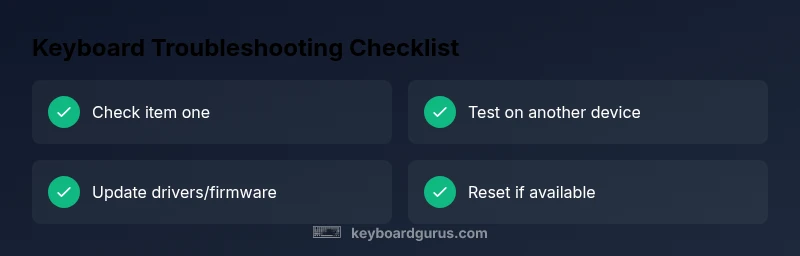
Most keyboards stop working due to power, connection, or driver issues. Start with the simplest fix: reseat the USB or re-pair Bluetooth, replace dead batteries, and test in another port or device. If it still doesn't respond, update or reinstall drivers/firmware, check for sticky keys, and try a factory reset. If problems persist, seek professional help.
Why do keyboards stop working: Core causes and quick intuition
When a keyboard suddenly stops responding, the first question to ask is simple: why do keyboards stop working? In most cases, the issue boils down to power, connection, or driver problems. According to Keyboard Gurus, the majority of incidents are resolved by checking physical connections and basic settings. The phrase why do keyboards stop working captures a spectrum from a loose USB connector to outdated firmware. In this section we’ll unpack the common causes and how to spot them quickly.
Power issues that affect wireless keyboards are common: batteries expire, charging circuits fail, or a keyboard's internal power management misbehaves. If you’re using a wired keyboard, power is usually less of a factor, but a failing USB controller can still make a keyboard go dark. Connection problems can occur when Bluetooth devices drop pairing or USB dongles become unplugged, moved, or damaged by a spill. Debris under keys or a sticky key can cause non-responsive sections, leading to the perception that the entire keyboard is dead. Finally, driver or firmware faults happen when a device communicates poorly with the host, or when an update introduces compatibility issues. In many cases, simply re-plugging the cable, re-pairing the device, or rebooting resolves the issue. If the problem remains, the keyboard’s firmware or driver might require an update or a factory reset.
The keyword why do keyboards stop working appears across many troubleshooting guides because the problem often has a short list of predictable causes. This makes the process of diagnosing faster and less intimidating. The best approach is to work through a prioritized checklist: verify power, verify physical connections, verify software, and finally check for environmental factors such as moisture or dust. By focusing on these areas first, you’ll save time and avoid unnecessary disassembly. Keyboard Gurus emphasizes starting with the simplest fixes before moving to deeper diagnostics, which aligns with proven best practices for quick recovery.
Quick Checks You Can Do Right Now
If you want immediate results, perform these checks in order: 1) Try a different USB port or laptop to see if the problem follows the keyboard or stays with your computer. If it’s wireless, re-pair the keyboard with your device or try a fresh USB dongle. For wireless keyboards, replace or recharge the batteries and reestablish the connection. Confirm the keyboard is not disabled in the operating system or accessibility settings. Clean around the keys to remove dust, and inspect for any visible damage. If the keyboard works on another device but fails on your primary machine, focus on drivers, firmware, and OS settings. The core idea behind why do keyboards stop working is to isolate hardware from software, then test each hypothesis one by one.
Diagnostic Flow: Symptom to Diagnosis
This practical flow helps you isolate the cause without unnecessary disassembly. Start with the symptom: keyboard not typing, keys not registering, or intermittent input. Then test power first: replace batteries or recharge a wireless keyboard to rule out power loss. If still unresponsive, check the connection: try another USB port, test with a wired keyboard, or re-pair Bluetooth to confirm the issue isn’t a loose dongle. If you get a response on another device, the fault is typically software or driver-level. Next, focus on software: update drivers, firmware, and OS patches; ensure no conflicting keyboard remapping apps are active. Finally, environmental factors, such as humidity or dust, can affect capacitive sensing on some keyboards. Keyboard Gurus notes that most issues resolve with the three core checks—power, connection, software—then re-test. This structured approach minimizes guesswork and accelerates recovery.
Step-by-Step Fixes for the Most Common Causes
-
Check physical connection: Unplug and re-plug the keyboard, try a different USB port, or swap a wired keyboard to confirm port health. If a USB hub is involved, connect directly to the computer. Tip: always shut down or sleep your device before swapping USB connections to avoid electrical shorts.
-
Swap or replace batteries / charge: Replace old batteries or recharge a wireless keyboard. Then test again and ensure LED indicators show activity. Tip: keep spare batteries on hand and avoid mixing old and new cells in the same keyboard.
-
Re-pair Bluetooth or reconnect dongle: On your device, forget the keyboard and pair again. If you use a dongle, remove and reseat it; try a different USB port. Tip: remove other nearby wireless devices that might cause interference.
-
Update drivers and firmware: Go to the manufacturer site or use your OS update tool to install the latest driver and firmware. Reboot after the install. Tip: create a system restore point before major updates.
-
Factory reset or re-install keyboard software: If your keyboard supports a reset, perform the factory reset as per the manual. Reinstall any companion software and re-pair the device. Tip: back up settings before resetting to avoid losing custom layouts.
Safety, Maintenance, and Prevention Tips
- Pro Tip: Keep liquids away from keyboards and avoid eating over your setup to prevent spills.
- Warning: Do not attempt to open or repair internal components unless you are trained; hazardous voltage and static can cause injury.
- Note: Regular cleaning and dust removal help reduce debounce and sticky keys; use a soft brush or canned air with short bursts.
- Pro Tip: Store a spare keyboard for testing if you rely on typing for work or studies.
- Note: Label cables and keep a small toolkit for quick reseating and resets to minimize downtime.
What to Do If Nothing Works
If none of the above steps restore functionality, the issue may be hardware failure or a defective internal switch. Check warranty status and contact the manufacturer or authorized service center. Gather your keyboard’s model, serial number, and purchase date to speed up service. In some cases, the fix involves sensor replacement or PCB diagnostics that require professional tooling.
Quick Prevention to Reduce Future Issues
- Regular firmware updates can prevent compatibility problems as operating systems evolve.
- Gentle handling and avoiding spills protect the keyboard’s internal circuits.
- Periodic cleaning removes dust that can cause input lag or non-responsive keys.
- Use a drying agent after any spill and avoid powering a wet keyboard.
- Keep a bonded surge protector to guard against voltage spikes that can damage USB ports.
Steps
Estimated time: 30-60 minutes
- 1
Check physical connection
Unplug and re-plug the keyboard, try a different USB port, or swap a wired keyboard to confirm port health. If a USB hub is involved, connect directly to the computer.
Tip: Always power down devices before swapping USB connections to avoid shorts. - 2
Swap or replace batteries / charge
Replace old batteries or recharge the wireless keyboard. Test again and ensure LED indicators show activity. Confirm the keyboard responds after power restoration.
Tip: Keep spare batteries handy and avoid mixing old and new cells. - 3
Re-pair Bluetooth or reconnect dongle
Forget the keyboard on your device and pair again. If using a dongle, reseat it and try a different USB port. Check for interference from nearby devices.
Tip: Place the keyboard and receiver away from routers or cordless phones to minimize interference. - 4
Update drivers and firmware
Install the latest drivers and firmware from the manufacturer site or through the OS update channel. Reboot after installation.
Tip: Create a restore point before major updates to recover if something goes wrong. - 5
Factory reset or re-install software
Perform the factory reset per the manual if supported, then re-pair the device and reinstall any companion software.
Tip: Back up custom layouts or profiles before resetting to avoid loss.
Diagnosis: Keyboard not typing or intermittent input on a computer
Possible Causes
- highPower issue (battery drained or charger fault)
- highLoose or damaged connection (USB port/dongle)
- mediumOutdated or corrupted drivers/firmware
- lowSoftware conflicts or key remapping
Fixes
- easyReplace batteries or charge keyboard; reconnect wireless correctly
- easyTry another USB port or remove/reinsert USB dongle; test with a wired keyboard
- easyUpdate or reinstall keyboard drivers/firmware; reboot the system
- mediumReset keyboard to factory settings or remove conflicting software
Got Questions?
Why does my keyboard stop working suddenly?
Sudden stops are usually power, connection, or driver related. Start with batteries or dongle, then re-pair or reseat the connection before updating software.
Most keyboard stoppages are power or connection issues. Begin with batteries or dongle, then re-pair or reseat the connection, and finally update software if needed.
What should I do first when a keyboard stops responding?
First check power and connections. If wireless, replace batteries or recharge; if wired, try another USB port or device. Then test after rebooting and checking drivers.
First check power and connections, then test across devices and reboot if needed.
Can drivers cause keyboard failure?
Yes. Outdated or corrupted drivers can prevent input. Update drivers and firmware from the manufacturer or OS update channels, then reboot.
Drivers can fail and stop input; update them and reboot.
Why won’t my wireless keyboard pair after a firmware update?
Firmware updates can disrupt pairing. Try re-pairing, restarting the device, and testing with another USB dongle if available.
Firmware updates can disrupt pairing; re-pair and restart to fix.
How do I safely reset a keyboard?
Factory reset procedures vary by model. Consult the manual or Keyboard Gurus guides, then re-pair and reconfigure layouts.
Follow the model’s reset steps in the manual and re-pair afterward.
When should I contact support?
If hardware failure is suspected after all basic fixes, or if the keyboard is under warranty, contact the manufacturer or a service center for diagnostics.
If basic fixes fail or it’s under warranty, contact support.
Watch Video
What to Remember
- Test across devices to isolate issues.
- Update drivers and firmware regularly.
- Replace batteries promptly for wireless keyboards.
- Avoid liquids near keyboards to prevent shorts.
- Perform a factory reset only after backing up settings.