Wireless Keyboard Not Working: A Step-by-Step Troubleshooting Guide
Urgent, step-by-step guide to diagnosing and fixing a wireless keyboard not working, with practical checks, safe fixes, and guidance from Keyboard Gurus.


Most likely your wireless keyboard isn’t powered, paired, or within range. Start by replacing the batteries, then re-pair the device to its Bluetooth or USB receiver. If the receiver is missing or the keyboard uses Bluetooth, ensure the connection is active and not blocked by distance or interference. Do a quick reset and test typing.
Symptoms and Observation
If your wireless keyboard isn’t registering keystrokes, flickers, or disconnects randomly, you may be confronting power or connection issues. According to Keyboard Gurus, most problems stem from batteries, pairing, or signal range. Note whether the issue happens during startup, after waking from sleep, or in specific apps. Documenting these patterns helps you pick the right fix quickly. Common signs include delayed typing, keys sticking only intermittently, or full disconnects followed by a momentary reconnect. By mapping when the issue occurs, you’ll narrow the field and save time during troubleshooting.
Common Causes of Wireless Keyboard Not Working
Several factors can cause a wireless keyboard to fail unexpectedly. The most frequent culprits are dead or depleted batteries, a loose or misaligned USB receiver, or Bluetooth pairing becoming corrupted. Interference from other devices operating on the 2.4 GHz band (phones, Wi‑Fi extenders, microwaves) and signal range can also disrupt performance. Driver or firmware problems, or a recent OS update, may impact recognition. Finally, hardware faults—like a damaged key matrix or a broken connector—can render a keyboard unusable. Knowing the typical causes helps you apply the right fix first.
Baseline Power, Batteries, and Plugs
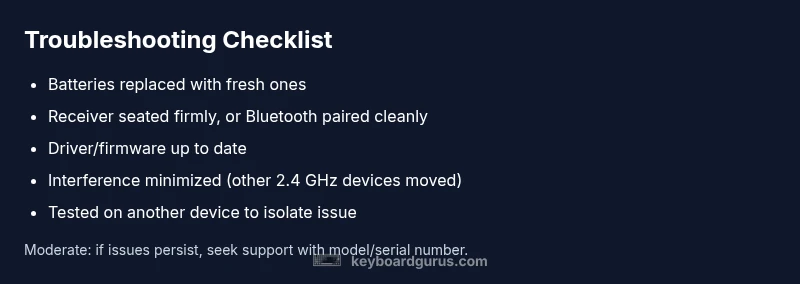
Start with the simplest checks that often resolve the issue. Replace old batteries with fresh high-quality ones and ensure the battery orientation is correct. If you’re using a rechargeable pack, verify it’s charged. Check the keyboard’s on/off switch or power-saving mode; some keyboards wake only after a key press or space bar. Inspect the USB receiver for damage or moisture and reseat it firmly in a functioning port. Try a different USB port to rule out a bad connector. These baseline steps are often enough to restore normal operation.
Bluetooth vs USB Receiver: How to Reconnect
Keyboards can pair over Bluetooth or via a dedicated USB receiver. For Bluetooth, open your device’s Bluetooth settings, remove any old pairings with the keyboard, then re-pair from scratch. On Windows, use Add Bluetooth or other devices; on macOS, go to Bluetooth preferences and re-select the keyboard. For USB receivers, ensure the receiver is plugged directly into a USB port (avoid hubs during testing). If you have a spare receiver or alternate computer, test there to isolate whether the issue is keyboard-specific or system-wide.
Interference, Range, and Environment
Even when a keyboard is powered and paired, interference can degrade performance. Move away from dense USB 3.0 devices, large metal objects, or dense walls that block signals. If you’re using Bluetooth, try pairing on a different channel by temporarily turning off other nearby Bluetooth devices. Maintain a clear line of sight within a 1- to 2-meter range when possible. Avoid placing the keyboard behind a monitor stand or under a desk, where capacitance or metal can affect signals. Environment changes often restore reliable operation.
Drivers, Firmware, and OS Considerations
Software can impact how a wireless keyboard is recognized. Check for OS updates and install any pending drivers or firmware for the keyboard if available from the manufacturer. Incompatible or outdated drivers can cause the device to stop responding. If the keyboard has a companion app, ensure it’s up to date and configured correctly. In enterprise setups, group policy or device management can override settings, so verify there aren’t policy constraints impeding keyboard input.
When to Seek Help and How to Prepare
If you’ve completed all basic checks and the keyboard still doesn’t work, the issue may be hardware-related. Contact the manufacturer’s support or a local technician. Before doing so, collect details: model/serial number, OS version, battery type, whether another device shows similar symptoms, and the exact steps you’ve already tried. This information speeds up diagnostics and reduces back-and-forth. Keyboard Gurus recommends documenting everything and keeping spare parts like fresh batteries on hand for future incidents.
Steps
Estimated time: 20-40 minutes
- 1
Inspect power and switch
Turn the keyboard off, replace batteries if needed, and switch it back on. Confirm any status LEDs light up to indicate power. If there is a sleep mode, press a key to wake it.
Tip: Keep spare batteries on hand for quick swaps. - 2
Test the USB receiver
unplug the USB receiver and reinsert it firmly into a known-good USB port. If available, try another port or another computer to isolate the issue.
Tip: Avoid USB hubs during initial testing. - 3
Re-pair or reconnect
For USB receivers, allow the system to detect and install drivers automatically. For Bluetooth, remove the existing pairing and re-pair through the OS Bluetooth settings.
Tip: Follow the manufacturer pairing sequence for reliability. - 4
Check for interference
Move the keyboard and receiver away from other wireless devices. Turn off nearby devices temporarily to test if performance improves.
Tip: Test in a room with minimal wireless traffic. - 5
Update software
Check for firmware updates from the keyboard vendor and install any available drivers through the OS update process.
Tip: Restart after a firmware update to apply changes. - 6
Test on an alternate device
Pair or connect the keyboard to a different computer or tablet to verify whether the issue is hardware-level or system-level.
Tip: If it works on another device, your primary device is the problem source. - 7
Reset to factory settings
If available, perform a factory reset per the manual, then re‑pair from scratch.
Tip: Note any custom key mappings that may be lost. - 8
Evaluate after fixes
After applying fixes, test typing in multiple apps and return to baseline usage. If issues persist, escalate to support.
Tip: Document all steps for future reference.
Diagnosis: Wireless keyboard stops typing or disconnects intermittently
Possible Causes
- highDead or weak batteries
- highUSB receiver not connected or out of range
- mediumBluetooth pairing corruption or misconfiguration
- mediumInterference from other devices or poor signal range
- lowDriver/firmware or OS compatibility issues
Fixes
- easyReplace batteries with fresh quality batteries and re-seat power switch
- easyReinsert or replace the USB receiver and test in a different USB port
- easyRe-pair Bluetooth keyboard from system settings and remove old pairings
- mediumUpdate drivers/firmware and install pending OS updates
- easyEliminate interference by moving devices or using a different channel
Got Questions?
Why isn’t my wireless keyboard pairing with my computer anymore?
Pairing can fail due to weak batteries, a loose USB receiver, or outdated drivers. Remove old pairings, replace batteries, and re-pair the keyboard with the device. If pairing still fails, test on another computer to determine if the issue is device-specific.
Pairing can fail if the batteries are weak, the USB receiver is loose, or drivers are outdated. Remove old pairings, replace the batteries, and re-pair with the device. If it still fails, test on another computer to isolate the problem.
My keyboard works on another device but not mine. What should I check?
The issue may be with your device’s Bluetooth settings, USB port, or drivers. Try a different USB port, update drivers, and ensure Bluetooth is turned on and allowed to pair. If it fails only on this device, consider hardware checks or professional support.
If it works on another device but not yours, check the Bluetooth settings, USB port, and drivers on your device. Try a different port and update drivers; if it still fails, you may need professional help.
How can I tell if the USB receiver is the problem?
Test the keyboard with a known-good receiver or on a different computer using the same receiver. If the keyboard works with another receiver or PC, the original receiver is likely faulty. Inspect the receiver for damage and clean contacts if needed.
Swap in a known-good receiver or test on another computer. If it works there, the original receiver likely has an issue. Check for physical damage and clean contacts.
Should I always update drivers for a wireless keyboard?
Driver updates can improve compatibility and fix bugs, especially after OS updates. Check the manufacturer’s site or use OS update channels to obtain the latest drivers. If updates cause new issues, rollback to a stable version.
Updating drivers can help, especially after OS updates. Check the manufacturer or OS updates for the latest drivers, and rollback if updates cause new problems.
When is it time to replace a wireless keyboard?
If testing across multiple devices and ports consistently fails and there are signs of hardware damage, replacement is reasonable. Consider warranty coverage and keyboard age, as many issues are not user-serviceable.
If the keyboard fails on different devices and shows hardware damage, it’s usually time to replace it, especially if it's out of warranty.
Watch Video
What to Remember
- Check power first; batteries often fix the issue
- Isolate the problem with a different device
- Re-pair or reconnect to Bluetooth/USB receiver
- Update drivers and firmware for compatibility
- Reduce interference for stable signals