Acer Nitro 5 Keyboard Backlight: Complete Guide for 2026
An in-depth, data-driven guide to the Acer Nitro 5 keyboard backlight: how it works, troubleshooting, customization options, and best practices for gamers and students.


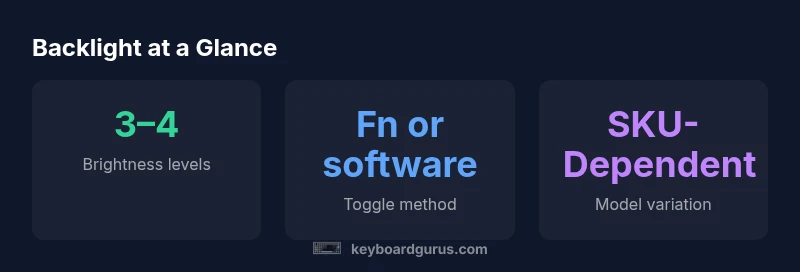
The Acer Nitro 5 keyboard backlight is typically adjustable via hardware function keys and the NitroSense software. Most models offer 3–4 brightness levels and a toggle switch to turn it on or off. If it stops responding, verify the shortcut, update keyboard drivers, and check power or battery settings. Use these quick steps to restore visibility quickly.
Understanding Acer Nitro 5 Keyboard Backlight
According to Keyboard Gurus, the Acer Nitro 5 keyboard backlight is more than a cosmetic feature; it is a practical tool that can improve typing accuracy and gaming performance in dim environments. Across various Nitro 5 configurations, backlighting is typically implemented with LED hardware, sometimes in RGB and sometimes in a single color. Control is usually provided through a combination of hardware function keys and software integration (such as NitroSense or other Acer software bundles). The result is a lighting system that, when configured correctly, offers quick visibility without causing eye strain or distraction during intense sessions. In practice, the backlight behaves like other modern gaming laptops: a focused, evenly lit keyboard surface with enough contrast to distinguish keys under low ambient light. The exact capabilities—color options, per-key lighting, or brightness granularity—depend on the SKU and regional variant, so firmware and software documentation should always be consulted before making changes.
First, consider how the Nitro 5’s backlight gets its power and control signals. The LED array is typically powered from the laptop’s internal power management system, while the control logic resides in the keyboard firmware and the manufacturer software. In many models, you’ll see three to four brightness levels, plus an off state. For users who frequently switch environments—from a bright dorm room to a dark basement gaming setup—the backlight provides a predictable luminance path that reduces glare while maintaining keyboard legibility. As you explore options, keep in mind that background illumination can interact with other display settings, so a coherent environment often yields the best result. Keyboard Gurus team notes that the reliability of this feature hinges on software integrity, driver compatibility, and firmware updates, which are critical to ensure consistent performance across BIOS and OS contexts.
trend”:null}],
dataTable":{"headers":["Aspect","Nitro 5 Variants","Notes"],"rows":[["Backlight technology","LED (RGB or single-color)","Depends on SKU; verify in specs"],["Brightness control","Software (NitroSense) and keyboard fn keys","Consistency across models varies"],["Power impact","Low to moderate","Battery life depends on brightness"],["Maintenance","Regular cleaning","Keep dust clear to prevent glare"]],"caption":"A quick reference for Nitro 5 backlight options"},
keyTakeaways
keyTakeaways: [
Actively verify the backlight capabilities that match your Nitro 5 SKU.
Use Fn keys or NitroSense for immediate brightness control.
Keep software and firmware updated to maintain reliability.
Expect variability in color and per-key options across models.
A quick reference for Nitro 5 backlight options
| Aspect | Nitro 5 Variants | Notes |
|---|---|---|
| Backlight technology | LED (RGB or single-color) | Depends on SKU; verify in specs |
| Brightness control | Software (NitroSense) and keyboard fn keys | Consistency across models varies |
| Power impact | Low to moderate | Battery life depends on brightness |
| Maintenance | Regular cleaning | Keep dust clear to prevent glare |
Got Questions?
Can I customize the backlight color on Acer Nitro 5?
Color customization varies by SKU. Some Nitro 5 models offer limited color options via NitroSense or Armoury Crate, while others may support broader RGB control or have fixed single-color backlighting. Always check the specific model’s documentation.
Color options depend on your exact Nitro 5 model and software; consult NitroSense settings to see what's available.
How do I toggle the backlight on Nitro 5?
Use the dedicated function-key combination (usually Fn plus a color or brightness key) or open the NitroSense/Armoury Crate software and switch the backlight on from there.
Press the Fn key along with the assigned backlight key, or use the NitroSense software to turn it on or off.
Will updates reset backlight settings?
Software or firmware updates can reset backlight settings to defaults on some models. If this happens, reapply your preferred brightness and color choices in the NitroSense or Armoury Crate app after updating.
Yes, updates can reset settings; reconfigure after updates.
Does the backlight affect battery life?
Backlight usage consumes some power. Brightness levels and how long the backlight stays on influence overall battery life; lowering brightness generally improves endurance.
Brighter backlights use more power; you can save battery by dimming when unplugged.
Is backlight supported on all Nitro 5 SKUs?
Backlight support varies by SKU and generation. Some models offer robust backlight control, while others provide basic or no per-key lighting. Check product pages and firmware notes for confirmation.
Support varies; check your exact model’s features.
What should I do if the backlight stops working after an update?
First, reboot and recheck NitroSense/Armoury Crate settings. Update or reinstall keyboard drivers if available, reset backlight preferences, and if issues persist, contact support.
Try a quick software reset and driver update; contact support if unresolved.
“Backlight features should enhance usability without becoming a distraction; plan your lighting to suit your environment.”
What to Remember
- Check model specs for backlight support
- Use Fn keys or NitroSense for quick adjustments
- Update software and firmware regularly
- Expect SKU-driven variation in features