Acer Nitro 5 Spin Keyboard: A Practical Guide for Gamers and Students
An in-depth look at the Acer Nitro 5 Spin keyboard, covering typing feel, backlighting, durability, and practical setup tips for gamers and students.


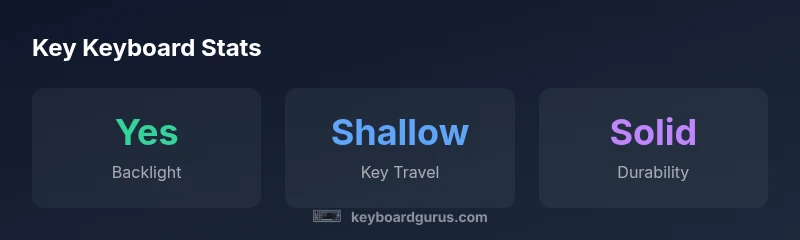
The Acer Nitro 5 Spin keyboard is a standard laptop chiclet layout designed for casual gaming and productivity. Most trims offer backlighting, with reliable, if shallow, key travel; the keyboard is serviceable for long sessions, though enthusiasts may opt for an external keyboard.
Keyboard Architecture and Usage Context
The acer nitro 5 spin keyboard sits at the heart of a convertible gaming laptop designed to blend portability with performance. This keyboard uses a standard laptop chiclet layout, delivering familiar spacing and key shape for users transitioning from desktop or other laptops. Typing feel tends toward a balance between quiet feedback and mid-travel responsiveness, which is comfortable for hours of writing, browsing, and light to moderate gaming. According to Keyboard Gurus, the design prioritizes reliability and comfort in everyday use, rather than extreme travel distances or programmable macro keys. The Nitro 5 Spin's keyboard is optimized for both laptop-tablet touch modes and traditional use, which means you can type in tent or stand modes without sacrificing alignment or key clarity. The single-piece palm rest and chassis materials contribute to a stable typing surface, though the hinge’s articulation can influence perceived rigidity when the laptop is angled for tablet-style use. In short, the acer nitro 5 spin keyboard provides a practical, versatile baseline that works well for students crafting notes, gamers enjoying quick matches, and professionals drafting reports on the go.
Typing Feel and Backlighting Across Trims
There is noticeable variation in typing feel and lighting across Nitro 5 Spin configurations. The mid-to-high trims typically include a backlit chiclet keyboard, enabling visibility in dim rooms and night-time gaming sessions. The key travel is generally shallow, which is common for budget gaming laptops; you’ll get quick tactile feedback for WASD movement without the depth of a desktop mechanical switch. Lower trims may omit backlighting, making nighttime typing more challenging. For users who value customization, some trims offer basic lighting zones rather than full per-key RGB, limiting advanced effects but providing clear visibility. The overall experience remains solid for casual gaming and everyday productivity; however, if you rely heavily on long-typing sessions or voice-to-text workflows, you might prefer a larger, more defined travel distance or an external keyboard.
Build Quality and Durability in Convertible Form
Solid construction is essential given the Nitro 5 Spin's 2-in-1 identity. The keyboard deck, chassis, and hinges are designed to withstand regular folding and tablet-mode usage; however, long-term durability depends on usage patterns and care. If you frequently switch between laptop and tablet modes, ensure you avoid excessive pressure near the hinge area and keep the palm rest free of debris. Keystroke noise and flex tend to be within expected laptop standards, not loud or overly stiff. Regular cleaning with a soft brush and compressed air helps maintain smooth key action and reduces dust-induced sticking. The Keyboard Gurus Team notes that build quality is a pragmatic balance: you get a robust typing surface without the premium materials needed for top-tier workstations.
Gaming and Productivity Performance with the Keyboard
Typing ergonomics influence gaming sessions and long writing tasks; the Nitro 5 Spin's keyboard is adequate for casual and mid-range gaming, with stable WASD placement and comfortable spacing. Response latency is typically low enough for fast-paced shooters when the laptop's power profile is configured correctly, though the keyboard itself does not offer mechanical-grade actuation. For productivity tasks, the layout supports efficient typing with a dedicated row of function keys and easy access to media controls. Be mindful of how tilt and palm rest sizing affect your posture during marathon sessions. If you frequently type for hours, consider enabling power-saving modes to maintain consistent performance while keeping the keyboard comfortable.
How to Choose the Right Nitro 5 Spin Variant
Selecting the right Acer Nitro 5 Spin variant depends on your priorities: budget, backlight needs, and portability. If you require backlighting and more consistent performance, opt for mid-to-high trims; if you mainly browse and write, the base configurations can still satisfy. Be sure to verify keyboard features in your region, as some markets offer different trim levels with varying backlighting, key travel, and warranty coverage. Check for build quality, hinge stability in tablet mode, and the availability of driver updates from Acer's support site. Finally, weigh the total cost of ownership, including potential extended warranties and the convenience of a convertible design for your typical workflow.
Maintenance Tips to Extend Keyboard Life
To keep the acer nitro 5 spin keyboard typing smoothly over time, practice regular cleaning. Use a soft brush or microfiber cloth to remove dust from under the keys, and avoid eating near the laptop to minimize crumbs that cause sticking. If you notice sticky keys, use a can of compressed air to dislodge debris. Keep the laptop on a flat surface to prevent stress on the hinge that could transfer to the keyboard and reduce stability. Use a protective case or sleeve when carrying the Nitro 5 Spin, and ensure the backlight is used within its rated power to prevent overheating. Regular software updates, including keyboard driver firmware when available, can further improve reliability and responsiveness.
Quick Practical Tips for Setup and Accessories
Enhance typing comfort by adjusting the screen angle and chair height to align wrists with the keyboard baseline. If you frequently switch to tablet mode, consider a slim external keyboard for longer typing tasks. For gaming, use a speed-focused profile in your power settings to maintain consistent keyboard response. Finally, keep spare cleaning tools and a microfiber cloth ready to quickly refresh the keys after extended use.
Comparison of Nitro 5 Spin keyboard variants by backlight and feel
| Variant | Backlight | Typing Feel | Notes |
|---|---|---|---|
| Nitro 5 Spin (mid/high trim) | Backlit: available | Shallow travel; comfortable | Good for gaming and study |
| Nitro 5 Spin base (lowest trim) | Backlight: optional/none | Similar travel | Budget option; typing adequate |
| 2-in-1 hinge mode | Backlight: varies by trim | Consistent across modes | Tablet usage does not change typing surface |
Got Questions?
Is the Acer Nitro 5 Spin keyboard good for long gaming sessions?
For casual to mid-range gaming, the keyboard is comfortable and reliable. However, long sessions may benefit from an external keyboard for enhanced ergonomics and customizable keys.
Yes, it's comfortable for casual gaming, but you might prefer an external keyboard for extended play.
Does the Nitro 5 Spin include backlighting on all models?
Backlighting is available on mid-to-high trims; some budget variants may omit it. Always check the exact configuration before buying.
Backlighting is typical on mid-to-high trims but not guaranteed on all models.
What is the key travel like on the Nitro 5 Spin keyboard?
Key travel is generally shallow, which is common for laptop chiclet keyboards. It favors quick input and compact feel over desktop-like depth.
Key travel is shallow, typical for laptop keyboards; comfortable for quick typing but not a mechanical-grade feel.
Can I customize the keyboard lighting on the Nitro 5 Spin?
Lighting options are usually basic, with some trims offering simple backlighting but not extensive per-key customization.
Lighting is usually basic on many trims, with limited customization.
Is the keyboard layout suitable for WASD gaming?
Yes. The keyboard uses a standard layout with clearly defined WASD keys and comfortable spacing for quick access during games.
WASD is well-positioned and easy to reach for gaming.
“The Nitro 5 Spin keyboard offers dependable, comfortable typing for casual gaming and study; backlighting on select models improves visibility in dim rooms. For premium typing fidelity, consider an external keyboard.”
What to Remember
- Check backlight availability before purchase.
- Expect shallow key travel on most trims.
- Opt for mid-to-high trims for better lighting and durability.
- Use an external keyboard for extended typing or precision work.