HP Laptop Keyboard Locked: Complete Troubleshooting Guide
Struggling with an HP laptop keyboard that’s locked or unresponsive? This urgent guide covers quick steps—filters, drivers, BIOS, and hardware checks to restore typing.


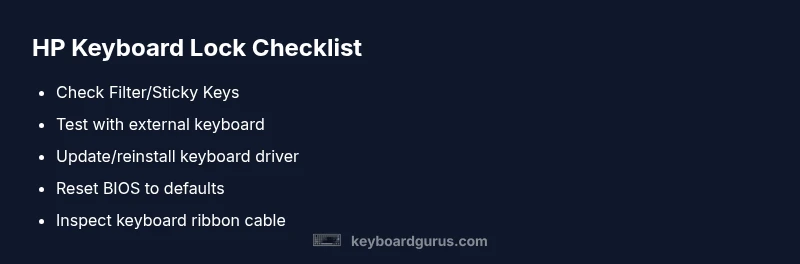
Most likely the keyboard is locked by a system feature or a misconfigured setting rather than a dead key. Start by disabling Filter Keys, then toggle Num Lock or Fn lock. Connect an external keyboard to verify hardware. If issues persist, proceed with driver checks and a BIOS/UEFI reset to re-enable normal typing.
Understanding the 'keyboard locked' symptom on HP laptops
When your HP laptop keyboard behaves as if it’s locked—no keystrokes register, the cursor flickers, or only certain keys respond—it can be alarming. The term often covers scenarios where Windows reports 'keyboard input disabled' or where an accessibility feature is preventing input. On many HP systems the root cause is not a physical failure but a software setting or quick hardware hiccup. To diagnose effectively, treat this as a puzzle with a few clearly defined suspects: software features like Filter Keys, quick toggles such as Num Lock, driver or BIOS issues, and, less commonly, a hardware fault. By methodically testing these possibilities, you can regain typing without replacing the keyboard. Keyboard Gurus analyses suggest that most 'locked' keyboard problems begin with user-facing settings rather than a broken membrane, so a careful sequence usually resolves the issue.
Common reasons your HP keyboard locks
There are several frequent culprits when an HP laptop keyboard locks or becomes unresponsive. Filter Keys or Sticky Keys enabled in Windows can effectively ignore rapid or repetitive keystrokes. The Fn key combo or Num Lock can be mis-toggled, especially on laptops that hide the number pad behind function keys. Driver conflicts or recent Windows updates might disrupt keyboard input, while a BIOS setting or POST issue can disable the built-in keyboard temporarily. Finally, a hardware fault—damaged keyboard ribbon cable or a loose connector—though less common, should be considered if software fixes fail.
Quick checks you can perform without tools
Start with simple, safe steps. Confirm the keyboard is not physically blocked by debris and that the laptop isn’t in a power-saving mode that reduces keyboard responsiveness. Try typing in a text field with an external USB keyboard attached to see if the issue is isolated to the built-in keyboard. Reboot the laptop, testing the keyboard during the boot process to see if the BIOS recognizes keys. If the external keyboard works normally, focus on Windows settings and drivers rather than hardware.
How to disable Filter Keys and Sticky Keys in Windows
Navigate to Settings > Accessibility > Keyboard (Windows 10/11). Turn off Filter Keys and Sticky Keys, and then restart the computer. Some HP laptops also have a dedicated Quick Key toggle—check your function key row for a symbol like a padlock or staircase. If the feature is enabled via the Ease of Access center or the Control Panel, disable it there and confirm the change with a re-boot. After this, re-test the built-in keyboard to see if input returns.
Testing with an external keyboard and Windows settings
If you suspect Windows or driver issues, connect a known-good external keyboard. If it works flawlessly, the problem likely lies with the internal keyboard, its driver, or a Windows policy affecting the device. Open Device Manager, expand Keyboards, right-click your internal keyboard, and choose Update driver or Uninstall device (then restart to reinstall). If the issue persists, consider checking for hidden keyboard devices or USB conflicts that could misroute input.
BIOS/UEFI and hardware considerations
Access the BIOS/UEFI settings at startup (commonly F10 or Esc for HP). If the built-in keyboard works in BIOS, the problem is software-based; if not, it’s likely a hardware fault. Reset BIOS to default settings, save changes, and reboot. Ensure the keyboard cable is securely connected if you’re comfortable with hardware inspection, or seek professional help. BIOS-level disablement of keyboard is rare but possible in some enterprise configurations or after failed POST checks.
Replacing or reseating HP keyboard: when to DIY
If reseating the keyboard ribbon cable and updating drivers do not restore function, you may face a hardware fault. Only attempt keyboard reseating if you’re comfortable with opening a laptop and preserving static safety. For many HP models, keyboard replacement is straightforward but requires removing the palm rest and keyboard assembly. If you’re under warranty or unsure about tools, contact HP support or a certified technician.
Preventive steps to avoid future keyboard lockouts
Keep your system updated to minimize driver conflicts. Regularly check accessibility settings that could redraw input behavior. Use a reliable, quality external keyboard for critical work as a fallback. Practicing safe shutdowns and firmware checks can prevent odd BIOS states from impacting input. Finally, back up important data before any hardware work to avoid data loss.
Steps
Estimated time: 25-40 minutes
- 1
Confirm basic toggles
Power on the laptop and test the keyboard in Windows and during boot. Ensure both Filter Keys and Fn lock toggles are addressed. If the keys work in BIOS but not in Windows, the problem is software-related.
Tip: Note whether only numeric keys are affected or all keys, to differentiate between Num Lock vs full keyboard issues. - 2
Test with external keyboard
Connect a known-good USB keyboard and see if typing is accepted. This helps determine if the problem is internal hardware or Windows-level software/driver issues.
Tip: If external keyboard works, focus on internal keyboard drivers and Windows input settings. - 3
Disable accessibility features
Open Settings > Accessibility > Keyboard. Turn off Filter Keys and Sticky Keys, and verify that the keyboard responds afterward. Reboot to apply changes.
Tip: Take screenshots of current settings before changing so you can revert quickly. - 4
Update or reinstall keyboard driver
Open Device Manager > Keyboards > [Your Keyboard] > Update driver. If needed, uninstall and reboot to reinstall automatically. Test keyboard after reboot.
Tip: Prefer Windows Update drivers from Microsoft if HP-specific drivers are unavailable. - 5
Check BIOS/UEFI state
Enter BIOS on startup. Ensure the keyboard is recognized and restore defaults if needed. Save and exit, then reboot to check if Windows regains input.
Tip: If you’re not comfortable, skip BIOS changes and seek professional help. - 6
Hardware inspection or replacement
If all software steps fail, inspect the keyboard cable or replace the keyboard module. For many models this requires removing the palm rest.
Tip: Ground yourself to avoid static damage; unplug power and remove the battery if possible.
Diagnosis: HP laptop keyboard locked or unresponsive after wake or during use
Possible Causes
- highFilter Keys or Sticky Keys enabled in Windows
- highNum Lock or Fn lock misconfiguration
- mediumKeyboard hardware fault (damaged membrane, loose connector)
- lowExternal keyboard driver conflicts or Windows update issues
- lowBIOS/UEFI setting disabling the keyboard
Fixes
- easyDisable Filter Keys and Sticky Keys, then reboot
- easyToggle Num Lock and Fn lock, test keyboard again
- easyUpdate or reinstall keyboard driver via Device Manager
- mediumReset BIOS/UEFI to defaults and save
- hardInspect or reseat keyboard ribbon cable (hardware)
- hardReplace internal keyboard if hardware fault is confirmed
Got Questions?
Why is my HP keyboard locked after a Windows update?
Windows updates can modify input settings or drivers, causing input to fail. Restart, roll back drivers if needed, and run the Windows Troubleshooter for keyboard problems.
Sometimes a Windows update changes keyboard settings; try restarting and rolling back drivers if the issue started after the update.
How do I disable Filter Keys on Windows 11/10?
Go to Settings > Accessibility > Keyboard. Turn off Filter Keys and Sticky Keys, then restart your computer to apply changes.
Open Settings, go to Accessibility, turn off Filter Keys, and restart to apply.
What if an external keyboard works but the laptop’s keyboard doesn’t?
If the external keyboard works, the issue is likely with the internal keyboard, its driver, or Windows policies. Focus on updating drivers and hardware checks rather than BIOS.
External keyboard working means the laptop keyboard or its driver is the likely culprit.
Can BIOS settings lock the built-in keyboard?
Yes, some BIOS/UEFI configurations or failed POST can disable input devices. Check keyboard status in BIOS and reset to defaults if necessary.
BIOS settings can disable the keyboard; reset to defaults to restore input.
When should I replace the keyboard?
If reseating cables and driver updates don’t help and the keys are physically unresponsive or damaged, replacement is likely necessary.
If software fixes don’t help and the keyboard is physically damaged, replace it.
Is warranty coverage common for keyboard issues?
If your device is under warranty or a HP protection plan, hardware keyboard faults are typically covered; check status and service options.
Warranty coverage can apply to keyboard faults; verify your status with HP.
What should I do if the keyboard still won’t respond after all steps?
Document steps you’ve taken and consult HP support or a certified technician. Consider data backup and hardware inspection under warranty terms.
If it still doesn’t work, contact HP support or a professional technician.
Watch Video
What to Remember
- Disable problematic accessibility features first
- Test external keyboard to isolate the issue
- Update drivers before hardware replacement
- Reset BIOS to defaults if needed
- Seek professional help if uncertain