Keyboard Troubleshooting for HP Laptops
Urgent troubleshooting guide to fix a keyboard that won’t respond on HP laptops. Learn quick checks, driver and BIOS steps, hardware tests, and when to seek professional repair.


The most likely causes are software driver conflicts or a temporary software lock, plus possible hardware connector faults. Quick fixes: reboot the laptop, disconnect peripherals, run the Windows Keyboard Troubleshooter, and test an external USB keyboard to confirm the fault. If the symptom persists, follow the diagnostic flow and step-by-step fixes for the built-in keyboard.
Why the keyboard on hp laptop not working matters
According to Keyboard Gurus, a responsive keyboard is essential for efficient work on any notebook. When the phrase keyboard on hp laptop not working appears, it often signals a combination of software glitches or hardware quirks that disrupt daily tasks. The HP ecosystem, including BIOS, Windows drivers, and system settings, interacts with the keyboard at multiple levels. In practice, many users encounter this issue after a Windows update, a driver install, or when a device is locked by the system for security reasons. Keyboard Gurus analysis shows that software-related causes account for a large share of non-responsive keyboards on HP laptops, especially when the keyboard stops responding only in certain apps or after boot. This block explores how to tell apart software from hardware problems and why timely fixes matter for productivity and uptime.
Quick checks you can perform right now
If you’re facing the symptom keyboard on hp laptop not working, start with the simplest checks. Disconnect any USB devices (mouse, USB drives, external keyboards) to rule out peripheral conflicts. Reboot the laptop completely (not a sleep resume) and watch for the keyboard’s behavior during startup. Try the on-screen keyboard (Win + Ctrl + O) to verify Windows can receive input. Open Device Manager and expand Keyboards; right-click the listed device and choose Uninstall (then re boot) to trigger automatic reinstallation. Ensure the keyboard is not disabled in Settings > Accessibility > Keyboard. Finally, test with an external keyboard to determine if the problem is isolated to the built-in keyboard.
Common software causes: drivers, updates, and settings
Drivers and Windows updates frequently cause unpredictable keyboard behavior. Outdated or corrupted keyboard drivers may fail to register keystrokes, while Windows updates can reset settings or introduce new features that conflict with the keyboard. Check Windows Update history for recent installations and use Device Manager to roll back or update the Keyboard driver. Also verify that Filter Keys or Sticky Keys aren’t enabled by accident, as these can make keystrokes appear unresponsive. If you use antivirus or system-cleaning tools, ensure they haven’t quarantined essential keyboard services or services. In some HP laptops, the HP Quick Keys utility can interfere with regular typing; try disabling it temporarily to test.
How to test hardware vs software: signal, BIOS, and external keyboard comparisons
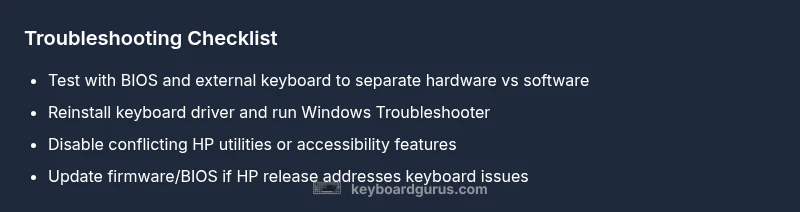
To distinguish hardware faults from software issues, run a simple triage. Boot into BIOS/UEFI and test keyboard input there; if keys register, the problem is likely Windows software or drivers. If not, the issue is more likely a hardware fault (keyboard cable, ribbon, or unit). Connecting an external USB keyboard can confirm if the port and USB subsystem are healthy. If the BIOS and external keyboard work while the internal keyboard fails later in Windows, focus on keyboard driver reinstallation, firmware updates, or HP’s keyboard service utilities. Keep in mind that some HP models require a BIOS reset or re-flash to restore full keyboard functionality.
Practical fixes you can try safely
Begin with non-destructive steps: reboot in Safe Mode, perform a clean boot to isolate software conflicts, and run the Windows Keyboard Troubleshooter. Reinstall the keyboard driver via Device Manager, and then check for updates from HP’s support site specific to your model. If the problem started after a Windows feature update or driver install, rolling back to the previous version can resolve the issue. For keyboards with suspected loose cables or damage, use a service manual to access the bottom panel only if you have experience; otherwise, skip to professional help. Remember to back up data before making changes in BIOS or reinstalling firmware.
When to replace or service HP keyboard: signs you need professional help
If the built-in keyboard shows dead keys, inconsistent input across the entire keyboard, or only works in BIOS but not in Windows, you’re likely facing a hardware fault that requires service. Mandated service may include reseating the keyboard ribbon, checking the trackpoint/keyboard matrix, or replacing the entire keyboard assembly. HP warranty or a certified technician can assess electrical safety and ensure the correct keyboard replacement for your HP model. Any signs of physical damage, liquid exposure, or recurring failure after firmware updates point to professional intervention.
Prevention and optimization tips for long-term reliability
To minimize repeat issues, keep firmware and drivers up to date, but avoid unnecessary updates that can disrupt stability. Regularly clean the keyboard and ensure no debris blocks scissor switches or scissor-switch mechanisms. Use a high-quality USB hub if you regularly attach multiple peripherals, and ensure your HP laptop’s power settings do not aggressively disable USB devices during sleep. Maintain a clean Windows installation with minimal background apps that could interfere with keyboard services, and run routine malware scans to prevent keylogging or input-blocking software. Finally, back up your critical settings and create a system restore point before making major changes.
Steps
Estimated time: 25-40 minutes
- 1
Power down and disconnect peripherals
Shut down the laptop completely, unplug power, and remove USB devices or wireless dongles. This helps identify if a peripheral is causing the keyboard to fail.
Tip: Note any accessory that correlates with the issue. - 2
Test with the on-screen keyboard
Enable the on-screen keyboard (Win + Ctrl + O) and type to verify Windows input is functioning. If it works, the issue is likely hardware; if not, Windows settings or drivers may be at fault.
Tip: If the on-screen keyboard works, you can focus troubleshooting on the physical keyboard. - 3
Open Device Manager and reset the keyboard driver
In Device Manager, expand Keyboards, right-click the HP keyboard, choose Uninstall device, then restart the laptop to reinstall automatically.
Tip: Ensure you don’t uninstall other USB devices by mistake. - 4
Check for Windows updates and HP driver updates
Go to Settings > Windows Update and also visit HP’s support site for your model. Install any keyboard-related updates and restart.
Tip: Use HP's auto-detect tool if available. - 5
Test in BIOS/UEFI
Restart and press the BIOS key (often F2, Del, or Esc). If keys work in BIOS, Windows software is the likely culprit; otherwise hardware is more probable.
Tip: Be careful editing BIOS; save before exit. - 6
Consider a BIOS reset or firmware update
If the BIOS presents options to reset defaults or flash firmware, perform cautiously following HP’s instructions.
Tip: Back up important data before firmware steps. - 7
External keyboard as a diagnostic
Connect a USB keyboard to verify if the problem is isolated to the built-in keyboard.
Tip: If external keyboard works, focus hardware diagnostics.
Diagnosis: Keyboard not registering input on HP laptop
Possible Causes
- highSoftware driver conflict or corruption
- lowKeyboard disabled in settings
- mediumHardware fault in keyboard ribbon/connector
- lowBIOS/UEFI misconfiguration or firmware issue
Fixes
- easyUninstall and reinstall the keyboard driver in Device Manager; restart
- easyRun Windows Keyboard Troubleshooter and apply recommended fixes
- easyReset keyboard settings and check accessibility features (Sticky Keys, Filter Keys)
- hardUpdate BIOS/UEFI if an HP update addresses keyboard issues
Got Questions?
Why does my HP laptop keyboard suddenly stop working?
Sudden keyboard failures are often software-related (drivers, settings, updates) or a loose connector. Start with driver reinstalls and a BIOS check, then test with an external keyboard to confirm.
Most keyboard issues are software or connection problems. Try reinstalls and a BIOS check to confirm.
Can a Windows update cause keyboard issues on an HP laptop?
Yes. Updates can reset keyboard settings or overwrite drivers. Check update history, roll back problematic updates, and reinstall the keyboard driver.
Windows updates can disrupt keyboard drivers; reinstall the driver after checking recent updates.
What if the keys only work in BIOS but not in Windows?
If keys work in BIOS but not in Windows, the problem is most likely software or driver related rather than hardware.
If keys work in BIOS, focus on Windows software and drivers.
Should I replace the keyboard or contact HP support?
If the problem persists after driver steps and BIOS checks, or there are signs of physical damage, contact HP support or a certified technician; it may require a keyboard replacement.
Persistent hardware issues usually require professional help or a keyboard replacement.
Is it safe to open the HP laptop to reseat the keyboard ribbon?
Only if you have training and proper tools. Incorrect reseating can damage the motherboard. Seek professional help if unsure.
Reseating the ribbon is risky; best left to professionals if you're not trained.
Can an external keyboard be a long-term solution?
Yes, using an external USB keyboard is a practical long-term workaround while you diagnose the built-in keyboard.
An external keyboard can be a good workaround while you fix the built-in one.
Watch Video
What to Remember
- Test with an external keyboard to isolate the issue
- Start with drivers and software, then hardware
- BIOS/UEFI work can distinguish hardware from software
- Back up data before firmware or BIOS changes
- Seek professional help for hardware faults or warranty coverage