Fix HP Laptop Keyboard: A Step-by-Step Troubleshooting Guide
Step-by-step guide to diagnose and repair an HP laptop keyboard, covering common failures, safe disassembly, driver checks, and preventative maintenance tips.


By following these steps, you'll diagnose and fix a malfunctioning HP laptop keyboard, whether keys stick, a missing key, or keys are non-responsive. You’ll need basic tools, a clean work surface, and patience. This guide covers safe disassembly, common failure modes, driver checks, and when to replace the keyboard.
Why HP Keyboard Issues Happen and What to Check First
When you want to fix hp laptop keyboard problems on an HP notebook, common causes include dust, spills, and loose connectors. Before tearing into hardware, confirm whether the symptom could be software-related. Try an external USB keyboard to see if input works; if it does, the issue is likely with the built-in keyboard or its connection. According to Keyboard Gurus, starting with software checks and a simple cleanup can save time and prevent unnecessary disassembly. In this section, we outline the most common failure modes and a pragmatic decision tree to decide whether you can proceed with hands-on repair.
Tools and Workspace Setup for Safe Keyboard Repair
As you prepare, assemble a small, organized workspace with good lighting. Essential tools include a small Phillips screwdriver, a plastic prying tool, anti-static wrist strap, and microfiber cloth. Optional items like a soft brush and isopropyl alcohol wipes help with debris and stubborn residue. Use an ESD mat if available and keep screws in labeled containers to avoid misplacement. A clean, static-free environment reduces the risk of further damage to sensitive laptop components.
Safety Precautions Before You Begin
Power off the laptop and unplug it from any power source. If possible, remove the main battery to eliminate standby charge. Avoid liquids near the work area and wear eye protection if you are cleaning out dust or debris. Ground yourself by touching a metal surface or wearing an anti-static bracelet to prevent electrostatic discharge from damaging internal circuits.
Diagnosing: Identifying the Failure Mode
Different issues require different fixes. If a subset of keys is unresponsive, the problem is often a connector or debris rather than a failed switch. If all keys fail, or the keyboard is entirely non-functional, the ribbon cable or the keyboard module itself is suspect. Use an external keyboard to distinguish between hardware and software faults, and check the BIOS/UEFI keyboard input to confirm basic functionality.
Disassembly Basics: Accessing the Keyboard on HP Laptops
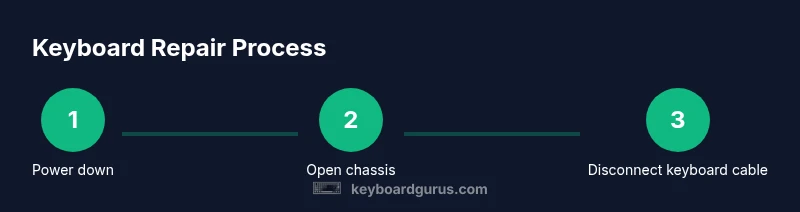
HP notebooks vary by model, but most follow a similar approach: power down, remove the bottom panel, and locate the keyboard ribbon cable. Keep track of screws and their locations. When loosening the keyboard assembly, use gentle prying to avoid cracking the palm rest or motherboard. If unsure, consult the model-specific service manual for screw placement and connector types.
Common Fixes: Keycap Handling, Cleaning, Connectors, and Re-Seating
Many issues are resolved by cleaning debris and reseating the keyboard cable. If a key is physically stuck, gently lift the keycap with a thin plastic tool, clean the switch underneath, and re-seat it. For non-responsive keys, reseat the ribbon cable connector and ensure it’s locked. Avoid pulling on the cable; handle connectors with clean, dry hands to prevent damage.
Firmware, Drivers, and Software Checks
After hardware reseating, boot the laptop and test the keyboard. If keys still fail, update or reinstall the keyboard driver and check for BIOS updates. Use general troubleshooting steps before replacing hardware: run the built-in keyboard troubleshooter, check Windows Settings, and verify the language/layout is correct. Some HP models also support firmware updates that can affect keyboard behavior.
Replacing vs Repairing: Cost, Time, and Reliability
If the keyboard remains non-functional after cleaning and reseating, replacement may be the most reliable option. Keyboard assemblies for laptops can be labor-intensive to replace and involve re-soldering or re-using components from the old unit. Weigh the cost and downtime against a professional repair or a recycled replacement device. In many cases, a full keyboard replacement offers better longevity than repeated fixes.
Reassembly, Power-On Testing, and Validation
Reassemble in the reverse order of disassembly, taking care to reconnect the keyboard ribbon firmly and align components properly. Reconnect the battery and power up to test a cold boot. Run a quick test: type in a text editor, open a browser, and confirm all keys register correctly. If any ghosting or phantom presses occur, reseat connectors again and perform additional cleaning.
Preventative Maintenance and Long-Term Care
To minimize future keyboard problems, keep the laptop clean from dust and food particles, use a keyboard cover if feasible, and avoid liquids near the device. Schedule periodic checks of connectors and the underside for signs of wear. Regular BIOS and driver updates—kept within manufacturer-recommended cadence—help maintain reliability and compatibility with software updates.
Quick Reference Checklists and Next Steps
If you’re comfortable with basic troubleshooting, follow the step-by-step guide above. If the issue persists after a full keyboard replacement, consider a professional service or HP support to rule out motherboard-level damage. Always back up important data before deep repair work.
Tools & Materials
- Phillips head screwdriver (PH0 or PH1)(Select size to fit screws on your model's bottom panel)
- Plastic opening tool / spudger(Avoid metal prying that could scratch hinges)
- Anti-static wrist strap or mat(Ground yourself to prevent static discharge)
- Microfiber cloth(For gentle cleaning and drying surfaces)
- Isopropyl alcohol (90%+) wipes(Use sparingly on metal contacts)
- Compressed air can(Blow out dust from keyboard area)
- Replacement keyboard cable or keyboard assembly(Only if you identify a faulty module)
Steps
Estimated time: 90-150 minutes
- 1
Power down and unplug
Shut down the laptop completely and unplug the charger to remove any risk of electric shock while you work.
Tip: Always unplug before touching internal components. - 2
Remove bottom panel screws
Use the appropriate screwdriver to remove the screws securing the bottom cover, keeping track of which screws came from which holes.
Tip: Place screws on a labeled tray to avoid loss. - 3
Open chassis and ground yourself
Gently pry up the bottom panel and expose internal components; attach the anti-static strap to a grounded surface.
Tip: Static can silently damage circuits; keep you and work area grounded. - 4
Locate keyboard ribbon cable
Find the thin keyboard ribbon/cable connected to the motherboard; avoid forced movement.
Tip: Do not pull; assess locking mechanism first. - 5
Disconnect keyboard cable
Unlock the connector latch and carefully separate the ribbon from the socket.
Tip: Handle with clean hands and avoid bending the cable. - 6
Inspect connectors and cable
Check for visible damage, kinks, or corrosion on both ends of the ribbon and at the socket.
Tip: A small tear can cause intermittent failures. - 7
Clean contact surfaces
Wipe metal contacts with isopropyl alcohol on a lint-free cloth; let dry completely before reassembly.
Tip: Do not rub aggressively; gentle cleaning suffices. - 8
Re-seat and secure the keyboard cable
Re-insert the ribbon and re-lock the connector, ensuring a snug, even seating.
Tip: Double-check the lock is fully engaged. - 9
Reconnect power and boot
Reconnect the battery if you removed it, then power on to test keyboard function.
Tip: If the BIOS/POST screen is sluggish, recheck cable seating. - 10
Test keys with the operating system
Open a text editor and methodically type, scanning for stuck or missing keys.
Tip: Test with external USB keyboard for comparison. - 11
Decide on replacement vs repair
If keys remain unresponsive after reseating, plan replacement of the keyboard assembly or consult a professional.
Tip: Weigh time, cost, and likelihood of future faults. - 12
Reassemble and validate
Put the bottom cover back, secure screws, and perform a final full-keyboard test.
Tip: Ensure no screws are left in the chassis.
Got Questions?
Why is my HP laptop keyboard not typing?
Typing failures can stem from software glitches, driver issues, or a loose keyboard connector. Start with a software check, update drivers, and test with an external keyboard to isolate the problem. If the external keyboard works, the fault is likely hardware-related.
If your HP keyboard isn't typing, try software checks first. An external keyboard test can show if input is hardware or software related.
Can I fix the keyboard without opening the laptop?
Some software-related issues can be resolved without hardware access, but most physical keyboard faults require opening the chassis to inspect cables and connectors. Start with software resets and driver updates before considering hardware repair.
Usually you can fix software issues without opening the laptop, but hardware faults need access to the internals.
Is it safe to disassemble an HP laptop keyboard?
Disassembly is relatively safe if you follow static precautions, use the right tools, and consult model-specific guides. Avoid forcing parts and keep track of screws. If in doubt, seek professional help.
Disassembly is safe with care and the right tools; otherwise, get expert help.
When should I replace the keyboard instead of repairing?
If cleaning and reseating fail to restore input, the keyboard assembly itself may be defective. Replacement can be more reliable and worth the cost for older models with degraded cables.
If repairs fail, replacing the keyboard is often the smarter option.
Will a liquid spill ruin the motherboard or other components?
Liquid exposure can cause corrosion and short circuits beyond the keyboard. Immediate power-off and professional assessment are recommended if a spill occurs.
Spills can damage more than the keyboard; seek professional help promptly.
How long does a keyboard repair typically take?
Repair duration varies by model and repair type but expect 1–3 hours for disassembly, cleaning, and test. Replacement may take longer due to parts availability.
Most repairs take from one to a few hours depending on the model and parts.
Watch Video
What to Remember
- Power down fully before starting any repair
- Reseat connectors to resolve many keyboard faults
- Test with external keyboard to distinguish hardware vs software
- Replace the keyboard assembly if issues persist
- Maintain a clean, static-free workspace for future fixes