If Keyboard Is Not Working In Laptop: Quick Troubleshooting Guide
Urgent guide from Keyboard Gurus for when the keyboard is not working in laptop. Quick checks, driver fixes, BIOS tests, and professional help guidelines to restore typing capability in 2026.


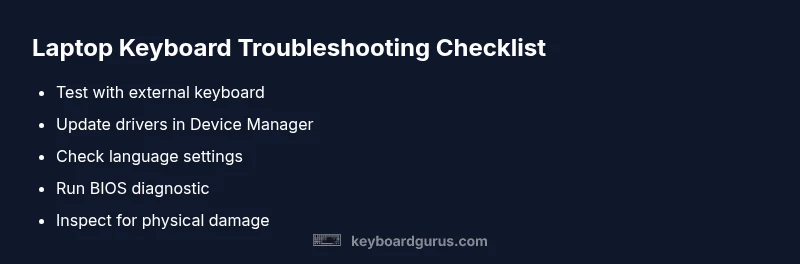
Most likely cause: a software driver issue or a software conflict, or the keyboard being disabled. Quick fix: reboot the laptop, re-enable the keyboard in Device Manager if needed, and update or reinstall the keyboard driver. Test with an external keyboard to confirm hardware, then boot to Safe Mode to rule out software conflicts. If external keys work, you may need a hardware repair.
Quick diagnosis overview
When you notice that the keyboard on your laptop isn't responding, start with a quick triage. If keyboard is not working in laptop, determine whether the issue is software-driven or hardware-related. According to Keyboard Gurus, the fastest path is to test with an external keyboard, observe any error messages, and decide if the problem occurs in BIOS or the operating system. This helps you avoid unnecessary repairs and narrows the fix to a few proven paths. In this guide, you’ll move through basic checks, driver and setting reviews, and targeted fixes so you can restore typing quickly and with confidence, even under time pressure. The emphasis is on identifying software conflicts first and then ruling out hardware faults with practical tests.
Safety-first checks
Before you tinker, power down safely, unplug from power where possible, and avoid liquids near the keyboard. If the laptop is running, disconnect any USB devices you don’t need. Remember to ground yourself to prevent static damage. If keyboard is not working in laptop, don't attempt to disassemble the chassis unless you have proper training. The safety-first approach keeps you and your laptop from suffering preventable harm. In this phase, you’re simply verifying power, visible physical condition, and basic accessibility of the keys, while preserving warranty terms where applicable.
Basic hardware and connection checks
Start with simple checks: ensure the laptop is powered, the battery is seated, and there is no visible debris under the keys. Gently shake or tap to dislodge dust, then use compressed air from a safe distance to clean. If the keyboard is inserted via a detachable bay (rare on most laptops), reseat the module. Confirm that no external keyboards are connected that might override the built-in keyboard. If keyboard is not working in laptop, run a quick hardware test in the BIOS/UEFI to see basic keyboard input at a low level, which can reveal physical faults.
Software clues: drivers, settings, and conflicts
Often the culprit is software. Check Windows Update history or the corresponding OS update on your device to spot recent changes. In Device Manager, locate Keyboard, update driver, uninstall and reinstall, or roll back if problems started after an update. Verify that the language and input settings match your keyboard layout. Disable sticky keys, filter keys, and any accessibility features that might block typing. If the issue occurs only in a particular app, focus on the app’s settings rather than the whole system. If keyboard is not working in laptop, testing in Safe Mode can help isolate third-party software conflicts.
Verifying with an external keyboard
Connecting a USB or Bluetooth keyboard is a fast, low-risk test. If the external keyboard works normally, the fault is most likely the built-in keyboard or its controller, not the OS. If the external keyboard also fails in the same environment, the issue is likely OS-related or a firmware problem. While testing, observe whether modifier keys or function keys behave differently, and check for driver messages in the system tray. Keyboard is not working in laptop? The external test gives you a clear pivot point toward hardware replacement versus software repair.
Testing keyboard in BIOS/UEFI and hardware diagnostics
A BIOS/UEFI keyboard test bypasses the operating system and shows whether the keyboard hardware responds at a basic level. If input works in BIOS, the problem is software-based; if it doesn’t, the issue is hardware. Use built-in diagnostics, if available, to run a keyboard check and other hardware tests. Documentation from Keyboard Gurus suggests running these checks before contacting support. If the keyboard still fails, note the exact model and warranty status for a technician.
Cleaning and inspecting keys safely
Power down completely before removing any keys or inspecting under them. Use a soft brush or can of compressed air to remove debris; avoid using sharp tools that could bend the keys. If a key is physically stuck, gently pry it with a non-metal tool and reseat it. A sticky key is often caused by spilled liquids; if you suspect a spill, stop using the device and consult professional service. For best results, follow static-safe handling practices and avoid applying liquid cleaners directly to the keyboard.
When to seek professional help
If you’ve ruled out software issues and basic debris removal but the keyboard remains unresponsive, professional repair is recommended. This can involve replacement of the keyboard assembly or the keyboard controller. Warranty status, model, and cost considerations should factor into your decision. The Keyboard Gurus team notes that professional diagnostics save time and protect other components from accidental damage, especially if you are not confident in opening the device or voiding warranties.
Prevention tips to avoid future issues
Prevention is better than repair. Regularly clean your keyboard with gentle methods, avoid eating over the laptop, and use a protective cover if needed. Keep drivers up to date and perform periodic OS health checks. When transporting a laptop, protect it from dust and knocks that can misalign or damage the keyboard. Enabling a quick-access external keyboard can help you quickly verify functionality in case of a future problem. By adopting these practices, you minimize the chance that keyboard issues will disrupt work or study.
Steps
Estimated time: 25-60 minutes
- 1
Verify symptom with external keyboard
Connect a wired USB keyboard and attempt to type across several apps. If the external keyboard works normally, the built-in keyboard or its controller is likely faulty. If it fails too, the issue is OS or firmware related.
Tip: Try a different USB port and test multiple keys to rule out port-specific faults. - 2
Reboot and test in Safe Mode
Restart the laptop and boot into Safe Mode to load minimal drivers. Test typing in Safe Mode to see if the keyboard response improves. If it does, a third-party driver or software conflict is the culprit.
Tip: Note any recent software changes before the issue began. - 3
Update or reinstall keyboard drivers
Open Device Manager, expand Keyboards, right-click your device, and choose Update driver. If problems persist, uninstall the device and reboot to reinstall automatically.
Tip: Back up critical settings; Windows will recreate the driver on reboot. - 4
Check language and input settings
Verify the active keyboard layout matches your physical keyboard. Disable accessibility features like Sticky Keys or Filter Keys that could block typing. Switch layouts to reproduce the issue.
Tip: Test switching layouts using the taskbar language icon or keyboard shortcuts. - 5
Run BIOS/UEFI test and built-in diagnostics
Enter BIOS/UEFI and try typing in the keyboard test. If it responds, the problem is likely OS-level; if not, hardware fault is likely. Run any available built-in hardware diagnostics.
Tip: Document any error codes shown during diagnostics. - 6
Decide on repair path
If hardware fault is confirmed, plan repair or keyboard replacement. Check warranty status and cost. Professional service often saves time and avoids further damage.
Tip: Keep proof of purchase and model details handy for service inquiries.
Diagnosis: Laptop keyboard doesn't respond or only partially types
Possible Causes
- highSoftware driver issue or OS conflict
- mediumHardware fault (dust, spill, loose cable, damaged keyboard)
- lowIncorrect input language or keyboard layout
Fixes
- easyUpdate or reinstall keyboard drivers via Device Manager; rollback recent updates if problems started after an update
- easyTest with an external keyboard to confirm hardware vs software
- mediumBoot into Safe Mode and perform driver cleanup or OS-wide checks
- easyRun BIOS/UEFI keyboard test and built-in diagnostics; consider keyboard replacement if hardware fault confirmed
- hardReplace the keyboard assembly or contact professional repair if hardware fault persists
Got Questions?
Why is my laptop keyboard not responding after a Windows update?
Sometimes a Windows update can disrupt keyboard drivers. Start by rolling back the update or reinstalling the keyboard driver, then check for a newer driver from the manufacturer. If the problem persists, use Safe Mode to isolate software conflicts.
Often a Windows update disrupts keyboard drivers. Roll back or reinstall the driver, and test in Safe Mode to isolate software conflicts.
If an external keyboard works, is the built-in keyboard dead?
If the external keyboard works, the OS is likely functional and the fault is with the built-in keyboard or its controller. Proceed with hardware diagnostics and, if needed, keyboard replacement.
External keyboard working usually means the OS is fine; the built-in keyboard may be faulty.
Can a BIOS reset fix keyboard issues?
A BIOS reset can resolve certain hardware compatibility issues, but it won't fix a physical keyboard fault. If problems persist after a BIOS reset, seek hardware diagnostics.
BIOS resets can help with compatibility, but hardware faults need physical repair.
How should I clean dust from under laptop keys safely?
Power down, use compressed air from a distance, and a soft brush to remove debris. Avoid liquids and sharp tools that could bend keys or short circuits.
Power off, clean with air and a soft brush, avoid liquids and sharp tools.
When should I replace the laptop keyboard?
If tests confirm a hardware fault and the keyboard remains unresponsive, replacement is typically the next step, especially if the device is out of warranty or repair costs are reasonable.
Hardware fault? Keyboard replacement is usually the next step.
Will software fixes harm my data?
Software fixes like driver updates are generally safe, but always back up data before major changes. If unsure, perform updates in a controlled environment or seek professional help.
Driver updates are usually safe, but back up data before making changes.
Watch Video
What to Remember
- Test with an external keyboard to separate software from hardware.
- BIOS/UEFI tests help isolate hardware faults quickly.
- Update or reinstall keyboard drivers as a first software fix.
- If hardware fault is confirmed, seek professional repair.
- Practice preventive care with cleaning and up-to-date software.