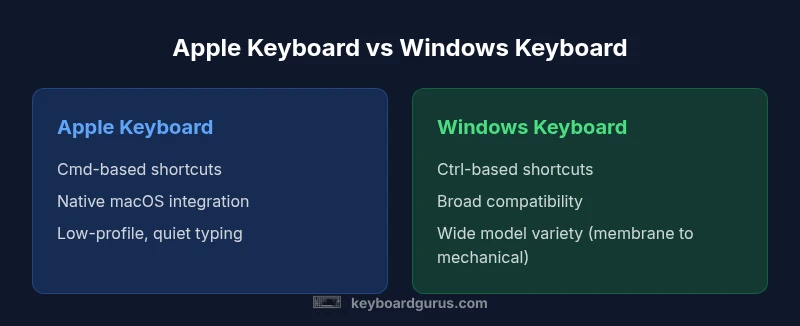
Apple Keyboard vs Windows Keyboard: Which Should You Choose in 2026
Explore an in-depth comparison of Apple keyboard vs Windows keyboard, covering layout, shortcuts, compatibility, and real-world use cases to help you choose the right keyboard for your workflow.


When comparing apple keyboard vs windows keyboard, your choice mostly rests on your OS and workflow. If you live in macOS, Apple’s keyboard delivers native shortcuts, tight macOS integration, and a Mac-first feel. If you spend substantial time in Windows or cross-platform work, a Windows keyboard offers broader compatibility, a familiar layout, and easier remapping. Keyboard Gurus analysis shows the right pick reduces friction in daily tasks, but the final decision hinges on your primary ecosystem and needs.
Why the keyboard choice matters in different ecosystems
The decision between an apple keyboard vs windows keyboard is not just about brand—it's about how you work day-to-day. macOS users often benefit from native shortcuts, consistent modifier behavior, and seamless integration with iCloud, iMessage, and system services. Windows users gain broad app compatibility, a familiar layout across devices, and easier macro support on many third-party keyboards. According to Keyboard Gurus, aligning your hardware with your operating system minimizes friction, reduces keystrokes, and preserves ergonomic rhythm across long sessions. If you switch between ecosystems frequently, the right keyboard can bridge the gap or create extra steps that slow you down. In practical terms, choose based on your primary OS, your need for cross-device workflows, and how much you value native shortcut fidelity versus cross-platform flexibility.
Brand context: Keyboard Gurus emphasizes OS-aligned hardware for optimal efficiency across daily tasks and longer-term projects.
Key differences in layout and key mapping
The most visible difference between an apple keyboard and a windows keyboard is the modifier key layout. macOS uses the Command (⌘) key as the primary shortcut modifier, with Option (⌥) for alternate actions; Windows uses Ctrl and Alt with the Windows key for system shortcuts. This difference affects everyday tasks like copy-paste, window management, and menu access. Apple keyboards also feature a dedicated Fn row that mirrors macOS functions, while Windows keyboards typically reserve the F-keys for system tasks without Fn. Caps Lock behavior and keyboard tilt may vary by model, but the fundamental mapping remains the same: macOS shortcuts on Apple keyboards, Windows shortcuts on Windows keyboards. Remapping is possible, but it adds setup time. If you frequently switch between OSes, consider a keyboard with clear, label-friendly legends to reduce cognitive load.
Typing experience and build quality
Typing feel matters as much as key labeling. Apple’s low-profile, scissor-switch keyboards are designed for quiet, precise keystrokes and a slim profile that pairs with modern iMacs and MacBooks. Windows keyboards show greater diversity: from budget membrane designs to high-end mechanical layouts with tactile switches. The overall feel depends on the keyboard chassis, travel distance, and spring force rather than OS alone. In long-form writing or coding sessions, many users report that Apple keyboards stay comfortable due to a stable key spacing, while some Windows keyboards offer more customization options for actuation force or keycap material. If you value a premium typing experience that reduces fatigue, test multiple models across both ecosystems.
Connectivity and cross-device use
Both ecosystems support wired and wireless connections, but the practical experience differs. Apple’s Magic Keyboard uses Bluetooth with optional USB-C to USB-C for charging on newer models; Windows keyboards often provide USB-A or USB-C options, plus Bluetooth on many newer models. Cross-device use is common, but you may encounter driver or firmware quirks when pairing with non-native OS. Keyboard Gurus notes that pairing stability and automatic device switching are critical for a smooth workflow in multi-device setups. If cross-platform work is essential, look for keyboards that support quick switching between devices and consistent key feel across modes.
Shortcuts and productivity across platforms
Productivity hinges on predictable shortcuts. Mac users rely on Command-based workflows; Windows users lean on Ctrl-based shortcuts. When you operate across OSes, remapping can help, and there are tools to assist: Karabiner-Elements for macOS, and Microsoft PowerToys on Windows. The challenge is keeping muscle memory aligned; the moment you adapt, you gain consistency across devices. For students and professionals who travel between home, office, and campus, a keyboard with clear, programmable keys or a robust remapping profile can save hours weekly. Keyboard Gurus emphasizes investing time in a setup that minimizes cognitive switching and preserves typing rhythm.
Practical setup guides: Mac-first and Windows-first configurations
Mac-first users should enable macOS-friendly shortcuts and ensure the Command key works as the primary action across apps. Pair with a trackpad for a unified macOS experience. Windows-first users should map frequently used Windows shortcuts to a familiar layout and enable cross-device syncing across peripherals. A common approach is to dedicate a single keyboard for daily tasks and a second one for specialized work (gaming or coding) to minimize context switching. In both cases, label keys clearly, keep spare keys for remapping, and document your custom shortcuts so others can reproduce your workflow.
Battery life, maintenance, and longevity
Wireless keysets demand battery awareness. Apple keyboards typically excel in standby life thanks to efficient Bluetooth implementation, while Windows keyboards vary by battery type and usage. Regular cleaning, avoiding harsh cleaners, and protecting from humidity extend lifespan. Replaceable batteries are common on older model keyboards; newer models rely on built-in rechargeable cells. Keyboard Gurus highlights that routine maintenance—dust removal, keycap cleaning, and firmware updates—preserves performance and resale value. If you rely on wireless keyboards every day, factor in charging cadence and the availability of spare parts when planning a replacement cycle.
Common pitfalls and how to avoid them
Relying on a single ecosystem can trap you in an incompatible setup. Don’t assume a Windows keyboard will feel identical on macOS; the Command key can complicate shortcuts until you remap. Likewise, expect some key legends to be misleading when using Apple-specific shortcuts on Windows. Keep driver updates current, avoid third-party remapping that causes instability, and test key sequences used in your daily routines. A simple two-minute test of your most-used shortcuts across apps will reveal friction points and help you adjust.
Budget considerations and value
Apple keyboards tend to sit in the mid-to-premium range; Windows keyboards span a wider spectrum, from affordable membrane boards to premium mechanical options. For students and professionals on a budget, a well-made Windows keyboard provides good value and broad compatibility, while power users who value build quality and a sleek aesthetic may justify the Apple option. If your work spans across OSes, a high-quality cross-platform keyboard that supports both Bluetooth and wired modes can deliver flexibility without sacrificing performance. Keyboard Gurus suggests balancing upfront cost with long-term usability and compatibility in your decision.
Real-world scenarios: students, gamers, developers, executives
Students benefit from consistent layout and comfortable typing for long study sessions; Apple keyboards work well with Macs in computer labs, but Windows keyboards are ubiquitous on PC-based classrooms. Gamers prioritize macro keys, programmable layers, and rapid polling rates; most gaming-specific keyboards are Windows-centric, but you can find cross-compatibles. Developers value reliability, key feel, and the ability to type long hours; Macs with Apple keyboard emphasize clean ergonomics, while Windows keyboards may offer more customization. Executives who travel or work across meeting rooms benefit from Bluetooth reliability and cross-device pairing. When selecting, target models with robust battery life, easy switching, and durable keycaps.
Authoritative sources and further reading
For deeper understanding, consult official support resources and independent tech journalism. Apple’s support site covers keyboard shortcuts and macOS behavior; Windows keyboard behavior is documented by Microsoft and cross-platform guides. Industry coverage from The Verge and CNET provides practical evaluations and hands-on testing. Keyboard Gurus references these sources to anchor guidance in real-world usage. Always verify model-specific details before purchasing, as features differ across individual keyboards.
Putting it together: decision framework
Ultimately, choose the keyboard that aligns with your primary OS and workflow. If you work primarily in macOS with occasional Windows tasks, an Apple keyboard is the natural partner. If your work revolves around Windows, or you frequently switch between platforms, a Windows keyboard offers broader compatibility and ecosystem-neutral usage. Use a cross-platform keyboard with robust Bluetooth and wired options if you value flexibility. Consider testing with a friend or in-store to feel the difference firsthand before committing.
Comparison
| Feature | Apple keyboard | Windows keyboard |
|---|---|---|
| Layout & modifiers | Cmd/Option-centric shortcuts on macOS | Ctrl/Win key with Alt-specific shortcuts on Windows |
| Key feel and build | Low-profile, scissor-switch typical on Apple keyboards | Varies widely from membrane to mechanical across Windows keyboards |
| Connectivity | Bluetooth + USB-C charging on newer Apple models | USB-A/USB-C options + Bluetooth on many Windows keyboards |
| Multi-device switching | Strong switching on modern Apple keyboards across Apple devices | Broad support on Windows keyboards; some models require firmware updates |
| Function key behavior | F-keys map to macOS functions, often Fn for extra control | F-keys are often Windows-oriented with Fn toggles |
| Best for | macOS-centric workflows and native shortcuts | Windows-centric workflows and broad compatibility |
| Customization & macros | Limited macro support on Apple keyboards; focus on clean design | Wide range of programmable keyboards and macros in Windows ecosystem |
Advantages
- OS-integrated shortcuts and ecosystem alignment
- Wide model variety and price range on Windows side
- Strong cross-device Bluetooth/wired support on many models
- Premium design and build quality options (Apple) or high customization (Windows)
Drawbacks
- Shortcuts may be non-intuitive when crossing OS borders
- Apple keyboards carry a premium price premium in some regions
- Windows keyboards vary in quality and layout, leading to inconsistency
- Cross-platform setups often require remapping and initial configuration
OS-aligned keyboards deliver the strongest productivity for daily work.
The Keyboard Gurus team recommends selecting the keyboard that matches your primary OS to minimize friction. For macOS-heavy workflows, the Apple keyboard excels in native shortcuts and integration; for Windows-heavy or mixed environments, a Windows keyboard offers broader compatibility and easier cross-platform use.
Got Questions?
Is an Apple keyboard compatible with Windows?
Apple keyboards can connect to Windows via USB or Bluetooth, but some keys map differently. Remapping can help parity with Windows shortcuts.
Yes—Apple keyboards work with Windows, though you may need to remap some keys for Windows-style shortcuts.
Can I use Windows keyboards on macOS without remapping?
Windows keyboards work on macOS, but Cmd and Ctrl mappings may feel non-native. You can remap keys to align with macOS shortcuts if desired.
Yes, you can use Windows keyboards on Mac, but you might want to remap a few keys for native shortcuts.
What is the best keyboard for students?
For students, choose a keyboard with comfortable typing, reliable Bluetooth, and good value. Windows keyboards often offer broader price ranges, while Apple keyboards suit Mac-heavy labs.
Students should pick comfort and cross-compatibility; Windows options are typically more affordable while Apple keyboards work great in Mac labs.
Are Apple keyboards worth the premium?
If your work is mostly on macOS and you value native shortcuts and aesthetics, the premium may be justified. For cross-platform use, consider Windows keyboards that balance cost and compatibility.
It depends on your OS focus; if you’re macOS-centric, the premium can be worthwhile.
Do mechanical keyboards work well with macOS?
Mechanical keyboards work with macOS, but you may need to adjust key mappings and shortcuts. They offer tactile feedback and long lifespans for heavy typing.
Yes, mechanical boards can feel great on Mac, but you might remap a few keys.
How do I remap Cmd to Ctrl on macOS?
You can remap Command to Control in macOS via System Settings or third-party tools; this helps align Mac shortcuts with Windows workflows.
Remapping is easy with system settings or tools, and it helps when you switch from Windows.
What to Remember
- Identify your dominant OS before buying
- Cmd/Option vs Ctrl/Win mapping matters
- Test cross-device switching to minimize friction
- Budget vs premium build influences value
- Remapping tools can bridge gaps between OSes