British Keyboard vs US Keyboard on Mac: An Analytical Comparison
An analytical, practical comparison of UK vs US keyboard layouts on Mac, covering physical layout, symbol access, macOS setup, shortcuts, and setup tips to help you choose the best option for your workflow.


UK vs US Mac keyboard layouts differ mainly in symbol access and key placement; align with your locale and software needs. Check layout settings in macOS to switch between them. See our detailed chart for nuanced differences.
Introduction to the british keyboard vs us keyboard mac
Understanding the decision to adopt the british keyboard vs us keyboard mac layouts on a Mac starts with language, locale, and daily workflow. For many users, the choice isn't about aesthetics but about efficiency, currency, and symbol access. According to Keyboard Gurus, the decision hinges on locale compatibility and the types of documents you routinely produce. The British keyboard, designed for the United Kingdom, includes currency symbols, distinct key placements, and an Enter key with a different shape than its US counterpart. The US layout, by contrast, emphasizes the familiar US punctuation and a more compact footprint on many keyboards. On a Mac, you can switch inputs in System Settings, but the physical keyboard you own will still influence how you type and where you reach for commonly used symbols. In this guide, we explore the practical implications of both layouts when used with macOS, and how to optimize your setup for smooth everyday use. This is a core piece in the britsh keyboard vs us keyboard mac decision.
Physical Layout Differences: Keys and Keycaps
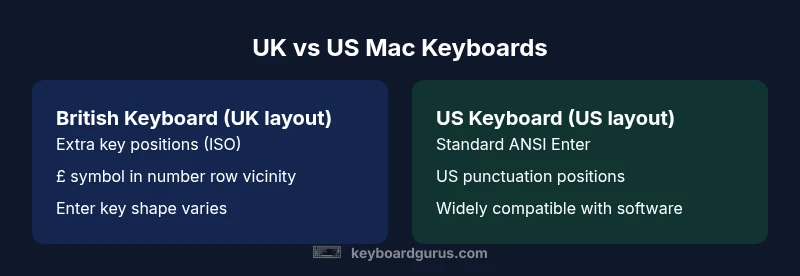
The British keyboard layout commonly follows ISO conventions, which affects the Enter key shape and the position of several keys near the right side of the keyboard. In practice, many UK keyboards have an extra key to the left of the Z and a distinct £ key within the number row vicinity. The US keyboard layout follows ANSI conventions, with a single rectangular Enter key and a more compact cluster on the right. For macOS users, this translates to different physical touchpoints when you type common symbols, punctuation, and currency. When you type, you will notice subtleties in key travel and spacing that influence your rhythm for long documents or fast-paced gaming. Keyboard Gurus notes that even subtle shifts in keycaps can affect accuracy during high-speed typing or coding sessions. Understanding these differences helps you pick a layout that minimizes finger travel and cognitive load during sustained use.
Common Symbols and Character Access
Symbol access is where the british keyboard vs us keyboard mac debate becomes tangible. The UK layout includes the £ symbol and places some punctuation in different locations than the US layout. The potentially swapped keys for at and quotation marks are a frequent pain point for users moving between layouts. On Mac, the symbol access you rely on—like £, €, @, and quotes—will map to different physical keys depending on the layout you choose. Practically, this means your daily notes, invoices, or emails may read more naturally with the UK setup, or feel more familiar with the US setup, especially when you rely on copy-paste workflows that include currency and country-specific symbols. Keyboard Gurus emphasizes testing both layouts with your most-used documents to decide which mapping minimizes error rates.
macOS Keyboard Setup: Layouts and Preferences
Setting up macOS to support british keyboard vs us keyboard mac workflows is straightforward but nuanced. In System Settings > Keyboard > Input Sources, you can add British or US layouts and switch between them as needed. The on-screen Input menu helps you visualize which symbols are accessible in each layout. macOS also supports dead keys and accent combinations that differ between layouts, so enabling both can reduce friction when writing multilingual content. For developers, enabling a second layout and learning the quick-switch shortcut reduces context-switching. Keyboard Gurus suggests configuring a two-key switch (e.g., Command+Space or Control+Space depending on your OS version) to minimize disruption during intense tasks like coding or gaming.
Typing Experience: Real-World Scenarios
In day-to-day tasks, the british keyboard vs us keyboard mac distinction manifests most clearly in typing speed, accuracy, and comfort. For coding tasks, some programmers prefer the consistency of one layout to avoid mental mapping during frequent keystrokes. Writers and students who frequently type currency values, price lists, or invoices may find the UK layout easier because of the £ symbol’s native placement. Gamers may notice minor differences in keycaps that affect hotkey placement. In terms of workflow, macOS shortcuts are mostly layout-agnostic, but the physical layout can influence muscle memory when hitting combined keys like Cmd+S, Cmd+C, or Cmd+V. Keyboard Gurus emphasizes practicing with your chosen layout for a two-week period to build reliable muscle memory and reduce errors.
Shortcuts and Productivity: Where Layout Matters
Productivity hinges on predictability. The britsh keyboard vs us keyboard mac debate often centers on how shortcuts align with your most-used keys. Because macOS shortcuts rely on the Command key rather than the physical position of letters alone, the core shortcuts usually remain intact across layouts. However, some shortcuts rely on punctuation or symbol keys that shift with layout, so you may need to adjust your mental map or remap certain keys. If you collaborate with teammates who use a different layout, consider keeping a quick-access cheat sheet or using a dual-layout setup for cross-team projects. Keyboard Gurus notes that choosing a layout aligned with your primary language and document types yields the most consistent productivity gains.
Special Characters and Dead Keys on UK vs US
Typing special characters—like currency symbols, accented letters, or typographic quotes—can differ significantly between UK and US layouts. The presence of the £ symbol and the different positions of quotation marks on a british keyboard vs us keyboard mac affect how you compose multilingual content or format global documents. Dead keys add another layer of complexity: some layouts produce accented characters with sequential key presses, which can either speed up or slow down your workflow depending on your needs. If your work involves frequent multilingual content, testing both layouts against your most common character sets is time well spent, according to Keyboard Gurus.
Enter, Backspace, and Modifier Keys: Design Impact
The Enter key shape, Backspace feel, and the placement of modifier keys influence typing comfort and error rates. UK ISO Enter tends to be larger and often curved, while US Enter is typically rectangular. The Backspace key and the right-hand Shift can vary in size and location between UK and US keyboards, subtly changing how you navigate lines and blocks of text. For Mac users who rely on the fundamental Command, Option, and Control modifiers, the actual key positions matter less for shortcuts than the general rhythm of typing. The layout’s physical cues can improve or hinder rapid editing, especially when switching between keyboards during long writing sessions.
Practical Setup Tips for Mac Users
If you’re deciding between british keyboard vs us keyboard mac usage, start with a test drive. Try a two-week period using only one layout and track your comfort with the currency symbols, quotes, and common shortcuts. If you require frequent UK currency values or documentation, a UK layout may be preferable; otherwise a US layout often yields the broadest software compatibility. Consider investing in a keyboard with clear legends or use keycap replacements if you often present your screen to others. For multilingual needs, enable both layouts in macOS and switch on demand, then optionally map a fast-switch shortcut for rapid toggling. Keyboard Gurus recommends documenting your layout choice in your workspace—this reduces cross-device conflicts and keeps your future workflow consistent.
Potential Pitfalls and Troubleshooting
Common issues include mis-typed symbols due to layout confusion, inconsistent document formatting when switching layouts mid-workflow, and difficulties entering country-specific characters in forms. If you frequently move between layouts, you might accidentally type the wrong currency symbol or quotation mark, particularly when copying text between documents. Another pitfall is relying on a non-native keyboard for a global team; ensure your documents render correctly by validating important fields in your chosen layout. If you run into issues, simply switch to the other layout temporarily to confirm whether the problem is layout-related, then rotate back once you confirm. Keyboard Gurus emphasizes patience and deliberate practice during the transition period.
When to Choose UK vs US on Mac: Decision Guide
The decision often boils down to locale and your primary workflow. If you produce many UK-specific documents, invoices, or code comments with currency values, the british keyboard vs us keyboard mac choice leans toward the UK layout for efficiency. If you collaborate with international teams, use US-centric software, or rely on a broader pool of hardware availability, the US layout is typically the safer bet. For bilingual or multilingual work, keeping both layouts accessible and switching as needed can minimize disruption. As always, test both layouts with your most common tasks before committing, and rely on the macOS input-switching features to keep momentum high during transitions.
Comparison
| Feature | British keyboard (UK layout) | US keyboard (US layout) |
|---|---|---|
| Key layout differences | UK ISO conventions with an extra key to the left of Z and a distinct Enter key shape | US ANSI conventions with a standard Enter key and a different right-side cluster |
| Symbol access | Includes £ symbol and UK-specific punctuation in alternative locations | Emphasizes US punctuation and widely-used symbols; currency symbol often dollar-based |
| Enter/backspace/return | L-shaped or larger Enter in UK layout | Rectangular Enter in US layout |
| Dead keys and accents | Potentially more UK-specific dead keys; some accents mapped differently | Fewer UK-specific dead keys; accents depend on the language mix |
| Best for | UK-based work, currency-heavy docs, forms | US-centric software, global collaboration, and broad hardware availability |
Advantages
- Aligns with local language and currency needs (UK)
- Better symbol availability for UK documents (£)
- Clear mapping for country-specific forms and workflows
- Supports consistency in UK-based professional environments
Drawbacks
- May hinder collaboration with US-based teams
- Requires adaptation if you frequently switch between locales
- Keycap availability can be limited for UK-specific layouts
- Can lead to confusion when sharing documents with US users
Choose UK layout for UK-centric work; US layout for global use and broad software compatibility
If your daily tasks involve UK currency and documents, the UK layout minimizes friction. For cross-border work or widespread software use, the US layout reduces mapping issues and ensures greater compatibility.
Got Questions?
What is the main difference between UK and US keyboard layouts on a Mac?
The UK layout includes the £ symbol and different key placements compared to the US layout, affecting symbol access and typing flow. On Mac, you can toggle between layouts in System Settings to match your current task.
The main difference is currency and symbol placement. You can switch layouts in macOS settings to match what you’re typing.
Can I type the £ symbol on a Mac with a US keyboard?
Yes. Enable the UK input source in macOS or use a UK layout temporarily. This makes the £ symbol accessible without copying from elsewhere.
Yes—enable the UK layout in macOS or switch to the UK input source when you need the £ symbol.
How do I switch keyboard layouts quickly on macOS?
Use the Input menu in the menu bar or configure a keyboard shortcut to switch between UK and US layouts. This minimizes disruption during mixed workflows.
Use the input menu or set a fast shortcut to switch between layouts in macOS.
Is there a performance impact when coding on UK vs US layouts?
There is no inherent performance advantage to either layout. Your speed depends on familiarity and muscle memory built through practice with your chosen layout.
No inherent speed difference—it's about how well you know the layout and that you practice with it.
Will I be confused about the Enter key or backspace when switching layouts?
The Enter key shape and the position of backspace can differ between UK and US layouts, which may affect touch typing. With practice, these differences become second nature.
Differences exist, but with practice you’ll adapt quickly.
Should I buy a UK or US keyboard for Mac if I often work with both locales?
If you frequently work with both locales, a dual-layout approach or a keyboard with clear legends can help. Alternatively, rely on macOS layout switching to minimize physical changes.
If you switch often, choose a keyboard that supports easy layout switching.
What to Remember
- Choose UK layout for UK currency and forms
- Prefer US layout for global software compatibility
- Switch layouts via macOS to align with tasks
- Practice with each layout to build muscle memory
- Keep a quick-access cheat sheet during transitions