PC Keyboard vs Mac Keyboard: Key Differences and Guidance
A balanced, data-driven comparison of PC keyboards and Mac keyboards, covering layout, shortcuts, connectivity, typing feel, and buying tips for 2026. Learn which is better for your macOS, Windows, or mixed workflow with Keyboard Gurus.


PC keyboard vs Mac keyboard: Both deliver reliable typing experiences, but they optimize for different ecosystems. The pc keyboard vs mac keyboard distinction centers on modifier keys, OS integration, and shortcut expectations. In practice, PC keyboards favor broad compatibility and remapping flexibility, while Mac keyboards prioritize Command-driven workflows and macOS-native shortcuts. Your choice should match your primary OS and daily tasks.
The Core Differences Between PC Keyboard and Mac Keyboard Philosophies
The choice between a PC keyboard and a Mac keyboard is more than swapping a few labeled keys; it's about aligning your typing surface with your operating system's workflow. In the pc keyboard vs mac keyboard decision, the core differences revolve around modifier keys, shortcut expectations, and how software interprets keystrokes across platforms. According to Keyboard Gurus, the most meaningful distinctions appear at the level of OS integration, where key mappings, accessibility features, and developer preferences shape everyday use. For Windows or Linux environments, a standard PC keyboard provides universal compatibility, a familiar set of shortcuts, and easier customization through firmware and macros. On macOS, a dedicated Mac keyboard (or a well-mapped USB keyboard) preserves Command-centric shortcuts, smoother system-wide consistency, and a feel that's tuned to Apple's design philosophy. The upshot is simple: if your daily tasks rely on platform-native shortcuts and applications, your keyboard choice should reinforce that workflow rather than strain it.
Layout, Keys, and Remapping: What Changes When You Move Between Platforms
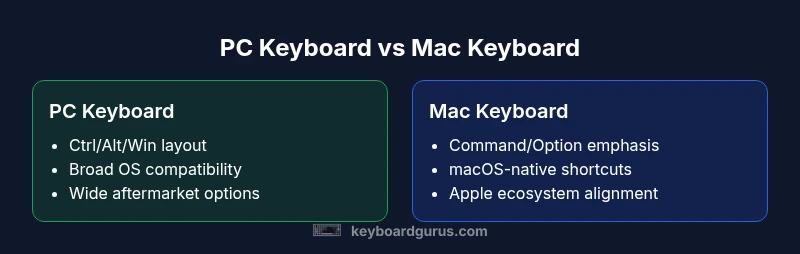
The layout is the most visible difference between PC and Mac keyboards. A PC keyboard typically uses a Windows-style layout with Ctrl, Alt, and the Windows key, while a Mac keyboard emphasizes Command and Option. Remapping can mitigate mismatches, but the process adds cognitive overhead. For example, many users remap the PC's Ctrl to emulate the Mac Command on macOS, or configure macOS shortcuts to emulate Windows behavior. Keyboard Gurus notes that remapping is a practical workaround, not a universal fix, because some applications embed platform-specific shortcuts that resist general remaps. When choosing, expect to compromise on either legibility of keycaps or the speed of your most-used shortcuts. If your daily work requires frequent cross-platform switching, a keyboard with easily configurable layers or on-device programmable keys can significantly reduce friction. This section covers the most common layouts (ANSI vs ISO) and how to read the legend on each, and it outlines how to assemble a keyboard you can lean on regardless of which OS you boot into.
Connectivity and Customization: USB-C, Bluetooth, and Firmware
Connectivity choices shape how portable and future-proof your keyboard is. PC keyboards typically emphasize broad compatibility with USB-A, USB-C, and robust Bluetooth stacks, while Mac keyboards often lean toward USB-C or wireless options with tight macOS pairing. In practice, many modern keyboards ship with multi-device pairing, per-profile switches, and onboard memory for profiles that map keys differently per OS. Keyboard Gurus notes that firmware updates can improve macro reliability, key rollover, and cross-OS layer toggling. If you frequently switch between macOS and Windows, look for keyboards with granular layer switching, toggleable Windows/Mac modes, and easy to access key remapping without software. Also consider battery life and charge ports, as some devices require USB-C for fast charging. In professional environments, a keyboard that supports both wired and wireless modes plus convenient pairing to multiple devices reduces desk clutter and setup time.
Shortcuts and Productivity: Windows-era shortcuts vs macOS patterns
Productivity often hinges on muscle memory built around shortcuts. On PC keyboards, Ctrl-based combos such as Ctrl+C, Ctrl+V, and Ctrl+Z dominate, with Win-key shortcuts for quick launches. macOS shortcuts center on Command and Option, with many keystrokes overlapping the Windows equivalents but using different modifiers (e.g., Command+C for copy, Command+V for paste). The discrepancy becomes more pronounced in professional apps like editors, IDEs, and design tools, where shortcuts encode long workflows. If you work across ecosystems, you’ll frequently juggle two standards, which can slow you down temporarily until you reach fluency. Keyboard Gurus analysis shows that many users experience productivity dips when shortcuts are not aligned with their OS. The goal is to minimize cognitive load by selecting a device with predictable, repeatable hotkeys that align with your primary software stack. For gamers, note that macOS shortcuts may differ from Windows in ways that affect in-game commands, so consider whether your preferred games honor macOS shortcuts or require third-party tools.
Typing Feel, Key Travel, and Build Quality
The tactile experience is a major reason people pick one keyboard family over another. PC keyboards span a wide spectrum from low-travel chiclet layouts common on laptops to high-activate mechanical switches with deep travel, offering a broad price range. Mac keyboards, whether Apple’s scissor-switch models or high-end mechanical builds, tend to emphasize smoothness and precise bottom-out feedback that complements macOS's focus on quiet, focused work. Despite this, feel is highly personal: some users crave tactile feedback, others prefer linear switches, and a few prioritize silent operation for shared workspaces. Build quality and keycap material matter—PBT caps resist shine and wear better than ABS—but compatibility matters too: some Mac keyboards use nonstandard key sizes or stabilized spacebars that complicate aftermarket keycap replacement. Keyboard Gurus emphasizes trying a sample on your desk to gauge how it feels under long sessions, especially if you type for hours daily or perform precision tasks that require consistent keystroke force.
Special Keys and Nomenclature: Command, Option, Control, and the Globe
Special keys carry weight beyond their letters. On Mac keyboards, Command and Option anchor many macOS shortcuts, while Windows keyboards rely on Control and Alt for similar functions. The Globe or microphone keys on some keyboards add language switching or accessibility features but may differ in behavior between OSes. If you’re buying an aftermarket keyboard, check that modifier keys can be remapped to Command or Option when connected to macOS, and verify if macOS supports hardware-level remapping without third-party software. Some users find that the legend on keycaps is misleading after remapping, so ensure you choose a keyboard with clear legends or with hotkeys that can display correctly in both OS environments. For people who create content or code, the ability to map Command to a dedicated macro key can significantly speed up routines. Keyboard Gurus notes that the best keyboards expose a simple method to switch modes between macOS and Windows without software complications.
Multi-Device Scenarios: Using a Mac with Windows peripherals and vice versa
Many professionals work across devices and operating systems. A MacBook or iMac user may want to pair a Windows keyboard for better ambidextrous presses or to leverage a keyboard with dedicated macro keys for workflow automation. Similarly, Windows users sometimes pair Mac keyboards to preserve Command-friendly shortcuts when using macOS in virtualization or dual-boot setups. The sweet spot is choosing a keyboard that supports easy multi-device pairing, robust cross-platform firmware, and per-profile keymaps that persist across operating systems. Be mindful of driver requirements: macOS generally manages basic shortcuts natively, while Windows devices may rely on system-level drivers for advanced features. If you frequently switch between macOS and Windows, aim for a keyboard with on-device profiles, simultaneous multi-device pairing, and a quick-switch mechanism to minimize desk-time between platforms. Keyboard Gurus highlights that the right choice reduces friction in hybrid workflows.
Practical Buying Guide: How to pick a PC vs Mac keyboard for your setup
Define your primary OS and use cases. If you spend most of your day in macOS, invest in a keyboard that preserves Command shortcuts and provides easy remapping for occasional Windows tasks. If Windows is your main OS or you juggle Linux and macOS, a standard PC keyboard with a reliable remapping layer is usually the safer bet. Consider layout compatibility (ANSI vs ISO), keycap material, and switch type if you choose mechanical keys. For mixed environments, look for devices with multi-device pairing, robust software for per-profile mappings, and hardware-level layer toggles for quick OS shifts. Test extensively: try long typing sessions, run your common shortcuts, and evaluate whether the keyboard supports the accessory features you rely on—like media keys, macro programming, or split ergonomic designs. Budget enters when you demand premium materials, hot-swappable switches, and premium stabilizers; mid-range options often deliver excellent value with strong software support. Finally, verify return policies and warranty length so you can experiment without risk. This practical approach helps ensure your purchase aligns with your daily routines and future needs.
Common Pitfalls and How to Avoid Them
Avoid assuming all keyboards map the same shortcuts to the same keys. Do not rely on a single OS for key behavior; test cross-platform tasks in both macOS and Windows. Be cautious about legend misalignment after remapping—some keycaps age differently, and nonstandard sizes can complicate customization. Finally, beware of keyboards with limited firmware updates or closed ecosystems that lock you into a single OS—look for devices that offer open-layer support and transferable layouts across systems. Keyboard Gurus suggests using in-person trials or long trial periods to ensure long-term comfort and compatibility with your software stack.
Comparison
| Feature | PC Keyboard | Mac Keyboard |
|---|---|---|
| Layout and Modifiers | Windows-style with Ctrl/Alt/Win | Mac-style with Command/Option |
| System integration | Broad OS compatibility across Windows/Linux | Tight macOS integration with Apple devices |
| Connectivity | USB-A/USB-C, Bluetooth; versatile cross-device use | USB-C wireless and Apple ecosystem pairing |
| Shortcuts & Productivity | Ctrl-centric shortcuts; easy remapping | Command-centric shortcuts; macOS-native workflows |
| Typing experience | Wide range of switches and keycaps; affordable options | Quiet, refined feel on Apple keyboards; compatible with third-party options |
| Price range | Low to mid-range common options | Mid-to-high range for quality Mac keyboards |
| Best for | Cross-platform work, general use, gaming on Windows | macOS-centric workflows and Apple ecosystems |
Advantages
- Broad compatibility across operating systems and apps
- Wider selection and lower prices for PC keyboards
- Easier remapping and macro support on many models
- Strong cross-platform setups with multi-device pairing
Drawbacks
- Mac-specific shortcuts can feel foreign on non-Mac keyboards
- Remapping sometimes fails in specialized apps
- Dedicated Mac keyboards can be premium-priced
Neither keyboard wins across the board; the best choice depends on your primary OS and workflow.
For macOS-heavy work, a Mac keyboard with good macOS support is ideal. For mixed or Windows-centric setups, a PC keyboard with robust remapping is the safer bet. The Keyboard Gurus team emphasizes choosing based on your dominant OS to minimize friction.
Got Questions?
Can I use a PC keyboard on a Mac without software?
Yes. A PC keyboard can work with macOS; you may need to remap keys for Command shortcuts and adjust some Apple-specific shortcuts manually. macOS typically handles basic input natively, while advanced mapping might require third-party utilities for full parity.
You can use a PC keyboard on a Mac, but you may want to remap keys for Command shortcuts to match macOS behavior.
Is a Mac keyboard necessary for macOS features?
Not strictly necessary, but a genuine Mac keyboard provides the closest feel and most consistent macOS shortcuts. Many users prefer it for seamless Apple ecosystem integration and predictable behavior across apps.
A Mac keyboard isn’t mandatory, but it gives you the most consistent macOS experience and shortcuts.
Do Mac keyboards work with Windows?
Mac keyboards can work with Windows, but the Command key becomes a Control in Windows workflows. You may need remapping to keep key behavior intuitive. Some users pair Mac keys with virtualization to preserve shortcuts.
Mac keyboards can run on Windows, but you’ll likely remap Command to Control for familiar shortcuts.
What is better for gaming: PC keyboard vs Mac keyboard?
PC keyboards generally offer broader compatibility and a wider selection of gaming-focused switches and macros. Mac keyboards are less common for gaming, though some high-end models provide responsive inputs; overall, PC keyboards tend to be preferred for games.
For gaming, a PC keyboard is usually the better choice due to wider support and options.
Are there ergonomic advantages to Mac keyboards?
Ergonomics depend more on the keyboard’s design than the OS. Both Mac and PC keyboards offer ergonomic models, including low-profile and split designs. Your comfort will come from switch feel, key travel, and layout, not the OS alignment alone.
Ergonomics depend on the design, not the OS; explore split or low-profile options for comfort.
How do I test a keyboard before buying?
Whenever possible, try the keyboard in person for a full typing session. Check layout familiarity, modifier feel, and how well it handles your most-used shortcuts. If that isn’t possible, buy from retailers with generous return policies and test at home.
Test in person if you can, focus on layout and shortcuts, and use retailers with good return policies.
What to Remember
- Define your primary OS before buying.
- Prioritize modifier keys and shortcuts.
- Favor keyboards with easy remapping for hybrid workflows.
- Check layout compatibility and keycap availability.
- Test typing feel across long sessions.