Keyboard and Mouse for Xbox xCloud: A Complete Guide
Learn how to choose, connect, and optimize a keyboard and mouse for Xbox Cloud Gaming (xCloud). This expert guide covers compatibility, wired vs wireless setups, latency considerations, key mappings, and practical troubleshooting for 2026.


With this guide, you’ll learn how to use a keyboard and mouse for xbox xcloud effectively. You’ll understand compatibility, what gear works, how to connect both wired and wireless setups, and the essential steps to configure mappings and test responsiveness across games. The goal is to minimize input latency, maximize accuracy, and ensure reliable performance across Xbox Cloud Gaming on both consoles and Windows. You’ll also receive practical testing routines and troubleshooting tips to avoid common pitfalls. By the end, you’ll have a clear path to a smooth, responsive setup that works across genres and devices in 2026.
What you will achieve with the right keyboard and mouse for xbox xcloud
Using a keyboard and mouse for xbox xcloud opens up precise aiming, faster input, and a versatile control scheme for games that typically rely on a controller. In this guide, you will learn how to select a compatible keyboard and mouse for xbox xcloud, connect them across Xbox consoles and Windows PCs, and optimize settings for smooth cloud gaming. The goal is to minimize input latency, maximize accuracy, and ensure reliable performance across wired and wireless configurations. You’ll discover which hardware fits your budget, how to map keys and mouse actions to common control schemes, and how to test responsiveness in a controlled setup. By the end, you’ll have a clear checklist for compatibility, a step-by-step connection plan, and practical tips to troubleshoot issues without frustration. This guidance is designed for Keyboard Gurus readers who want consistent, science-backed guidance as of 2026.
Compatibility landscape: keyboards, mice, and the xbox xcloud ecosystem
The Xbox Cloud Gaming ecosystem supports a wide range of keyboards and mice, but compatibility can vary by device, firmware, and the app you’re using to access xCloud. USB-connected peripherals tend to offer the most predictable behavior, followed by Bluetooth models that pair cleanly with compatible hardware. When selecting gear, look for standard HID (Human Interface Device) compatibility and reliable polling rates. In practice, most modern USB keyboards and mice from mainstream brands will work across Windows and Xbox devices, but some ultra-cheap or legacy Bluetooth devices may exhibit pairing quirks or intermittent lag in cloud sessions. Keyboard Gurus analysis shows that a balanced setup—reliable wired peripherals with a solid Bluetooth option for mobile use—provides the broadest compatibility across titles and platforms in 2026.
Wired vs wireless: what actually works with Xbox Cloud Gaming
Wired keyboards and mice are the simplest option for xCloud, delivering consistent latency and immediate device recognition without pairing delays. Wireless setups, including Bluetooth and 2.4 GHz dongles, can offer great flexibility but may introduce minor latency spikes or occasional receptivity issues, especially on crowded wireless networks. If you plan to game primarily from a living room with a nearby console or PC, a wired USB keyboard and mouse is often the most predictable choice. Bluetooth can be excellent for mobile play or shared devices, provided both the hardware and the cloud app support low-latency pairing and stable throughput. Always check the latest firmware notes from the maker and ensure your console or PC is updated to minimize drift between input and on-screen action.
Connection methods and drivers: USB dongles, Bluetooth, and console support
Connecting peripherals to Xbox Cloud Gaming typically relies on USB for reliability. If you’re using Windows, you can pair Bluetooth keyboards and mice through standard OS settings, but latency can vary by device and driver support. Some users prefer USB dongles to maintain a dedicated wireless channel with low interference. Console-side support varies by model and update; newer Xbox consoles have improved HID support for cloud gaming, but you may need to revisit pairing if you switch networks or reboot. Keep drivers updated on Windows, and if you’re using Bluetooth, stay within the same room to minimize signal obstacles. For best results, test inputs with a few quick in-game actions before committing to a long session.
Input latency and polling rates: why it matters in cloud gaming
Latency is the critical factor for accuracy in cloud gaming. A higher polling rate (e.g., 500 Hz) can reduce perceived delay for fast-paced shooters and action games, though most consumer peripherals top out around 125–250 Hz. In cloud gaming, network latency also controls total input-to-action time, so even a fast keyboard and mouse can appear laggy if your internet connection isn’t stable. To optimize, choose devices with low-latency firmware, enable any built-in gaming modes that reduce debouncing, and prioritize a wired connection when possible. Pairing on a dedicated 2.4 GHz dongle can help if you don’t have reliable Bluetooth support, but only if the dongle is from a reputable vendor and supported by your system.
Layouts and key mappings: matching your control scheme to games
Most games translate keyboard inputs to character actions in familiar ways, but shooters, MOBAs, and simulators often require tailored mappings. Start with standard WASD movement and common actions (space for jump, mouse buttons for fire or aim) and then customize for titles with unique control schemes. Many players benefit from a consistent layout across titles to build muscle memory. If you use a mouse with extra side buttons, map those to reload, switch weapon, or interact actions. For cloud gaming, consider a profile that mirrors console mappings in popular games to minimize confusion during frantic moments. Keyboard Gurus recommends testing each profile in practice modes before jumping into competitive queues.
Recommended hardware setups for different budgets
Budget-minded gamers can start with a reliable wired keyboard and mouse combo and a basic USB cable for connection to the Xbox or PC. Mid-range enthusiasts might opt for a high-quality wired setup with a 6–8 button mouse and a compact keyboard featuring low-profile switches for faster actuation. Advanced players may pair a premium mechanical keyboard with a responsive gaming mouse and a Bluetooth option for mobile cloud sessions. Regardless of budget, prioritize devices with proven HID compatibility, robust firmware support, and low-debounce switches. Always verify that the selected peripherals are explicitly supported by Xbox Cloud Gaming on your console’s OS version and your PC’s drivers, keeping in mind that firmware updates can alter compatibility.
Step-by-step: connect and configure on Windows and console
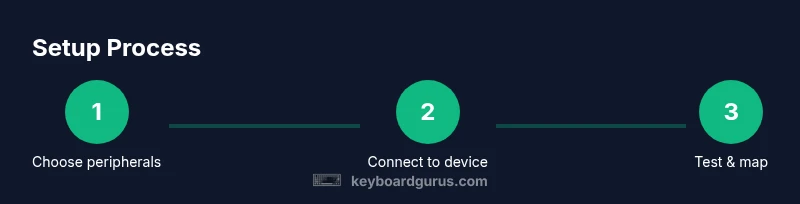
- Identify compatible peripherals (USB wired or Bluetooth HID). 2) Connect devices to the Xbox console or Windows PC. 3) If using Bluetooth, pair through system settings and verify HID profile support. 4) Open Xbox Cloud Gaming, load a test title, and check basic actions (move, jump, shoot). 5) Access the in-game or system-level mappings screen and assign keys to common actions. 6) Save a profile named for the game and test with multiple genres. 7) If latency or dropouts occur, switch to wired, reduce background traffic, or update firmware. 8) Re-test and refine mappings as needed. 9) Document your setup for future sessions.
Troubleshooting common issues
If inputs aren’t registering, try rebooting the console or PC, re-pairing the devices, and verifying that the USB ports or Bluetooth radios aren’t congested by other devices. Check for driver or firmware updates from the keyboard and mouse manufacturers, and confirm that Xbox Cloud Gaming has permission to access input devices in your OS settings. Some games may require bespoke keybinds; consult the game’s own control options. When in doubt, test devices with a non-cloud Windows game to isolate whether the problem is hardware or cloud latency.
Maintenance and care for long-term performance
Regularly update device firmware and drivers to keep latency low and compatibility high. Clean keyboards and mice to remove dust from keycaps and switches, ensuring smooth actuation. Use a dedicated USB port for each device if possible to limit bus contention. Store wireless peripherals with fresh batteries and keep cables neatly organized to prevent wear. Finally, review your cloud gaming network setup—router quality, bandwidth, and QoS settings can dramatically affect input responsiveness even with top-tier peripherals.
Tools & Materials
- Keyboard (USB wired or Bluetooth)(Choose HID-compliant models with reliable firmware.)
- Mouse (USB wired or Bluetooth)(Opt for a gaming-grade sensor and stable switches.)
- USB-C to USB-A adapter(Use if your host device has USB-C only ports.)
- Bluetooth dongle (USB)(Use if your device lacks native Bluetooth or needs a dedicated dongle.)
- Console with USB ports(Ensure your Xbox model supports HID peripherals.)
- Windows 10/11 PC with USB/Bluetooth(Needed for cross-platform testing and mapping.)
- Game profiles / mapping software(Optional for advanced customization.)
Steps
Estimated time: 60-90 minutes
- 1
Identify compatible peripherals
Check HID compatibility for the keyboard and mouse you plan to use with Xbox Cloud Gaming. Confirm that the devices are recognized by Windows or the console and that firmware is up to date.
Tip: Prefer wired USB devices for reliability in cloud gaming. - 2
Connect the devices
Plug the keyboard and mouse into the Xbox controller dock or USB ports on the console, or pair via Bluetooth on Windows if needed.
Tip: Avoid using hubs that share power with other peripherals. - 3
Pair Bluetooth devices
If using Bluetooth, go to Windows Bluetooth settings or console pairing menu and complete the HID pairing process.
Tip: Keep devices within a 1–2 meter range to minimize interference. - 4
Test basic inputs
Launch Xbox Cloud Gaming and verify basic actions like movement and primary actions in a test title.
Tip: If actions don’t register, try a wired connection first. - 5
Map essential controls
Open in-game control settings and map keys to common actions (move, jump, shoot, interact). Create a single baseline profile.
Tip: Use consistent layouts across titles to reduce learning time. - 6
Save and label profile
Save your key bindings in a named profile to switch quickly between games or playstyles.
Tip: Back up profiles if your device supports cloud syncing. - 7
Test across genres
Try shooter, strategy, and platformer titles to confirm bindings feel natural and responsive.
Tip: Adjust mappings if a game requires unique actions. - 8
Troubleshoot common issues
If latency spikes occur, test wired connections, close background apps, and ensure firmware is current.
Tip: Reboot devices and retry pairing when problems persist.
Got Questions?
Can I use any keyboard and mouse with Xbox Cloud Gaming?
Most modern USB keyboards and mice work with Xbox Cloud Gaming, though some Bluetooth devices may require extra steps or specific pairing methods. Always check the latest official guidance for your console and OS version.
Most keyboards and mice work, but some Bluetooth devices might need extra pairing steps. Check official Xbox support for your setup.
Do I need a Bluetooth dongle for wireless devices?
If your device has native Bluetooth support and drivers are up to date, you may not need an external dongle. A reputable dongle can help if your built-in Bluetooth is limited.
If your device already has Bluetooth and drivers are updated, you likely don’t need a dongle.
Will keyboard and mouse work for all Xbox Cloud titles?
Most titles support keyboard and mouse, but some games map inputs differently or expect controller schemes. You may need per-game mappings for optimal play.
Most titles support keyboard and mouse, but some require per-game bindings.
How do I map keys for shooter games?
Map movement to WASD, actions to mouse buttons or frequently used keys, and keep a consistent layout across games to reduce reaction time.
Use WASD for movement and map primary actions to common keys for quick access.
What are common troubleshooting steps?
Restart devices, re-pair peripherals, check USB ports, update firmware, and verify cloud gaming permissions in OS settings.
Try rebooting, re-pairing, and updating devices; check permissions if inputs aren’t detected.
Watch Video
What to Remember
- Choose wired for reliability and lowest latency.
- Bluetooth can work, but verify device compatibility.
- Map keys consistently across titles for faster adaptation.
- Test with multiple game types before long sessions.
- Keep firmware and drivers up to date for best results.