How to Type É on Your Keyboard
Discover practical methods to type é on any keyboard. From US layouts to international keys, alt codes, and Unicode input—plus troubleshooting for common issues.


You can type é on virtually any keyboard using several reliable methods. Whether you’re on Windows, macOS, Linux, or mobile, you’ll find options like dead keys, Alt codes, Unicode input, or simple shortcut keys. This quick guide highlights practical methods and helps you pick the best approach for your setup.
Understanding the need to type é on any keyboard
Accented characters like é appear frequently in many languages, technical writing, and software interfaces. Typing é reliably improves communication and reduces errors when collaborating across regions. According to Keyboard Gurus, many readers ask, how do i type é on my keyboard, especially when they’re using a non‑accented US layout or a compact laptop without a dedicated numeric keypad. The good news is that you don’t need to install new software or switch layouts permanently. Most devices support multiple input methods that you can switch between quickly. In this section we’ll map out the main approaches, explain where they work best, and give you practical tips for choosing the method that suits your daily tasks, whether you’re drafting code, writing emails, or taking notes in a multilingual class.
Quick overview of methods
Different workflows benefit from different methods. The core options are: (a) dead keys and combining characters that let you construct é after pressing a base key; (b) Alt codes and Unicode entry, which can work across many OSes; (c) layout-based shortcuts and international keyboards, which let you type é with a single keystroke; and (d) on mobile devices, where long-press or compact keyboards provide fast access. Each method has advantages and trade-offs depending on hardware, language needs, and how often you type accented letters. In the rest of this article we’ll drill into each approach with step-by-step instructions and real-world examples.
Method 1: Dead keys and combining characters
Dead keys are keystrokes that don’t produce a character by themselves but modify the next key you press. If you have a keyboard layout with a dead acute key, you press the dead key, then e to produce é. Similar sequences exist for other accents. Pros: fast for frequent use, consistent; Cons: requires the right layout and some practice. How it works across major platforms: Windows with US-International, macOS with certain layouts, Linux with Compose keys or extra layouts. Try this example on your device: press the apostrophe key (') then e to get é.
Method 2: Alt codes and Unicode input
Alt codes and Unicode input provide a universal fallback when you can’t rely on a specific keyboard layout. On Windows, the classic method is Alt plus a numeric code (e.g., Alt+0233 for é) using the numeric keypad. If your laptop lacks a keypad, you can use an on-screen keypad or a Unicode entry method in some apps (for example, type 00e9 and press Alt+X in Microsoft Word to convert to é). On macOS, a practical approach is Option+e followed by e to produce é. Linux users often turn to Ctrl+Shift+U, then type 00e9 and press Enter. These techniques work across many programs, including editors, browsers, and messaging apps.
Method 3: Keyboard layouts and shortcuts
Switching to layouts that natively support accented characters simplifies typing. The US International layout is a popular choice because it lets you type é with a simple two-key sequence in many apps. Other layouts, like French AZERTY or Spanish, place the acute accent closer to the e key. Shortcuts vary by OS: on Windows, you may use AltGr + e on some layouts; on macOS, the built-in Option-based shortcuts cover most cases. After enabling a preferred layout, practice with common words to train muscle memory.
Method 4: macOS and iOS specifics
macOS users can type é quickly with Option+e then e, or by switching to a suitable international layout. On iPhone or iPad, simply long-press the e key to reveal accent options, then slide to select é. This method is particularly convenient for quick notes or messages on mobile. If you frequently type in multiple languages, consider enabling multiple input sources and using the global keyboard switcher for smooth transitions.
Mobile devices and on-screen keyboards
On Android and iOS, on-screen keyboards expose accented characters via long-press menus. You can add a dedicated accent keyboard or use a swipe-style keyboard that supports multilingual input. Practice short phrases like café or résumé to build familiarity. For users who type a lot on mobile, enabling a compact but feature-rich keyboard can speed up the process and reduce errors.
Troubleshooting common issues
If é isn’t appearing as expected, verify you’re using the correct input method for your current app and OS. Some apps restrict input methods (e.g., some web forms may not honor Alt codes). Ensure the chosen layout is active and not overridden by a regional setting. When all else fails, test in a plain text editor first to isolate whether the issue is the app or the input method.
Choosing the best method for you
Your ideal method depends on your device mix, language needs, and typing style. If you type in many languages, a versatile international layout often wins. If you primarily work in one language, dead keys or macOS shortcuts may be faster. For occasional use, Alt codes or Unicode input provide a universal fallback. Try combining approaches and pick the one that feels most natural over a week of daily tasks.
Accessibility and internationalization considerations
Support for accented characters matters for accessibility and inclusivity. Screen readers and assistive tech rely on correct character input to convey meaning. When choosing a method, consider how it affects readability for others and how easy it is to switch between languages for users with varying keyboard hardware. Regular practice helps reduce friction across platforms.
Tools & Materials
- Keyboard with desired layout(e.g., US QWERTY or international layout such as US International or AZERTY)
- Numpad or on-screen keypad(Helpful for Alt codes on desktops without a physical numpad)
- Access to OS language/keyboard settings(Needed to enable dead keys or alternate layouts)
- Mobile device with on-screen keyboard(For practice on iOS/Android)
Steps
Estimated time: 25-40 minutes
- 1
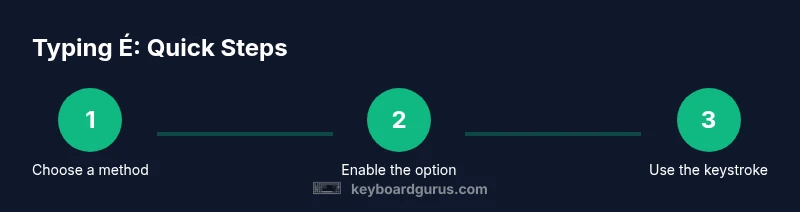
Identify your preferred method
Choose the input method that best fits your device, language needs, and typing style. If you type in several languages, international layouts or macOS shortcuts tend to be most efficient. If you mainly compose in one language, dead keys or simple shortcuts may be faster.
Tip: Start with one method you can rely on for 90 days before layering on alternatives. - 2
Enable the chosen option in your device
Go to your system settings and add the keyboard or enable dead keys/compose features. This setup is what allows you to use the method consistently across apps.
Tip: Take 5 minutes to verify the new layout is active by typing a familiar word with an accented character. - 3
Learn the exact keystroke sequence
Memorize the precise keys for your method (e.g., Alt+0233, Option+e then e, or the dead-key sequence). Practice until you can reproduce é without looking.
Tip: Create a tiny cheat sheet for quick reference near your keyboard. - 4
Test with common words
Try words that regularly require accents (café, résumé, façade) to confirm the method works smoothly across contexts.
Tip: If a word doesn’t render correctly, switch to the other method and note which one feels reliable. - 5
Practice on multiple devices
If you switch between laptop, desktop, and mobile, ensure each device has a working path to É typing. Consistency reduces errors.
Tip: Revisit the shortcut on each device after major OS updates. - 6
On mobile: enable long-press shortcuts
Activate long-press on the e key or install a keyboard that supports multilingual input for quick access to é on touch screens.
Tip: Keep a few frequent words ready in your favorite emoji/shortcut strip for quick typing. - 7
Troubleshoot issues
If a method stops working, recheck the active input source, remove conflicting layouts, and test in a plain editor to isolate the problem.
Tip: Document any recurring issues so you can alert support or adjust your setup.
Got Questions?
Can I type é without changing my keyboard layout?
Yes. You can use dead keys, Alt codes, Unicode input, or macOS/iOS shortcuts without permanently changing your keyboard layout. Each method has its own setup and typical use case.
Yes, you can type é without changing your layout by using methods like dead keys, Alt codes, or Unicode input.
What is the easiest method for beginners?
For beginners, the long-press on mobile devices and macOS Option shortcuts are often the fastest to start with. If you’re on a computer, trying a US International layout can provide a smooth, one-or-two-key solution.
For beginners, start with long-press on mobile or macOS shortcuts; a US International layout is great on desktops.
How do I type é on macOS?
On macOS, a common method is Option+e to create a dead-acute accent, then press e to produce é. You can also switch to an international keyboard layout for more options.
On Mac, use Option+e then e, or switch to an international layout for more shortcuts.
Can I type é on mobile without switching keyboards?
Yes. On iOS and Android, simply long-press the e key to reveal é as one of the options. This works across most apps and keyboards.
Yes, on mobile you can just long-press the e key to select é.
Are there accessibility considerations when typing é?
Accurate character input matters for accessibility tools like screen readers. Using reliable, consistent methods helps ensure proper pronunciation and meaning.
Accessibility matters; choose methods that consistently produce é to aid clarity for assistive tech.
Watch Video
What to Remember
- Choose a method that matches your OS and layout
- Memorize a few reliable keystrokes you’ll use daily
- Test across apps to ensure consistent results
- Enable accessibility-friendly options for multilingual work
- Practice regularly to build speed and accuracy