How to Check Keyboard Battery Health
Discover how to check keyboard battery health for wireless and wired keyboards. Learn indicators, OS status, and charge cycles to keep your setup reliable.


Quick checks are usually enough to decide if you should replace or recharge. For most wireless keyboards, indicators and OS telemetry reveal charge levels, while a full charge cycle confirms the battery's health. This article guides you through simple tests, whether your keyboard uses built-in rechargeable cells or replaceable batteries.
Why checking keyboard battery matters
Battery health directly impacts reliability, especially for wireless keyboards used during long sessions of study, gaming, or work. The Keyboard Gurus team notes that most users only notice a problem after the keyboard stalls or drops connection, which is inconvenient at critical moments. By proactively monitoring indicators, OS telemetry, and charge cycles, you can avoid outages and extend your keyboard's usable life. In this section, we outline the why and the basic concepts, so you know what to look for when you start testing. According to Keyboard Gurus, keeping an eye on battery health prevents outages and supports consistent performance across different tasks.
Understanding power options
Keyboards are powered in different ways: some rely on built-in rechargeable cells, others use replaceable batteries, and a few receive power directly from USB (cable-only operation for some models, including gaming keyboards). Each model has different battery characteristics, such as capacity, discharge rate, and cycle life. Understanding your keyboard's power architecture helps you choose the right checks. If your unit uses a rechargeable battery, monitoring charge level via indicators and software becomes more informative than if it uses disposable cells, where you must track replacement intervals. Keyboard Gurus analysis shows that battery health considerations vary by design, so tailor checks to your model.
Indicators and telemetry you can trust
Modern keyboards provide multiple signals about battery status. On-device LEDs can indicate charging and remaining life, while manufacturer apps may show cycle counts and estimated runtime. Operating system telemetry—like Windows' battery gauge or macOS energy reports—offers another data point. Don’t rely on a single signal; corroborate with app data and the physical indicator. If indicators disagree, run a controlled test (see Step 4) to confirm the true state of health. Keyboard Gurus emphasizes validating indicators against real usage to avoid misreading a degraded battery as healthy.
Checking wireless keyboards: indicators, OS status, and pairing state
Wireless keyboards connect via Bluetooth or USB dongles. Start by checking the keyboard's indicator LED(s) for charging or full charge when plugged in. Then verify the device in your OS battery settings (e.g., Windows Settings > Devices > Bluetooth & other devices > Battery, or macOS System Information). Ensure the keyboard remains paired and responsive during testing; a broken pairing can falsely suggest battery issues. If the pairing drops during testing, troubleshoot the wireless connection first, as a flaky link can mimic power problems.
Checking keyboards with built-in rechargeable batteries
For keyboards with built-in cells, you’ll typically rely on LEDs and the companion app to gauge charge percent and health. Disconnect the keyboard after charging to observe how quickly the charge drops under normal use. If you notice rapid drop-offs or noticeably longer resume times after a charge, the battery health may be degraded. In some models, a firmware update can improve battery reporting accuracy; check the manufacturer’s support page for updates and notes.
Performing a safe charge-discharge test
Plan a controlled test: fully charge the keyboard, then use it normally until you observe the low-battery indicator. Note the remaining duration from full charge to threshold. Repeat once more after a full recharge to confirm consistency. A substantial difference between trials or a very short run-time indicates aging or a faulty cell. Keep the test within safe boundaries and avoid running the keyboard into complete depletion in extreme conditions. This process helps quantify actual runtime, beyond estimates from indicators.
Interpreting results and deciding next steps
If test results show consistent and reasonable runtime, your battery health is likely good, and regular charging is sufficient. If runtime is consistently short or indicators drop rapidly, consider a replacement (for replaceable batteries) or service (for sealed rechargeable packs). In some cases, calibration can improve accuracy of indicator readings, but it won’t restore capacity. Always back up any custom keyboards settings before replacing components and follow the manufacturer’s guidelines to avoid warranty issues.
Maintenance tips to extend battery life
To maximize battery life, avoid extreme temperatures, use manufacturer-recommended charging adapters, and keep firmware updated. Regularly clean charging contacts and store keyboards in a dry environment when not in use. For replaceable batteries, replace only with recommended types and avoid mixing old and new cells. Consistent charging habits and gentle usage patterns can noticeably extend overall life and performance.
Troubleshooting charging issues and replacement considerations
If charging isn’t starting or indicators stay stuck, verify the cable and power source, then try a different port or charger. Inspect for visible damage on the charging port and cables, and reset the keyboard if supported. When battery performance deteriorates beyond practical use, plan for replacement or professional servicing. Remember to recycle old cells according to local guidelines to minimize environmental impact.
Tools & Materials
- Official charging cable(Compatible with your keyboard's charging port (USB-C or micro-USB))
- Power source(Laptop, USB wall charger, or power bank)
- Spare batteries (if replaceable)(Use exact type recommended by manufacturer)
- Battery tester/multimeter (optional)(For precise voltage checks on replaceable cells)
- Manufacturer manual or app(Guides for model-specific indicators and firmware updates)
Steps
Estimated time: 30-60 minutes
- 1
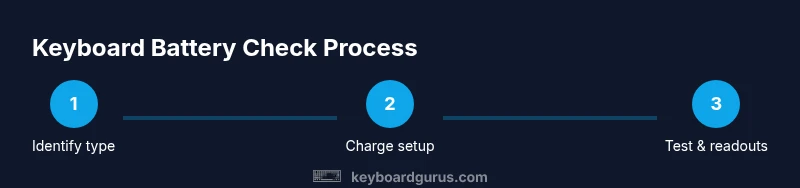
Identify battery type and location
Locate the battery compartment or charging port on your keyboard. Determine whether the device uses a built-in rechargeable cell or replaceable batteries. This step sets the stage for accurate testing and avoids unnecessary disassembly.
Tip: Refer to the manual or manufacturer site to confirm the exact battery type for your model. - 2
Prepare charging setup
Plug the keyboard into a known-good power source using the recommended cable. Ensure the charging environment is stable, away from heat and moisture, to avoid skewed test results.
Tip: Use a wall charger rather than a computer USB port for consistent current. - 3
Check initial indicators and OS readout
Record the initial battery level from LED indicators, the manufacturer app if available, and the OS battery readout. This baseline helps compare post-test results and identify reporting discrepancies.
Tip: Take a photo of the indicator if the readout is ambiguous. - 4
Perform a full charge
Charge the keyboard to full capacity without interruption. Note the time needed to reach full charge and confirm there are no warning indicators during the process.
Tip: If a firmware update is available, apply it before the test to ensure accurate reporting. - 5
Run usage until low battery
Use the keyboard normally until the device signals low battery. Record the runtime from full charge to the threshold. This step simulates real-world usage and yields practical endurance data.
Tip: Avoid light usage bias; include typing, gaming, and long keypress scenarios if relevant. - 6
Optional calibration and re-test
If the battery reporting seems inconsistent, perform a second full charge-discharge cycle to verify repeatability. Inconsistencies may indicate calibration drift or aging cells.
Tip: Calibration is useful but won’t restore capacity; treat it as a diagnostic step. - 7
Evaluate results and decide the next step
Compare post-test indicators and runtime with your baseline. If capacity has degraded or readouts are erratic, plan a replacement or service per the manufacturer’s guidance.
Tip: Document results for warranty or future maintenance. - 8
Document and maintain
Record the model, battery type, test results, and any firmware updates. Regular maintenance (clean contacts, updated firmware) helps sustain battery health over time.
Tip: Keep a small log so you can track trends across months.
Got Questions?
What is the first sign my keyboard battery is failing?
Common early signs include faster-than-expected charging, shorter usage time between charges, or inconsistent battery indicators. Always verify with a controlled test before replacing components.
Look for faster charging or shorter runtime, then confirm with a controlled test.
Can all keyboards show battery health the same way?
No. Indicators vary by model and brand. Some use LEDs, others rely on apps or OS telemetry. Use multiple signals to form a complete picture.
Not all keyboards report health the same way; use indicators plus OS or app data.
How long should a keyboard battery last before needing replacement?
Battery lifespan depends on design, usage, and environment. If runtime drops below practical levels or reports become unreliable, plan a replacement or service.
If runtime is poor or reports are unreliable, consider replacement.
Is calibration useful for all keyboards?
Calibration can help some models adjust reporting accuracy but won’t restore capacity. Use it as a diagnostic step if readouts drift.
Calibration helps if readouts drift but won’t restore capacity.
What safety steps should I take when charging?
Charge on a non-flammable, flat surface away from heat sources. Use the manufacturer‑recommended charger and avoid damaged cables or ports.
Charge on a safe surface with a recommended charger and avoid damaged parts.
Should I replace batteries myself or go to service?
For replaceable cells, follow the manufacturer’s instructions. For sealed packs or warranty concerns, seek professional service to avoid voiding warranties.
Follow the manual for replaceable cells, or seek service for sealed packs.
Watch Video
What to Remember
- Check battery health using multiple signals (indicator, app, OS).
- Perform a controlled charge-discharge test for real-endurance data.
- Calibration helps but doesn’t restore lost capacity; replacement may be necessary.
- Regular maintenance extends battery life and reliability.
- Document results to guide future maintenance and potential warranty claims.