How to Tell If Your Bluetooth Keyboard Is Fully Charged
Learn how to reliably check and confirm when a Bluetooth keyboard is fully charged. Quick methods, indicator meanings, OS readouts, and best practices from Keyboard Gurus.


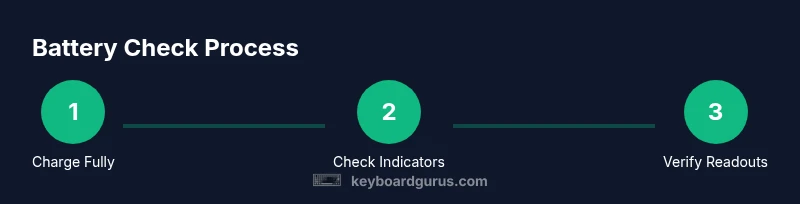
To know if your Bluetooth keyboard is fully charged, follow a full charging cycle, check the LED indicators, and verify charge status in the companion app or computer settings. Use multiple signals to confirm a complete charge before heavy use. This reduces surprises during work or gaming.
Understanding Bluetooth Keyboard Battery Basics
Bluetooth keyboards rely on built-in rechargeable lithium-ion cells. The exact capacity varies by model, but most compromise between compact size and a usable battery life. Common USB-C charging is standard on newer models, while a few older keyboards still use micro-USB. Knowledge of the battery type matters because it informs charging behavior, cycle latency, and how long you can expect between charges. The keyword here is battery health: as the cell ages, maximum capacity drops, so the time to reach a full charge lengthens.
For the reader asking how to know if bluetooth keyboard is fully charged, the first step is to confirm the charging method and indicator system described in the manual. The Keyboard Gurus team emphasizes starting with the basics: identify the model's charging port, supported fast-charging standards, and whether the keyboard reports battery status through LEDs, software, or an operating system integration. With that knowledge, you can build a repeatable routine rather than guessing.
Next, consider usage patterns. Backlighting, long key press macros, and wireless range all influence perceived battery life. If your keyboard has RGB lighting, it will drain power faster than a non-lit model, especially during intensive lighting effects. Conversely, compact keyboards with minimal backlight can run far longer on a single charge. Finally, remember that even after a full charge, operation in sleep mode or idle states can impact how you interpret the indicator signals. A consistent approach keeps you in control of power across workdays and gaming sessions.
How to Check If Your Keyboard Is Fully Charged: At a Glance
Most Bluetooth keyboards provide a mix of signals to show charge status. A common cue is a dedicated LED that changes color or pattern while charging and settles to a steady state when full. Some keyboards use a battery icon in a companion app, while others reflect charge in the system Bluetooth menu or a macOS/Windows battery panel. The Keyboard Gurus team notes that relying on a single signal can be misleading, especially if the backlight is active or the keyboard is in a high-power mode. Instead, use two or more indicators in tandem for a reliable readout. If your model supports rapid charging, you may see a faster transition to full—but the same signal should still be interpreted as full only after it stabilizes. Finally, remember that indicators reflect the battery state relative to a cutoff threshold and do not represent an exact percentage in every model. Treat them as a practical guide rather than a precise meter.
Methods to Verify Charge: LEDs, Apps, and System Battery Readouts
In practice, you should combine LED signals, app readouts, and the computer's battery status for a robust check. LEDs are quick and visual; a solid color often signals full charge, while a blinking pattern may indicate charging or a fault depending on the model. Many keyboards pair with vendor apps or third-party utilities that display remaining percentage or estimated time to full charge. On Windows, you can expand the Quick Settings panel and look for Bluetooth device battery levels; on macOS, you may need to inspect the Bluetooth menu or a vendor app. Cross-check with the OS readout to confirm the battery percentage shown by the app. If you do not see a percentage, know that many keyboards report status as a color or icon instead. The dual-signal approach minimizes misinterpretation and helps you plan charging during breaks or downtime.
Step-by-Step Charging Routine for Common Scenarios
- Prepare charging setup. Gather the keyboard, USB-C cable, and a reliable power source, ensuring you know the correct port. 2) Connect and begin charging. Plug into a power source and confirm the charging signal appears (LED, app icon, or OS indicator). 3) Observe charging indicators. Monitor color changes or status icons; backlight activity can affect perceived charge, so rely on the official signal. 4) Wait until full. Leave the device connected until the indicator confirms full capacity; this may take 1–3 hours depending on battery size. 5) Disconnect and test. Unplug and use the keyboard to verify performance; if it drains unusually fast, repeat after a complete cycle. 6) Document results. Record the start time, end time, and signals observed to track health over time.
Troubleshooting Inconsistent Readouts or Fast Drain
When readouts disagree or the battery appears unreliable, rule out simple causes first: check the cable connection, verify the charger, and ensure the keyboard is not stuck in a deep sleep or wake loop. A firmware update can fix battery reporting quirks, so check the vendor site for the latest release. If your keyboard supports a calibration cycle, perform it as described in the manual. RGB backlighting and macro-heavy use can accelerate drain; disable nonessential features and test again. If after a full cycle the indicator still misleads, contact support or replace the battery if the device is user-serviceable. Finally, maintain a charging log to identify aging trends and plan maintenance before failure.
Best Practices to Extend Battery Life and Ensure Accurate Readouts
Adopt a conservative approach that prioritizes longevity and reliability. Keep firmware up to date, use a dedicated charging port, and avoid heat exposure during charging. When not in use, enable sleep or auto-off features to minimize idle drain. If your keyboard reports a percentage, reset the reading occasionally by performing a full charge cycle and verifying again. Consider storing the device with around 40-60% charge if you won't use it for an extended period; long-term storage below this range can reduce battery capacity. Finally, document patterns in charging duration and indicator behavior so you can predict readouts during intense work or gaming sessions.
Practical Takeaways for Regular Use
This section distills the core practices you should adopt to know when your Bluetooth keyboard is fully charged and to keep power consistent across sessions, whether you are gaming, coding, or attending meetings. First, remember to verify charge using at least two signals—LED indicators and an app or OS readout—to avoid misinterpretation caused by lighting or background processes. Keyboard Gurus emphasizes cross-verification as a simple habit that reduces unexpected shutdowns during important tasks. Second, always use the manufacturer's charger and a reliable power source. Cheap cables or poor power quality can lead to slower charging times and unreliable readings, making it harder to trust the indicator. Third, schedule periodic full-charge cycles to recondition the battery's internal gauge; this helps the system calibrate its battery metrics and improves accuracy of percentage estimates. Fourth, disable nonessential features when you need maximum battery life, such as RGB lighting or macros, and enable auto-sleep when the keyboard is idle. Fifth, maintain a charging log and note any changes in readouts after firmware or OS updates to spot aging effects early. The Keyboard Gurus team recommends treating battery maintenance as part of your gear hygiene, alongside routine firmware updates and cleaning.
Tools & Materials
- USB-C charging cable(Use the original or a high-quality cable that supports current.)
- Bluetooth keyboard(The device to charge.)
- Power source(A computer, wall adapter, or powered USB hub.)
- User manual or model info(Helpful for model-specific indicators.)
Steps
Estimated time: 60-180 minutes
- 1
Prepare charging setup
Gather the keyboard, charging cable, and power source. Ensure you know the correct port and that the power source is reliable.
Tip: Having the model number handy helps verify indicator signals. - 2
Connect and begin charging
Plug the cable into the keyboard and a power source. Confirm active charging by a visible indicator (LED or on-screen icon).
Tip: Avoid using a damaged cable; a good connection ensures steady current. - 3
Observe charging indicators
Watch the indicator color or pattern while charging. Note that some keyboards use LED colors, others show a battery icon in an app or OS.
Tip: If backlighting is on, it may exaggerate perceived charge; focus on the dedicated charging signal. - 4
Wait until full
Leave connected until indicators confirm full charge. This can take 1–3 hours depending on battery size and charger. Do not interrupt the cycle early.
Tip: If you see a partial charge, try a full cycle of at least 30–60 minutes more. - 5
Disconnect and test
Unplug and test the keyboard by using it normally. Check if the battery drains slowly during use, indicating a healthy cell.
Tip: Test with backlight off for baseline battery consumption. - 6
Document results
Record start and end times and observed indicators to build a simple charging log for future reference.
Tip: A log helps track aging and plan replacements.
Got Questions?
Why doesn't my keyboard show full charge after charging?
Indicator signals can differ by model. Check the companion app and firmware, then re-check after a fresh cycle.
Indicator signals vary by model; check the app and firmware, then try another charge.
Do all keyboards report charge?
Not every model shows a dedicated battery indicator. Some rely on OS readouts or app signals.
Not all keyboards have indicators; check the manual or app.
Can I wireless-charge a keyboard?
Most keyboards charge via USB-C or micro-USB. Wireless charging is uncommon and model-specific.
Wireless charging is unusual; check your model specs.
How long does charging typically take?
Charging duration varies by battery size and charger; expect roughly 1–3 hours per full cycle.
Usually one to three hours depending on battery size and charger.
What if readouts are inconsistent?
Cross-check LED indicators, app signals, and OS battery status. If inconsistent, reset the keyboard and update firmware.
If readings disagree, reset and update firmware.
Is it safe to leave it plugged in?
Leaving it plugged in briefly after full charge is generally safe, but avoid heat exposure and prolonged charging.
It's usually fine to unplug after full charge to reduce heat.
Watch Video
What to Remember
- Verify charge using multiple signals (LEDs, app, OS).
- Charge fully before critical tasks to prevent outages.
- Use the original charger and avoid heat during charging.
- Keep a simple log of charging events for battery health.