How to Know If RK Keyboard Is Charging
Learn how to verify your RK keyboard's charging status with clear indicators, software cues, and safe testing steps. A comprehensive guide from Keyboard Gurus.


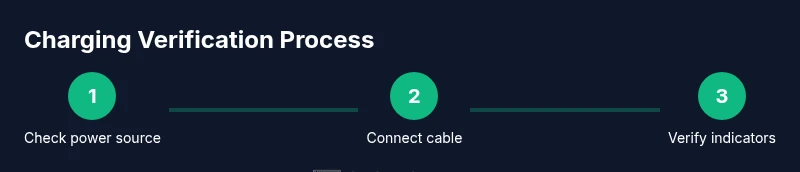
To know if your RK keyboard is charging, start by connecting a compatible USB-C cable to a power source and the keyboard. Look for the built-in charging indicator LED to glow, check the RK companion app or your computer’s Bluetooth status, and observe the battery icon on the keyboard or in system UI. If unsure, test with a different cable or power source.
Understanding RK keyboards and charging basics
According to Keyboard Gurus, RK keyboards typically draw power through a USB-C or micro-USB port and include an on-device charging indicator to signal status. Whether wireless or wired, the battery system is designed to work with standard USB power sources, but charging behavior can vary by model. A clear grasp of the basics helps you diagnose charging problems quickly and safely. In this block we define the charging path, what indicators to expect, and how to interpret different LED patterns and UI cues. We'll also note common model differences, such as whether the battery is user-replaceable or sealed, and how that affects maintenance. Expect information on how to verify charging in both hardware and software layers, plus practical tips for confirming the keyboard is receiving power during use. This sets the stage for precise troubleshooting later. If you're unsure about a specific model, consult the official RK documentation or Keyboard Gurus notes for model-specific indicators. Remember, consistent charging is crucial for performance in gaming, typing, and productivity tasks, so a reliable check routine saves time and prevents data loss during long sessions.
How to identify charging indicators on RK keyboards
Charging indicators vary by model, but most RK keyboards expose a visible signal when power is flowing. The most common hardware cue is an LED on the keyboard chassis that glows steadily while charging and blinks or changes color when full or paused. Some models show a battery icon in the small LCD or LED ring; others rely on software indicators in a companion app or the operating system. If your keyboard pairs via Bluetooth, you may also see a battery percentage next to the device in your computer’s Bluetooth menu. To interpret patterns, keep a simple reference: steady glow typically means charging, while off may indicate no power or a non-charging state. Inconsistent lighting can indicate a loose connection, a faulty cable, or a degraded battery. Always verify with a second cable or charger to rule out a flaky power source. Document any model-specific quirks, because a few RK keyboards use different indicators or color codes. Regular checks help you detect issues early and extend the keyboard’s usable life.
Charging status in software: apps, OS indicators
Software indicators can confirm charging when hardware signals are ambiguous. Some RK keyboards include a companion app that shows battery percentage, charging state, and estimated time to full. If you pair the keyboard with your computer via Bluetooth, your OS may display a battery icon or a dedicated RK device entry with a charge level. On Windows, macOS, or Linux, check the Bluetooth or connected devices panel for the RK keyboard entry; on mobile, look at the battery widget or the app's dashboard. When software indicators report charging, they provide a convenient secondary cue to hardware LEDs. If software and hardware disagree, perform a quick power cycle and re-check. Remember that software indicators can lag behind actual hardware charging, especially after long idle periods. Cross-check both signals to form a confident verdict.
Practical testing scenarios
-
Prepare testing equipment: use a known-good USB-C cable and a reliable power source to avoid misleading results.
-
Connect the charging cable to the keyboard and power source, ensuring a firm, snug fit.
-
Watch the LED indicator and battery icon for signs of charging. If patterns vary, re-seat the cable or try a different port.
-
Test with a different cable or charger to rule out a faulty power accessory.
-
If possible, use the keyboard while charging to confirm it remains powered and responsive.
-
Document outcomes with timestamps and a photo of LED patterns if needed.
-
If charging still fails, repeat with a fresh battery if supported or contact support for deeper assessment.
The goal is to confirm a consistent charging signal across multiple power sources, cables, and ports. Visual indicators in the LED, battery icon, and app data together form a reliable verdict.
Troubleshooting common charging issues
Charging problems usually fall into a small set of root causes: a faulty cable or port, an incompatible charger, or a degraded battery. Start by cleaning the charging port to remove dust or lint that can block connections. Try a different USB-C cable and a different power source; if you have a USB-C hub, test directly from a wall charger to rule out hub power limitations. Inspect the cable connection at both ends for looseness, and ensure the keyboard is oriented correctly so the port aligns with the plug. If the LED never lights, there may be a hardware fault; in that case, consider professional servicing or battery replacement if supported. If the battery indicator fluctuates but never reaches full, it may indicate aging cells. In such cases, plan for replacement or firmware updates as recommended by the manufacturer. Finally, perform a reset or firmware update if available, since software glitches can mask a charging issue.
Battery longevity and charging habits
Like all rechargeable devices, RK keyboards age over time. Battery health affects charging speed and the ability to hold a charge. To maximize lifespan, keep the keyboard away from extreme heat and moisture; avoid leaving it plugged in for excessively long periods after reaching full charge when possible. Regularly updating firmware or software improves charging accuracy and lifespan. If you notice a noticeably slower charge, consider battery replacement if supported, or consult support. Keyboard Gurus suggests establishing a consistent charging routine and keeping a spare cable on hand to prevent work disruption.
Safety considerations and maintenance
Always unplug the keyboard before cleaning the charging port to prevent short circuits. Use a soft brush or compressed air to remove dust; never use metal objects to poke the port. Inspect cables for fraying or exposed wires before use, and discard damaged accessories. Do not expose the keyboard to liquids near the charging port, and avoid charging on soft surfaces that can trap heat. If you detect heat buildup during charging, stop charging and allow the device to cool. Finally, store the keyboard in a dry, ventilated area when not in use.
Keyboard Gurus' practical verification checklist
Use this quick checklist to verify charging across models and usage patterns:
- Confirm a physical connection to a known-good power source.
- Verify the LED behavior matches your model's documented patterns.
- Check software indicators if available and cross-validate with hardware LEDs.
- Test with multiple cables and chargers to rule out accessory faults.
- After charging, observe keyboard performance to ensure reliable power during use.
- Document any deviations and seek model-specific guidance if needed.
- Re-run checks after firmware updates or battery replacements for accuracy.
Tools & Materials
- RK keyboard (model under test)(Ensure it boots and is in a normal operating state before testing charging)
- USB-C charging cable(Use a known-good cable; avoid damaged or frayed cords)
- Power source (wall charger or computer port)(Prefer a source with stable output; avoid low-power hubs)
- Alternative cable/charger(Optional for cross-checks if the first cable fails)
- RK companion app or OS battery indicator access(Use if available to corroborate hardware signals)
- Dust-free microfiber cloth or compressed air(Keep charging port clean for accurate readings)
Steps
Estimated time: 30-45 minutes
- 1
Prepare testing equipment
Gather a known-good USB-C cable, a reliable power source, and the RK keyboard. Ensure the keyboard is in a normal operating state and that you have a clean working surface. This reduces the chance of misleading results caused by faulty accessories.
Tip: Label cables to track which one you've tested with to avoid confusion. - 2
Connect charging cable to power source
Plug the cable into the keyboard port and then into the power source. Make sure connections are snug and the cable isn’t loose. A loose connection often mimics a non-charging state even when power is available.
Tip: If the LED doesn’t respond, re-seat the plug and try a different USB port. - 3
Observe hardware indicators
Look for the charging LED to glow steadily or change pattern according to the model. If the LED blinks or stays off, note the behavior and compare with model documentation. Hardware cues are the quickest first check.
Tip: Take a quick photo of the LED pattern for reference. - 4
Test with alternative power source
Swap in a different charger or port to determine if the issue is with the original power source. If charging behavior changes, the problem likely lies with the accessory rather than the keyboard.
Tip: Use a wall charger rather than a hub when possible for consistent power delivery. - 5
Cross-check with software indicators
If available, open the RK app or OS battery indicator to see a charging status and percentage. Cross-check against the LED signal to confirm consistency. Software lag is common, so allow a brief delay to update.
Tip: Note any discrepancy between hardware and software signals. - 6
Test while in use (if safe)
Operate the keyboard normally while charging to ensure it remains powered and responsive. Observe any unusual heat or performance drops that could indicate charging or battery issues.
Tip: If heat becomes uncomfortable, discontinue testing and let the device cool. - 7
Document results
Record the observed LED patterns, battery indicator values, and any timings. Include the model, cable, charger, and source details. Documentation helps reproduce or escalate the issue later.
Tip: Keep a small log for current and future reference. - 8
Conclude the verdict
Based on hardware and software signals across multiple tests, decide whether the keyboard is charging normally. If problems persist, proceed to firmware updates or contact support for a deeper assessment.
Tip: If in doubt, reach out to support and share your test notes.
Got Questions?
Why isn't my RK keyboard showing a charging indicator?
Indicator failure is usually due to a cable, port, or battery issue. Start by cleaning the port, test with a new cable, and try a different power source. If the problem persists, the keyboard may require servicing or a battery replacement if supported.
If the charging light doesn’t come on, first check the cable and port for debris, try another cable and charger, then consider service or replacement if needed.
Can RK keyboards charge while connected to USB power banks or PD sources?
Most RK keyboards can charge from standard USB power sources, including PD power banks, as long as the source provides adequate power. If charging seems slow or inconsistent, switch to a wall charger with stable output and re-test.
Yes, many RK keyboards charge from USB power banks, but for best results use a reliable wall charger and re-test if charging is slow.
What should I do if the battery indicator shows charging but the keyboard dies after unplugging?
This can indicate degraded battery health or aging cells. Try a firmware update if available, or consider battery replacement if supported. If the issue recurs, contact support for a deeper diagnostic.
If it dies quickly after unplugging, the battery may be aging. Update firmware or contact support for a battery check.
Is the charging LED color-coded?
Many RK models use color or pattern changes to signal charging status, but colors vary by model. Always refer to your model’s manual for exact meanings and use cross-checks with software indicators when available.
Color codes differ by model, so check the manual and verify with the app if you have one.
How long does charging typically take on RK keyboards?
Charging duration depends on battery size and power source. There is no universal time; use the indicator signals and app data to estimate progress, and allow extra time after firmware updates or battery replacements.
Charge time varies; use indicators and app data to estimate progress and expect longer times after updates or battery changes.
Watch Video
What to Remember
- Check hardware indicators first to confirm charging.
- Cross-check with software indicators when available.
- Rule out accessory faults with multiple cables and power sources.
- Document findings and escalate if issues persist.