How to Tell If Your Magic Keyboard Is Fully Charged
Learn how to tell when your Magic Keyboard is fully charged. Distinguish between rechargeable and AA-battery models, and use macOS or iPadOS battery indicators to verify status without guesswork.


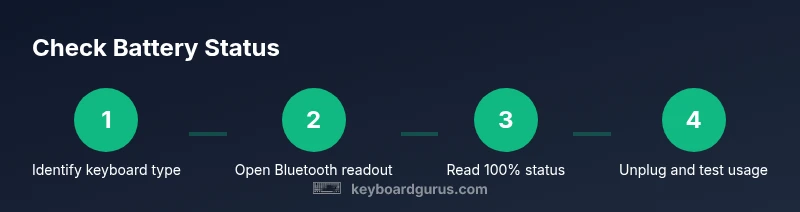
Step 1: Identify your keyboard's battery type. Step 2: On macOS, open the Bluetooth menu and view the battery percentage for Magic Keyboard. Step 3: On an iPad, go to Settings > Bluetooth and view the keyboard's battery level. When it shows 100%, the keyboard is fully charged. If you use AA batteries, charging is not applicable.
What counts as fully charged?
In plain terms, fully charged means the battery has enough energy stored to operate the keyboard reliably until the next necessary recharge. For Magic Keyboard there are two broad variants: one that uses replaceable AA batteries and another with a built-in rechargeable battery. The methods for confirming charge depend on which variant you own. According to Keyboard Gurus, knowing your battery architecture helps avoid guesswork and sudden disconnects during long sessions. If you use the rechargeable keyboard, the status you need is the battery readout on the connected device; if you use AA batteries, there is no ‘fully charged’ state to monitor—only the remaining life of the current cells. In everyday practice, you’ll look for a reading that indicates the battery is at or near full on the device you’re using. When the operating system shows 100%, you can rely on that as your best indicator of readiness. If you see anything lower, you should plan a recharge (for built-in batteries) or a battery replacement (for AA models).
Does your Magic Keyboard have a rechargeable battery?
Most people today are using keyboards with a built-in rechargeable battery. The easiest way to tell is to inspect the underside of the keyboard or the charging port area: a visible charging port (Lightning or USB-C) typically indicates a rechargeable unit. If your keyboard uses standard AA cells, there is typically no charging port and you’ll replace the batteries when they run low. The exact indicators vary by model, so consult the box or model label. Keyboard Gurus emphasizes that correct identification is essential because it dictates your next steps for checking charge. If you’re unsure, you can also search for the model number online to confirm whether it’s rechargeable or battery-powered.
How to check battery level on macOS
To verify charge status on a Mac, start by ensuring Bluetooth is enabled and that your Magic Keyboard is connected. The built-in battery readout is available from the device's battery information in the Bluetooth settings. On macOS, you can open the Bluetooth menu from the menu bar and, by holding the Option key, reveal the battery percentage for connected devices including the Magic Keyboard. If you prefer a graphical view, open System Settings > Bluetooth (or System Preferences > Bluetooth on older macOS) and click the keyboard in the list to see its current battery level. Keyboard Gurus notes that on supported macOS versions, this percentage is the most accurate single source of truth for the keyboard’s current state, provided the device remains paired and awake. If you do not see a percentage, try re-pairing or updating macOS to ensure the readout is supported.
How to check battery level on iPadOS
On an iPad, check battery status by going to Settings > Bluetooth, then locating the Magic Keyboard in My Devices. Tap it to view the battery status label, which shows a percentage or a simple indicator near the top of the detail view. When the display reads 100%, the keyboard is fully charged (assuming the model is rechargeable). If you don’t see a percentage, make sure your iPad is running a recent version of iPadOS and that the keyboard is properly connected. The approach is the same across iPadOS devices, though the UI may differ slightly between versions.
Interpreting readouts and practical implications
Battery indicators come with caveats. A 100% readout on your Mac or iPad is generally a reliable sign the keyboard is ready to use, but it's wise to ensure that the device is not in a low-power sleep state when you check. Some keyboards report a momentary refresh of the level after you unplug or re-pair. If your keyboard reports something like 90% but you’ve noticed lag or shortened performance, perform a quick recharge (if rechargeable) or replace AA cells. Keyboard Gurus analysis indicates that battery readouts may refresh at different intervals depending on OS scheduling and device activity, so if you suspect inconsistency, re-check after a short idle period. Finally, keep a habit of checking the level before long sessions to avoid surprises during important tasks.
Charging best practices and caveats
For rechargeable keyboards, use the original charging cable and a safe power source, avoiding charging in direct sunlight or extremely hot or cold environments. Keep the keyboard connected until the readout reaches 100%, then unplug. If the keyboard uses AA batteries, choose high-quality alkalines or lithium AA cells and rotate as needed; avoid draining to zero and replace before performance degradation. Keyboard Gurus recommends maintaining consistency in charging routines to preserve battery health, and to avoid leaving devices plugged in for extended periods while not in use if your power supply is scarce. Also, if you notice the keyboard heats up during charging, stop charging and check for damage or attachment issues.
Troubleshooting quick checks
If you don’t see a battery readout, start with these steps: make sure Bluetooth is functioning, the keyboard is properly paired, and you are viewing the battery status in the correct pane. Restart the host device and re-pair if necessary. If the status still won’t appear, update to the latest OS version and consult Apple’s official support if the problem persists. For AA-keyboard models, if you suspect the cells are nearing end-of-life, swap to fresh AA batteries to regain reliable performance. The aim is to ensure you aren’t misreading a stale indicator.
Tools & Materials
- Bluetooth-enabled device (Mac or iPad)(To view the keyboard's battery level.)
- Magic Keyboard (rechargeable or AA battery version)(Identify which type you have to know if charging applies.)
- Charging cable compatible with your model(USB-C or Lightning depending on your keyboard version.)
- Access to system settings for battery status(macOS Settings or iPad Settings to view battery level.)
Steps
Estimated time: 0-2 minutes
- 1
Identify your keyboard type
Determine whether your Magic Keyboard uses a built-in rechargeable battery or standard AA batteries. Look for clues in the model label, packaging, or user guide to confirm the battery type. Knowing this up front saves you from chasing a status that doesn’t apply to your model.
Tip: Check the underside of the keyboard for a model number or a visible charging port to distinguish between variants. - 2
Enable Bluetooth on the host device
Make sure Bluetooth is turned on and that the keyboard is paired with your Mac or iPad. A failed pairing will prevent any battery readout from appearing, regardless of charge level.
Tip: If you don’t see the device in your Bluetooth list, try turning Bluetooth off and on again, then re-pair. - 3
Open the battery status readout on macOS
On macOS, access the Bluetooth panel and, if supported, reveal the keyboard’s battery percentage. If you hold the Option key while clicking the Bluetooth icon, you can often see the battery level for connected devices.
Tip: Review the percentage in a quiet moment before a lengthy session to avoid misreading during activity. - 4
Open the battery status readout on iPadOS
On iPadOS, go to Settings > Bluetooth, locate the Magic Keyboard, and view the battery level in its detail view. A 100% reading indicates full charge on rechargeable models.
Tip: If the percentage isn’t visible, ensure your iPad is updated and that the keyboard is connected. - 5
Interpret the reading
A 100% battery readout is the most reliable sign that a rechargeable keyboard is fully charged. If you see a lower value, plug in the charger (for rechargeable models) or replace AA cells (for non-rechargeable models).
Tip: Consider performing a quick check after a short idle period to confirm stability of the reported percentage. - 6
Plan ongoing maintenance
Establish a routine check before long work sessions to prevent unexpected power loss. For AA keyboards, carry spare batteries; for rechargeable keyboards, keep the charging cable handy.
Tip: Keep a small pack of spare AA cells or a charging cable in your workspace for quick responses.
Got Questions?
Does every Magic Keyboard show a battery percentage?
Most built-in rechargeable keyboards report battery level in the connected device’s Bluetooth settings. Older AA-battery keyboards do not report a charge percentage. If you don’t see a percentage, check your model’s characteristics and OS support.
Most rechargeable Magic Keyboards show battery level in Bluetooth settings; AA models don’t report a percentage.
How can I tell if my keyboard is charging?
If your keyboard is rechargeable and connected to power, you should see the battery level update, with 100% indicating full. If you don’t see changes, ensure the charger and port are functioning.
When plugged in, watch the battery readout for movement and a full 100% sign.
Why can’t I see battery status on macOS?
Make sure the keyboard is paired, Bluetooth is enabled, and you’re viewing the battery readout in a supported pane. If needed, update macOS and re-pair the device.
Ensure pairing and OS support; sometimes an update fixes missing readouts.
What if the readout shows low but the keyboard seems fine?
Recheck after a short idle period, re-pair the keyboard, and consider a fresh charge or battery replacement if needed. Readouts can refresh irregularly based on OS timing.
If the readout seems off, re-pair or update, then recheck after a moment.
Are there differences between iPad and Mac battery readouts?
The underlying data is the same, but the UI for viewing battery levels differs by OS. Look in Settings > Bluetooth on both devices to locate the keyboard’s percentage.
The battery percentage is shown differently on iPad and Mac, but it reflects the same battery level.
Can I use third-party apps to monitor battery?
Built-in OS indicators are generally more reliable for battery status. Avoid third-party tools that may read inaccurately.
Stick with the system readouts for the most accurate status.
Watch Video
What to Remember
- Identify your keyboard type first.
- Use the device’s Bluetooth battery readout to confirm full charge.
- 100% usually means fully charged for rechargeable keyboards.
- AA keyboards require battery replacements, not charging.
- Keep a quick-check routine to avoid power surprises.