How to Connect a Wireless Keyboard to iPad
Learn how to connect a wireless keyboard to your iPad, troubleshoot pairing issues, and optimize typing with shortcuts. This comprehensive guide covers Bluetooth pairing, compatibility, and practical tips for Apple and third-party keyboards on iPadOS 2026.


You can connect a wireless keyboard to iPad by Bluetooth in a few simple steps. Start with a charged keyboard, enable Bluetooth on your iPad, and place the keyboard in pairing mode. In Settings > Bluetooth on the iPad, select the keyboard to pair. The process covers Apple and most third‑party keyboards on supported iPadOS versions.
What is a wireless keyboard and how pairing works on iPad
A wireless keyboard uses Bluetooth or a USB dongle to communicate with devices like iPad. Most modern iPads support Bluetooth keyboards, enabling a seamless typing experience without cables. According to Keyboard Gurus, Bluetooth pairing is the universal method for iPad accessories, offering quick setup and broad compatibility. When you press the pairing button on the keyboard, it becomes discoverable for a short window; this is your cue to start the pairing process on the iPad.
Key concepts to understand include: the difference between Bluetooth modes (classic vs low energy), the importance of battery life for reliable connection, and how keyboard layout and language settings can affect your workflow. In most cases, once paired, the keyboard remembers the connection for subsequent uses, so you rarely need to repeat the pairing step. If you own an older non-Bluetooth keyboard, you may need a USB-C or USB-A adapter, but this is less common on iPad today.
Compatibility and prerequisites
Before you attempt a connection, verify compatibility and prepare your devices. All current iPad models running the latest iPadOS support Bluetooth keyboards, but some features may vary by OS version. Ensure your iPad is updated to the latest software, and confirm Bluetooth is enabled in Settings. A charged keyboard is essential: if the battery is low, the connection can drop unexpectedly. If you plan to use a third‑party keyboard, check for supported keyboard layouts and language options to avoid layout mismatches during typing.
Keyboard Gurus notes that most modern keyboards work on iPad with minimal effort, but some older models may require specific pairing sequences or software updates. If you own a dongle-based keyboard, you’ll typically need a Bluetooth‑less connection, which is not standard on iPad; prefer Bluetooth keyboards for the widest compatibility.
Choosing the right keyboard: Bluetooth vs USB dongle
The vast majority of iPad users opt for a Bluetooth keyboard because it eliminates wires and offers quick, universal pairing. Bluetooth keyboards connect directly via Settings > Bluetooth, and they support a wide range of layouts, languages, and shortcuts. Some keyboards still ship with a USB dongle; on iPad, dongles are less reliable and often require an adapter. If your keyboard can switch between modes, select Bluetooth for most setups. Always verify that your chosen keyboard pairs with iPadOS features like Smart Invert, Dark Mode, and text autocorrect options for a smooth typing experience.
If your workflow involves multiple devices, look for a keyboard with multi‑device pairing capability. Keyboard Gurus recommends keeping a small list of devices to switch quickly between when needed.
Step-by-step practical guide to pairing on iPad
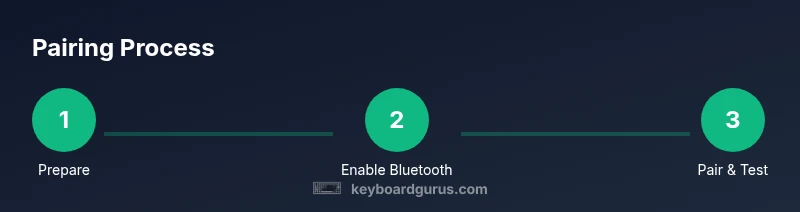
- Prepare the devices: Charge the keyboard fully and ensure the iPad is updated. Keep both within a comfortable range (about a few meters) to maintain a stable connection.
- Enable Bluetooth on the iPad: Open Settings, tap Bluetooth, and turn it on. You should see a live list of nearby devices.
- Put the keyboard in pairing mode: Most keyboards have a dedicated pairing button or a function key combo. Hold it until the LED blinks in a recognizable pattern.
- Pair the keyboard: In Settings > Bluetooth, locate the keyboard name in the list and tap it. If prompted, enter a pairing code using the keyboard and press Enter.
- Test the connection: Open Notes or a document and type to verify responsiveness. If there’s lag, move closer or remove interference from other wireless devices.
- Customize keys and shortcuts: Explore iPadOS keyboard settings to map shortcuts and decide on the preferred language and layout. Some keyboards also offer dedicated keys for home, search, or volume.
- Troubleshoot if needed: If pairing fails, forget the device in the Bluetooth menu and retry. Reboot both devices if the issue persists.
- Keep connected and maintained: Close the Settings app and resume work. The keyboard should reconnect automatically on subsequent uses.
Optimizing typing experience on iPad
After pairing, you can tailor the experience for speed and accuracy. Enable and customize text replacement shortcuts to save keystrokes; assign common phrases to simple key combos. Use the QuickType bar and custom dictionary features to speed up corrections. If you use external apps, ensure they recognize the keyboard shortcuts for navigation and editing. For longer writing sessions, consider enabling a split‑keyboard or a larger on‑screen keyboard for hybrid tasks while your Bluetooth keyboard is active. Keyboard Gurus suggests experimenting with different layouts and keycaps if you enjoy personalization.
Troubleshooting common pairing problems
If the keyboard doesn’t appear in the Bluetooth list, confirm the keyboard is in pairing mode and not connected to another device nearby. Turn Bluetooth off and on again on the iPad, or forget older pairings and retry. Ensure batteries or charge are sufficient and remove any metal interference from nearby devices like microwaves or wireless routers. If you still cannot pair, test with another iPad to determine whether the issue is device‑specific. In some cases, resetting network settings can help, but this should be a last resort and done with caution.
Maintenance and power management for longevity
Regularly check battery health and replace or recharge as needed to prevent unexpected dropouts. Wipe the keyboard surface with a soft, dry cloth and avoid liquids that could seep into keys. Store the keyboard away from extreme temperatures and magnetic interference, which can degrade Bluetooth performance over time. When not in use, you can turn off the keyboard or let it sleep to conserve energy. This simple care helps ensure reliable connections over months and years.
Safety and accessibility considerations
If you rely on keyboard shortcuts for accessibility, configure the iPad's accessibility settings alongside the keyboard to maximize reach and ease of use. Keep your devices in a clean, static-free environment to reduce the risk of hardware failure. For learners or new users, practice pairing in a calm setting to build muscle memory. Keyboard Gurus emphasizes clear instructions and patient practice as keys to mastering wireless keyboard pairing with iPad.
Tools & Materials
- Bluetooth-enabled wireless keyboard(Ensure it supports HID and is in pairing mode when starting)
- iPad with latest iPadOS(Keep Bluetooth on; be ready to navigate to Settings)
- Charging cable or batteries for keyboard(Have power ready to avoid mid-pairing drops)
- Optional USB-C/Lightning adapter (for rare dongle keyboards)(Used only if keyboard relies on a dongle; not common for iPad pairing)
Steps
Estimated time: 15-25 minutes
- 1
Prepare devices
Charge the keyboard and ensure the iPad is updated. Position devices within a comfortable range to maintain a stable connection.
Tip: Charge fully before starting to avoid interruptions. - 2
Enable Bluetooth on iPad
Open Settings, tap Bluetooth, and turn it on. You should see a list of nearby devices.
Tip: Keep the iPad within arm's reach and avoid other transmitting devices nearby. - 3
Put keyboard in pairing mode
Use the dedicated pairing button or a function key combo until the indicator blinks.
Tip: Consult your keyboard manual for the exact pairing sequence. - 4
Pair with iPad
In Settings > Bluetooth, tap the keyboard name to pair. If prompted, enter a code using the keyboard.
Tip: If no code is requested, simply press Enter to complete pairing. - 5
Test typing
Open a document or note and type to verify responsiveness and accuracy.
Tip: If you notice lag, minimize interference and move closer to the iPad. - 6
Customize shortcuts
Adjust language, layout, and shortcuts in iPadOS settings and via the keyboard firmware if available.
Tip: Create shortcuts for frequent phrases to speed up writing. - 7
Troubleshoot if needed
If pairing fails, forget the device and retry; reboot both devices if the issue persists.
Tip: Check for firmware updates on the keyboard if available. - 8
Maintain connection
Close Settings and return to work; the keyboard should reconnect automatically on next use.
Tip: Turn off nearby Bluetooth devices that might cause interference if persistent issues occur.
Got Questions?
Can I connect any wireless keyboard to iPad?
Most Bluetooth keyboards that support HID work with iPad. Check compatibility with iPadOS and language settings before purchasing.
Most Bluetooth keyboards will work, but verify HID support and language options.
Do iPad models require iPadOS updates to pair?
Pairing generally works on current iPadOS versions; updating can improve compatibility and add shortcuts
Updates help with compatibility, but many keyboards pairing succeeds on recent iPadOS.
Can I use a USB dongle keyboard with iPad?
Most iPads rely on Bluetooth; USB dongle keyboards require adapters and may not be reliably supported. Bluetooth is recommended.
Dongle keyboards usually don’t work on iPad without special adapters.
How do I disconnect and reconnect a keyboard?
Turn Bluetooth off/on on the iPad or forget the device and re-pair. Reconnect by selecting the keyboard in Settings > Bluetooth.
Toggle Bluetooth or re-pair to reconnect quickly.
Are there iPad keyboard shortcuts I should know?
Yes—iPadOS supports many shortcuts; consult Settings and the keyboard’s manual for mapping and accessibility options.
There are many shortcuts; check Settings and your keyboard guide.
What if pairing fails due to interference?
Move devices away from routers or microwaves, reduce nearby wireless traffic, and retry pairing. Reboot devices if needed.
Move away from interference sources and retry pairing.
Watch Video
What to Remember
- Pair via Bluetooth remains the standard method
- Keep devices within close range and charged
- Test typing and customize shortcuts for speed
- Troubleshoot with retries and device resets if needed
- Regular maintenance extends keyboard life